Maximizing Cloud Efficiency and Cost Savings with Azure FinOps

Its Christmas time, and that means its time for another month of the always fantastic Festive Tech Calendar. This was one of the first events that I participated in when I was trying to break into blogging and public speaking and I’m delighted to be involved again this year.

This year, the team are raising funds for Beatson Cancer Charity, and you can make donations via the Just Giving page.

In this post, we’ll dive into Azure FinOps, explore tools and practices available to help you manage costs, look at real-world savings examples, and discuss how to integrate alerts into Service Management solutions for proactive monitoring.

But before we dive in, lets set the scene with a real world example!

The problem with wanting more …..

We live in a world and a time in society where we all want more. We want it bigger and better. Bigger houses, bigger SUV’s, the highest performing laptop, the newest model phone.

And of course because its Christmas, the biggest turkey you can find ….

This is “Irish Mammy” syndrome, where we over cater to make sure there is enough for everyone at Christmas (and for my American readers, the same rules apply at Thanksgiving).

And its not just Turkey – making sure there are lots of different vegetables as a supplement including multiple types of potatoes (roast, mashed, boiled with both skin on and off, chipped, gratin, croquette….). And don’t forget the Nut Roasts! You then get into Selection Boxes, Mince Pies, Puddings….. The list goes on.


So aside from making you hungry, what has this got to do with Azure?

Yes yes, I know I’ve been rambling on but I was getting to to the point.

All of that food costs money and inevitably there is going to be some (or a lot of) wastage there. We can use the term “over-provisioning” to describe it.

The same principle applies to Azure or any cloud provider when migrating new workloads into the cloud. No matter how much you try to “right-size”, there is a temptation to over-provision to make sure you have enough wiggle room due to increased demand.

In my session for last years Festive Tech Calendar, I spoke about Azure Load Testing and how that can be used to not only “right-size” your environments, but also to test based on different patterns and unpredicatable spikes in demand that may happen.

May happen …. or may not happen. You can only go so far in the science of predicting what might happen because there is always going to be a use case or usage pattern that you either didn’t consider.

Regardless of all that you need to deploy your resources, but now comes the challenge – how do you monitor costs to ensure that there isn’t overspend? This is not just about Cost Management or Scaling, this is where the power of the entire suite of Azure FinOps can help.


What is Azure FinOps?

FinOps combines financial management practices with operations to ensure that cloud spending is transparent, accountable, and optimized. In the Azure ecosystem, FinOps helps businesses manage their cloud resources by giving visibility into spending patterns, offering optimization recommendations, and enabling financial governance.

The FinOps lifecycle consists of three main phases:

  1. Inform: Understand and track cloud costs to ensure transparency.
  2. Optimize: Use insights to reduce unnecessary costs and improve efficiency.
  3. Operate: Continuously manage cloud costs to ensure ongoing financial efficiency.

Azure provides a set of native tools designed to support FinOps practices and help organizations maximize cloud efficiency. Let’s look at each of these tools in detail:

1. Azure Cost Management

Azure Cost Management is the cornerstone of FinOps on Azure. It provides deep insights into cloud costs, allowing you to track, allocate, and analyze spend across your Azure resources.

  • Cost Analysis: Allows you to visualize and analyze costs over time by service, resource group, subscription, or department. This helps identify cost trends and usage patterns.
  • Budgets and Alerts: Set budgets for specific subscriptions or resources, and receive alerts if you’re approaching or exceeding budget limits.

To give you a real world scenario, you can use Azure Cost Management to identify unnecessary resources running during off-peak hours, resulting in a significant cost reduction. By analyzing spending patterns, you can schedule workloads to scale down or shut down entirely during low-use periods.

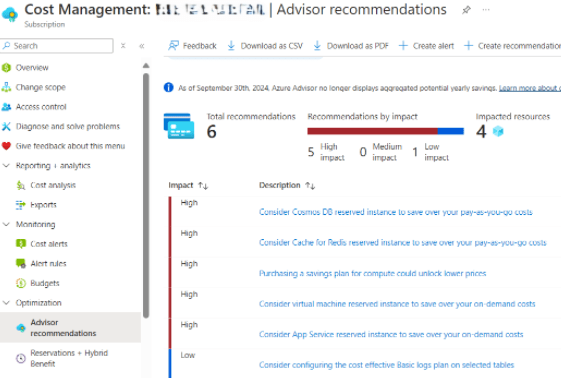
2. Azure Advisor

Azure Advisor provides personalized recommendations to help optimize your Azure resources based on best practices. The Cost category of Azure Advisor focuses specifically on identifying opportunities to reduce spend by suggesting actions like right-sizing VMs, using Reserved Instances, and removing idle resources.

In a real world scenario, you can use Advisor’s recommendations to optimize virtual machines , such as resizing underutilized VMs or applying Reserved Instances to resources that are in constant use, which can save thousands in annual costs.

3. Azure Reservations

Speaking of Azure Reservations, committing to reservations can provide significant cost savings by committing to a one or three-year terms for certain Azure resources, such as VMs, SQL Databases, and Cosmos DB.

Reservations allow you to prepay for resources at a discounted rate, which is especially beneficial for predictable, long-term workloads. Depending on the Azure service, you can save up to 72% on reserved VMs and other services.

4. Azure Spot Instances

Azure Spot Instances allow you to purchase unused Azure compute capacity at a discount of up to 90%. These instances are ideal for workloads that are not time-sensitive and can tolerate interruptions, such as batch processing, development, and testing.

An example would be running non-critical data processing workloads on Spot Instances during low-traffic hours, which drastically reduces operational expenses without impacting service.

5. Azure Policy for Cost Management

Azure Policy enforces rules and standards to keep resources compliant, including cost-related policies. You can set policies to control which resources can be deployed, prevent the use of expensive SKUs, and enforce resource tagging for accurate cost tracking.


Using Alerts for Proactive Monitoring

Setting up cost-related alerts is essential for proactive cost management. These alerts can notify relevant teams when spending thresholds are reached, helping prevent unexpected overspend. Here’s some examples and use cases for how you can configure alerts in Azure and integrate them into your Service Management solutions.

1. Setting Budgets and Alerts

With Azure Budgets, you can easily define the budgets in line with your predicted cloud spend based on amount, time period, and reset schedule to keep everything aligned.

Once your budget is in place. Azure Budgets sends alerts the moment you hit a predefined threshold. Alerts can be customized to be sent via email or push notifications, ensuring you’re always in control of your cloud costs and never caught off guard.

To create a budget:

  • In Azure Cost Management + Billing, navigate to Budgets, select your subscription, and create a new budget.
  • Set Thresholds: Define a monthly or quarterly budget and set alert thresholds (e.g., 50%, 75%, and 100% of the budget).
  • Configure Notifications: Specify recipients (e.g., Finance and Operations teams) for notifications via email or SMS.

2. Integrating Alerts into Service Management Solutions

For comprehensive monitoring, you can integrate Azure alerts with Service Management platforms like ServiceNow or Microsoft Teams.

Azure Monitor allows you to create alerts based on various metrics, including cost. When this is integrated with Logic Apps, you can automate workflows to forward these alerts to a Service Management solution.

An example would be generating an alert when spending hits 75% of the monthly budget. A Logic App workflow is triggered, creating a ServiceNow ticket for review and notifying the relevant team in Microsoft Teams.

3. Real-Time Cost Alerts with Azure Monitor

Azure Monitor’s integration with Azure Cost Management lets you create real-time alerts when costs increase unexpectedly. You can set up alerts based on specific metrics or thresholds for VM utilization, storage usage, and other cost-driving metrics.

An example would be to use Azure Monitor to track VM utilization and generates alerts when the utilization exceeds a set threshold. The alert triggers a workflow to reduce resource allocation, leading to cost savings during non-peak hours.


Real-World Savings with Azure FinOps

Lets do a quick recap of some real-world examples where you can leverage Azure FinOps best practices to drive cost savings:

  1. Optimizing VM Costs
    • Challenge: High costs due to underutilized VMs during non-business hours.
    • Solution: Use Azure Advisor to right-size VMs and Azure Automation to shut down non-critical VMs during off-peak hours.
    • Result: In majority of cases, achieve between 20-30% reduction in monthly VM costs.
  2. Using Reserved Instances for Savings
    • Challenge: High costs from on-demand compute resources.
    • Solution: Purchase Azure Reserved Instances to lock in lower rates for long-term workloads.
    • Result: Depending on company size and size of cloud footprint, potential to save tens of thousands on your annual Azure bill by taking advantage of commitment-based discounts.
  3. Enhanced Governance with Azure Policy
    • Challenge: High operational costs and lack of visibility into resource usage.
    • Solution: Implement Azure Policy to enforce tagging and restrict expensive resources.
    • Result: Improved accountability and achieve savings on cloud spend by ensuring only necessary and approved resources were deployed.

Best Practices

Lets recap on the best practices for implementing Azure FinOps in your organization:

  1. Enforce Tagging: Use tags to categorize resources by cost center, department, or project, making it easier to track and allocate costs.
  2. Review Usage Regularly: Analyze reports from Azure Cost Management regularly to identify trends and patterns.
  3. Use Automation: Implement automation to shut down or scale down resources during low-usage periods.
  4. Educate Teams: Ensure that Finance, Operations, and Engineering teams understand FinOps principles and tools for more collaborative cost management.

Conclusion

Azure FinOps provides powerful tools and practices to optimize cloud spending, maximize efficiency, and achieve financial accountability across departments. Companies can not only achieve significant cost savings but also ensure their cloud environments are scalable, sustainable, and financially efficient.

By combining Azure Cost Management, Azure Advisor, Reserved Instances, Spot Instances, and Azure Policy, you can effectively control and reduce your company’s Azure expenses. Integrating cost alerts into Service Management solutions allows for proactive cost management, ensuring that cloud spending remains transparent and aligned with organizational budgets.

Can we prevent Cloud Repatriation in Azure?

I’ve seen a lot of articles in the last few months talking about Cloud Repatriation, so I’ve decided to look into this more and find out more about:

  • What is Cloud Repatriation?
  • Why is it suddenly a topic?
  • Why its not as easy as it sounds?
  • How did this happen in the first place?
  • Why it should never become an issue?

What is Cloud Repatriation?

Lets start with the easy question and look for the definition of what it is. Repatriation is a term that has been around for a while and is defined in its simplest form as:

“the process of returning a thing or a person to its place of origin”

So if we take that definition and apply it to technology, Cloud Repatriation is the process of companies moving their services out of Microsoft Azure (or other Public Cloud providers such as AWS or GCP) and relocating those services back to the On-Premises or Private Cloud environments that they originated from.

Why is it suddenly a topic?

One word – cost. The cost of running a Cloud Computing environment isn’t the same as running an On-Premises environment.

In an On-Premises environment, we work with predictable cost models when it comes to Equipment, Licensing and Staffing costs. The only variable is Power which is in a constant state of flux and change. This leads us down the CapEx route which forces companies into predicting the costs involved over a 3-5 year period. Finance people love this as it means they can safely predict future costs and budgets, and not have to worry about unexpected charges affecting their balance sheets.

The first part of that previous paragraph is ambiguous. Unless your company is static with zero growth projections (and lets be honest, no company is), its going to be difficult to predict costs or a period of years:

  • How many servers will you need to run your estate? If you order too little, you’ll need to buy more and your CFO won’t like that after you told them that these were the only costs needed for the next 3 years.
  • If you order too much, its overspend and equipment/license wastage and you may not be approved for additional equipment in your next Budget cycle (which leads you to use unsupported and out of warranty equipment that may lead to more costs to keep that operational).
  • You may have also hired either too few staff (leading to overwork and burnout) or too many staff (which leads to idleness and ultimately reducing the workforce).

Cloud Computing environments use the OpEx which works differently in that it uses a Pay-As-You-Use model. You use a Cloud Service and are billed monthly for the cost of using it. You have options to scale the service up or down as required, and you can also purchase Reserved Instances or Savings Plans over a 3/5 year period in order to reduce the costs and have that “CapEx-feel” to Cloud Computing.

The problem is that there is no clearly defined way of keeping those costs consistent, and Microsoft’s recent announcement on price increases for European Customers (and depending on your currency, this was as much as 15%) has meant that CFOs and CTOs are scrambling to look at alternative solutions to the Cloud.

And in some cases, the word “Repatriation” has been thrown about and the question being asked is “were we wrong to move to Azure/AWS/GCP, and should we look to move our servers and data back?”

Why its not as easy as it sounds?

So you want to move back? It sounds easy, and if your Cloud Migration involved only a “Lift And Shift” or Rehost (where you migrated your VMs as-is and made no modifications to them), then fire away! Buy your equipment, install your favourite hypervisor and off you go! There are 3rd party products (such as Carbon) on the market that will bring your VMs back to either VMware or Hyper-V.

You can also migrate Office365 mailboxes back to On-Premises Exchange Servers by setting up a migration batch in EAC, so that process is simple.

But what if you did more than just Rehost? Lets remind ourselves of the 5 R’s of Cloud Rationalization:

  • Rehost – also known and Lift and Shift.
  • Refactor – customizing your apps and infrastructure to align with the Cloud.
  • Rearchitect – divides your app into different parts or MicroServices.
  • Rebuild – completely rebuild and redevelop your app.
  • Replace – completely replace the app with a cloud-native SaaS application.

If you’ve done anything more than Rehost during your migration to Azure, then you have a bit of work on your hands getting it back. It’s not impossible by any means but as with all Cloud Services, it’s a lot easier to get them into the Cloud than it is to get them out. If you’ve redesigned your app to make it Cloud-Native using any of the other 4 “R’s”, then you need to realise that you need to recreate that environment on your On-Premises, and that may not be easy and cost a lot more than it is running the service in Azure in the first place!

How did this happen in the first place?

To work out why this should never have become an issue, we need to go back through the mists of time and work out why the migrations happened in the first place. It was most likely down to either:

  • Running old and unsupported hardware.
  • Complex systems that were difficult to manage and maintain.
  • Enhanced Security.
  • Easier Scalability of services.

And if you moved to Azure, its likely that you used either :

  • Azure Site Recovery (and were using Azure as a DR platform to initially test how your VMs would work).
  • Azure Migrate (where you ran a discovery assessment on the load of your VMs over a period of time up to 30 days, and used that assessment as a means of sizing your target Azure VMs).

The original version of Azure Migrate only supported migration of VMware VM workloads to Azure. The new version (released in November 2019) included Database and Web Server migration features, and Application Discovery.

In all likelihood, some companies went down the same route as the initial Office365 migrations (where they only migrated Email and never used any of the other underlying services included in their licenses), and in doing their Cloud Migrations to Azure decided to effectively “Rehost-only” and not use the additional benefits that were available. So instead of running Web Servers or Applications as part of an Azure App Service, they may have been left running on VMs with underlying Web or App Services.

Another good example here is the Finance or Warehouse Management Application that ran on a VM and also required a dedicated SQL backend (that also ran on a VM). Instead of refactoring that into an App Service or a Serverless SQL Database, it was left running on VMs in Azure. We all know that these VMs have spikes at certain times every month, so in that case the scalability that could have offered cost savings wasn’t implemented.

Why it should never have become an issue?

There are a number of contributing factors why Cloud Computing costs can spiral out of control. I’ve made the case for these below, and in some cases what can be done to address them:

  • Azure Reserved Instances – this is what Finance people love as they immediate savings and some semblance of how they can “CapEx their OpEx” costs over a longer period of time.
  • Azure Cost Management – Setting a budget or at least budget alerts on monthly spend can at least give you an indication of where you are each month. If you’re getting budget alerts emails on the 10th of each month, then you haven’t got either your budget or your Service SKU’s and Sizing right.
  • Azure Policy – have you set policies to say that you can only have certain VM SKUs, running on certain disk types, in certain regions?
  • RBAC Roles – this is the most important one and the biggest factor in “spend-creep”. Who can do what in your Azure Subscription? For example, have you granted developers Owner access in their own Resource Group so they can spin up what they want? Changing a SKU on a VM is single click operation, as is changing Disk type from HDD to SSD, redundancy from LRS to GRS etc. And do the policies you have set above apply across the subscription or have you exclusions set somewhere? Having control of your environemnt and assigning the correct roles.
  • Assessments – OK, this is a “after the horse has bolted” scenario, but its never too late to do it. Asking questions like why did you move in the first place, does it align with business goals, strategy and governance objectives.
  • Azure Advisor – its there, on every resource you are running in Azure and also as its own page in the portal, giving you recommendations based on over/under consumption and how you can address this.
  • Backup/DR- this has long been a bone of contention for some companies and I’ve experienced some who see Cloud-based backup solutions as either unnecessary or too expensive (because being in the cloud means we don’t need Backup or DR, right?).

Conclusion

I’ve based this article purely on costs and how you can utilize the various Tools, Policies and Governance tools available in Azure that can help make final decisions on whether Cloud Repatriation is the right choice for your business.

Hope you enjoyed this post, until next time!

100 Days of Cloud — Day 2: Azure Budgets and Cost Management

One of the most common concerns raised when any organization is planning a move to the Cloud is Cost. Unlike Microsoft 365 where you have set costs based on license consumption, there are a number of variables to be considered when moving to any Cloud Provider (be that Azure, AWS or others).

For example, let’s say we want to put a Virtual Machine in the Cloud. Its sounds easy — if this was on-premise, you would provision storage on your SAN, assign CPU and Memory, assign an IP Address, and if required purchase a license for the OS and other additional software that will be running on the Virtual Machine.

All of the above still holds true when creating a Virtual Machine in the Cloud, but there are also other considerations, such as:

  • What Storage Tier will the VM run on (Standard HDD, Standard SSD, Premium SSD)
  • How HA do we need the VM to be (Locally Redundant, Geographically Redundant)
  • Does the VM need to be scalable based on demand/local (Auto Scaling/Scale Sets)

In an on-premise environment, there needs to be an up-front investment (CAPEX) to make that feasible. When running with a Cloud Provider such as Azure, this uses an on-demand model (OPEX). This is where costs can mount.

There are a number of ways to tackle this. The Azure TCO (Total Cost of Ownership) Calculator gives an estimate of costs of moving infrastructure to the cloud. The important word there is “estimate”.

So you’ve created your VM with all of the settings you need, and the TCO has given you the estimate for what total “should” be on your monthly invoice. Azure Cost Management and Budgets can provide you with forecasting and alerts with real-time analysis of your projected monthly spend. That way, there are no nasty surprises when the invoice arrives!

Firstly, lets create our Azure Account. Browse the Azure Portal to sign up. You get:

  • 12 months of free services
  • $200 credit for 30 days
  • 25 always free services

Azure Portal Method

When your account is set up, go to https://portal.azure.com to sign in:

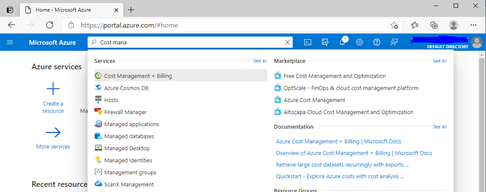
Once you’ve signed in, you can search for “Cost Management and Billing”

From the “Cost Management + Billing” page, select “Cost Management” from the menu:

This brings us into the Cost Management Page for our Azure Subscription:

One important thing to note here before we go any further. We can see at the top of the screen that the “Scope” for the Cost Management is the Azure Subscription. In Azure, Budgets can be applied to the following:

  • Management Group — these allow you to manage multiple subscriptions
  • Subscriptions — Default
  • Resource Groups — Logical groups of related resources that are deployed together. These can be assigned to Departments or Geographical Locations

Also, we can create monthly, quarterly or annual budgets. For the purposes of this demo (and the entire 100 Days), I’ll be using Subscriptions with a monthly budget.

Click on the “Budgets” menu option, and then click “Add”:

This brings us into the “Create Budget” menu. Fill in the required details and set a Budget Amount — I’m going to set €50 as my monthly budget:

Next, we need to set up Alert Conditions and email recipients. In Alert Conditions, we can see from the “Type” field that we can choose either Actual or Forecasted:

  • Actual Alerts are generated when the monthly spend reaches the alert condition.
  • Forecasted Alerts are generated in advance when Azure calculates that you are likely to exceed the alert condition based on the services you are using

Once you have your Alert Conditions configured, add one or more Alert Recipients who will receive alerts based on your conditions. Then click “Create”:

And now we see our budget was created successfully!

So, that’s the Azure Portal way to do it. There are 2 other ways, the first is using Azure PowerShell.

Azure PowerShell Method

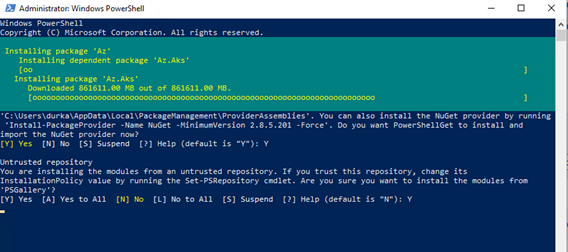
Firstly, we need open Windows PowerShell, and install the Azure Module. To do this, run:

install-module -name Az

This will install all packages and modules we require to manage Azure from PowerShell.

We can then run the following commands to create our Budget:

Connect-AzAccount

will prompt us to log on to our subscription:

Once we are logged in, this will return details of our Subscription:

Run

Get-AzContext

to check what level we are at in the subscription:

Now, we can run the following command to create a new budget:

New-AzConsumptionBudget -Amount 100 -Name TestPSBudget -Category Cost -StartDate 2021–09–17 -TimeGrain Monthly -EndDate 2023–09–17 -ContactEmail durkanm@gmail.com -NotificationKey Key1 -NotificationThreshold 0.8 -NotificationEnabled

But it throws an error! Why?

It turns out that after a bit of digging, you can only set a budget using PowerShell if your subscription is part of an Enterprise Agreement. So I’m afraid because I’m using a free account here, its not going to work ☹.

Full documentation can be found at this link:

https://docs.microsoft.com/en-us/azure/cost-management-billing/costs/tutorial-acm-create-budgets#create-and-edit-budgets-with-powershell.

OK so lets move on to option 3, which is using Azure Resource Manager (ARM) Templates.

Azure Resource Manager (ARM) Templates Method

To do this, go to the following site:

https://docs.microsoft.com/en-us/azure/cost-management-billing/costs/quick-create-budget-template?tabs=CLI

And click on the “Deploy to Azure” button:

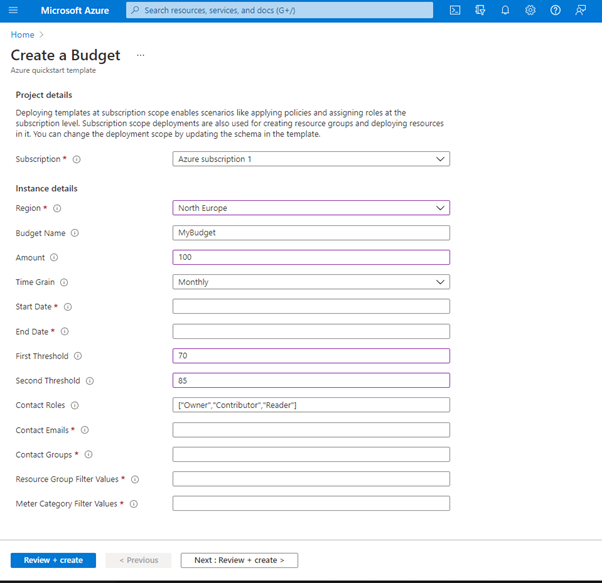
This will re-direct us into the Azure Portal and allow us to fill in the fields required to create our Budget:

And that is how we create a Budget (3 ways) in Azure. See you on Day 3!!

Hope you enjoyed this post, until next time!!