What Is Azure Kubernetes Service (AKS) and Why Should You Care?

In every cloud native architecture discussion you have had over the last few years or are going to have in the coming years, you can be guaranteed that someone has or will introduce Kubernetes as a hosting option on which your solution will run.

There’s also different options when Kubernetes enters the conversation – you can choose to run:

Kubernetes promises portability, scalability, and resilience. In reality, operating Kubernetes yourself is anything but simple.

Have you’ve ever wondered whether Kubernetes is worth the complexity—or how to move from experimentation to something you can confidently run in production?

Me too – so let’s try and answer that question. For anyone who knows me or has followed me for a few years knows, I like to get down to the basics and “start at the start”.
This is the first post is of a blog series where we’ll focus on Azure Kubernetes Service (AKS), while also referencing the core Kubernetes offerings as a reference. The goal of this series is:

By the end (whenever that is – there is no set time or number of posts), we will have designed and built a production‑ready AKS cluster, aligned with the Azure Well‑Architected Framework, and suitable for real‑world enterprise workloads.

With the goal clearly defined, let’s start at the beginning—not by deploying workloads or tuning YAML, but by understanding:

  • Why AKS exists
  • What problems it solves
  • When it’s the right abstraction.

What Is Azure Kubernetes Service (AKS)?

Azure Kubernetes Service (AKS) is a managed Kubernetes platform provided by Microsoft Azure. It delivers a fully supported Kubernetes control plane while abstracting away much of the operational complexity traditionally associated with running Kubernetes yourself.

At a high level:

  • Azure manages the Kubernetes control plane (API server, scheduler, etcd)
  • You manage the worker nodes (VM size, scaling rules, node pools)
  • Kubernetes manages your containers and workloads
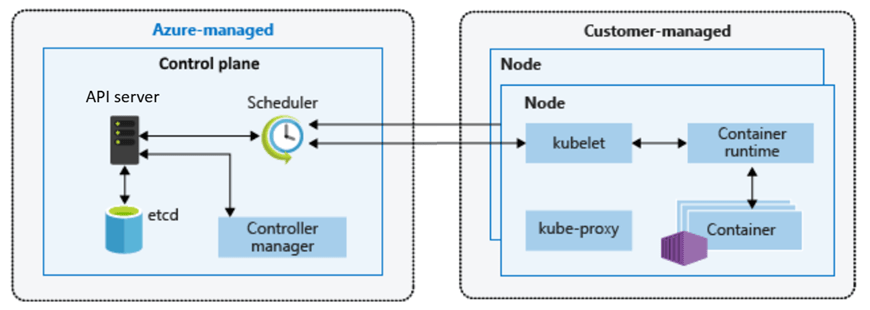
This division of responsibility is deliberate. It allows teams to focus on applications and platforms rather than infrastructure mechanics.

You still get:

  • Native Kubernetes APIs
  • Open‑source tooling (kubectl, Helm, GitOps)
  • Portability across environments

But without needing to design, secure, patch, and operate Kubernetes from scratch.

Why Should You Care About AKS?

The short answer:

AKS enables teams to build scalable platforms without becoming Kubernetes operators.

The longer answer depends on the problems you’re solving.

AKS becomes compelling when:

  • You’re building microservices‑based or distributed applications
  • You need horizontal scaling driven by demand
  • You want rolling updates and self‑healing workloads
  • You’re standardising on containers across teams
  • You need deep integration with Azure networking, identity, and security

Compared to running containers directly on virtual machines, AKS introduces:

  • Declarative configuration
  • Built‑in orchestration
  • Fine‑grained resource management
  • A mature ecosystem of tools and patterns

However, this series is not about adopting AKS blindly. Understanding why AKS exists—and when it’s appropriate—is essential before we design anything production‑ready.


AKS vs Azure PaaS Services: Choosing the Right Abstraction

Another common—and more nuanced—question is:

“Why use AKS at all when Azure already has PaaS services like App Service or Azure Container Apps?”

This is an important decision point, and one that shows up frequently in the Azure Architecture Center.

Azure PaaS Services

Azure PaaS offerings such as App Service, Azure Functions, and Azure Container Apps work well when:

  • You want minimal infrastructure management responsibility
  • Your application fits well within opinionated hosting models
  • Scaling and availability can be largely abstracted away
  • You’re optimising for developer velocity over platform control

They provide:

  • Very low operational overhead – the service is an “out of the box” offering where developers can get started immediately.
  • Built-in scaling and availability – scaling comes as part of the service based on demand, and can be configured based on predicted loads.
  • Tight integration with Azure services – integration with tools such as Azure Monitor and Application Insights for monitoring, Defender for Security monitoring and alerting, and Entra for Identity.

For many workloads, this is exactly the right choice.

AKS

AKS becomes the right abstraction when:

  • You need deep control over networking, runtime, and scheduling
  • You’re running complex, multi-service architectures
  • You require custom security, compliance, or isolation models
  • You’re building a shared internal platform rather than a single application

AKS sits between IaaS and fully managed PaaS:

Azure PaaS abstracts the platform for you. AKS lets you build the platform yourself—safely.

This balance of control and abstraction is what makes AKS suitable for production platforms at scale.


Exploring AKS in the Azure Portal

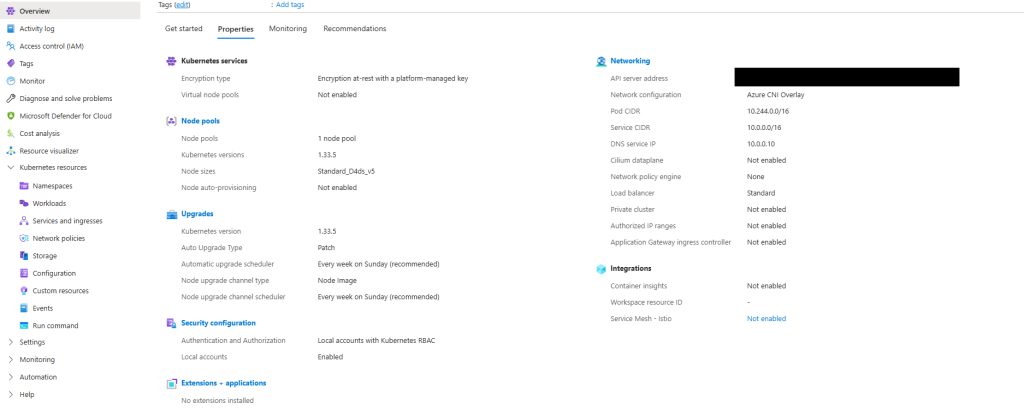
Before designing anything that could be considered “production‑ready”, it’s important to understand what Azure exposes out of the box – so lets spin up an AKS instance using the Azure Portal.

Step 1: Create an AKS Cluster

  • Sign in to the Azure Portal
  • In the search bar at the top, Search for Kubernetes Service

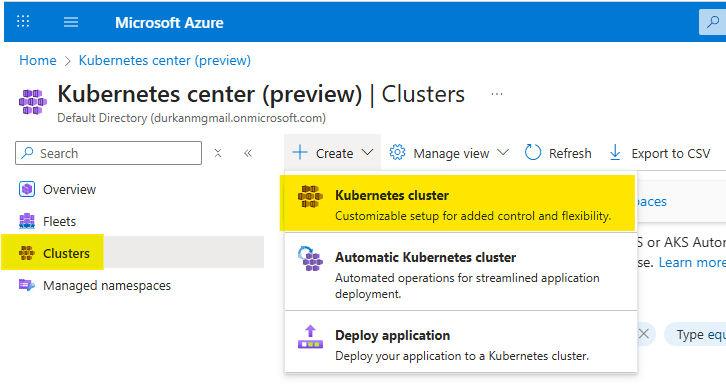
  • When you get to the “Kubernetes center page”, click on “Clusters” on the left menu (it should bring you here automatically). Select Create, and select “Kubernetes cluster”. Note that there are also options for “Automatic Kubernetes cluster” and “Deploy application” – we’ll address those in a later post.
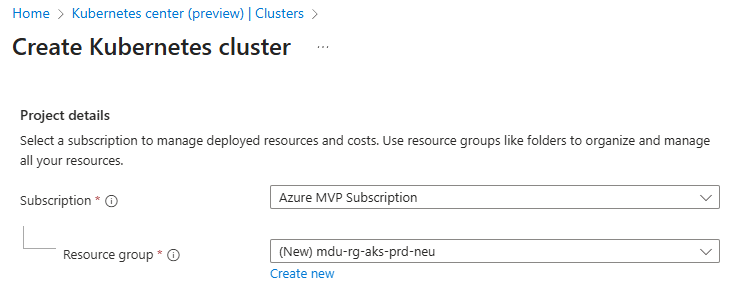
  • Choose your Subscription and Resource Group
  • Enter a Cluster preset configuration, Cluster name and select a Region. You can choose from four different preset configurations which have clear explanations based on your requirements
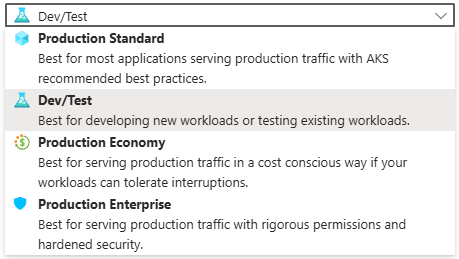
  • I’ve gone for Dev/Test for the purposes of spinning up this demo cluster.
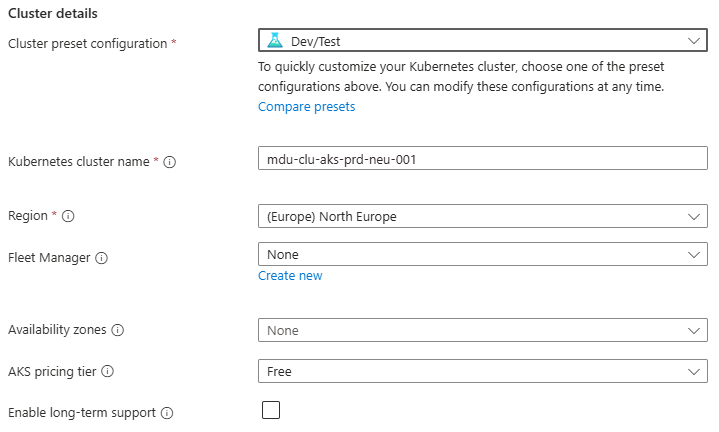
  • Leave all other options as default for now and click “Next” – we’ll revisit these in detail in later posts.
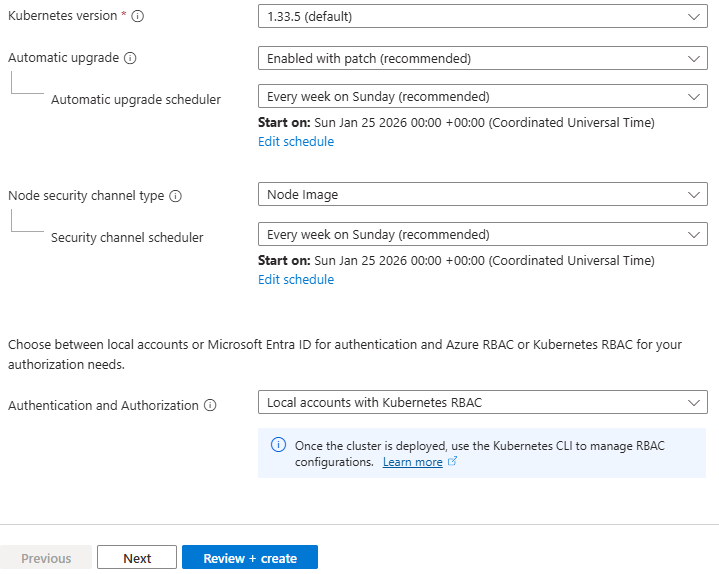
Step 2: Configure the Node Pool

  • Under Node pools, there is an agentpool automatically added for us. You can change this if needed to select a different VM size, and set a low min/max node count
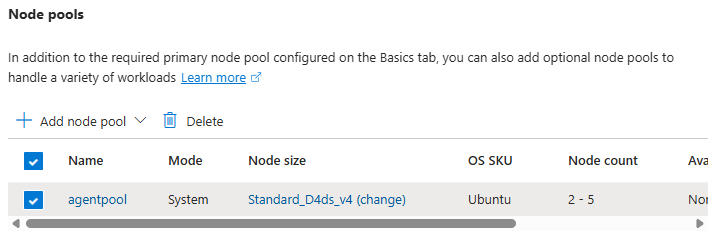
    This is your first exposure to separating capacity management from application deployment.

    Step 3: Networking

    Under Networking, you will see options for Private/Public Access, and also for Container Networking. This is an important chopice as there are 2 clear options:

    • Azure CNI Overlay – Pods get IPs from a private CIDR address space that is separate from the node VNet.
    • Azure CNI Node Subnet – Pods get IPs directly from the same VNet subnet as the nodes.

    You also have the option to integrate this into your own VNet which you can specify during the cluster creation process.
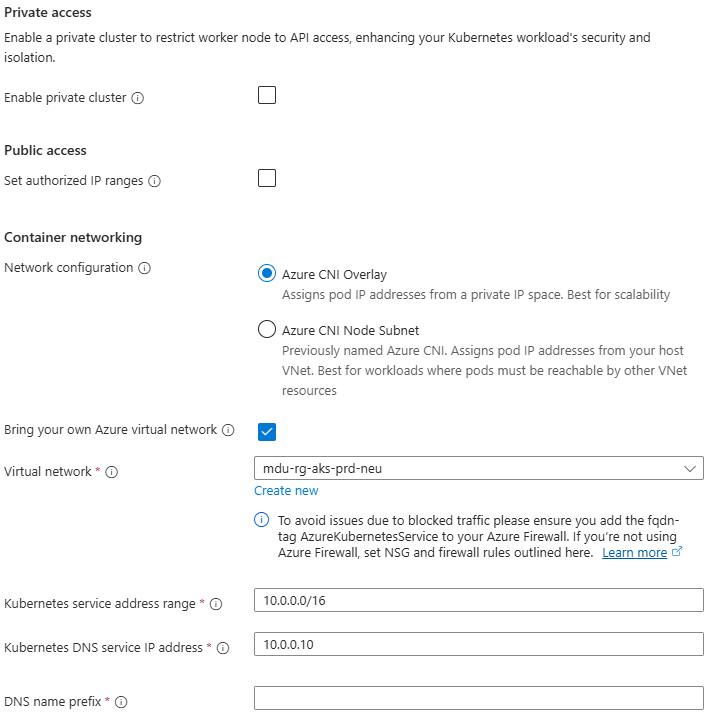
    Again, we’ll talk more about these options in a later post, but its important to understand the distinction between the two.

    Step 4: Review and Create

    Select Review + Create – note at this point I have not selected any monitoring, security or integration with an Azure Container Registry and am just taking the defaults. Again (you’re probably bored of reading this….), we’ll deal with these in a later post dedicated to each topic.

    Once deployed, explore:

    • Node pools
    • Workloads
    • Services and ingresses
    • Cluster configuration

    Notice how much complexity is hidden – if you scroll back up to the “Azure-managed v Customer-managed” diagram, you have responsibility for managing:

    • Cluster nodes
    • Networking
    • Workloads
    • Storage

    Even though Azure abstracts away responsibility for things like key-value store, scheduler, controller and management of the cluster API, a large amount of responsibility still remains.


    What Comes Next in the Series

    This post sets the foundation for what AKS is and how it looks out of the box using a standard deployment with the “defaults”.

    Over the course of the series, we’ll move through the various concepts which will help to inform us as we move towards making design decisions for production workloads:

    • Kubernetes Architecture Fundamentals (control plane, node pools, and cluster design), and how they look in AKS
    • Networking for Production AKS (VNets, CNI, ingress, and traffic flow)
    • Identity, Security, and Access Control
    • Scaling, Reliability, and Resilience
    • Cost Optimisation and Governance
    • Monitoring, Alerting and Visualizations
    • Alignment with the Azure Well Architected Framework
    • And lots more ……

    See you on the next post!
    100 Days of Cloud – Day 61: Azure Monitor Metrics and Logs

    Its Day 61 of my 100 Days of Cloud journey, and today I’m continuing to look at Azure Monitor, and am going to dig deeper into Azure Monitor Metrics and Azure Monitor Logs.

    In our high level overview diagram, we saw that Metrics and Logs are the Raw Data that has been collected from the data sources.

    Image Credit – Microsoft

    Lets take a quick look at both options and what they are used for, as that will give us an insight into why we need both of them!

    Azure Monitor Metrics

    Azure Monitor Metrics collects data from monitored resources and stores the data in a time series database (for an OpenSource equivalent, think InfluxDB). Metrics are numerical values that are collected at regular intervals and describe some aspect of a system at a particular time.

    Each set of metric values is a time series with the following properties:

    • The time that the value was collected.
    • The resource that the value is associated with.
    • A namespace that acts like a category for the metric.
    • A metric name.
    • The value itself.

    Once our metrics are collected, there are a number of options we have for using them, including:

    • Analyze – Use Metrics Explorer to analyze collected metrics on a chart and compare metrics from various resources.
    • Alert – Configure a metric alert rule that sends a notification or takes automated action when the metric value crosses a threshold.
    • Visualize – Pin a chart from Metrics Explorer to an Azure dashboard, or export the results of a query to Grafana to use its dashboarding and combine with other data sources.
    • Automate – Increase or decrease resources based on a metric value crossing a threshold.
    • Export – Route metrics to logs to analyze data in Azure Monitor Metrics together with data in Azure Monitor Logs and to store metric values for longer than 93 days.
    • Archive – Archive the performance or health history of your resource for compliance, auditing, or offline reporting purposes.

    Azure Monitor can collect metrics from a number of sources:

    • Azure Resources – gives visibility into their health and performance over a period of time.
    • Applications – detect performance issues and track trends in how the application is being used.
    • Virtual Machine Agents – collect guest OS metrics from Windows or Linux VMs.
    • Custom Metrics can also be defined for an app thats monitored by Application Insights.

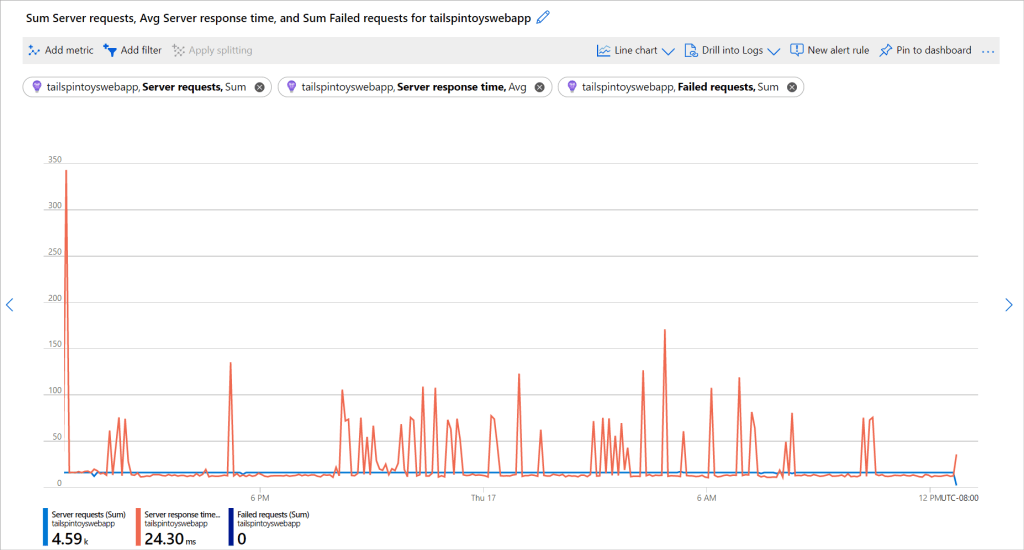
    We can use Metrics Explorer to analyze the metric data and chart the values over time.

    Image Credit – Microsoft

    When it comes to retention,

    • Platform metrics are stored for 93 days.
    • Guest OS Metrics sent to Azure Monitor Metrics are stored for 93 days.
    • Guest OS Metrics collected by the Log Analytics agent are stored for 31 days, and can be extended up to 2 years.
    • Application Insight log-based metrics are variable and depend on the events in the underlying logs (31 days to 2 years).

    You can find more details on Azure Monitor Metrics here.

    Azure Monitor Logs

    Azure Monitor Logs collects and organizes log and performance data from monitored resources. Log Data is stored in a structured format which can them be queried using a query language called Kusto Query Language (KQL).

    Once our logs are collected, there are a number of options we have for using them, including:

    • Analyze – Use Log Analytics in the Azure portal to write log queries and interactively analyze log data by using a powerful analysis engine.
    • Alert – Configure a log alert rule that sends a notification or takes automated action when the results of the query match a particular result.
    • Visualize –
      • Pin query results rendered as tables or charts to an Azure dashboard.
      • Export the results of a query to Power BI to use different visualizations and share with users outside Azure.
      • Export the results of a query to Grafana to use its dashboarding and combine with other data sources.
    • Get insights – Logs support insights that provide a customized monitoring experience for particular applications and services.
    • Export – Configure automated export of log data to an Azure storage account or Azure Event Hubs, or build a workflow to retrieve log data and copy it to an external location by using Azure Logic Apps.

    You need to create a Log Analytics Workspace in order to store the data. You can use Log Analytics Workspaces for Azure Monitor, but also to store data from other Azure services such as Sentinel or Defender for Cloud in the same workspace.

    Each workspace contains multiple tables that are organized into separate columns with multiple rows of data. Each table is defined by a unique set of columns. Rows of data provided by the data source share those columns. Log queries define columns of data to retrieve and provide output to different features of Azure Monitor and other services that use workspaces.

    Image Credit: Microsoft

    You can the use Log Analytics to edit and run log queries and to anaylze the output. Log queries are the method of retrieving data from the Log Analytics Workspace, these are written in Kusto Query Language (KQL). You can write log queries in Log Analytics to interactively analyze their results, use them in alert rules to be proactively notified of issues, or include their results in workbooks or dashboards.

    You can learn about KQL in more detail here, and find more details about Azure Monitor Logs here.

    Conclusion

    And thats a brief look at Azure Monitor Metric and Logs. We can see the differences between them, but how they can work together to build a powerful monitoring stack that can go right down to automating fixes for the alerts as they happen!

    Hope you enjoyed this post, until next time!

    100 Days of Cloud – Day 60: Azure Monitor

    Its Day 60 of my 100 Days of Cloud journey, and todays post is all about Azure Monitor.

    Azure Monitor is a solution for collecting, analyzing, and acting on telemetry from your cloud and on-premises environments. The information collected by Azure Monitor helps you understand how your resources in both Azure, On-Premise (via Azure Arc) and Multi-Cloud (via Azure Arc) environments are performing, and proactively identify issues affecting them and the resources they depend on.

    Overview

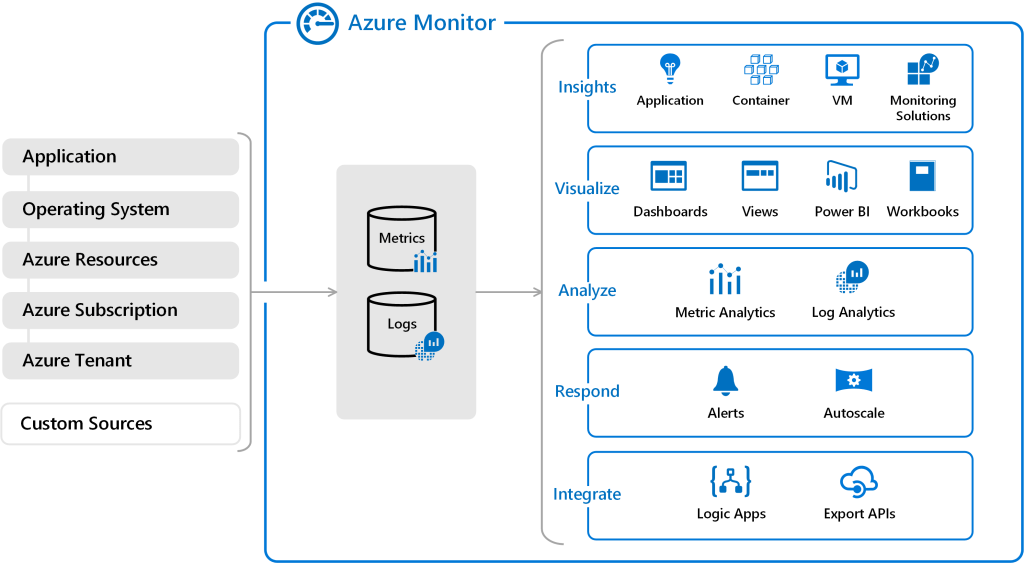
    The following diagram gives a high-level view of Azure Monitor:

    Image Credit – Microsoft

    We can see on the left of the diagram the Data Sources that Azure Monitor will collect data from. Azure Monitor can collect data from the following:

    • Application monitoring data: Data about the performance and functionality of the code you have written, regardless of its platform.
    • Guest OS monitoring data: Data about the operating system on which your application is running. This could be running in Azure, another cloud, or on-premises.
    • Azure resource monitoring data: Data about the operation of an Azure resource.
    • Azure subscription monitoring data: Data about the operation and management of an Azure subscription, as well as data about the health and operation of Azure itself.
    • Azure tenant monitoring data: Data about the operation of tenant-level Azure services, such as Azure Active Directory.

    In the center, we then have Metrics and Logs. This is the raw data that has been collected:

    • Metrics are numerical values that describe some aspect of a system at a particular point in time. They are lightweight and capable of supporting near real-time scenarios.
    • Logs contain different kinds of data organized into records with different sets of properties for each type. Telemetry such as events and traces are stored as logs in addition to performance data so that it can all be combined for analysis.

    Finally, on the right hand side we our insights, visualizations. Having all of that monitoring data is no use to us if we’re not doing anything with it. Azure Monitor allows us to create customized monitoring experiences for a particular service or set of services. Examples of this are:

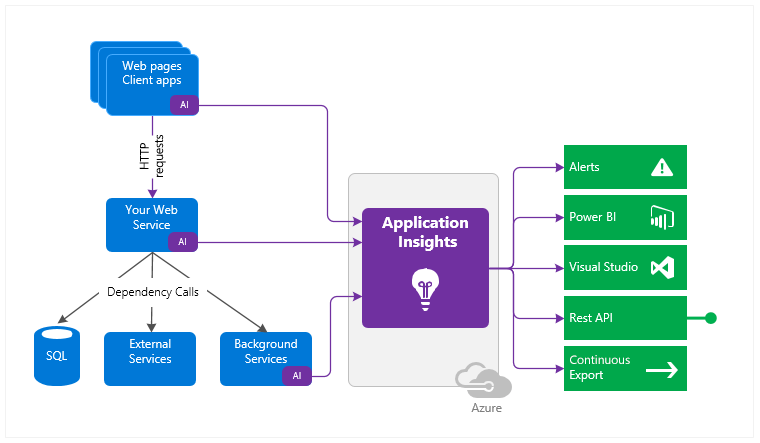
    • Application Insights: Application Insights monitors the availability, performance, and usage of your web applications whether they’re hosted in the cloud or on-premises. It leverages the powerful data analysis platform in Azure Monitor to provide you with deep insights into your application’s operations. It enables you to diagnose errors without waiting for a user to report them.
    Application Insights – Image Credit: Microsoft
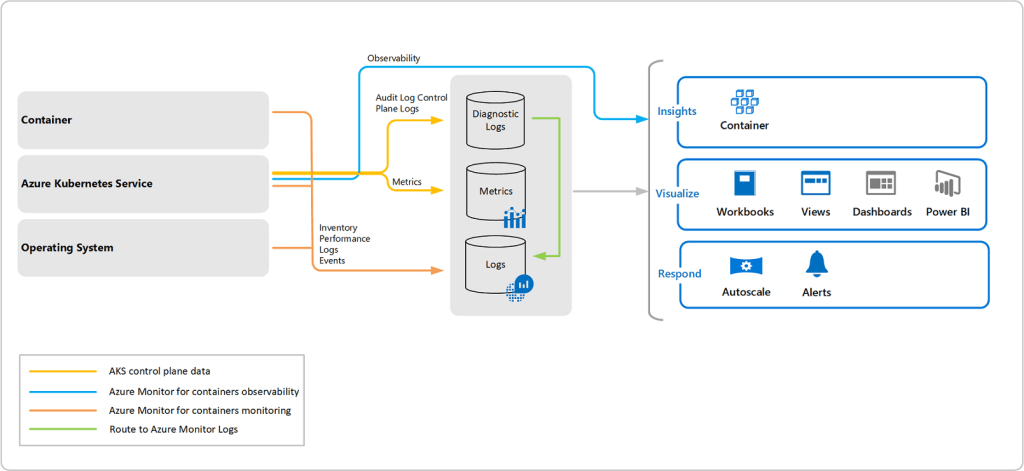
    • Container Insights: Container Insights monitors the performance of container workloads that are deployed to managed Kubernetes clusters hosted on Azure Kubernetes Service (AKS) and Azure Container Instances. It gives you performance visibility by collecting metrics from controllers, nodes, and containers that are available in Kubernetes through the Metrics API. Container logs are also collected.
    Container Insights – Image Credit: Microsoft
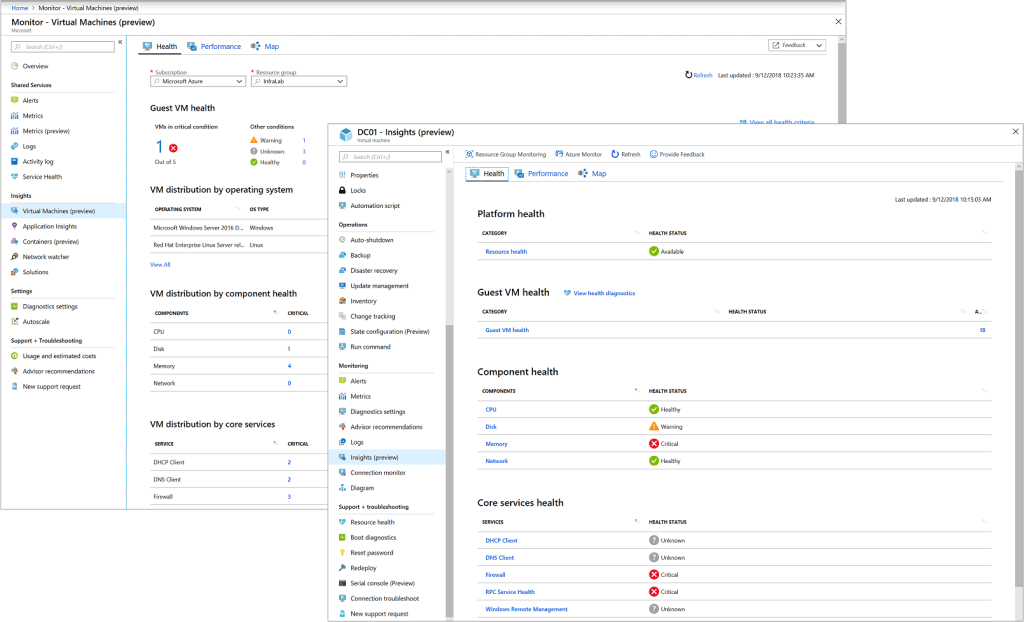
    • VM Insights: VM Insights monitors your Azure virtual machines (VM) at scale. It analyzes the performance and health of your Windows and Linux VMs and identifies their different processes and interconnected dependencies on external processes.
    VM Insights – Image Credit: Microsoft

    Responding to Situations

    Dashboards are pretty and we can get pretty dashboards with any monitoring solution in the market. But what if we could so something more with the data than just showing it in a dashboard? Well we can!!

    • Alerts – Alerts in Azure Monitor proactively notify you of critical conditions and potentially attempt to take corrective action. Alert rules based on metrics provide near real time alerts based on numeric values. Rules based on logs allow for complex logic across data from multiple sources.
    Image Credit: Microsoft
    • Autoscale – Autoscale allows you to have the right amount of resources running to handle the load on your application. Create rules that use metrics collected by Azure Monitor to determine when to automatically add resources when load increases. Save money by removing resources that are sitting idle. You specify a minimum and maximum number of instances and the logic for when to increase or decrease resources.
    Image Credit: Microsoft
    • Dashboards – OK, so here’s the pretty dashboards! Azure dashboards allow you to combine different kinds of data into a single pane in the Azure portal. You can add the output of any log query or metrics chart to an Azure dashboard.
    Image Credit: Microsoft
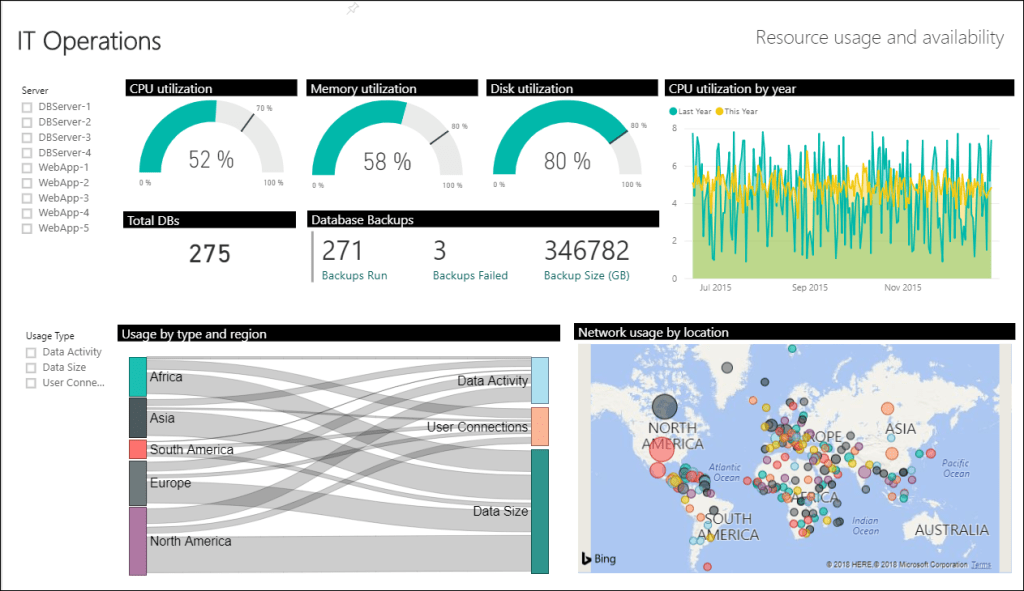
    • PowerBI – And here’s some even prettier dashboards! You can configure PowerBI to automatically import data from Azure Monitor and take advantage of the business analytics service to provide dashboards from a variety of sources.
    Image Credit: Microsoft

    External Integration

    We can also integrate Azure Monitor with other systems to build custom solutions that use your monitoring data. Other Azure services work with Azure Monitor to provide this integration:

    • Azure Event Hubs is a streaming platform and event ingestion service. It can transform and store data using any real-time analytics provider or batching/storage adapters. Use Event Hubs to stream Azure Monitor data to partner SIEM and monitoring tools.
    • Logic Apps is a service that allows you to automate tasks and business processes using workflows that integrate with different systems and services. Activities are available that read and write metrics and logs in Azure Monitor. This allows you to build workflows integrating with a variety of other systems.
    • Multiple APIs are available to read and write metrics and logs to and from Azure Monitor in addition to accessing generated alerts. You can also configure and retrieve alerts. This provides you with essentially unlimited possibilities to build custom solutions that integrate with Azure Monitor.

    Conclusion

    And thats a brief overview of Azure Monitor, we can see how powerful a tool it can be to not just collect and monitor your event logs and metrics, but also to take actions based on limits that you set.

    You can find more detailed information in the Microsoft Documentation here, and you can also find best practise guidance for monitoring in the Azure Architecture Center here. Hope you enjoyed this post, until next time!