Its Day 15, and todays post is on Azure Key Vault.
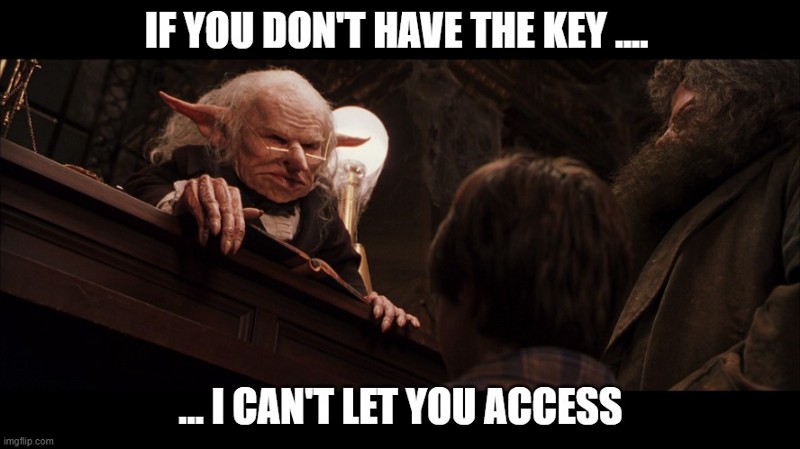
Lets think about the word “vault” and what we would use a vault for. The image that springs to mind immediately for me is the vaults at Gringotts Wizarding Bank from the Harry Potter movies — deep down, difficult to access, protected by a dragon etc…
This is essentially what a vault is — a place to store items that you want to keep safe and hide from the wider world. This is no different in the world of Cloud Computing. In yesterdays post on System Managed Identities, we saw how Azure can eliminate the need for passwords embedded in code, and use identities in conjunction with Azure Active Directory Authentication
Azure Key Vault is a cloud service for securely storing and accessing secrets. A secret is anything that you want to tightly control access to, such as API keys, passwords, certificates, or cryptographic keys.
What is Azure Key Vault?
In a typical IT environment, secrets, passwords, certificates, API-tokens and keys are used all over multiple platforms including source code, configuration files, digital formats and even on pieces of paper (sad but true ☹️).
An Azure Key Vault integrates with other Azure services and resources like SQL servers, Virtual Machines, Web Application, Storage Accounts etc. It is available on per-region basis, which means that a key vault must be deployed in the same Azure region where it is intended to be used with services and resources.
As an example, an Azure Key Vault must be available in the same region where an Azure virtual machine is deployed so that it can be used for storing Content Encryption Key (CEK) for Azure Disk Encryption.
Unlike other Azure resources, where the data is stored in general storage, an Azure Key Vault is backed by a Hardware Security Module (HSM).
How Azure Key Vault works
When using Key Vault, application developers no longer need to store security information in their application. Not having to store security information in applications eliminates the need to make this information part of the code. For example, an application may need to connect to a database. Instead of storing the connection string in the app’s code, you can store it securely in Key Vault.
Your applications can securely access the information they need by using URIs. These URIs allow the applications to retrieve specific versions of a secret. There is no need to write custom code to protect any of the secret information stored in Key Vault.
Authentication is done via Azure Active Directory. Authorization may be done via Azure role-based access control (Azure RBAC) or Key Vault access policy. Azure RBAC can be used for both management of the vaults and access data stored in a vault, while key vault access policy can only be used when attempting to access data stored in a vault.
Each Vault has a number of roles, but the most important ones are:
- Vault Owner — this role controls who can access the vault and what permissions they have (read/create/update/delete keys)
- Vault consumer: A vault consumer can perform actions on the assets inside the key vault when the vault owner grants the consumer access. The available actions depend on the permissions granted.
- Managed HSM Administrators: Users who are assigned the Administrator role have complete control over a Managed HSM pool. They can create more role assignments to delegate controlled access to other users.
- Managed HSM Crypto Officer/User: Built-in roles that are usually assigned to users or service principals that will perform cryptographic operations using keys in Managed HSM. Crypto User can create new keys, but cannot delete keys.
- Managed HSM Crypto Service Encryption User: Built-in role that is usually assigned to a service accounts managed service identity (e.g. Storage account) for encryption of data at rest with customer managed key.
The steps to authenticate against a Key Vault are:
- The application which needs authentication is registered with Azure Active Directory as a Service Principal.
- The key Vault Owner/Administrator will then create a Key Vault and then attaches the ACLs (Access Control Lists) to the Vault so that the Application can access it.
- The application initiates the connection and authenticates itself against the Azure Active Directory to get the token successfully.
- The application then presents this token to the Key Vault to get access.
- The Vault validates the token and grants access to the application based on successful token verification.

Conclusion
Azure Key Vault streamlines the secret, key, and certificate management process and enables you to maintain strict control over secrets/keys that access and encrypt your data.
You can check out this Azure QuickStart Template which automatically creates a Key Vault.
Hope you enjoyed this post, until next time!!