
Azure networking documentation covers a lot of ground. What it is less good at is surfacing the assumptions embedded in common configurations — the things that appear safe on paper but create real risk in production environments.
This post is about three of those assumptions:
- NSG service tags and when to use them instead of IP ranges
- The impact of default routes on Azure service connectivity
- The behaviour of Private Endpoints in relation to NSG enforcement.
These are not edge cases — they appear in standard Azure architectures and are the source of a disproportionate number of production networking incidents.
NSG Service Tags vs IP Ranges and CIDRs — Getting the Choice Right
Network Security Groups are the primary mechanism for controlling traffic in Azure virtual networks. When writing NSG rules, you have two options for specifying the source or destination of traffic: you can use explicit IP addresses and CIDR ranges, or you can use service tags.
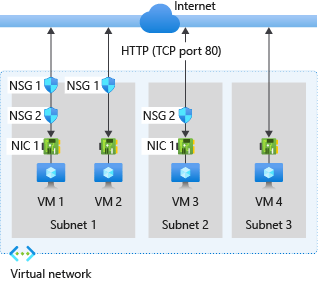
Both approaches have a place. The mistake is using one when you should be using the other.
What Service Tags Actually Are
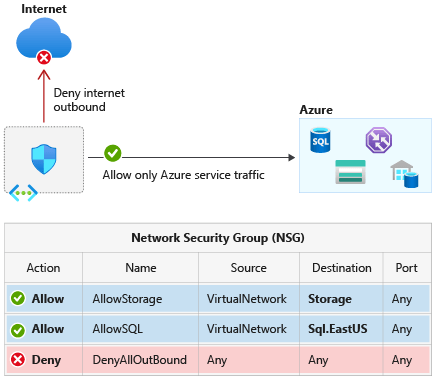
A service tag is a named group of IP address prefixes associated with a specific Azure service. When you reference a service tag in an NSG rule, Azure resolves it to the underlying IP ranges automatically — and manages and updates those ranges on a weekly basis. When you use a service tag, you are delegating IP list management to Microsoft. For Azure-managed services like Storage, Key Vault, and Azure Monitor, that is exactly the right trade-off. You should not be manually maintaining and updating those ranges.
When to Use Service Tags
Service tags belong in NSG rules wherever you are controlling traffic to or from an Azure-managed service whose IP ranges change over time: Azure Monitor, Key Vault, Container Registry, SQL, Service Bus, Event Hub. They are also the right choice for platform-level rules — using the AzureLoadBalancer tag for health probe allowances, for example, is far more reliable than trying to maintain a list of probe IPs.
When IP Ranges and CIDRs Are the Right Choice
Explicit CIDRs belong in NSG rules when you are controlling traffic between resources you own — on-premises ranges, partner network CIDRs, specific application subnets within your own VNet, or third-party services with stable published IP ranges. When your security team needs to audit exactly which addresses a rule permits, a CIDR answers that definitively. A service tag defers the answer to a Microsoft-managed list that changes weekly.
The Service Tag Scope Problem
The most common service tag mistake is using broad global tags when regional variants are available and appropriate.
Consider AzureCloud. Using this tag in an NSG rule opens access to the IP ranges associated with all Azure services globally — and critically, that includes IP addresses used by other Azure customers, not just Microsoft’s own infrastructure. This means AzureCloud is a much broader permission than most engineers assume. Microsoft’s own documentation explicitly warns that in most scenarios, allowing traffic from all Azure IPs via this tag is not recommended. If your workload only needs to communicate with services in West Europe, using AzureCloud.WestEurope instead gives you the same coverage for your actual traffic pattern while dramatically reducing the permitted address space.
| Tag | Scope | Recommendation |
| AzureCloud | All Azure IP ranges globally — very broad | Avoid. Use regional variant or specific service tag. |
| AzureCloud.WestEurope | Azure IP ranges for West Europe only | Use when regional scoping is sufficient. |
| Storage | All Azure Storage endpoints globally | Prefer Storage.<region> where possible. |
| Storage.WestEurope | Azure Storage in West Europe only | Preferred for regionally scoped workloads. |
| AzureMonitor | Azure Monitor endpoints | Appropriate for monitoring agent outbound rules. |
| AzureLoadBalancer | Azure Load Balancer probe IPs | Always use for health probe allow rules. |
The practical enforcement approach is to use Azure Policy to flag or deny NSG rules that reference broad global tags where regional equivalents exist. This moves the governance left — catching overly permissive rules before they reach production rather than after.
# Verify current service tag ranges for a regionaz network list-service-tags \ --location westeurope \ --output json \ --query "values[?name=='AzureCloud.WestEurope']"
Default Routes, UDRs, and What Force Tunnelling Actually Breaks
Routing all outbound traffic through a central firewall via a 0.0.0.0/0 UDR is a standard hub-and-spoke pattern. Security teams require it, and it works — but it consistently catches engineers out in one area the documentation does not make obvious enough.
The problem is not that a default route intercepts too much traffic at the network layer. The problem is that most force-tunnelling configurations are deployed without firewall rules to permit the Azure service traffic that workloads silently depend on, and the symptoms that follow are rarely traced back to the routing change quickly.
168.63.129.16 — The Platform IP You Need to Understand
Before going further, it is worth being precise about 168.63.129.16. Microsoft documents this as a virtual public IP address — not a link-local address, but a special public IP owned by Microsoft and used across all Azure regions and national clouds. It provides DNS name resolution, Load Balancer health probe responses, DHCP, VM Agent communication, and Guest Agent heartbeat for PaaS roles.
The important thing to know about 168.63.129.16 in the context of UDRs is this: Microsoft Learn explicitly states that this address is a virtual IP of the host node and as such is not subject to user defined routes. Azure’s DHCP system injects a specific classless static route for 168.63.129.16/32 via the subnet gateway, ensuring platform traffic bypasses UDRs at the platform level. A 0.0.0.0/0 default route does not intercept traffic to this address.
What a 0.0.0.0/0 UDR does intercept is everything else: general internet-bound traffic, and outbound traffic to Azure service public endpoints — including Azure Monitor, Azure Key Vault, Microsoft Entra ID, Azure Container Registry, and any other PaaS service your workloads communicate with. These services are reachable via public IPs, and those IPs are subject to UDRs.
| ⚠️ What actually breaks when you deploy a 0.0.0.0/0 UDR without firewall rules Workloads that depend on Azure Monitor for diagnostics stop sending telemetry. Managed identity token acquisition fails if traffic to the Entra ID and IMDS endpoints is not permitted by the firewall. Applications pulling images from Azure Container Registry, secrets from Key Vault, or messages from Service Bus will lose connectivity. The common thread is that your firewall is now in the path of traffic it has not been told to permit. The workloads fail; the routing change is often not the first place anyone looks. |
The Right Approach to Force Tunnelling
Deploying a 0.0.0.0/0 UDR and a corresponding firewall must be treated as a single unit of change, not two separate steps. The firewall rules need to be in place before the UDR is applied, not after symptoms appear.
Before any UDR deployment, inventory the Azure service dependencies of every workload on the affected subnet and verify that the firewall policy explicitly permits outbound traffic to the corresponding service tags. AzureMonitor, AzureActiveDirectory, AzureKeyVault, Storage, AzureContainerRegistry — each service your workloads depend on must have a corresponding firewall application or network rule. Then verify Effective Routes on the affected subnets and NICs to confirm what will happen before it happens.
# Review effective routes before any UDR changeaz network nic show-effective-route-table \ --resource-group <rg-name> \ --name <nic-name> \ --output table
A route table change that appears clean from a routing perspective can still break applications if the firewall has gaps. Effective Routes verification and firewall rule review should both be mandatory steps in any network change process that involves UDRs.
Private Endpoints and the NSG Enforcement Gap
Private Endpoints are one of the most effective controls for locking down access to Azure PaaS services. When you deploy a Private Endpoint for a storage account, Key Vault, or SQL database, that service gets a private IP on your VNet subnet and traffic travels within the Azure backbone. The assumption that naturally follows — that an NSG on the Private Endpoint’s subnet controls access to it — is incorrect by default.
How NSG Evaluation Works for Private Endpoints
By default, network policies are disabled for a subnet in a virtual network — which means NSG rules are not evaluated for traffic destined for Private Endpoints on that subnet. This is a platform default, not a misconfiguration. A deny rule you expect to block access from a specific source will be silently ignored.
| ⚠️ Why this matters An application or workload with network connectivity to the Private Endpoint’s subnet can reach the private IP of the endpoint regardless of the NSG rules you have defined. There is no error, no alert, and no indication in the portal that the NSG is not being evaluated. The exposure is silent. |
Enabling NSG Enforcement on Private Endpoint Subnets
Microsoft added the ability to restore NSG evaluation for Private Endpoint traffic through a subnet property called privateEndpointNetworkPolicies. Setting this property to Enabled causes NSG rules to be evaluated for traffic destined for Private Endpoints on that subnet, in the same way they would be for any other resource.
# Enable NSG enforcement for Private Endpoints on a subnetaz network vnet subnet update \ --resource-group <rg-name> \ --vnet-name <vnet-name> \ --name <subnet-name> \ --disable-private-endpoint-network-policies false
Portal Method:
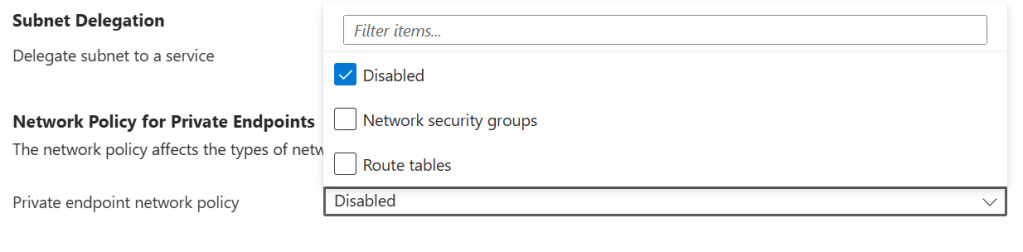
This change should be applied to all subnets where Private Endpoints are deployed, and it should be part of your standard subnet configuration in IaC rather than something applied reactively after deployment. In Terraform, the equivalent property is private_endpoint_network_policies = “Enabled” on the subnet resource.
NSG Rules Are Not Enough on Their Own
Enabling NSG enforcement is necessary, but it is not sufficient as the only access control for sensitive data services. Network controls restrict which sources can reach an endpoint — they cannot govern what those sources do once connected. Managed Identity with scoped RBAC assignments should be the minimum access model for any workload reaching Azure data services through a Private Endpoint.
| ✅ The defence-in-depth model for Private Endpoints Enable privateEndpointNetworkPolicies on the subnet so that NSG rules are enforced. Write NSG rules that restrict inbound access to the Private Endpoint’s private IP to only the sources that need it. Require Managed Identity authentication with scoped RBAC assignments for all service access. Disable public network access on the backing service entirely. These controls work together — removing any one of them weakens the posture. |
Summary: Three Controls, Three Gaps
| Area | Common Assumption | The Reality | The Fix |
| NSG Service Tags | AzureCloud is a safe, conservative choice | AzureCloud is a broad, dynamic tag covering all Azure IPs globally | Use regional tags (AzureCloud.WestEurope). Enforce with Azure Policy. |
| Default Routes / UDRs | A 0.0.0.0/0 UDR and a firewall are all you need to control outbound traffic | 168.63.129.16 is not subject to UDRs, but all Azure service endpoint traffic is — if the firewall has no rules for it, workloads break silently | Define firewall rules for all Azure service dependencies before applying the UDR. Check Effective Routes first. |
| Private Endpoints | An NSG on the PE subnet controls access to the endpoint | NSG rules are not evaluated for PE traffic by default | Enable privateEndpointNetworkPolicies on the subnet. Require Managed Identity + RBAC. |
Conclusion
The three patterns in this post — service tag scoping, force-tunnelling configuration, and Private Endpoint NSG enforcement — share a common characteristic: they are not wrong configurations. They are default behaviours, or natural-seeming choices, whose consequences the documentation does not surface at the point where those choices are made.
The goal is to move the point of discovery earlier. Understanding that AzureCloud covers other customers’ IP ranges before writing that NSG rule. Knowing that a 0.0.0.0/0 UDR puts your firewall in the path of all Azure service traffic before applying that route table. Checking Private Endpoint network policies before writing the first NSG rule for a PE subnet. These are the things that turn reactive incident investigation into proactive design decisions.
Azure networking is not inherently complex. But it rewards engineers who take the time to understand what the defaults are doing, and why.








 Michael Durkan