100 Days of Cloud – Day 63: Azure SQL Server

Its Day 63 of my 100 Days of Cloud journey, and today I’m looking at SQL services in Azure and the different options we have for hosting SQL in Azure.

As we discussed in the previous post, SQL is an example of a Relational Database Management System (RDBMS), which follows a traditional model of storing data using 2-dimensional tables where data is stored in columns and rows in a pre-defined schema.

On-premise installations of Microsoft SQL Server would follow the traditional IAAS model, where we would install a Windows Server operating which provides the platform for the SQL Server Database to run on.

In Azure, we have 3 options for migrating and hosting our SQL Databases.

SQL Server on Azure VM

SQL Server on Azure VM is an IaaS offering and allows you to run SQL Server inside a fully managed virtual machine (VM) in Azure.

SQL virtual machines are a good option for migrating on-premises SQL Server databases and applications without any database change.

This option is best suited where OS-level access is required. SQL virtual machines in Azure are lift-and-shift ready for existing applications that require fast migration to the cloud with minimal changes or no changes. SQL virtual machines offer full administrative control over the SQL Server instance and underlying OS for migration to Azure.

SQL Server on Azure Virtual Machines allows full control over the database engine. You can choose when to start maintenance/patching, change the recovery model to simple or bulk-logged, pause or start the service when needed, and you can fully customize the SQL Server database engine. With this additional control comes the added responsibility to manage the virtual machine.

Azure SQL Managed Instance

Azure SQL Managed Instance is a Platform-as-a-Service (PaaS) offering, and is best for most migrations to the cloud. SQL Managed Instance is a collection of system and user databases with a shared set of resources that is lift-and-shift ready.

This option is best suited to new applications or existing on-premises applications that want to use the latest stable SQL Server features and that are migrated to the cloud with minimal changes. An instance of SQL Managed Instance is similar to an instance of the Microsoft SQL Server database engine offering shared resources for databases and additional instance-scoped features.

SQL Managed Instance supports database migration from on-premises with minimal to no database change. This option provides all of the PaaS benefits of Azure SQL Database but adds capabilities that were previously only available in SQL Server VMs. This includes a native virtual network and near 100% compatibility with on-premises SQL Server. Instances of SQL Managed Instance provide full SQL Server access and feature compatibility for migrating SQL Servers to Azure.

Azure SQL Database

Azure SQL Database is a relational database-as-a-service (DBaaS) hosted in Azure that falls into the category of a PaaS offering.

This is best for modern cloud applications that want to use the latest stable SQL Server features and have time constraints in development and marketing.
A fully managed SQL Server database engine, based on the latest stable Enterprise Edition of SQL Server. SQL Database has two deployment options:

  • As a single database with its own set of resources managed via a logical SQL server. A single database is similar to a contained database in SQL Server. This option is optimized for modern application development of new cloud-born applications. Hyperscale and serverless options are available.
  • An elastic pool, which is a collection of databases with a shared set of resources managed via a logical SQL server. Single databases can be moved into and out of an elastic pool. This option is optimized for modern application development of new cloud-born applications using the multi-tenant SaaS application pattern. Elastic pools provide a cost-effective solution for managing the performance of multiple databases that have variable usage patterns.

Overall Comparisons

Both Azure SQL Database and Azure SQL Managed Instance are optimized to reduce overall management costs since you do not have to manage any virtual machines, operating system, or database software. You do not have to manage upgrades, high availability, or backups.

Both options can dramatically increase the number of databases managed by a single IT or development resource. Elastic pools also support SaaS multi-tenant application architectures with features including tenant isolation and the ability to scale to reduce costs by sharing resources across databases. SQL Managed Instance provides support for instance-scoped features enabling easy migration of existing applications, as well as sharing resources among databases.

Finally, the database software is automatically configured, patched, and upgraded by Azure, which reduces your administration

The alternative is SQL Server on Azure VMs which provides DBAs with an experience most similar to the on-premises environment they’re familiar with. You can use any of the platform-provided SQL Server images (which includes a license) or bring your SQL Server license. All the supported SQL Server versions (2008R2, 2012, 2014, 2016, 2017, 2019) and editions (Developer, Express, Web, Standard, Enterprise) are available. However, as this is a VM, it’s up to you to update/upgrade the operating system and database software and when to install any additional software such as anti-virus.

Management

All of the above options can be managed from the Azure SQL page in the Azure Portal.

Image Credit -Microsoft

Migration

In order to migrate from existing SQL Workloads, in all cases you would use an Azure Migrate Project with the Data Migration Assistant. You can find all of the scenarios relating to migrations options here.

Conclusion

And thats a look at the different options for hosting SQL on Azure. Hope you enjoyed this post, until next time – I feel like going bowling now!

100 Days of Cloud – Day 62: Azure Database Solutions

Its Day 62 of my 100 Days of Cloud journey, and today I’m starting to look at the different Database Solutions available in Azure. “The Dude” to me to …..

The next 2 posts are going to cover the 2 main offerings – Azure SQL and Azure Cosmos. But first, we need to understand the different types of database that are available to us, how they store their data and the use cases where we would utilize the different database types.

Relational Databases

Lets kick off with Relational Database Management Systems, or RDBMS. These are the traditional model of storing data, and organises the data into 2-dimensional tables which have a series of rows and columns into which the data is stored.

RDBMS Databases follow a schema based model, where the data structure of the schema needs to be defined before any data is written. Any subsequent read or write operations must use the defined schema.

Vendors who use this model provide a version of Structured Query Language (SQL) for retrieving and managing the data. The most common examples of these would be Microsoft SQL, Oracle SQL or PostgreSQL.

RDBMS is useful when data consistency is required, however the downside is that RDBMS cannot easily scale out horizontally.

In Azure, the following RDBMS services are available:

  • Azure SQL Database – this is the full hosted version of SQL Server.
  • Azure Database for MySQL – open source relational database management system. MySQL uses standard SQL commands such as INSERT, DROP, ADD, and UPDATE, etc. The main purpose of MySQL is for e-commerce, data warehouse, and logging applications. Many database-driven websites use MySQL
  • Azure Database for PostgreSQL – this is a highly scalable RDBMS system which is cross-platform and can run on Linux, Windows and MacOS. PostgreSQL can perform complex queries, foreign keys, triggers, updatable views, and transactional integrity.
  • Azure Database for MariaDB – High performance OpenSource relational database based on MySQL. Dynamic columns allow a single DBMS to provide both SQL and NoSQL data handling for different needs. Supports encrypted tables, LDAP authentication and Kerberos.

The main use cases for RDBMS are:

  • Inventory management
  • Order management
  • Reporting database
  • Accounting

Non-Relational Databases

The opposite of relational databases are non-relational database, which is a database that does not use the tabular schema of rows and columns found in most traditional database systems. Instead, non-relational databases use a storage model that is optimized for the specific requirements of the type of data being stored. For example, data may be stored as simple key/value pairs, as JSON documents, or as a graph consisting of edges and vertices.

Because of the varying ways that data can be stored, there are LOADS of different types of non-relational databases.

Lets take a look at the different types of non-relational or NoSQL database.

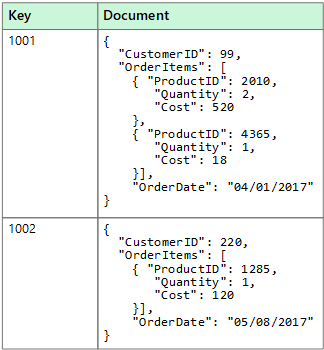
  • Document Data Stores
Image Credit – Microsoft

A document data store manages a set of named string fields and object data values in an entity that’s referred to as a document. These are typically stored in JSON format, but can also be stored as XML, YAML, JSON, BSON, or even plain text. The fields within these documents are exposed to the storage management system, enabling an application to query and filter data by using the values in these fields. Typically, a document contains the entire data for an entity, and all documents are not required to have the same structure.

The application can retrieve documents by using the document key, which is hashed and is a unique identifier for the document.

From a service perspective, this would be delivered in Azure Cosmos DB.

Examples of use cases would be Product catalogs, Content management or Inventory management.

  • Columnar data stores
Image Credit – Microsoft

A columnar or column-family data store organizes data into columns and rows, which is very similar to a relational database. However, while a column-family database stores the data in tabular data with rows and columns, the columns are divided into groups known as column families. Each column family holds a set of columns that are logically related and are typically retrieved or manipulated as a unit. New columns can be added dynamically, and rows can be empty.

From a service perspective, this would be delivered in Azure Cosmos DB Cassandra API, which is used to store apps written for Apache Cassandra.

Examples of use cases would be Sensor data, Messaging, Social media and Web analytics, Activity monitoring, or Weather and other time-series data.

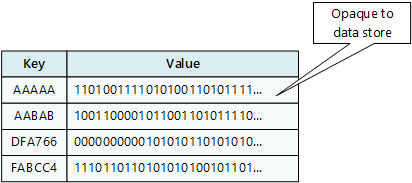
  • Key/value Data Stores
Image Credit – Microsoft

A key/value store associates each data value with a unique key. Most key/value stores only support simple query, insert, and delete operations. To modify a value (either partially or completely), an application must overwrite the existing data for the entire value. Key/value stores are highly optimized for applications performing simple lookups, but are less suitable if you need to query data across different key/value stores. Key/value stores are also not optimized for querying by value.

From a service perspective, this would be delivered in Azure Cosmos DB Table API or SQL API, Azure Cache for Redis, or Azure Table Storage.

Examples of use cases would be Data caching, Session management, or Product recommendations and ad serving.

  • Graph Databases
Image Credit – Microsoft

A graph database stores two types of information, nodes and edges. Edges specify relationships between nodes. Nodes and edges can have properties that provide information about that node or edge, similar to columns in a table. Edges can also have a direction indicating the nature of the relationship.

Graph databases can efficiently perform queries across the network of nodes and edges and analyze the relationships between entities.

From a service perspective, this would be delivered in Azure Cosmos DB Gremlin API.

Examples of use cases would be Organization charts, Social graphs, and Fraud detection.

Conclusion

And thats a whistle stop tour of the different types of databases available in Azure. There are other options such as Data Lake and Time Series, but I’ll leave those for future posts as they are bigger topics that deserve more attention.

Hope you enjoyed this post, until next time – I feel like going bowling now!

100 Days of Cloud – Day 61: Azure Monitor Metrics and Logs

Its Day 61 of my 100 Days of Cloud journey, and today I’m continuing to look at Azure Monitor, and am going to dig deeper into Azure Monitor Metrics and Azure Monitor Logs.

In our high level overview diagram, we saw that Metrics and Logs are the Raw Data that has been collected from the data sources.

Image Credit – Microsoft

Lets take a quick look at both options and what they are used for, as that will give us an insight into why we need both of them!

Azure Monitor Metrics

Azure Monitor Metrics collects data from monitored resources and stores the data in a time series database (for an OpenSource equivalent, think InfluxDB). Metrics are numerical values that are collected at regular intervals and describe some aspect of a system at a particular time.

Each set of metric values is a time series with the following properties:

  • The time that the value was collected.
  • The resource that the value is associated with.
  • A namespace that acts like a category for the metric.
  • A metric name.
  • The value itself.

Once our metrics are collected, there are a number of options we have for using them, including:

  • Analyze – Use Metrics Explorer to analyze collected metrics on a chart and compare metrics from various resources.
  • Alert – Configure a metric alert rule that sends a notification or takes automated action when the metric value crosses a threshold.
  • Visualize – Pin a chart from Metrics Explorer to an Azure dashboard, or export the results of a query to Grafana to use its dashboarding and combine with other data sources.
  • Automate – Increase or decrease resources based on a metric value crossing a threshold.
  • Export – Route metrics to logs to analyze data in Azure Monitor Metrics together with data in Azure Monitor Logs and to store metric values for longer than 93 days.
  • Archive – Archive the performance or health history of your resource for compliance, auditing, or offline reporting purposes.

Azure Monitor can collect metrics from a number of sources:

  • Azure Resources – gives visibility into their health and performance over a period of time.
  • Applications – detect performance issues and track trends in how the application is being used.
  • Virtual Machine Agents – collect guest OS metrics from Windows or Linux VMs.
  • Custom Metrics can also be defined for an app thats monitored by Application Insights.

We can use Metrics Explorer to analyze the metric data and chart the values over time.

Image Credit – Microsoft

When it comes to retention,

  • Platform metrics are stored for 93 days.
  • Guest OS Metrics sent to Azure Monitor Metrics are stored for 93 days.
  • Guest OS Metrics collected by the Log Analytics agent are stored for 31 days, and can be extended up to 2 years.
  • Application Insight log-based metrics are variable and depend on the events in the underlying logs (31 days to 2 years).

You can find more details on Azure Monitor Metrics here.

Azure Monitor Logs

Azure Monitor Logs collects and organizes log and performance data from monitored resources. Log Data is stored in a structured format which can them be queried using a query language called Kusto Query Language (KQL).

Once our logs are collected, there are a number of options we have for using them, including:

  • Analyze – Use Log Analytics in the Azure portal to write log queries and interactively analyze log data by using a powerful analysis engine.
  • Alert – Configure a log alert rule that sends a notification or takes automated action when the results of the query match a particular result.
  • Visualize –
    • Pin query results rendered as tables or charts to an Azure dashboard.
    • Export the results of a query to Power BI to use different visualizations and share with users outside Azure.
    • Export the results of a query to Grafana to use its dashboarding and combine with other data sources.
  • Get insights – Logs support insights that provide a customized monitoring experience for particular applications and services.
  • Export – Configure automated export of log data to an Azure storage account or Azure Event Hubs, or build a workflow to retrieve log data and copy it to an external location by using Azure Logic Apps.

You need to create a Log Analytics Workspace in order to store the data. You can use Log Analytics Workspaces for Azure Monitor, but also to store data from other Azure services such as Sentinel or Defender for Cloud in the same workspace.

Each workspace contains multiple tables that are organized into separate columns with multiple rows of data. Each table is defined by a unique set of columns. Rows of data provided by the data source share those columns. Log queries define columns of data to retrieve and provide output to different features of Azure Monitor and other services that use workspaces.

Image Credit: Microsoft

You can the use Log Analytics to edit and run log queries and to anaylze the output. Log queries are the method of retrieving data from the Log Analytics Workspace, these are written in Kusto Query Language (KQL). You can write log queries in Log Analytics to interactively analyze their results, use them in alert rules to be proactively notified of issues, or include their results in workbooks or dashboards.

You can learn about KQL in more detail here, and find more details about Azure Monitor Logs here.

Conclusion

And thats a brief look at Azure Monitor Metric and Logs. We can see the differences between them, but how they can work together to build a powerful monitoring stack that can go right down to automating fixes for the alerts as they happen!

Hope you enjoyed this post, until next time!
100 Days of Cloud – Day 60: Azure Monitor

Its Day 60 of my 100 Days of Cloud journey, and todays post is all about Azure Monitor.

Azure Monitor is a solution for collecting, analyzing, and acting on telemetry from your cloud and on-premises environments. The information collected by Azure Monitor helps you understand how your resources in both Azure, On-Premise (via Azure Arc) and Multi-Cloud (via Azure Arc) environments are performing, and proactively identify issues affecting them and the resources they depend on.

Overview

The following diagram gives a high-level view of Azure Monitor:

Image Credit – Microsoft

We can see on the left of the diagram the Data Sources that Azure Monitor will collect data from. Azure Monitor can collect data from the following:

  • Application monitoring data: Data about the performance and functionality of the code you have written, regardless of its platform.
  • Guest OS monitoring data: Data about the operating system on which your application is running. This could be running in Azure, another cloud, or on-premises.
  • Azure resource monitoring data: Data about the operation of an Azure resource.
  • Azure subscription monitoring data: Data about the operation and management of an Azure subscription, as well as data about the health and operation of Azure itself.
  • Azure tenant monitoring data: Data about the operation of tenant-level Azure services, such as Azure Active Directory.

In the center, we then have Metrics and Logs. This is the raw data that has been collected:

  • Metrics are numerical values that describe some aspect of a system at a particular point in time. They are lightweight and capable of supporting near real-time scenarios.
  • Logs contain different kinds of data organized into records with different sets of properties for each type. Telemetry such as events and traces are stored as logs in addition to performance data so that it can all be combined for analysis.

Finally, on the right hand side we our insights, visualizations. Having all of that monitoring data is no use to us if we’re not doing anything with it. Azure Monitor allows us to create customized monitoring experiences for a particular service or set of services. Examples of this are:

  • Application Insights: Application Insights monitors the availability, performance, and usage of your web applications whether they’re hosted in the cloud or on-premises. It leverages the powerful data analysis platform in Azure Monitor to provide you with deep insights into your application’s operations. It enables you to diagnose errors without waiting for a user to report them.
Application Insights – Image Credit: Microsoft
  • Container Insights: Container Insights monitors the performance of container workloads that are deployed to managed Kubernetes clusters hosted on Azure Kubernetes Service (AKS) and Azure Container Instances. It gives you performance visibility by collecting metrics from controllers, nodes, and containers that are available in Kubernetes through the Metrics API. Container logs are also collected.
Container Insights – Image Credit: Microsoft
  • VM Insights: VM Insights monitors your Azure virtual machines (VM) at scale. It analyzes the performance and health of your Windows and Linux VMs and identifies their different processes and interconnected dependencies on external processes.
VM Insights – Image Credit: Microsoft

Responding to Situations

Dashboards are pretty and we can get pretty dashboards with any monitoring solution in the market. But what if we could so something more with the data than just showing it in a dashboard? Well we can!!

  • Alerts – Alerts in Azure Monitor proactively notify you of critical conditions and potentially attempt to take corrective action. Alert rules based on metrics provide near real time alerts based on numeric values. Rules based on logs allow for complex logic across data from multiple sources.
Image Credit: Microsoft
  • Autoscale – Autoscale allows you to have the right amount of resources running to handle the load on your application. Create rules that use metrics collected by Azure Monitor to determine when to automatically add resources when load increases. Save money by removing resources that are sitting idle. You specify a minimum and maximum number of instances and the logic for when to increase or decrease resources.
Image Credit: Microsoft
  • Dashboards – OK, so here’s the pretty dashboards! Azure dashboards allow you to combine different kinds of data into a single pane in the Azure portal. You can add the output of any log query or metrics chart to an Azure dashboard.
Image Credit: Microsoft
  • PowerBI – And here’s some even prettier dashboards! You can configure PowerBI to automatically import data from Azure Monitor and take advantage of the business analytics service to provide dashboards from a variety of sources.
Image Credit: Microsoft

External Integration

We can also integrate Azure Monitor with other systems to build custom solutions that use your monitoring data. Other Azure services work with Azure Monitor to provide this integration:

  • Azure Event Hubs is a streaming platform and event ingestion service. It can transform and store data using any real-time analytics provider or batching/storage adapters. Use Event Hubs to stream Azure Monitor data to partner SIEM and monitoring tools.
  • Logic Apps is a service that allows you to automate tasks and business processes using workflows that integrate with different systems and services. Activities are available that read and write metrics and logs in Azure Monitor. This allows you to build workflows integrating with a variety of other systems.
  • Multiple APIs are available to read and write metrics and logs to and from Azure Monitor in addition to accessing generated alerts. You can also configure and retrieve alerts. This provides you with essentially unlimited possibilities to build custom solutions that integrate with Azure Monitor.

Conclusion

And thats a brief overview of Azure Monitor, we can see how powerful a tool it can be to not just collect and monitor your event logs and metrics, but also to take actions based on limits that you set.

You can find more detailed information in the Microsoft Documentation here, and you can also find best practise guidance for monitoring in the Azure Architecture Center here. Hope you enjoyed this post, until next time!
100 Days of Cloud – Day 59: Azure Lighthouse

Its Day 59 of my 100 Days of Cloud journey, and todays post is all about Azure Lighthouse.

No, its not that sort of Lighthouse…..

Azure Lighthouse enabled centalized management of multiple tenants, whcih can be utilized by:

  • Service Providers who wish to manage their Customer tenants from their own Tenant.
  • Enterprise Organisations with multiple tenants who wish to manage these from a single tenancy.

In each of the above examples, the customer in the underlying tenant maintains control over who has access to their tenant, which resources they can access, and what levels of access they have.

Benefits

The main benefit of Azure Lighthouse is to Service Providers, as it helps them to efficiently build and deliver managed services. Benefits include:

  • Management at scale: Customer engagement and life-cycle operations to manage customer resources are easier and more scalable. Existing APIs, management tools, and workflows can be used with delegated resources, including machines hosted outside of Azure, regardless of the regions in which they’re located.
  • Greater visibility and control for customers: Customers have precise control over the scopes they delegate for management and the permissions that are allowed. They can audit service provider actions and remove access completely at any time.
  • Comprehensive and unified platform tooling: Azure Lighthouse works with existing tools and APIs, Azure managed applications, and partner programs like the Cloud Solution Provider program (CSP). This flexibility supports key service provider scenarios, including multiple licensing models such as EA, CSP and pay-as-you-go. You can integrate Azure Lighthouse into your existing workflows and applications, and track your impact on customer engagements by linking your partner ID.
  • Work more efficiently with Azure services like Azure Policy, Microsoft Sentinel, Azure Arc, and many more. Users can see what changes were made and by whom in the activity log, which is stored in the customer’s tenant and can be viewed by users in the managing tenant.
  • Azure Lighthouse is non-regional, which means you can manage tenants for multiple customers across multiple regions separately.
Image Credit: Microsoft

Visibility

  • Service Providers can manage customers’ Azure resources securely from within their own tenant, without having to switch context and control planes. Service providers can view cross-tenant information in the “My Customers” page in the Azure portal.
  • Customer subscriptions and resource groups can be delegated to specified users and roles in the managing tenant, with the ability to remove access as needed.
    The “Service Providers” page lets customers view and manage their service provider access.

Onboarding

When a customer’s subscription or resource group is onboarded to Azure Lighthouse, two resources are created: 

  • Registration definition – The registration definition contains the details of the Azure Lighthouse offer (the managing tenant ID and the authorizations that assign built-in roles to specific users, groups, and/or service principals in the managing tenant. A registration definition is created at the subscription level for each delegated subscription, or in each subscription that contains a delegated resource group.
  • Registration Assignment – The registration assignment assigns the registration definition to the onboarded subscription(s) and/or resource group(s). A registration assignment is created in each delegated scope. Each registration assignment must reference a valid registration definition at the subscription level, tying the authorizations for that service provider to the delegated scope and thus granting access.

Once this happens, Azure Lighthouse creates a logical projection of resources from one tenant onto another tenant. This lets authorized service provider users sign in to their own tenant with authorization to work in delegated customer subscriptions and resource groups. Users in the service provider’s tenant can then perform management operations on behalf of their customers, without having to sign in to each individual customer tenant.

How it works

At a high level, here’s how Azure Lighthouse works:

  1. Identify the roles that your groups, service principals, or users will need to manage the customer’s Azure resources.
  2. Specify this access and onboard the customer to Azure Lighthouse either by publishing a Managed Service offer to Azure Marketplace, or by deploying an Azure Resource Manager template. This onboarding process creates the two resources described above (registration definition and registration assignment) in the customer’s tenant.
  3. Once the customer has been onboarded, authorized users sign in to your managing tenant and perform tasks at the specified customer scope (subscription or resource group) per the access that you defined. Customers can review all actions taken, and they can remove access at any time.

Conclusion

And thats a brief overview of Azure Lighthouse, you can find more detailed information, service descriptions and concepts in the Microsoft Documentation here. Hope you enjoyed this post, until next time!

100 Days of Cloud – Day 58: Azure Content Delivery Network

Its Day 58 of my 100 Days of Cloud journey, and todays post is a quick overview of Azure Content Delivery Network.

A content delivery network is a global distributed network of servers that deliver cached to users based on their location. Examples of content that can be delivered via a CDN is Websites or Blob Storage Data.

Overview

Azure CDN uses the concept of distributed servers called Point-of-Presence servers (or POPs for short). These POPs stored cached content on edge servers that are located close to the locations where the user requests the content from, therefore reducing latency.

The benefits of using Azure CDN to deliver web site assets include:

  • Better performance and improved user experience for end users.
  • Scaling for better hadling of high loads, such as product launches or seasonal sales.
  • Content is served to users directly from edge servers so that less traffic is sent to the origin server.

Azure CDN POP Locations are worldwide, and a full list can be found here.

How it works

Image and Steps Credit – Microsoft
  1. A user (Alice) requests a file (also called an asset) by using a URL with a special domain name, such as <endpoint name>.azureedge.net. This name can be an endpoint hostname or a custom domain. The DNS routes the request to the best performing POP location, which is usually the POP that is geographically closest to the user.
  2. If no edge servers in the POP have the file in their cache, the POP requests the file from the origin server. The origin server can be an Azure Web App, Azure Cloud Service, Azure Storage account, or any publicly accessible web server.
  3. The origin server returns the file to an edge server in the POP.
  4. An edge server in the POP caches the file and returns the file to the original requestor (Alice). The file remains cached on the edge server in the POP until the time-to-live (TTL) specified by its HTTP headers expires. If the origin server didn’t specify a TTL, the default TTL is seven days.
  5. Additional users can then request the same file by using the same URL that Alice used, and can also be directed to the same POP.
  6. If the TTL for the file hasn’t expired, the POP edge server returns the file directly from the cache. This process results in a faster, more responsive user experience.

In order to use CDN, you need to create a CDN Profile in your Azure Subscription. A CDN Profile is a collection of CDN Endpoints, and you can configure each endpoint to deliver specific content. You can then use the CDN profile in conjunction with your Azure App Service to deliver the App to the CDN locations in your Profile.

However one thing to note, if you are delivering different content types, you will need to create multiple CDN profiles. There are limits set per Azure Subscriptions on CDN, details can be found here.

There are different pricing tiers in CDN which apply to different content types, and you can avail of CDN Network services from Akamai or Verizon as well as Microsoft. You can find full details on pricing here.

Conclusion

You can get a full overview of Azure Content Delivery Network from Microsoft docs here. Hope ou enjoyed this post, until next time!

100 Days of Cloud – Day 57: Azure Conditional Access

Its Day 57 of my 100 Days of Cloud journey, and today I’m taking a look at Azure Conditional Access.

In the last post, we looked at the state of MFA adoption across Microsoft tenancies, and the different feature offerings that are available with the different types of Azure Active Directory License. We also saw that if your licences do not include Azure AD Premium P1 or P2, its recommended you upgrade to one of these tiers to include Conditional Access as part of your MFA deployment.

Lets take a deeper look at what Conditional Access is, and why its an important component in securing access to your Azure, Office365 or Hybrid environments.

Overview

Historically, IT Environments were located on-premise, and companies with multiple sites communicated with each other using VPNs between sites. So in that case, you needed to be inside one of your offices to access any Applications or Files, and a Firewall protected your perimeter against attacks. In vary rare cases, a VPN Client was provided to those users who needed remote access and this needed to be connected in order to access resources.

Thats was then. These days, the security perimeter now goes beyond the organization’s network to include user and device identity.

Conditional Access uses signals to make decisions and enforce organisational policies. The simplest way to describe them is as “if-then” statements:

  • If a user wants to access a resource,
  • Then they must complete an action.

It impotant to note that conditional access policies shouldn’t be used as a first line of defense and is only enforced after the first level of authentication has completed

How it works

Conditional Access uses signals that are taken into account when making a policy decision. The most common signals are:

  • User or group membership:
    • Policies can be targeted to specific users and groups giving administrators fine-grained control over access.
  • IP Location information:
    • Organizations can create trusted IP address ranges that can be used when making policy decisions.
    • Administrators can specify entire countries/regions IP ranges to block or allow traffic from.
  • Device:
    • Users with devices of specific platforms or marked with a specific state can be used when enforcing Conditional Access policies.
    • Use filters for devices to target policies to specific devices like privileged access workstations.
  • Application:
    • Users attempting to access specific applications can trigger different Conditional Access policies.
  • Real-time and calculated risk detection:
    • Signals integration with Azure AD Identity Protection allows Conditional Access policies to identify risky sign-in behavior. Policies can then force users to change their password, do multi-factor authentication to reduce their risk level, or block access until an administrator takes manual action.
  • Microsoft Defender for Cloud Apps:
    • Enables user application access and sessions to be monitored and controlled in real time, increasing visibility and control over access to and activities done within your cloud environment.

We then combine these signals with decisions based on the evaluation of the signal:

  • Block access
    • Most restrictive decision
  • Grant access
    • Least restrictive decision, can still require one or more of the following options:
      • Require multi-factor authentication
      • Require device to be marked as compliant
      • Require Hybrid Azure AD joined device
      • Require approved client app
      • Require app protection policy (preview)

When the above combinations of signals and decisions are made, the most commonly applied policies are:

  • Requiring multi-factor authentication for users with administrative roles
  • Requiring multi-factor authentication for Azure management tasks
  • Blocking sign-ins for users attempting to use legacy authentication protocols
  • Requiring trusted locations for Azure AD Multi-Factor Authentication registration
  • Blocking or granting access from specific locations
  • Blocking risky sign-in behaviors
  • Requiring organization-managed devices for specific applications

If we look at the Conditional Access blade under Security in Azure and select “Create New Policy”, we see the options avaiable for creating a policy. The first 3 options are under Assignments:

  • Users or workload identities – this defines users or groups that can have the policy applied, or who can be excluded from the policy.
  • Cloud Apps or Actions – here, you select the Apps that the policy applies to. Be careful with this option! Selecting “All cloud apps” also affects the Azure Portal and may potentially lock you out:
  • Conditions – here we assign the conditions sich as locations, device platforms (eg Operating Systems)

The last 2 options are under Access Control:

  • Grant – controls the enforcement to block or grant access

Session – this controls access such as time limited access, and browser session controls.

We can also see from the above screens that we can set the policy to “Report-only” mode – this is useful when you want to see how a policy affects your users or devices before it is fully enabled.

Conclusion

You can find more details on Conditional Access in the official Microsoft documentation here. Hope you enjoyed this post, until next time!

100 Days of Cloud – Day 56: Azure Active Directory and the low level of MFA Adoption

Its Day 56 of my 100 Days of Cloud journey, and today I’m taking a look at Azure Active Directory and MFA Adoption.

We already looked at Azure Active Directory and RBAC roles on Day 4, but today I’m looking at this from a different angle. The reason is because of this article from Catalin Cimpanu telling us that MFA Adoption across all Microsoft Enterprise tenants sits at 22%. And while we may think this is low, this is compared to 11% 2 years ago, and as low as 1% 2 years before that.

This is despite the fact that in August 2019, Microsoft said that customers who enabled MFA for their accounts ended up blocking 99.9% of all attacks. On average, around 0.5% of all accounts get compromised each month

So why the low adoption? The first thought is because of licensing constraints, and I thought about that in relation to both Microsoft 365, Office365 and the various Azure Active Directory offerings.

Lets take a look at Azure AD first – there are 4 different offerings of Azure AD:

  • Free – this version is intended for small businesses and has a limit of 500000 objects. It is primarily intended as an authentication and access control mechanism and supports user provisioning and basic user management functions such as creating, deleting and modifying user accounts. These users can take advantage of self-service password change, and admins can create global lists of banned passwords or require multifactor authentication (MFA). There is no SLA with the Free Edition
  • Office 365 Apps – this is the underlying directory service required to operate the applications on the Office 365 platform, such as Exchange Online for email and SharePoint Online for content management. It has the same features and capabilities as the Free version, but it also adheres to a service-level agreement (SLA) of 99.9% availability. This version comes by default will all Office 365 and Microsoft 365 subscriptions.
  • Premium P1 – this contains the following additional features:
    • Custom banned passwords,
    • Self-service passwords,
    • Group access management,
    • Advanced security and usage reports,
    • Dynamic groups,
    • Azure Information Protection integration,
    • SharePoint limited access,
    • Terms of Use,
    • Microsoft Cloud App Security Integration.
  • Premium P2 – as well as the above, this adds on:
    • vulnerabilities and risky accounts detection,
    • risky events integration,
    • risk-based conditional access policies.

In all of the above offerings MFA is offered as a default, even in the Free tier. So the different levels of licensing in Office365 have no bearing on enabling MFA.

The recommended method for enabling MFA is detailed in this article, where it is recommended that either Azure AD Premium P1 or P2.

So now lets look at the different Office 365 and Microsoft 365 versions – below are the versions where Azure AD Premium P1 and P2 are included:

  • Azure AD Premium P1
    • Office365 E3
    • Microsoft 365 Business Premium
  • Azure AD Premium P2
    • Office 365 E5

If your tenant uses the Free Office 365 versions without Conditional Access, you can use security defaults to protect users. Users are prompted for MFA as needed, but you can’t define your own rules to control the behavior. However, if your licences do not include Azure AD Premium P1 or P2, its recommended you upgrade to one of these tiers to include Conditional Access as part of your MFA deployment.

Conclusion

Hope you enjoyed this post, now go and get enabling MFA on your Azure AD, Office 365 and Microsoft 365 Tenants! Until next time!

100 Days of Cloud – Day 55: Azure Functions

Its Day 55 of my 100 Days of Cloud journey, and today I’m going to attempt to understand and explain Azure Functions.

What are Azure Functions?

Azure Functions is one of the ways that allow you to create serverless applications in Azure. All you need to do is write the code you need for the problem or task that you wish to perform, without having to worry about create a whole application or infrastructure to run the code for you.

Depending on what language you need your application to use, this link gives full details for the languages that are supported for Azure Functions. There are also Developer References for each of the languages which give full details of how to develop your desired functions using the supported languages. Azure Functions uses a code-first (imperative) development model

All functions contain 2 pieces – your code and the config file, which is called function.json. The function.json file contains the function’s trigger, bindings and other configuration settings.

Function App

A function app provides an execution context in Azure in which your functions run. As such, it is the unit of deployment and management for your functions. A function app is comprised of one or more individual functions that are managed, deployed, and scaled together.

A function app requires a general Azure Storage account, which supports Azure Blob, Queue, Files, and Table storage.

Hosting Plans

When you create a function app in Azure, you must choose a hosting plan for your app. There are three basic hosting plans available for Azure Functions:

  • Consumption plan – This is the default hosting plan. It scales automatically and you only pay for compute resources when your functions are running. Instances of the Functions host are dynamically added and removed based on the number of incoming events.
  • Functions Premium plan – Automatically scales based on demand using pre-warmed workers which run applications with no delay after being idle, runs on more powerful instances, and connects to virtual networks.
  • App service plan – Run your functions within an App Service plan at regular App Service plan rates. Best for long-running scenarios where Durable Functions can’t be used.

Triggers and Bindings

What is the funniest comedy sketch of all time? Mirror writers pick their  most hilarious moments - Mirror Online
A different kind of Trigger ……

Azure Functions are event driven – this means that an event or trigger is required in order for the function to run and the underlying code to execute. Each function must only have one trigger.

The most common types of triggers are:

  • Timer – Execute a function at a set interval.
  • HTTP – Execute a function when an HTTP request is received.
  • Blob – Execute a function when a file is uploaded or updated in Azure Blob storage.
  • Queue – Execute a function when a message is added to an Azure Storage queue.
  • Azure Cosmos DB – Execute a function when a document changes in a collection.
  • Event Hub – Execute a function when an event hub receives a new event.

Bindings are a way to both declaratively connect resources to functions and also to pass parameters from resources into a function. Bindings can be created as Input bindings, Output bindings or both.

Triggers and bindings let you avoid hardcoding access to other services within your code, therefore making it re-usable. Your function receives data (for example, the content of a queue message) in function parameters. You send data (for example, to create a queue message) by using the return value of the function.

Scaling

We can see in our hosting plans above that depending on which one you choose, this wil dictate how Azure Functions will scale and the maxiumum resouirces that are assigned to a function app.

Azure Functions uses a component called the scale controller to monitor the rate of events and determine whether to scale out or scale in. The scale controller uses heuristics for each trigger type. For example, when you’re using an Azure Queue storage trigger, it scales based on the queue length and the age of the oldest queue message.

Scaling can vary on a number of factors, and scale differently based on the trigger and language selected. There are a some scaling behaviors to be aware of:

  • Maximum instances: A single function app only scales out to a maximum of 200 instances. A single instance may process more than one message or request at a time though, so there isn’t a set limit on number of concurrent executions.
  • New instance rate: For HTTP triggers, new instances are allocated, at most, once per second. For non-HTTP triggers, new instances are allocated, at most, once every 30 seconds. Scaling is faster when running in a Premium plan.

By default, Consumption plan functions scale out to as many as 200 instances, and Premium plan functions will scale out to as many as 100 instances. You can specify lower maximum instances for each app if required.

Real-World Examples

So while all of the above theory is interesting, we still haven’t answered the key question which is where would we need to use Azure Functions?

Lets take a look at some real world examples of where Azure Functions would be useful:

  • Take a snapshot of a Virtual Machine before updates are scheduled to be applied.
  • Monitor expiry dates of Certificates and trigger an email to be sent 30 days before they expire.
  • When a Virtual machine is deleted, remove it from Monitoring.
  • When a CPU spikes above 90%, send a message to a Teams Channel.

Conclusion

So thats a whistle stop overview of Azure Functions. There are tons of brilliant resources out there where you can dive in and learn about Azure Functions in greater depth, such as the Microsoft Learn Module as part of the AZ-204 learning path which gives a full lab on creating your own function using a HTTP trigger.

Hope you enjoyed this post, until next time!

100 Days of Cloud – Day 54: Azure App Service Advanced Settings

Its Day 54 of my 100 Days of Cloud journey, and today I’m going to attempt to understand and explain some of the Advanced Settings and Service Limits in Azure App Service.

In previous posts, we looked at the fundamentals of Azure App Service:

  • It can use multiple programming languages to run your Web Apps or Services.
  • Benefits of using App Service over on-premise hosting.
  • The various App Service plans available.
  • Manual or Automated deployment options using familiar tools.
  • Integrate directly with multiple providers for authentication.

We then looked at how to deploy a Web App using both the manual deployment method and automated deployment using GitHub actions.

Deployment Slots

Let take a look at the concept of deployment slots based on our Web App deployment. You want to make changes to your application, but want to ensure that it is full tested before publishing the changes into production. Because we are using the free tier, we only have the “production” instance available to us and our default URL was this:

https://myday53webapp.azurewebsites.net/

Upgrading our App Service plan to a Standard or Premium tier allows us to introduce separate deployment slots for testing changes to our Web App before publishing into Production. For reference, the following is the number of slots available in each plan:

  • Standard – 5 Slots
  • Premium – 20 Slots
  • Isolated – 20 Slots

We can upgrade our plan from the “Deployment Slots” menu within the Web App:

Based on the limits above, we could have slots for Production, Development and Testing for a single Web App. What this will do is create staging environments that have their own dedicated URLs in order for us to test the changes. So for example if we called our new slot “development”, we would get the following URL:

https://myday53webapp-development.azurewebsites.net/

Once we have our staging environment in place, we can now do our testing and avail of swap operations. This allows us to swap the production and development slots. In effect, this is exactly what happens – the old “production” slot becomes the “development” slot, and any changes that have been made in the development slot is pushed into production. The advantage of this approach is that if there are any errors found that were not discovered during testing, you can quickly roll back to the old version by performing another swap operation.

One of the other big advantages of slots is that you can route a portion of your production traffic to different slots. A good example of a use case for this would be to allow a portion of your users access to beta apps or features that have been published.

By default, new slots are given a 0% weighting, so if you wanted 10% of your users to access beta features that are in staging or development slots, you need to specify this on the Deployment Slots blade:

Scaling

There are 2 options for scaling and app in App Service:

  • Scale up – this is where more compute resources such as CPU, memory, disk space. We can see the options available for Scale up from the menu blade in our Web App in the portal:
  • Scale out – this increases the number of VM instances that run your app or service. As with Deployment Slots, there are maximum limits set on Scale out based on the pricing tier that is in use:
  • Free – Single shared instance, so no scaling
  • Standard – 10 Dedicated instances
  • Premium – 20 Dedicated instances
  • Isolated – 100 Dedicated instances

If using a Web App, we can also use autoscaling based on a number of criteria and triggers:

Enabling autoscale
The scale rule settings pane.

Full details can be found in this Microsoft Learn article. However, note that we must upgrade from the Free tier to use either manual or auto scaling options.

Conclusion

So thats an overview of Deployment Slots and Scaling options in Azure App Service. Hope you enjoyed this post, until next time!