Azure Lab Services Is Retiring: What to Use Instead (and How to Plan Your Migration)

Microsoft has announced that Azure Lab Services will be retired on June 28, 2027. New customer sign-ups have already been disabled as of July 2025, which means the clock is officially ticking for anyone using the service today.

You can read the official announcement on Microsoft Learn here: https://learn.microsoft.com/en-us/azure/lab-services/retirement-guide

While 2027 may feel a long way off, now is the time to take action!

For those of you who have never heard of Azure Lab Services, lets take a look at what it was and how you would have interacted with it (even if you didn’t know you were!).

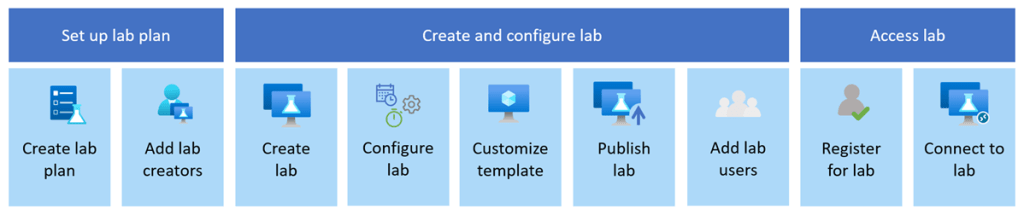
What is/was Azure Lab Services?

Image: Microsoft Learn

Azure Lab Services allowed you to create labs with infrastructure managed by Azure. The service handles all the infrastructure management, from spinning up virtual machines (VMs) to handling errors and scaling the infrastructure.

If you’ve ever been on a Microsoft course, participated in a Virtual Training Days course, or attended a course run by a Microsoft MCT, Azure Lab Services is what the trainer would have used to facilitate:

  • Classrooms and training environments
  • Hands-on labs for workshops or certifications
  • Short-lived dev/test environments

Azure Lab Services was popular because it abstracted away a lot of complexity around building lab or classroom environments. Its retirement doesn’t mean Microsoft is stepping away from virtual labs—it means the responsibility shifts back to architecture choices based on the requirements you have.

If you or your company is using Azure Lab Services, the transition to a new service is one of those changes where early planning pays off—especially if your labs are tied to academic calendars, training programmes, or fixed budgets.

So what are the alternatives?

Microsoft has outlined several supported paths forward. None are a 1:1 replacement, so the “right” option depends on who your users are and how they work. While these solutions aren’t necessarily education-specific, they support a wide range of education and training scenarios.

Azure Virtual Desktop (AVD)

Image: Microsoft Learn

🔗 https://learn.microsoft.com/azure/virtual-desktop/

AVD is the most flexible option and the closest match for large-scale, shared lab environments. AVD is ideal for providing full desktop and app delivery scenarios and provides the following benefits:

  • Multi-session Windows 10/11, which either Full Desktop or Single App Delivery options
  • Full control over networking, identity, and images. One of the great new features of AVD (still in preview mode) is that you can now use Guest Identities in your AVD environments, which can be really useful for training environments and takes the overhead of user management away.
  • Ideal for training labs with many concurrent users
  • Supports scaling plans to reduce costs outside working hours (check out my blog post on using Scaling Plans in your AVD Environments)

I also wrote a set of blog posts about setting up your AVD environments from scratch which you can find here and here.

Windows 365

🔗 https://learn.microsoft.com/windows-365/

Windows 365 offers a Cloud PC per user, abstracting away most infrastructure concerns. Cloud PC virtual machines are Microsoft Entra ID joined and support centralized end-to-end management using Microsoft Intune. You assign Cloud PC’s by assigning a license to that user in the same way as you would assign Microsoft 365 licences. The benefits of Windows 365 are:

  • Simple to deploy and manage
  • Predictable per-user pricing
  • Well-suited to classrooms or longer-lived learning environments

The trade-off is that there is less flexibility and typically higher cost per user than shared AVD environments, as the Cloud PC’s are dedicated to the users and cannot be shared.

Azure DevTest Labs

Image: Microsoft Learn

🔗 https://learn.microsoft.com/azure/devtest-labs/

A strong option for developer-focused labs, Azure DevTest labs are targeted at enterprise customers. It also has a key difference to the other alternative solutions, its the only one that offers access to Linux VMs as well as Windows VMs.

  • Supports Windows and Linux
  • Built-in auto-shutdown and cost controls
  • Works well for dev/test and experimentation scenarios

Microsoft Dev Box

🔗 https://learn.microsoft.com/dev-box/

Dev Box is aimed squarely at professional developers. It’s ideal for facilitating hands-on learning where training leaders can use Dev Box supported images to create identical virtual machines for trainees. Dev Box virtual machines are Microsoft Entra ID joined and support centralized end-to-end management with Microsoft Intune.

  • High-performance, secure workstations
  • Integrated with developer tools and workflows
  • Excellent for enterprise engineering teams

However, its important to note that as of November 2025, DevBox is being integrated into Windows365. The service is built on top of Windows365, so Micrsoft has decided to unify the offerings. You can read more about this announcement here but as of November 2025, Microsoft are no longer accepting new DevBox customers – https://learn.microsoft.com/en-us/azure/dev-box/dev-box-windows-365-announcement?wt.mc_id=AZ-MVP-5005255

When First-Party Options Aren’t Enough

If you relied heavily on the lab orchestration features of Azure Lab Services (user lifecycle, lab resets, guided experiences), you may want to evaluate partner platforms that build on Azure:

These solutions provide:

  • Purpose-built virtual lab platforms
  • User management and lab automation
  • Training and certification-oriented workflows

They add cost, but also significantly reduce operational complexity.

Comparison: Azure Lab Services Alternatives

Lets take a look at a comparison of each service showing cost, use cases and strengths:

ServiceTypical Cost ModelBest Use CasesKey StrengthWhen 3rd Party Tools Are Needed
Azure Virtual DesktopPay-per-use (compute + storage + licensing)Large classrooms, shared labs, training environmentsMaximum flexibility and scalabilityFor lab orchestration, user lifecycle, guided labs
Windows 365Per-user, per-monthClassrooms, longer-lived learning PCsSimplicity and predictabilityRarely needed
Azure DevTest LabsPay-per-use with cost controlsDev/test, experimentation, mixed OS labsCost governanceFor classroom-style delivery
Microsoft Dev BoxPer-user, per-monthEnterprise developersPerformance and securityNot typical
Partner PlatformsSubscription + Azure consumptionTraining providers, certification labsTurnkey lab experiencesCore dependency

Don’t Forget Hybrid Scenarios

If some labs or dependencies must remain on-premises, you can still modernise your management approach by deploying Azure Virtual Desktop locally and manage using Azure Arc, which will allow you to

  • Apply Azure governance and policies
  • Centralise monitoring and management
  • Transition gradually toward cloud-native designs

Start Planning Now

With several budget cycles between now and June 2027, the smartest move is to:

  1. Inventory existing labs and usage patterns
  2. Map them to the closest-fit replacement
  3. Pilot early with a small group of users

Azure Lab Services isn’t disappearing tomorrow—but waiting until the last minute will almost certainly increase cost, risk, and disruption.

If you treat this as an architectural evolution rather than a forced migration, you’ll end up with a platform that’s more scalable, more secure, and better aligned with how people actually learn and work today.

Maximizing Cloud Efficiency and Cost Savings with Azure FinOps

Its Christmas time, and that means its time for another month of the always fantastic Festive Tech Calendar. This was one of the first events that I participated in when I was trying to break into blogging and public speaking and I’m delighted to be involved again this year.

This year, the team are raising funds for Beatson Cancer Charity, and you can make donations via the Just Giving page.

In this post, we’ll dive into Azure FinOps, explore tools and practices available to help you manage costs, look at real-world savings examples, and discuss how to integrate alerts into Service Management solutions for proactive monitoring.

But before we dive in, lets set the scene with a real world example!

The problem with wanting more …..

We live in a world and a time in society where we all want more. We want it bigger and better. Bigger houses, bigger SUV’s, the highest performing laptop, the newest model phone.

And of course because its Christmas, the biggest turkey you can find ….

This is “Irish Mammy” syndrome, where we over cater to make sure there is enough for everyone at Christmas (and for my American readers, the same rules apply at Thanksgiving).

And its not just Turkey – making sure there are lots of different vegetables as a supplement including multiple types of potatoes (roast, mashed, boiled with both skin on and off, chipped, gratin, croquette….). And don’t forget the Nut Roasts! You then get into Selection Boxes, Mince Pies, Puddings….. The list goes on.


So aside from making you hungry, what has this got to do with Azure?

Yes yes, I know I’ve been rambling on but I was getting to to the point.

All of that food costs money and inevitably there is going to be some (or a lot of) wastage there. We can use the term “over-provisioning” to describe it.

The same principle applies to Azure or any cloud provider when migrating new workloads into the cloud. No matter how much you try to “right-size”, there is a temptation to over-provision to make sure you have enough wiggle room due to increased demand.

In my session for last years Festive Tech Calendar, I spoke about Azure Load Testing and how that can be used to not only “right-size” your environments, but also to test based on different patterns and unpredicatable spikes in demand that may happen.

May happen …. or may not happen. You can only go so far in the science of predicting what might happen because there is always going to be a use case or usage pattern that you either didn’t consider.

Regardless of all that you need to deploy your resources, but now comes the challenge – how do you monitor costs to ensure that there isn’t overspend? This is not just about Cost Management or Scaling, this is where the power of the entire suite of Azure FinOps can help.


What is Azure FinOps?

FinOps combines financial management practices with operations to ensure that cloud spending is transparent, accountable, and optimized. In the Azure ecosystem, FinOps helps businesses manage their cloud resources by giving visibility into spending patterns, offering optimization recommendations, and enabling financial governance.

The FinOps lifecycle consists of three main phases:

  1. Inform: Understand and track cloud costs to ensure transparency.
  2. Optimize: Use insights to reduce unnecessary costs and improve efficiency.
  3. Operate: Continuously manage cloud costs to ensure ongoing financial efficiency.

Azure provides a set of native tools designed to support FinOps practices and help organizations maximize cloud efficiency. Let’s look at each of these tools in detail:

1. Azure Cost Management

Azure Cost Management is the cornerstone of FinOps on Azure. It provides deep insights into cloud costs, allowing you to track, allocate, and analyze spend across your Azure resources.

  • Cost Analysis: Allows you to visualize and analyze costs over time by service, resource group, subscription, or department. This helps identify cost trends and usage patterns.
  • Budgets and Alerts: Set budgets for specific subscriptions or resources, and receive alerts if you’re approaching or exceeding budget limits.

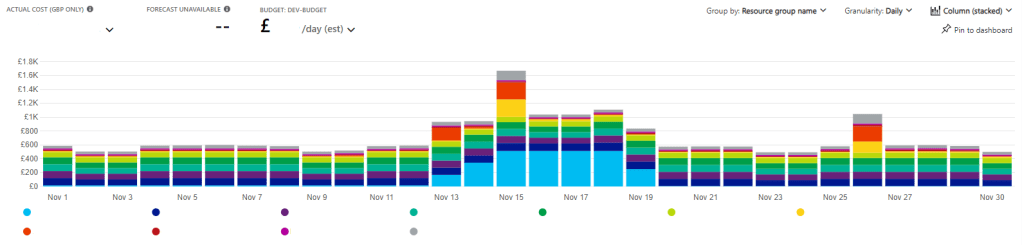
To give you a real world scenario, you can use Azure Cost Management to identify unnecessary resources running during off-peak hours, resulting in a significant cost reduction. By analyzing spending patterns, you can schedule workloads to scale down or shut down entirely during low-use periods.

2. Azure Advisor

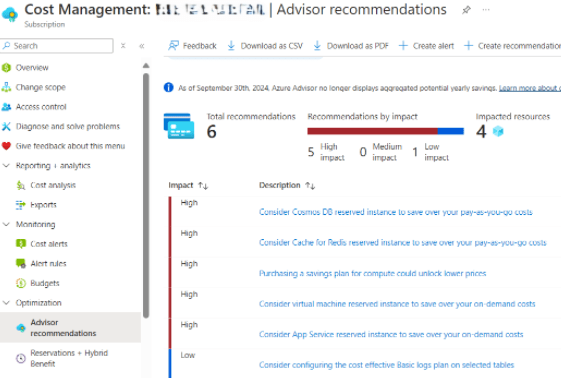
Azure Advisor provides personalized recommendations to help optimize your Azure resources based on best practices. The Cost category of Azure Advisor focuses specifically on identifying opportunities to reduce spend by suggesting actions like right-sizing VMs, using Reserved Instances, and removing idle resources.

In a real world scenario, you can use Advisor’s recommendations to optimize virtual machines , such as resizing underutilized VMs or applying Reserved Instances to resources that are in constant use, which can save thousands in annual costs.

3. Azure Reservations

Speaking of Azure Reservations, committing to reservations can provide significant cost savings by committing to a one or three-year terms for certain Azure resources, such as VMs, SQL Databases, and Cosmos DB.

Reservations allow you to prepay for resources at a discounted rate, which is especially beneficial for predictable, long-term workloads. Depending on the Azure service, you can save up to 72% on reserved VMs and other services.

4. Azure Spot Instances

Azure Spot Instances allow you to purchase unused Azure compute capacity at a discount of up to 90%. These instances are ideal for workloads that are not time-sensitive and can tolerate interruptions, such as batch processing, development, and testing.

An example would be running non-critical data processing workloads on Spot Instances during low-traffic hours, which drastically reduces operational expenses without impacting service.

5. Azure Policy for Cost Management

Azure Policy enforces rules and standards to keep resources compliant, including cost-related policies. You can set policies to control which resources can be deployed, prevent the use of expensive SKUs, and enforce resource tagging for accurate cost tracking.


Using Alerts for Proactive Monitoring

Setting up cost-related alerts is essential for proactive cost management. These alerts can notify relevant teams when spending thresholds are reached, helping prevent unexpected overspend. Here’s some examples and use cases for how you can configure alerts in Azure and integrate them into your Service Management solutions.
1. Setting Budgets and Alerts

With Azure Budgets, you can easily define the budgets in line with your predicted cloud spend based on amount, time period, and reset schedule to keep everything aligned.

Once your budget is in place. Azure Budgets sends alerts the moment you hit a predefined threshold. Alerts can be customized to be sent via email or push notifications, ensuring you’re always in control of your cloud costs and never caught off guard.

To create a budget:

  • In Azure Cost Management + Billing, navigate to Budgets, select your subscription, and create a new budget.
  • Set Thresholds: Define a monthly or quarterly budget and set alert thresholds (e.g., 50%, 75%, and 100% of the budget).
  • Configure Notifications: Specify recipients (e.g., Finance and Operations teams) for notifications via email or SMS.

2. Integrating Alerts into Service Management Solutions

For comprehensive monitoring, you can integrate Azure alerts with Service Management platforms like ServiceNow or Microsoft Teams.

Azure Monitor allows you to create alerts based on various metrics, including cost. When this is integrated with Logic Apps, you can automate workflows to forward these alerts to a Service Management solution.

An example would be generating an alert when spending hits 75% of the monthly budget. A Logic App workflow is triggered, creating a ServiceNow ticket for review and notifying the relevant team in Microsoft Teams.

3. Real-Time Cost Alerts with Azure Monitor

Azure Monitor’s integration with Azure Cost Management lets you create real-time alerts when costs increase unexpectedly. You can set up alerts based on specific metrics or thresholds for VM utilization, storage usage, and other cost-driving metrics.

An example would be to use Azure Monitor to track VM utilization and generates alerts when the utilization exceeds a set threshold. The alert triggers a workflow to reduce resource allocation, leading to cost savings during non-peak hours.


Real-World Savings with Azure FinOps

Lets do a quick recap of some real-world examples where you can leverage Azure FinOps best practices to drive cost savings:

  1. Optimizing VM Costs
    • Challenge: High costs due to underutilized VMs during non-business hours.
    • Solution: Use Azure Advisor to right-size VMs and Azure Automation to shut down non-critical VMs during off-peak hours.
    • Result: In majority of cases, achieve between 20-30% reduction in monthly VM costs.
  2. Using Reserved Instances for Savings
    • Challenge: High costs from on-demand compute resources.
    • Solution: Purchase Azure Reserved Instances to lock in lower rates for long-term workloads.
    • Result: Depending on company size and size of cloud footprint, potential to save tens of thousands on your annual Azure bill by taking advantage of commitment-based discounts.
  3. Enhanced Governance with Azure Policy
    • Challenge: High operational costs and lack of visibility into resource usage.
    • Solution: Implement Azure Policy to enforce tagging and restrict expensive resources.
    • Result: Improved accountability and achieve savings on cloud spend by ensuring only necessary and approved resources were deployed.

Best Practices

Lets recap on the best practices for implementing Azure FinOps in your organization:

  1. Enforce Tagging: Use tags to categorize resources by cost center, department, or project, making it easier to track and allocate costs.
  2. Review Usage Regularly: Analyze reports from Azure Cost Management regularly to identify trends and patterns.
  3. Use Automation: Implement automation to shut down or scale down resources during low-usage periods.
  4. Educate Teams: Ensure that Finance, Operations, and Engineering teams understand FinOps principles and tools for more collaborative cost management.
Conclusion

Azure FinOps provides powerful tools and practices to optimize cloud spending, maximize efficiency, and achieve financial accountability across departments. Companies can not only achieve significant cost savings but also ensure their cloud environments are scalable, sustainable, and financially efficient.

By combining Azure Cost Management, Azure Advisor, Reserved Instances, Spot Instances, and Azure Policy, you can effectively control and reduce your company’s Azure expenses. Integrating cost alerts into Service Management solutions allows for proactive cost management, ensuring that cloud spending remains transparent and aligned with organizational budgets.
Top Highlights from Microsoft Ignite 2024: Key Azure Announcements

This year, Microsoft Ignite was held in Chigaco for in-person attendees as well as virtually with key sessions live streamed. As usual, the Book of News was released to show the key announcements and you can find that at this link.

From a personal standpoint, the Book of News was disappointing as at first glance there seemed to be very few key annoucements and enhancements being provided for core Azure Infrastructure and Networking.

However, there were some really great reveals that were announced at various sessions throughout Ignite, and I’ve picked out some of the ones that impressed me.

Azure Local

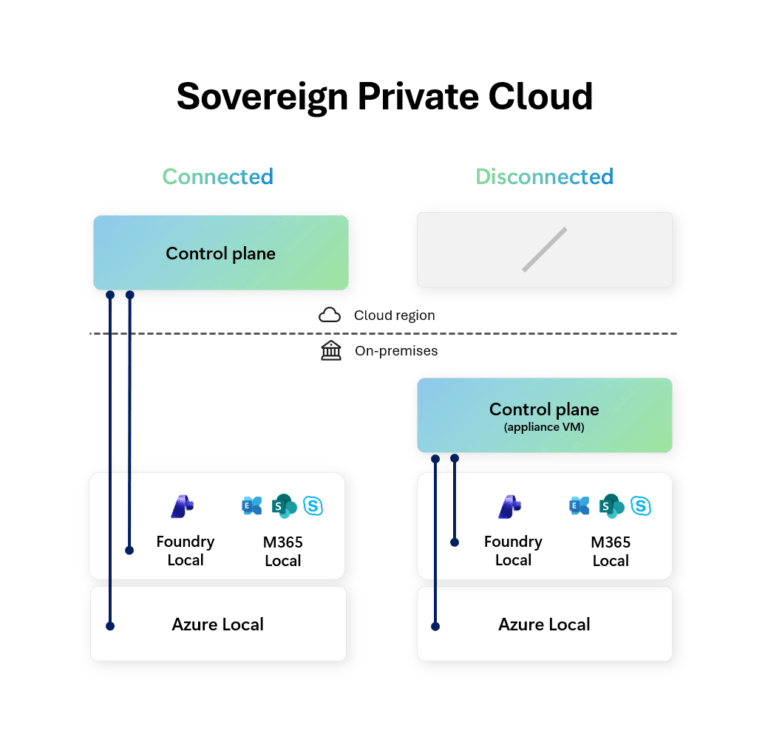
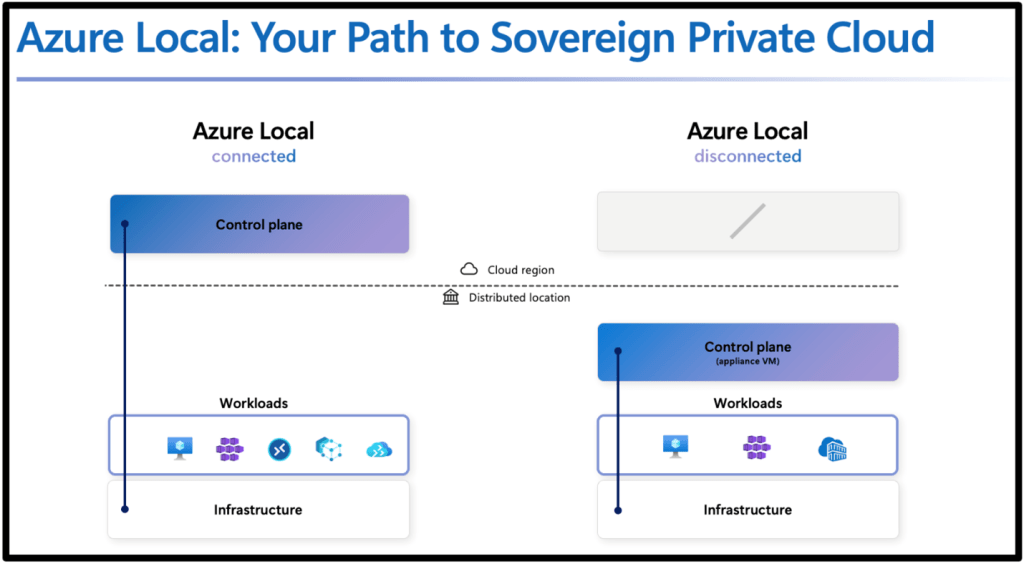
Azure Stack HCI is no more ….. this is now being renamed to Azure Local. Which makes a lot more sense as Azure managed appliances deployed locally but still managed from Azure via Arc.

So, its just a rename right? Wrong! The previous iteration was tied to specific hardware that had high costs. Azure Local now brings low spec and low cost options to the table. You can also use Azure Local in disconnected mode.

More info can be found in this blog post and in this YouTube video.

Azure Migrate Enhancements

Azure Migrate is product that has badly needed some improvements and enhancements given the capabilities that some of its competitors in the market offer.

The arrival of a Business case option enables customers to create a detailed comparison of the Total Cost of Ownership (TCO) for their on-premises estate versus the TCO on Azure, along with a year-on-year cash flow analysis as they transition their workloads to Azure. More details on that here.

There was also an announcement during the Ignite Session around a tool called “Azure Migrate Explore” which looked like it provides you with a ready-made Business case PPT template generator that can be used to present cases to C-level. Haven’t seen this released yet, but one to look out for.

Finally, one that may hae been missed a few months ago – given the current need for customers to migrate from VMware on-premises deployments to Azure VMware Solution (which is already built in to Azure Migrate via either Appliance or RVTools import), its good to see that there is a preview feature around a direct path from VMware to Azure Stack HCI (or Azure Local – see above). This is a step forward for customers who need to keep their workloads on-premises for things like Data Residency requirements, while also getting the power of Azure Management. More details on that one here.

Azure Network Security Perimeter

I must admit, this one confused me a little bit at first glance but makes sense now.

Network Security Perimeter allows organizations to define a logical network isolation boundary for PaaS resources (for example, Azure Storage acoount and SQL Database server) that are deployed outside your organization’s virtual networks.

So, we’re talking about services that are either deployed outside of a VNET (for whatever reason) or are using SKU’s that do not support VNET integration.

More info can be found here.

Azure Bastion Premium

This has been in preview for a while but is now GA – Azure Bastion Premium offers enhanced security features such as private connectivity and graphical recordings of virtual machines connected through Bastion.

Bastion offers enhanced security features that ensure customer virtual machines are connected securely and to monitor VMs for any anomalies that may arise.

More info can be found here.

Security Copilot integration with Azure Firewall

The intelligence of Security Copilot is being integrated with Azure Firewall, which will help analysts perform detailed investigations of the malicious traffic intercepted by the IDPS feature of their firewalls across their entire fleet using natural language questions. These capabilities were launched on the Security Copilot portal and now are being integrated even more closely with Azure Firewall.

The following capabilities can now be queried via the Copilot in Azure experience directly on the Azure portal where customers regularly interact with their Azure Firewalls: 

  • Generate recommendations to secure your environment using Azure Firewall’s IDPS feature
  • Retrieve the top IDPS signature hits for an Azure Firewall 
  • Enrich the threat profile of an IDPS signature beyond log information 
  • Look for a given IDPS signature across your tenant, subscription, or resource group 

More details on these features can be found here.

DNSSEC for Azure DNS

I was surprised by this annoucement – maybe I had assumed it was there as it had been available as an AD DNS feature for quite some time. Good to see that its made it up to Azure.

Key benefits are:

  • Enhanced Security: DNSSEC helps prevent attackers from manipulating or poisoning DNS responses, ensuring that users are directed to the correct websites. 
  • Data Integrity: By signing DNS data, DNSSEC ensures that the information received from a DNS query has not been altered in transit. 
  • Trust and Authenticity: DNSSEC provides a chain of trust from the root DNS servers down to your domain, verifying the authenticity of DNS data. 

More info on DNSSEC for Azure DNS can be found here.

Azure Confidential Clean Rooms

Some fella called Mark Russinovich was talking about this. And when that man talks, you listen.

Designed for secure multi-party data collaboration, with Confidential Clean Rooms, you can share privacy sensitive data such as personally identifiable information (PII), protected health information (PHI) and cryptographic secrets confidently, thanks to robust trust guarantees that safeguard your data throughout its lifecycle from other collaborators and from Azure operators.

This secure data sharing is powered by confidential computing, which protects data in-use by performing computations in hardware-based, attested Trusted Execution Environments (TEEs). These TEEs help prevent unauthorized access or modification of application code and data during use. 

More info can be found here.

Azure Extended Zones

Its good to see this feature going into GA and hopefully will provide a pathway for future AEZ’s in other locations.

Azure Extended Zones are small-footprint extensions of Azure placed in metros, industry centers, or a specific jurisdiction to serve low latency and data residency workloads. They support virtual machines (VMs), containers, storage, and a selected set of Azure services and can run latency-sensitive and throughput-intensive applications close to end users and within approved data residency boundaries. More details here.

.NET 9

Final one and slightly cheating here as this was announced at KubeCon the week before – .NET9 has been announced. Note that this is a STS release with an expiry of May 2026. .NET 8 is the current LTS version with an end-of-support date of November 2026 (details on lifecycles for .NET versions here).

Link to the full release announcement for .NET 9 (including a link to the KubeCon keynote) can be found here.

Conclusion

Its good to see that in the firehose of annoucements around AI and Copilot, there there are still some really good enhancements and improvements coming out for Azure services.

Azure Networking Zero to Hero – Network Security Groups

In this post, I’m going to stay within the boundaries of our Virtual Network and briefly talk about Network Security Groups, which filter network traffic between Azure resources in an Azure virtual network.

Overview

So, its a Firewall right?

NOOOOOOOOOO!!!!!!!!

While a Network Security Group (or NSG for short) contains Security Rules to allow or deny inbound/outbound traffic to/from several types of Azure Resources, it is not a Firewall (it may be what a Firewall looked like 25-30 years ago, but not now). NSG’s can be used in conjunction with Azure Firewall and other network security services in Azure to help secure and shape how your traffic flows between subnets and resources.

Default Rules

When you create a subnet in your Virtual Network, you have the option to create an NSG which will be automatically associated with the subnet. However, you can also create an NSG and manually associate it with either a subnet, or directly to a Network Interface in a Virtual Machine.

When an NSG is created, it always has a default set of Security Rules that look like this:

The default Inbound rules allow the following:

  • 65000 — All Hosts/Resources inside the Virtual Network to Communicate with each other
  • 65001 — Allows Azure Load Balancer to communicate with the Hosts/resources
  • 65500 — Deny all other Inbound traffic

The default Outbound rules allow the following:

  • 65000 — All Hosts/Resources inside the Virtual Network to Communicate with each other
  • 65001 — Allows all Internet Traffic outbound
  • 65500 — Deny all other Outbound traffic

The default rules cannot be edited or removed. NSG’s are created initially using a Zero-Trust model. The rules are processed in order of priority (lowest numbered rule is processed first). So you would need to build you rules on top of the default ones (for example, RDP and SSH access if not already in place).

Configuration and Traffic Flow

Some important things to note:

  • The default “65000” rules for both Inbound and Outbound – this allows all virtual network traffic. It means that if we have 2 subnets which each have a virtual machine, these would be able to communicate with each other without adding any additional rules.
  • As well as IP addresses and address ranges, we can use Service Tags which represents a group of IP address prefixes from a range of Azure services. These are managed and updated by Microsoft so you can use these instead of having to create and manage multiple Public IP’s for each service. You can find a full list of available Service Tags that can be used with NSG’s at this link. In the image above, “VirtualNetwork” and “AzureLoadBalancer” are Service Tags.
  • A virtual network subnet or interface can only have one NSG, but an NSG can be assigned to many subnets or interfaces. Tip from experience, this is not a good idea – if you have an application design that uses multiple Azure Services, split these services into dedicated subnets and apply NSG’s to each subnet.
  • When using a NSG associated with a subnet and a dedicated NSG associated with a network interface, the NSG associated with the Subnet is always evaluated first for Inbound Traffic, before then moving on to the NSG associated with the NIC. For Outbound Traffic, it’s the other way around — the NSG on the NIC is evaluated first, and then the NSG on the Subnet is evaluated. This process is explained in detail here.
  • If you don’t have a network security group associated to a subnet, all inbound traffic is blocked to the subnet/network interface. However, all outbound traffic is allowed.
  • You can only have 1000 Rules in an NSG by default. Previously, this was 200 and could be raised by logging a ticket with Microsoft, but the max (at time of writing) is 1000. This cannot be increased. Also, there is a max limit of 5000 NSG’s per subscription.

Logging and Visibility

  • Important – Turn on NSG Flow Logs. This is a feature of Azure Network Watcher that allows you to log information about IP traffic flowing through a network security group,  including details on source and destination IP addresses, ports, protocols, and whether traffic was permitted or denied. You can find more in-depth details on flow logging here, and a tutorial on how to turn it on here.
  • To enhance this, you can use Traffic Analytics, which analyzes Azure Network Watcher flow logs to provide insights into traffic flow in your Azure cloud.

Conclusion

NSGs are fundamental to securing inbound and outbound traffic for subnets within an Azure Virtual Network, and form one of the first layers of defense to protect application integrity and reduce the risk of data loss prevention.

However as I said at the start of this post, an NSG is not a Firewall. The layer 3 and layer 4 port-based protection that NSGs provide has significant limitations and cannot detect other forms of malicious attacks on protocols such as SSH and HTTPS that can go undetected by this type of protection.

And that’s one of the biggest mistakes I see people make – they assume that NSG’s will do the job because Firewalls and other network security sevices are too expensive.

Therefore, NSG’s should be used in conjunction with other network security tools, such as Azure Firewall and Web Application Firewall (WAF), for any devices presented externally to the internet or other private networks. I’ll cover these in detail in later posts.

Hope you enjoyed this post, until next time!!

Azure Networking Zero to Hero – Routing in Azure

In this post, I’m going to try and explain Routing in Azure. This is a topic that grows in complexity the more you expand your footprint in Azure in terms of both Virtual Networks, and also the services you use to both create your route tables and route your traffic.

Understanding Azure’s Default Routing

As we saw in the previous post when a virtual network is created, this also creates a route table. This contains a default set of routes known as System Routes, which are shown here:

SourceAddress prefixesNext hop type
DefaultVirtual Network Address SpaceVirtual network
Default0.0.0.0/0Internet
Default10.0.0.0/8None (Dropped)
Default172.16.0.0/12None (Dropped)
Default192.168.0.0/16None (Dropped)

Lets explain the “Next hop types” is in a bit more detail:

  • Virtual network: Routes traffic between address ranges within the address space of a virtual network. So lets say I have a Virtual Network with the 10.0.0.0/16 address space defined. I then have VM1 in a subnet with the 10.0.1.0/24 address range trying to reach VM2 in a subnet with the 10.0.2.0/24 address range. It know to keep this within the Virtual Network and routes the traffic successfully.
  • Internet: Routes traffic specified by the address prefix to the Internet. If the destination address range is not part of a Virtual Network address space, its gets routed to the Internet. The only exception to this rule is if trying to access an Azure Service – this goes across the Azure Backbone network no matter which region the service sits in.
  • None: Traffic routed to the None next hop type is dropped. This automatically includes all Private IP Addresses as defined by RFC1918, but the exception to this is your Virtual Network address space.

Simple, right? Well, its about to get more complicated …..

Additional Default Routes

Azure adds more default system routes for different Azure capabilities, but only if you enable the capabilities:

SourceAddress prefixesNext hop type
DefaultPeered Virtual Network Address SpaceVNet peering
Virtual network gatewayPrefixes advertised from on-premises via BGP, or configured in the local network gatewayVirtual network gateway
DefaultMultipleVirtualNetworkServiceEndpoint

So lets take a look at these:

  • Virtual network (VNet) peering: when a peering is created between 2 VNets, Azure adds the address spaces of each of the peered VNets to the Route tables of the source VNets.
  • Virtual network gateway: this happens when S2S VPN or Express Route connectivity is establised and adds address spaces that are advertised from either Local Network Gateways or On-Premises gateways via BGP (Border Gateway Protocol). These address spaces should be summarized to the largest address range coming from On-Premises, as there is a limit of 400 routes per route table.
  • VirtualNetworkServiceEndpoint: this happens when creating a direct service endpoint for an Azure Service, enables private IP addresses in the VNet to reach the endpoint of an Azure service without needing a public IP address on the VNet.

Custom Routes

The limitations of sticking with System Routes is that everything is done for you in the background – there is no way to make changes.

This is why if you need to make change to how your traffic gets routed, you should use Custom Routes, which is done by creating a Route Table. This is then used to override Azure’s default system routes, or to add more routes to a subnet’s route table.

You can specify the following “next hop types” when creating user-defined routes:

  • Virtual Appliance: This is typically Azure Firewall, Load Balancer or other virtual applicance from the Azure Marketplace. The appliance is typically deployed in a different subnet than the resources that you wish to route through the Virtual Appliance. You can define a route with 0.0.0.0/0 as the address prefix and a next hop type of virtual appliance, with the next hop address set as the internal IP Address of the virtual appliance, as shown below. This is useful if you want all outbound traffic to be inspected by the appliance:
  • Virtual network gateway: used when you want traffic destined for specific address prefixes routed to a virtual network gateway. This is useful if you have an On-Premises device that inspects traffic an determines whether to forward or drop the traffic.
  • None: used when you want to drop traffic to an address prefix, rather than forwarding the traffic to a destination.
  • Virtual network: used when you want to override the default routing within a virtual network.
  • Internet: used when you want to explicitly route traffic destined to an address prefix to the Internet

You can also use Service Tags as the address prefix instead of an IP Range.

How Azure selects which route to use?

When outbound traffic is sent from a subnet, Azure selects a route based on the destination IP address, using the longest prefix match algorithm. So if 2 routes exist with 10.0.0.0/16 and a 10.0.0.0/24, Azure will select the /24 as it has the longest prefix.

If multiple routes contain the same address prefix, Azure selects the route type, based on the following priority:

  • User-defined route
  • BGP route
  • System route

So, the initial System Routes are always the last ones to be checked.

Conclusion and Resources

I’ve put in some links already in the article. The main place to go for a more in-depth deep dive on Routing is this MS Learn Article on Virtual Network Traffic Routing.

As regards people to follow, there’s no one better than my fellow MVP Aidan Finn who writes extensively about networking over at his blog. He also delivered this excellent session at the Limerick Dot Net Azure User Group last year which is well worth a watch for gaining a deep understanding of routing in Azure.

Hope you enjoyed this post, until next time!!

Azure Networking Zero to Hero – Intro and Azure Virtual Networks

Welcome to another blog series!

This time out, I’m going to focus on Azure Networking, which covers a wide range of topics and services that make up the various networking capabilities available within both Azure cloud and hybrid environments. Yes I could have done something about AI, but for those of you who know me, I’m a fan of the classics!

The intention is to have this blog series serve as both a starting point for anyone new to Azure Networking who is looking to start a learning journey towards that AZ-700 certification, or as an easy reference point for anyone looking for a list of blogs specific to the wide scope of services available in the Azure Networking family.

There isn’t going to be a set number of blog posts or “days” – I’m just going to run with this one and see what happens! So with that, lets kick off with our first topic, which is Virtual Networks.

Azure Virtual Networks

So lets start with the elephant in the room. Yes, I have written a blog post about Azure Virtual Networks before – 2 of them actually as part of my “100 Days of Cloud” blog series, you’ll find Part 1 and Part 2 at these links.

Great, so thats todays blog post sorted!!! Until next ti …… OK, I’m joking – its always good to revise and revisit.

After a Resource Group, a virtual network is likely to be the first actual resource that you create. Create a VM, Database or Web App, the first piece of information it asks you for is what Virtual Network to your resource in.

But of course if you’ve done it that way, you’ve done it backwards because you really should have planned your virtual network and what was going to be in it first! A virtual network acts as a private address space for a specific set of resource groups or resources in Azure. As a reminder, a virtual network contains:

  • Subnets, which allow you to break the virtual network into one or more dedicated address spaces or segments, which can be different sizes based on the requirements of the resource type you’ll be placing in that subnet.
  • Routing, which routes traffic and creates a routing table. This means data is delivered using the most suitable and shortest available path from source to destination.
  • Network Security Groups, which can be used to filter traffic to and from resources in an Azure Virtual Network. Its not a Firewall, but it works like one in a more targeted sense in that you can manage traffic flow for individual virtual networks, subnets, and network interfaces to refine traffic.

A lot of wordy goodness there, but the easiest way to illustrate this is using a good old diagram!

Lets do a quick overview:

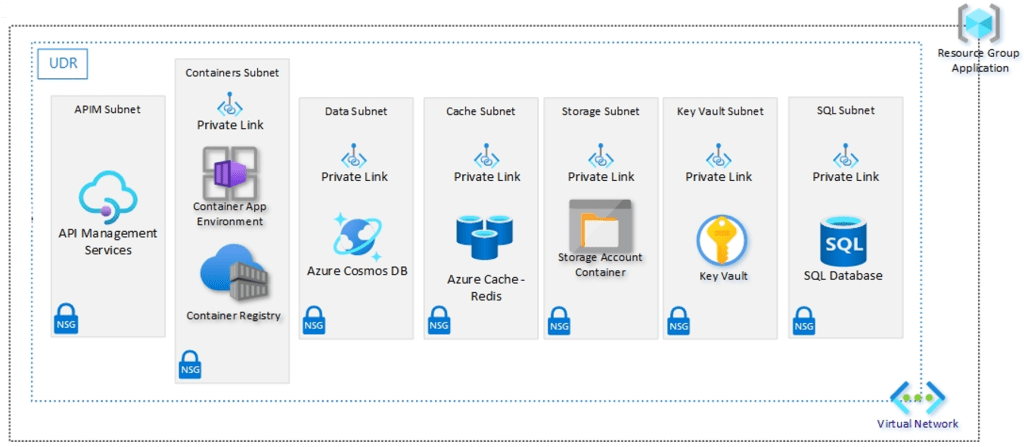
  • We have 2 Resource Groups using a typical Hub and Spoke model where the Hub contains our Application Gateway and Firewall, and our Spoke contains our Application components. The red lines indicate peering between the virtual networks so that they can communicate with each other.
  • Lets focus on the Spoke resource group – The virtual network has an address space of 10.1.0.0/16 defined.
  • This is then split into different subnets where each of the components of the Application reside. Each subnet has an NSG attached which can control traffic flow to and from different subnets. So in this example, the ingress traffic coming into the Application Gateway would then be allows to pass into the API Management subnet by setting allow rules on the NSG.
  • The other thing we see attached to the virtual network is a Route Table – we can use this to define where traffic from specific sources is sent to. We can use System Routes which are automatically built into Azure, or Custom Routes which can be user defined or by using BGP routes across VPN or Express Route services. The idea in our diagram is that all traffic will be routed back to Azure Firewall for inspection before forwarding to the next destination, which can be another peered virtual network, across a VPN to an on-premises/hybrid location, or straight out to an internet destination.

Final thoughts

Some important things to note on Virtual Networks:

  • Planning is everything – before you even deploy your first resource group, make sure you have your virtual networks defined, sized and mapped out for what you’re going to use them for. Always include scaling, expansion and future planning in those decisions.
  • Virtual Networks reside in a single resource group, but you technically can assign addresses from subnets in your virtual network to resources that reside in different resource groups. Not really a good idea though – try to keep your networking and resources confined within resource group and location boundaries.
  • NSG’s are created using a Zero-Trust model, so nothing gets in or out unless you define the rules. The rules are processed in order of priority (lowest numbered rule is processed first), so you would need to build you rules on top of the default ones (for example, RDP and SSH access if not already in place).

Hope you enjoyed this post, until next time!!

The A-Z of Azure Policy

I’m delighted to be contributing to Azure Spring Clean for the first time. The annual event is organised by Azure MVP’s Joe Carlyle and Thomas Thornton and encourages you to look at your Azure subscriptions and see how you could manage it better from a Cost Management, Governance, Monitoring and Security perspective. You can check out all of the posts in this years Azure Spring Clean here. For this year, my contribution is the A-Z of Azure Policy!

Azure Policy is one of the key pillars of a Well Architected Framework for Cloud Adoption. It enables you to enforce standards across either single or multiple subscriptions at different scope levels and allows you to bring both existing and new resources into compliance using bulk and automated remediation.

These policies enforce different rules and effects over your resources so that those resources stay compliant with your corporate standards and service level agreements. Azure Policy meets this need by evaluating your resources for noncompliance with assigned policies.

Image Credit - Microsoft

Image Credit: Microsoft

Policies define what you can and cannot do with your environment. They can be used individually or in conjunction with Locks to ensure granular control. Let’s look at some simple examples where Policies can be applied:

  • If you want to ensure resources are deployed only in a specific region.
  • If you want to use only specific Virtual Machine or Storage SKUs.
  • If you want to block any SQL installations.
  • If you want to enforce Tags consistently across your resources.

So that’s it – you can just apply a policy and it will do what you need it to do? The answer is both Yes and No:

  • Yes, in the sense that you can apply a policy to define a particular set of business rules to audit and remediate the compliance of existing resources against those rules.
  • No in the sense that there is so much more to it than that.

There is much to understand about how Azure Policy can be used as part of your Cloud Adoption Framework toolbox. And because there is so much to learn, I’ve decided to do an “A-Z” of Azure Policy and show the different options and scenarios that are available.

Before we start on the A-Z, a quick disclaimer …. There’s going to be an entry for every letter of the alphabet, but you may have to forgive me if I use artistic license to squeeze a few in (Letters like Q, X and Z spring to mind!).

So, grab a coffee (or whatever drink takes your fancy) and let’s start on the Azure Policy alphabet!

A

Append is the first of our Policy Effects and is used to add extra fields to resources during update or creation, however this is only available with Azure Resource Manager (ARM). The example below sets IP rules on a Storage Account:

"then": {
    "effect": "append",
    "details": [{
        "field": "Microsoft.Storage/storageAccounts/networkAcls.ipRules",
        "value": [{
            "action": "Allow",
            "value": "134.5.0.0/21"
        }]
    }]
}

Assignment is the definition of what resources or scope your Policy is being applied to.

Audit is the Policy Effect that evaluates the resources and report a non-compliance in the logs. It does not take any actions; this is report-only.

"then": {
    "effect": "audit"
}

AuditIfNotExists is the Policy Effect that evaluates whether a property is missing. So for example, we can say if the type of Resource is a Virtual Machine and we want to know if that Virtual Machine has a particular tag or extension present. If yes, the resource will be returned as Compliant, if not, it will return a non-compliance. The example below evaluates Virtual Machines to determine whether the Antimalware extension exists then audits when missing:

{
    "if": {
        "field": "type",
        "equals": "Microsoft.Compute/virtualMachines"
    },
    "then": {
        "effect": "auditIfNotExists",
        "details": {
            "type": "Microsoft.Compute/virtualMachines/extensions",
            "existenceCondition": {
                "allOf": [{
                        "field": "Microsoft.Compute/virtualMachines/extensions/publisher",
                        "equals": "Microsoft.Azure.Security"
                    },
                    {
                        "field": "Microsoft.Compute/virtualMachines/extensions/type",
                        "equals": "IaaSAntimalware"
                    }
                ]
            }
        }
    }
}

B

Blueprints – Instead of having to configure features like Azure Policy for each new subscription, with Azure Blueprints you can define a repeatable set of governance tools and standard Azure resources that your organization requires. This allows you to scale the configuration and organizational compliance across new and existing subscriptions with a set of built-in components that speed the development and deployment phases.

Built-In –Azure provides hundreds of built-in Policy and Initiative definitions for multiple resources to get you started. You can find then both on the Microsoft Learn site or on GitHub.

C

Compliance State shows the state of the resource when compared to the policy that has been applied. Unsurprisingly this has 2 states, Compliant and Non-Compliant

Costs – if you are running Azure Policy on Azure resources, then its free. However, you can use Azure Policy to cover Azure Arc resources and there are specific scenarios where you will be charged:

  • Azure Policy guest configuration (includes Azure Automation change tracking, inventory, state configuration): $6/Server/Month
  • Kubernetes Configuration: First 6 vCPUs are free, $2/vCPU/month

Custom Policy definitions are ones that you create yourself when a Built-In Policy doesn’t meet the requirements of what you are trying to achieve.

D

Dashboards in the Azure Portal give you a graphical overview of the compliance state of your Azure environments:

Definition Location is the scope to where the Policy or Initiative is assigned. This can be Management Group, Subscription, Resource Group or Resource.

Deny is the Policy Effect used to prevent a resource request or action that doesn’t match the defined standards.

"then": {
    "effect": "deny"
}

DeployIfNotExists is the Policy Effect used to apply the action defined in the Policy Template when a resource is found to be non-compliant. This is used as part of a remediation of non-compliant resources. Important point to note – policy assignments that use a DeployIfNotExists effect require a managed identity to perform remediation.

Docker Security Baseline is a set of default configuration settings which ensure that Docker Containers in Azure are running based on a recommended set of regulatory and security baselines.

E

Enforcement Mode is a property that allows you to enable/disable enforcement of policy effects while still evaluating compliance.

Evaluation is the process of scanning your environment to determine the applicability and compliance of assigned policies.

F

Fields are used in policy definitions to specify a property or alias. In the example below, the field property contains “location” and “type” at different stages of the evaluation:

"if": {
        "allOf": [{
                "field": "location",
                "notIn": "[parameters('listOfAllowedLocations')]"
            },
            {
                "field": "location",
                "notEquals": "global"
            },
            {
                "field": "type",
                "notEquals": "Microsoft.AzureActiveDirectory/b2cDirectories"
            }
        ]
    },
    "then": {
        "effect": "Deny"
    }
}

G

GitHub – you can use GitHub to build an “Azure Policy as Code” workflow to manage your policies as code, control the lifecycle of updating definitions, and automate the process of validating compliance results.

Governance Visualizer – I have to include this because I think its an awesome tool – Julian Hayward’s AzGovViz tool is a PowerShell script which captures Azure governance capabilities such as Azure Policy, RBAC and Blueprints and a lot more. If you’re not using it, now is the time to start.

Group – within an Initiative, you can group policy definitions for categorization. The Regulatory Compliance feature uses this to group definitions into controls and compliance domains.

H

Hierarchy – this sounds simple but is important. The location that you assign the policy should contain all resources that you want to target under that resource hierarchy. If the definition location is a:

  • Subscription – Only resources within that subscription can be assigned the policy definition.
  • Management group – Only resources within child management groups and child subscriptions can be assigned the policy definition. If you plan to apply the policy definition to several subscriptions, the location must be a management group that contains each subscription.

I

Initiative (or Policy Set) is a set of Policies that have been grouped together with the aim of either targeting a specific set of resources, or to evaluate and remediate a specific set of definitions or parameters. For example, you could group several tagging policies into a single initiative that is targeted at a specific scope instead of applying multiple policies individually.

J

JSON – Policy definitions are written in JSON format. The policy definition contains elements for:

  • mode
  • parameters
  • display name
  • description
  • policy rule
    • logical evaluation
    • effect

An example of the “Allowed Locations” built-in policy is shown below

{
  "properties": {
    "displayName": "Allowed locations",
    "policyType": "BuiltIn",
    "description": "This policy enables you to restrict the locations...",
    "mode": "Indexed",
    "parameters": {
      "listOfAllowedLocations": {
        "type": "Array",
        "metadata": {
          "description": "Locations that can be specified....",
          "strongType": "location",
          "displayName": "Allowed locations"
        }
      }
    },
    "policyRule": {
      "if": {
        "allOf": [
          {
            "field": "location",
            "notIn": "[parameters('listOfAllowedLocations')]"
          },
          {
            "field": "location",
            "notEquals": "global"
          },
          {
            "field": "type",
            "notEquals": "Microsoft.AzureActiveDirectory/b2cDirectories"
          }
        ]
      },
      "then": {
        "effect": "Deny"
      }
    }
  },
  "id": "/providers/Microsoft.Authorization/policyDefinitions/e56962a6-4747-49cd-b67b-bf8b01975c4c",
  "type": "Microsoft.Authorization/policyDefinitions",
  "name": "e56962a6-4747-49cd-b67b-bf8b01975c4c"
}

K

Key Vault – you can integrate Key Vault with Azure Policy to audit the key vault and its objects before enforcing a deny operation to prevent outages. Current built-ins for Azure Key Vault are categorized in four major groups: key vault, certificates, keys, and secrets management.

Kubernetes – Azure Policy uses Gatekeeper to apply enforcements and safeguards on your clusters (both Azure Kubernetes Service (AKS) and Azure Arc enabled Kubernetes). This then reports back into your centralized Azure Policy Dashboard on the following:

  • Checks with Azure Policy service for policy assignments to the cluster.
  • Deploys policy definitions into the cluster as constraint template and constraint custom resources.
  • Reports auditing and compliance details back to Azure Policy service.

After installing the Azure Policy Add-on for AKS, you can apply individual policy definitions or initiatives to your cluster.

L

Lighthouse – for Service Providers, you can use Azure Lighthouse to deploy and manage policies across multiple customer tenants.

Linux Security Baseline is a set of default configuration settings which ensure that Linux VMs in Azure are running based on a recommended set of regulatory and security baselines.

Logical Operators are optional condition statements that can be used to see if resources have certain configurations applied. There are 3 logical operators – not, allOf and anyOf.

  • Not means that the opposite of the condition should be true for the policy to be applied.
  • AllOf requires all the conditions defined to be true at the same time.
  • AnyOf requires any one of the conditions to be true for the policy to be applied.
"policyRule": {
  "if": {
    "allOf": [{
        "field": "type",
        "equals": "Microsoft.DocumentDB/databaseAccounts"
      },
      {
        "field": "Microsoft.DocumentDB/databaseAccounts/enableAutomaticFailover",
        "equals": "false"
      },
      {
        "field": "Microsoft.DocumentDB/databaseAccounts/enableMultipleWriteLocations",
        "equals": "false"
      }
    ]
  },
  "then": {

M

Mode tells you the type of resources for which the policy will be applied. Allowed values are “All” (where all Resource Groups and Resources are evaluated) and “indexed” (where policy is evaluated only for resources which support tags and location)

Modify is a Policy Effect that is used to add, update, or remove properties or tags on a subscription or resource during creation or update. Important point to note – policy assignments that use a Modify effect require a managed identity to perform remediation. If you don’t have a managed identity, use Append instead. The example below is replacing all tags with a value of environment with a value of test:

"then": {
    "effect": "modify",
    "details": {
        "roleDefinitionIds": [
            "/providers/Microsoft.Authorization/roleDefinitions/b24988ac-6180-42a0-ab88-20f7382dd24c"
        ],
        "operations": [
            {
                "operation": "addOrReplace",
                "field": "tags['environment']",
                "value": "Test"
            }
        ]
    }
}

N

Non-Compliant is the state which indicates that a resource did not conform to the policy rule in the policy definition.

O

OK, so this is my first failure. Surprising, but lets keep going!

P

Parameters are used for providing inputs to the policy. They can be reused at multiple locations within the policy.

{
    "properties": {
        "displayName": "Require tag and its value",
        "policyType": "BuiltIn",
        "mode": "Indexed",
        "description": "Enforces a required tag and its value. Does not apply to resource groups.",
        "parameters": {
            "tagName": {
                "type": "String",
                "metadata": {
                    "description": "Name of the tag, such as costCenter"
                }
            },
            "tagValue": {
                "type": "String",
                "metadata": {
                    "description": "Value of the tag, such as headquarter"
                }
            }
        },
        "policyRule": {
            "if": {
                "not": {
                    "field": "[concat('tags[', parameters('tagName'), ']')]",
                    "equals": "[parameters('tagValue')]"
                }
            },
            "then": {
                "effect": "deny"
            }
        }
    }
}

Policy Rule is the part of a policy definition that describes the compliance requirements.

Policy State describes the compliance state of a policy assignment.

Q

Query Compliance – While the Dashboards in the Azure Portal (see above) provide you with a visual method of checking your overall compliance, there are a number of command line and automation tools you can use to access the compliance information gnerated by your policy and initiative assignments:

az policy state trigger-scan --resource-group "MyRG"

  • Azure PowerShell using the following command:

Start-AzPolicyComplianceScan -ResourceGroupName 'MyRG'

R

Regulatory Compliance describes a specific type of initiative that allows grouping of policies into controls and categorization of policies into compliance domains based on responsibility (Customer, Microsoft, Shared). These are available as built-in initiatives (there are built-in initiatives from CIS, ISO, PCI DSS, NIST, and multiple Government standards), and you have the ability to create your own based on specific requirements.

Remediation is a way to handle non-compliant resources. You can create remediation tasks for resources to bring these to a desired state and into compliance. You use DeployIfNotExists or Modify effects to correct violating policies.

S

Security Baseline for Azure Security Benchmark – this is a set of policies that comes from guidance from the Microsoft cloud security benchmark version 1.0. The full Azure Policy security baseline mapping file can be found here.

Scope is the location where the policy definition is being assigned to. This can be Management Group, Subscription, Resource Group or Resource.

T

Tag Governance is a crucial part of organizing your Azure resources into a taxonomy. Tags can be the basis for applying your business policies with Azure Policy or tracking costs with Cost Management. The template shown below shows how to enforce Tag values across your resources:

{
   "properties": {
      "displayName": "Require tag and its value",
      "policyType": "BuiltIn",
      "mode": "Indexed",
      "description": "Enforces a required tag and its value. Does not apply to resource groups.",
      "parameters": {
         "tagName": {
            "type": "String",
            "metadata": {
               "description": "Name of the tag, such as costCenter"
            }
         },
         "tagValue": {
            "type": "String",
            "metadata": {
               "description": "Value of the tag, such as headquarter"
            }
         }
      },
      "policyRule": {
         "if": {
            "not": {
               "field": "[concat('tags[', parameters('tagName'), ']')]",
               "equals": "[parameters('tagValue')]"
            }
         },
         "then": {
            "effect": "deny"
         }
      }
   },
   "id": "/providers/Microsoft.Authorization/policyDefinitions/1e30110a-5ceb-460c-a204-c1c3969c6d62",
   "type": "Microsoft.Authorization/policyDefinitions",
   "name": "1e30110a-5ceb-460c-a204-c1c3969c6d62"
}

U

Understanding how Effects work is key to understanding Azure Policy. By now, we’ve listed all the effects out above. The key thing to remember is that each policy definition has a single effect, which determines what happens when an evaluation finds a match. There is an order in how the effects are evaluated:

  • Disabled is checked first to determine whether the policy rule should be evaluated.
  • Append and Modify are then evaluated. Since either could alter the request, a change made may prevent an audit or deny effect from triggering. These effects are only available with a Resource Manager mode.
  • Deny is then evaluated. By evaluating deny before audit, double logging of an undesired resource is prevented.
  • Audit is evaluated.
  • Manual is evaluated.
  • AuditIfNotExists is evaluated.
  • denyAction is evaluated last.

Once these effects return a result, the following 2 effects are run to determine if additional logging or actions are required:

  • AuditIfNotExists
  • DeployIfNotExists

V

Visual Studio Code contains an Azure Policy code extension which allows you to create and modify policy definitions, run resource compliance and evaluate your policies against a resource.

W

Web Application Firewall – Azure Web Application Firewall (WAF) combined with Azure Policy can help enforce organizational standards and assess compliance at-scale for WAF resources.

Windows Security Baseline is a set of default configuration settings which ensure that Windows VMs in Azure are running based on a recommended set of regulatory and security baselines.

X

X is for ….. ah come on, you’re having a laugh ….. fine, here you go (artistic license taken!):

Xclusion – this of course should read Exclusion ….. when assigned, the scope includes all child resource containers and child resources. If a child resource container or child resource shouldn’t have the definition applied, each can be excluded from evaluation by setting notScopes.

Xemption – this of course should read Exemption …. this is a feature used to exempt a resource hierarchy or individual resource from evaluation. These resources are therefore not evaluated and can have a temporary waiver (expiration) period where they are exempt from evaluation and remediation.

Y

YAML – You can use Azure DevOps to check Azure Policy Compliance using using YAML Pipelines. However, you need to use the AzurePolicyCheckGate@0 task. The syntax is shown below:

# Check Azure Policy compliance v0
# Security and compliance assessment for Azure Policy.
- task: AzurePolicyCheckGate@0
  inputs:
    azureSubscription: # string. Alias: ConnectedServiceName. Required. Azure subscription. 
    #ResourceGroupName: # string. Resource group. 
    #Resources: # string. Resource name.

Z

Zero Non-Compliant – which is exactly the position you want to get to!

Z is also for Zzzzzzzz, which may be the state you’re in if you’ve managed to get this far!

Summary

So thats a lot to take in, but it gives you an insight into the different options that are available in Azure Policy to ensure that your Azure environments can meet both governance and cost management objectives for your organization.

In this post, I’ve stayed with the features of Azure Policy and apart from a few examples didn’t touch on the many different methods you can use to assign and manage policies which are:

  • Azure Portal
  • Azure CLI
  • Azure PowerShell
  • .NET
  • JavaScript
  • Python
  • REST
  • ARM Template
  • Bicep
  • Terraform

As always, check out the official Microsoft Learn documentation for a more in-depth deep dive on Azure Policy.

Hope you enjoyed this post! Be sure to check out the rest of the articles in this years Azure Spring Clean.

Can we prevent Cloud Repatriation in Azure?

I’ve seen a lot of articles in the last few months talking about Cloud Repatriation, so I’ve decided to look into this more and find out more about:

  • What is Cloud Repatriation?
  • Why is it suddenly a topic?
  • Why its not as easy as it sounds?
  • How did this happen in the first place?
  • Why it should never become an issue?

What is Cloud Repatriation?

Lets start with the easy question and look for the definition of what it is. Repatriation is a term that has been around for a while and is defined in its simplest form as:

“the process of returning a thing or a person to its place of origin”

So if we take that definition and apply it to technology, Cloud Repatriation is the process of companies moving their services out of Microsoft Azure (or other Public Cloud providers such as AWS or GCP) and relocating those services back to the On-Premises or Private Cloud environments that they originated from.

Why is it suddenly a topic?

One word – cost. The cost of running a Cloud Computing environment isn’t the same as running an On-Premises environment.

In an On-Premises environment, we work with predictable cost models when it comes to Equipment, Licensing and Staffing costs. The only variable is Power which is in a constant state of flux and change. This leads us down the CapEx route which forces companies into predicting the costs involved over a 3-5 year period. Finance people love this as it means they can safely predict future costs and budgets, and not have to worry about unexpected charges affecting their balance sheets.

The first part of that previous paragraph is ambiguous. Unless your company is static with zero growth projections (and lets be honest, no company is), its going to be difficult to predict costs or a period of years:

  • How many servers will you need to run your estate? If you order too little, you’ll need to buy more and your CFO won’t like that after you told them that these were the only costs needed for the next 3 years.
  • If you order too much, its overspend and equipment/license wastage and you may not be approved for additional equipment in your next Budget cycle (which leads you to use unsupported and out of warranty equipment that may lead to more costs to keep that operational).
  • You may have also hired either too few staff (leading to overwork and burnout) or too many staff (which leads to idleness and ultimately reducing the workforce).

Cloud Computing environments use the OpEx which works differently in that it uses a Pay-As-You-Use model. You use a Cloud Service and are billed monthly for the cost of using it. You have options to scale the service up or down as required, and you can also purchase Reserved Instances or Savings Plans over a 3/5 year period in order to reduce the costs and have that “CapEx-feel” to Cloud Computing.

The problem is that there is no clearly defined way of keeping those costs consistent, and Microsoft’s recent announcement on price increases for European Customers (and depending on your currency, this was as much as 15%) has meant that CFOs and CTOs are scrambling to look at alternative solutions to the Cloud.

And in some cases, the word “Repatriation” has been thrown about and the question being asked is “were we wrong to move to Azure/AWS/GCP, and should we look to move our servers and data back?”

Why its not as easy as it sounds?

So you want to move back? It sounds easy, and if your Cloud Migration involved only a “Lift And Shift” or Rehost (where you migrated your VMs as-is and made no modifications to them), then fire away! Buy your equipment, install your favourite hypervisor and off you go! There are 3rd party products (such as Carbon) on the market that will bring your VMs back to either VMware or Hyper-V.

You can also migrate Office365 mailboxes back to On-Premises Exchange Servers by setting up a migration batch in EAC, so that process is simple.

But what if you did more than just Rehost? Lets remind ourselves of the 5 R’s of Cloud Rationalization:

  • Rehost – also known and Lift and Shift.
  • Refactor – customizing your apps and infrastructure to align with the Cloud.
  • Rearchitect – divides your app into different parts or MicroServices.
  • Rebuild – completely rebuild and redevelop your app.
  • Replace – completely replace the app with a cloud-native SaaS application.

If you’ve done anything more than Rehost during your migration to Azure, then you have a bit of work on your hands getting it back. It’s not impossible by any means but as with all Cloud Services, it’s a lot easier to get them into the Cloud than it is to get them out. If you’ve redesigned your app to make it Cloud-Native using any of the other 4 “R’s”, then you need to realise that you need to recreate that environment on your On-Premises, and that may not be easy and cost a lot more than it is running the service in Azure in the first place!

How did this happen in the first place?

To work out why this should never have become an issue, we need to go back through the mists of time and work out why the migrations happened in the first place. It was most likely down to either:

  • Running old and unsupported hardware.
  • Complex systems that were difficult to manage and maintain.
  • Enhanced Security.
  • Easier Scalability of services.

And if you moved to Azure, its likely that you used either :

  • Azure Site Recovery (and were using Azure as a DR platform to initially test how your VMs would work).
  • Azure Migrate (where you ran a discovery assessment on the load of your VMs over a period of time up to 30 days, and used that assessment as a means of sizing your target Azure VMs).

The original version of Azure Migrate only supported migration of VMware VM workloads to Azure. The new version (released in November 2019) included Database and Web Server migration features, and Application Discovery.

In all likelihood, some companies went down the same route as the initial Office365 migrations (where they only migrated Email and never used any of the other underlying services included in their licenses), and in doing their Cloud Migrations to Azure decided to effectively “Rehost-only” and not use the additional benefits that were available. So instead of running Web Servers or Applications as part of an Azure App Service, they may have been left running on VMs with underlying Web or App Services.

Another good example here is the Finance or Warehouse Management Application that ran on a VM and also required a dedicated SQL backend (that also ran on a VM). Instead of refactoring that into an App Service or a Serverless SQL Database, it was left running on VMs in Azure. We all know that these VMs have spikes at certain times every month, so in that case the scalability that could have offered cost savings wasn’t implemented.

Why it should never have become an issue?

There are a number of contributing factors why Cloud Computing costs can spiral out of control. I’ve made the case for these below, and in some cases what can be done to address them:

  • Azure Reserved Instances – this is what Finance people love as they immediate savings and some semblance of how they can “CapEx their OpEx” costs over a longer period of time.
  • Azure Cost Management – Setting a budget or at least budget alerts on monthly spend can at least give you an indication of where you are each month. If you’re getting budget alerts emails on the 10th of each month, then you haven’t got either your budget or your Service SKU’s and Sizing right.
  • Azure Policy – have you set policies to say that you can only have certain VM SKUs, running on certain disk types, in certain regions?
  • RBAC Roles – this is the most important one and the biggest factor in “spend-creep”. Who can do what in your Azure Subscription? For example, have you granted developers Owner access in their own Resource Group so they can spin up what they want? Changing a SKU on a VM is single click operation, as is changing Disk type from HDD to SSD, redundancy from LRS to GRS etc. And do the policies you have set above apply across the subscription or have you exclusions set somewhere? Having control of your environemnt and assigning the correct roles.
  • Assessments – OK, this is a “after the horse has bolted” scenario, but its never too late to do it. Asking questions like why did you move in the first place, does it align with business goals, strategy and governance objectives.
  • Azure Advisor – its there, on every resource you are running in Azure and also as its own page in the portal, giving you recommendations based on over/under consumption and how you can address this.
  • Backup/DR- this has long been a bone of contention for some companies and I’ve experienced some who see Cloud-based backup solutions as either unnecessary or too expensive (because being in the cloud means we don’t need Backup or DR, right?).

Conclusion

I’ve based this article purely on costs and how you can utilize the various Tools, Policies and Governance tools available in Azure that can help make final decisions on whether Cloud Repatriation is the right choice for your business.

Hope you enjoyed this post, until next time!

Microsoft Ignite 2022 – Highlights of the Announcements (with a few personal opinions thrown in)!

For this year’s Microsoft Ignite, in-person conferences were held in cities around the world after two years of being online and I was fortunate enough to attend the Manchester Spotlight event last week.

At the conference Microsoft had their usual presentations, ‘Ask the Expert’ sessions, exhibition areas and a Cloud Skills Challenge. But of course it’s the announcements that everyone looks forward to the most, where improvements, changes and updates to the various technologies in the Microsoft product portfolio are revealed.

I’ve picked out my top highlights below!

  • Azure Stack HCI

I’m on both sides of the fence about the Azure Stack HCI announcements.

I love the Azure Stack HCI product and have been using it since the days when it was called Storage Spaces Direct and ran on Hyper-Converged Infrastructure in on-premises datacenters. As it has evolved, Microsoft has invested heavily in the Azure Stack HCI product, which allows you to run Azure Managed Infrastructure in your own datacentres and combine on-premises infrastructure with Azure Cloud Services.

One of the big announcements was around licensing, and gives Enterprise Agreement customers with Software Assurance the ability to exchange their existing licensed cores of Windows Server Datacentre to get Azure Stack HCI at no additional cost. This includes the right to run unlimited Azure Kubernetes Service and unlimited Windows Server guest workloads on the Azure Stack HCI cluster.

Speaking of Kubernetes, support for Azure Kubernetes Service on Azure Stack HCI is now available, meaning you can deploy and manage containerised apps side-by-side with your VMs on the same physical server or cluster. You can also now make provisioning for hybrid AKS clusters directly from Azure onto your Azure Stack HCI using Azure Arc

On the hardware side, you could previously purchase validated hardware for multiple vendors but in early 2023, Microsoft will begin offering an Azure Stack HCI integrated system based on hardware that’s designed, shipped, and supported by Microsoft (in partnership with Dell). 

This will be available in several configurations:

I mentioned both sides of the fence above, and the licensing announcement is one of the worrying ones, because like the recent announcements that Defender for Servers requires an Azure Subscription (Microsoft Defender for Endpoint (Server Version) is no longer available on the EA price list), we’re now potentially going down the route of Microsoft only allowing Windows Server Datacenter to run on Azure Stack HCI accredited hardware. Or potentially getting rid of the Windows Server Datacenter SKU entirely and having it as a “cloud-connected only” product. Only time will tell.

  • Azure Savings Plan for Compute

Azure Savings Plan for Compute is based on consumption, and allows you to by a one- or three-year savings plan and commit to a spend of $5 per hour per virtual machine (VM). This is based on Azure Advisor Recommendations in the Cost Management and Billing section of the Azure Portal.

Once purchased, this is applied on a hourly basis based on consumption and even if you go above the $5 spend, the initial commitment is still billed at the lower rate and any additional consumption is billed at a Pay-As-You-Go rate.

The main difference between this and Reserved Instances is that Reserved Instances is an up-front commitment whether the VM is powered on or not. Azure Savings Plan for Compute unlocks those lower savings based on consumption.

You can find more details in this article on the Microsoft Community Hub.

  • Azure Virtual Machine Scale Sets – Mixing Standard and Spot instances

Staying on the Cost Savings topic, you can now specify a % of Spot Instance VMs that you wish to run in a VM Scale Set.

This feature (which is in Preview) allows you to reduce compute infrastructure costs by leveraging the deep discounts that Spot VMs can provide while maintaining the compute capacity your workload needs. 

More information can be found here.

  • Microsoft 365 updates

A huge number of announcements were made about Microsoft 365 at this year’s Ignite, most notably:

  • The release of the Microsoft 365 app, which will replace the Office Mobile and Office for Windows App for all Microsoft 365 customers who use this as part of their subscriptions.
  • Teams Premium, which will be available to E5 subscriptions and will bring enhanced meeting features such as insights and live translation in more than 40 languages so that participants can read captions in their own language.
  • Microsoft Places, which will assist with the hybrid working model and let everyone know who will be in the office at what times, where colleagues are sitting, what meetings to attend in person; and how to book space on the days your team is planning to go into the office.

The Teams announcements are great, in particular the live translation option. For us as a multi-national and multi-language organisation, this is a massive step in fostering the inclusion of all users. There is an assumption in the world that spoken English is the native language of Tech, but it’s not everyone’s first language.

  • Microsoft Intune

Microsoft Endpoint Manager is being renamed to Microsoft Intune, which is what it was called before it was renamed to Endpoint Manager. This effectively bundles all Endpoint Management tools under a single brand, including Microsoft Configuration Manager. Some of the main features announced were:

  • ServiceNow Integration
  • Cloud LAPS for Azure Virtual Machines
  • Update Policies or MacOS and Linux Support
  • Endpoint Privileged Management – no more permanent admin permissions on devices!

For me, Endpoint Privileged Management is huge addition which removes the need for any permanent administrative permissions on devices. Cloud LAPS is also a huge security step.

  • Security

Finally on to Security, which was a big focus this year. This year’s updates to the Microsoft Security portfolio coincided with the announcement that Microsoft is now recognised as a leader in the Gartner Magic Quadrant for Security Information and Event Management.

First and foremost is Microsoft’s announcement of a limited-time sale of 50% off Defender for Endpoint Plan 1 and Plan 2 licenses, allowing organisations to do more and spend less by modernising their security with a leading endpoint protection platform. The offer runs until June 2023.

Microsoft 365 Defender now automatically disrupts ransomware attacks. This is possible because Microsoft 365 Defender collects and correlates signals across endpoints, identities, emails, documents and cloud apps into unified incidents and uses the breadth of signal to identify attacks early with a high level of confidence. Microsoft 365 Defender can automatically contain affected assets, such as endpoints or user identities. This helps stop ransomware from spreading laterally.

A number of new capabilities have been announced for Defender for Cloud:

  • Microsoft Defender for DevOps: A new solution that will provide visibility across multiple DevOps environments to centrally manage DevOps security, strengthen cloud resource configurations in code and help prioritise remediation of critical issues in code across multi-pipeline and multicloud environments. With this preview, leading platforms like GitHub and Azure DevOps are supported and other major DevOps platforms will be supported shortly.
  • Microsoft Defender Cloud Security Posture Management (CSPM): This solution, available in preview, will build on existing capabilities to deliver integrated insights across cloud resources, including DevOps, runtime infrastructure and external attack surfaces, and will provide contextual risk-based information to security teams. Defender CSPM provides proactive attack path analysis, built on the new cloud security graph, to help identify the most exploitable resources across connected workloads to help reduce recommendation noise by 99%.
  • Microsoft cloud security benchmark: A comprehensive multicloud security framework is now generally available with Microsoft Defender for Cloud as part of the free Cloud Security Posture Management experience. This built-in benchmark maps best practices across clouds and industry frameworks, enabling security teams to drive multicloud security compliance.
  • Expanded workload protection capabilities: Microsoft Defender for Servers will support agentless scanning, in addition to an agent-based approach to VMs in Azure and AWS. Defender for Servers P2 will provide Microsoft Defender Vulnerability Management premium capabilities.

If you’d like to read more about Microsoft’s Ignite announcements from the conference, then go to Microsoft’s Book of News here.

Hope you enjoyed this post, until next time!

Control your Azure Virtual Desktop costs with Scaling Plans

Cloud Computing has changed the way we approach our enterprise infrastructure.

The amount of options available to us now means that we can finally ditch that dusty old server sitting the the bottom of the server rack (or in some cases at the back of a cupboard) for a modern secure solution that we don’t need to sit and pray in front of every time we need to restart it.

The Problem with the Cloud

But …. some people would prefer to keep old “Dusty Springfield” alive because the effort to migrate and in some cases re-architect the service is too much and too costly. And thats the thing we hear the most when a suggestion to migrate to a cloud service is raised – “the cloud is very expensive…”.

And lets be honest, it is …..

Money money money ……

There, I said it. Out Loud. In Print. Cloud Computing is expensive. There’s a helicopter hovering over my house at the minute but I’m sure its nothing to worry about ……

In all seriousness though, when scoping out a Cloud solution the first thing that is looked at is cost. You can argue as much as you want about the redundancy, the lower power and cooling costs, lack of hardware costs etc. The bean counters will look at the bottom line and say “we’re not paying that much now….”. And “Dusty Springfield” limps on defiantly in corner.

Of course, your cloud computing costs are defined by the options you select and what level of redundancy you need. Scale Sets, Storage redundancy across zones and regions. Or just keep it as locally redundant storage? Then you get into the sizing of your solutions.

How the Costs add up

Azure Virtual Desktop is one of those cool technologies that can help you provide a secure environment for your users to access Cloud or Hybrid environments in a consistent and unified experience. But because its built on underlying VMs which you need to size based on your requirements, the costs can mount up.

Lets take a look at an example of a standard Azure Virtual Desktop host pool that contains 10 Session Hosts which are delivering Remote Apps to 100 users. The Session Hosts are generally sized from the General Purpose VM type and the most common one used is the “Standard_D4s_v3”, which has 4 vCPU’s and 16GB memory.

The base cost for this VM if you create a standard Azure Virtual machine comes in at approx $160 per month.

Standard Virtual Machine Type

However, if we use this VM type for our Azure Virtual Desktop Session Hosts with Windows 10 Enterprise Multi-Session version 21H2 with Microsoft 365 Apps installed, the cost then jumps to $290 per month.

Azure Virtual Desktop Virtual Machine Type

So, lets go back to our 10 Session Hosts – at that price we’re talking $2900 per month, or just under $35000 per year. And thats for just 10 VMs in the environment. And thats why Cloud Computing is expensive! Of course, this doesn’t take into account reserved instances or spot instances, but you get the idea.

The $290 per month cost for a VM isn’t based on a cost per month – its based on 730 hours of usage or 24 hours multiplied by just over 30. This where you can start cutting into that $35000 per year cost, and where Scaling Plans applied to your Azure Virtual Desktop Host Pools can help.

Scaling Plans

Scaling Plans lets you scale your session host virtual machines (VMs) in a host pool up or down to optimize deployment costs. You can create a scaling plan based on:

  • Time of day
  • Specific days of the week
  • Session limits per session host

You follow the guidelines below when creating your scaling plan:

  • At the time of writing, you can only configure autoscale with existing Pooled host pools. This won’t work with Personal host pools
  • You must create the scaling plan in the same Azure region as the host pool you assign it to.
  • All host pools you use with autoscale must have a configured MaxSessionLimit parameter. Don’t use the default value.
  • You must grant Azure Virtual Desktop access to manage the power state of your session host VMs.

Create a custom RBAC role

Now that we know the benefits and rules, the first thing we need to do is create a custom RBAC role. This custom role and assignment will allow Azure Virtual Desktop to manage the power state of any VMs in those subscriptions. It will also let the service apply actions on both host pools and VMs when there are no active user sessions.

The steps for creating the Custom RBAC Role are as follows (this is the same for creating any Custom RBAC Role):

  • First, create a json file using whatever your favourite editor is (I’m using Sublime in this example). Save the file as avdscale.json and add the following information into it:
  • Open the Azure portal and go to Subscriptions and select a subscription that contains a host pool and session host VMs you want to use with autoscale. Select Access control (IAM). Select the + Add button, then select Add custom role from the drop-down menu.

  • On the “Basics” screen, go to Baseline permissions and browse to the avdscale.json file that you just created.
  • This will import all of your settings, so on the next screen you will see the permissions that you had specified in your json file.
  • Next, we have “Assignable Scopes”. You want to assign this at subscription level as assigning this custom role at any level lower than your subscription, such as the resource group, host pool, or VM, will prevent autoscale from working properly.
  • We can now skip to the “Review and Create” screen, as this will validate and list out our permissions for the RBAC role. Review these and then click “Create”:
  • And once thats created, we can see its been created as a Custom Role:

  • Now we need to add a Role Assignment for our RBAC Role. So we click on “Add role assignment”

  • We select our Custom RBAC role and in the members screen, we choose to assign access to a User, group or service principal. From the select members screen, search for “Windows Virtual Desktop”
  • Go to “Review and Assign” and click create:
  • And we can see that at subscription level the role has been assigned:

Create our Scaling Plan

Now that our RBAC role is done, we can create our scaling plan.

  • Open the Azure portal. In the search bar, type Azure Virtual Desktop and select the matching service entry. Select Scaling Plans, then select Create.
  • On the Basics screen, provide the following:
    • Subscription and Resource Group where the Scaling Plan will be created
    • Name
    • Location (remember this needs to be in the same region as your Host Pool)
    • Time Zone

The other entries are optional, however an important one to note is Exclusion Tags – you can use this in conjunction with Tags to excluse certain VMs from autoscaling operations

  • Click next and this will bring you to the Schedules screen. Click on Add Schedule
  • In the General screen, we enter a Schedule Name and also select the days we want the schedule to apply to.
  • In the Ramp-up screen, we specify a default starting point.
    • So in this instance, we want to have 20% (or 2 out of our 10 Session Hosts) powered on and ready to accept connections at 08:00.
    • We’ve selected “Breadth First” for Load balancing – this means users will be spread evenly across available hosts and is recommended for consistent performance.
    • Finally, we have set a Capacity threshold of 80%. If you recall, we set our hosts to accept a maximum of 10 connections. We have 2 hosts powered on, so once we reach 16 users across those 2 hosts, the next host will automatically power on.
  • Next up is Peak hours. For this we specify a starting time (which is normally when the majority of your users will be logging on) and we’ve also flipped the Load Balancing to “Depth-first”, which will load up all available hosts with user sessions (up to our 80% threshold) before bringing another one online. This is really up to you as to how you want to load balance, but as a reminder:
    • Breadth-first load balancing distributes new user sessions across all available session hosts in the host pool.
    • Depth-first load balancing distributes new sessions to any available session host with the highest number of connections that hasn’t reached its session limit yet.
  • Next up is Ramp-down, this is where we start deallocating hosts at the end of the working day and as you can see, the target is to get back down to 20% of the hosts. The important point to make here is the “Force logoff users” option. If this is enabled then the following applies:
    • This will choose the session host with the lowest number of user sessions to shut down. Autoscale will put the session host in drain mode, send all active user sessions a notification telling them they’ll be signed out, and then sign out all users after the specified wait time is over. After autoscale signs out all user sessions, it then deallocates the VM.
    • During ramp-down, autoscale will only shut down VMs if all existing user sessions in the host pool can be consolidated to fewer VMs without exceeding the capacity threshold.
  • Finally, we get to “Off-peak hours” which is the end of the “Ramp-down” period.
  • And thats our weekday schedule created. You can also go back in and create a weekend schedule where you can bring the number of hosts down to 10% and have a higher capacity threshold at weekends:
  • Once the schedules are created, we assign the Scaling Plan to our Host pool and click on “Enable autoscale”:
  • And now we can validate our options and click on “Review and create”:

Give all of this about an hour to kick in and you will see your Azure Virtual Desktop session hosts automatically deallocated as per your schedules if not in use!

Money money money ….

Earlier in this post, I gave a yearly figure of approx $35000 to run our 10 Session Host VMs. However, that figure is based on full consumption. So lets do some very quick calculations to see how our scaling plan affects that figure:

  • As we said, a single VM running at full consumption (or the full 730 hours) will cost us $290 per month.
  • Based on our schedules created above, we’re going to have 1 VM running full time for both weekdays and weekends. So thats $290 per month, or $3,480 per year.
  • We’re then guaranteed to have 1 VM running from Monday until Friday for 24 hours, and also on weekends for 12 hours each day (depending on how schedule is created). Thats effectively 6 days a week instead of 7. So we need to calculate that over a year which is a case of getting 6/7ths of our full price figure. Thats coming in at $2,983 per year for that VM.
  • Now, its back to the other 8 VMs and the 100 users who are using this. “If” those 100 users are logged on, the other 8 VMs will be up for 12 hours a day from Monday to Friday only as per our schedule. So for that, we need to get 5/7ths of our full price figure (which is $2,486) and then half it because we’re only using for 12 hours a day (and thats coming in at $1,243 per VM).

In summary, what we’ve got is:

  • $3,480 – 1 VM at full consumption
  • $2,983 – 1 VM at slightly reduced consumption for weekdays and weekends
  • $9,944 – 8 VMs running for 12 hours a day from Monday to Friday

Add those figures up and you get a total of $16,407. And we need to remember, that figure doesn’t available cost reductions like Reserved Instances or Hybrid Benefit.

Conclusion

So by implementing a Scaling Plan for the Host pool above, we’ve saved ourselves nearly $20,000. Again I’m going to stress the figures I’m quoting here are approximate, may not represent what you see in your own personal or enterprise subscriptions, and should not be taken as exact savings. Make sure to speak to your Microsoft TAM or Cloud Service Provider for more details. You can find out more about scaling plans here.

Hope you enjoyed this post, until next time!