Azure Subnet Delegation: The Three Words That Break Deployments

I’ve been working with a customer who wants to migrate from Azure SQL Server to Azure SQL Managed Instance. It was the right choice for them – they want to manage multiple databases, so moving away from the DTU Model combined with the costs of running each database indepenently made this a simple choice.

So, lets go set up the deployment. We’ll just deploy it into the same subnet, as it will make life easier during the migration phase……

And it failed. So like most teams would, everyone went looking in the usual places:

  • Was it the NSG?
  • Was it the route table?
  • Was there an address space overlap somewhere?
  • Had DNS been configured incorrectly?
  • Was there some hidden policy assignment blocking the deployment?

The problem was three words in the Azure documentation that nobody on the team had flagged: requires subnet delegation.
And that was it. A deployment failure caused by something that takes about ninety seconds to fix when you know what you’re looking for.

The frustrating part is not that subnet delegation exists. In fairness, Azure has good reasons for it. The frustrating part is that it often surfaces as a deployment failure that sends you in entirely the wrong direction first.
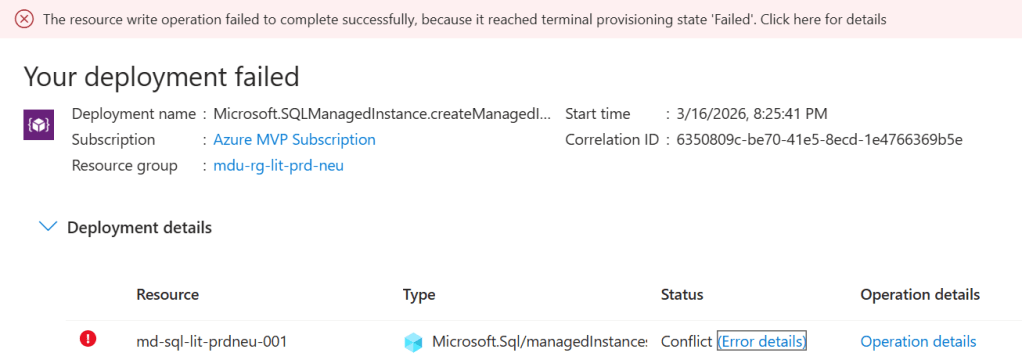
Terminal Provisioning State. The Azure error for everything that tells you nothing…….

This post is about what subnet delegation actually is, why it breaks deployments in ways that are surprisingly difficult to diagnose, and — more importantly — how to make sure it never catches you out again.

What is Subnet Delegation?

At the simplest level, subnet delegation is Azure’s way of saying:

this subnet belongs to this service now.

Not in the sense that you lose visibility of it. Not in the sense that you cannot still apply controls around it. But in the sense that a particular Azure service needs permission to configure aspects of that subnet in order to function properly.

The reason for this is straightforward. Some services need to apply their own network policies, routing rules, and management plane configurations to the subnet. They can’t do that reliably if other resources are competing for the same address space. So Azure introduces the concept of delegation: the subnet is formally assigned to a specific service, and that service becomes the owner.

A delegated subnet belongs to one service. That’s it. No virtual machines, no load balancers, no other PaaS services sharing the space alongside it. The subnet is reserved for the delegated service, not just partially occupied by it.

What Happens When You Get It Wrong

The moment you try to place another resource into a delegated subnet — or deploy a service that requires delegation into a subnet that hasn’t been configured for it — the deployment fails.

And Azure’s error messaging in these situations is not always helpful.

What you typically get is a generic deployment failure (I mean, what the hell does “terminal provisioning state” mean anyway???). The portal or CLI may or may not surface an error that points you at the resource configuration, and the natural instinct is to start checking the things you know: NSG rules, route tables, address space availability. These are the usual suspects in VNet troubleshooting. You work through them methodically and find nothing wrong — because nothing is wrong with them.

What you don’t immediately think to check is the delegation tab on the subnet properties. Why would you? In most VNet troubleshooting scenarios, subnet delegation never comes up. For architects who spend most of their time working with IaaS workloads, it’s simply not part of the mental checklist.

Which Services Require It?

Subnet delegation isn’t a niche requirement for obscure services. It applies to some of the most commonly deployed PaaS workloads in enterprise Azure environments.

At this point, its important to distinguish between “Dedicated” and “Delegated” subnets. Some Azure services such as Bastion, Firewall and VNET Gateway have specific naming and sizing requirements for the subnets that they live in, which means they are dedicated.

I’ve tried to summarize in the table below the services that need both dedicated and delegated subnets. The list may or may not be exhaustive – the reason is that I can’t find a single source of reference on Microsoft Learn or GitHub that shows me what services require delegation. So buddy Copilot may have helped with compiling this list …..

Azure serviceRequirementNotes
Compute & containers
Azure Kubernetes Service (AKS) — kubenetDedicatedNode and pod CIDRs consume the entire subnet; mixing breaks routing
AKS — Azure CNIDedicatedEach pod gets a VNet IP; subnet exhaustion risk with shared use
Azure Container Instances (ACI)DelegationDelegate to Microsoft.ContainerInstance/containerGroups
Azure App Service / Function App (VNet Integration)DelegationDelegate to Microsoft.Web/serverFarms; /26 or larger recommended
Azure Batch (simplified node communication)DelegationDelegate to Microsoft.Batch/batchAccounts
Networking & gateways
Azure VPN GatewayDedicatedSubnet must be named GatewaySubnet
Azure ExpressRoute GatewayDedicatedAlso uses GatewaySubnet; can co-exist with VPN Gateway in same subnet
Azure Application Gateway v1/v2DedicatedSubnet must contain only Application Gateway instances
Azure FirewallDedicatedSubnet must be named AzureFirewallSubnet; /26 minimum
Azure Firewall ManagementDedicatedRequires separate AzureFirewallManagementSubnet; /26 minimum
Azure BastionDedicatedSubnet must be named AzureBastionSubnet; /26 minimum
Azure Route ServerDedicatedSubnet must be named RouteServerSubnet; /27 minimum
Azure NAT GatewayDelegationAssociated via subnet property, not a formal delegation; can share subnet
Azure API Management (internal/external VNet mode)DedicatedRecommended dedicated; NSG and UDR requirements make sharing impractical
Databases & analytics
Azure SQL Managed InstanceBothDedicated subnet + delegate to Microsoft.Sql/managedInstances; /27 minimum
Azure Database for MySQL Flexible ServerBothDedicated subnet + delegate to Microsoft.DBforMySQL/flexibleServers
Azure Database for PostgreSQL Flexible ServerBothDedicated subnet + delegate to Microsoft.DBforPostgreSQL/flexibleServers
Azure Cosmos DB (managed private endpoint)DelegationDelegate to Microsoft.AzureCosmosDB/clusters for dedicated gateway
Azure HDInsightDedicatedComplex NSG rules make sharing unsafe; dedicated strongly recommended
Azure Databricks (VNet injection)BothTwo dedicated subnets (public + private); delegate both to Microsoft.Databricks/workspaces
Azure Synapse Analytics (managed VNet)DelegationDelegate to Microsoft.Synapse/workspaces
Integration & security
Azure Logic Apps (Standard, VNet Integration)DelegationDelegate to Microsoft.Web/serverFarms; same as App Service
Azure API Management (Premium, VNet injected)DedicatedOne subnet per deployment region; /29 or larger
Azure NetApp FilesBothDedicated subnet + delegate to Microsoft.Netapp/volumes; /28 minimum
Azure Machine Learning compute clustersDedicatedDedicated subnet recommended to isolate training workloads
Azure Spring AppsBothTwo dedicated subnets (service runtime + apps); delegate to Microsoft.AppPlatform/Spring

If you’re building Landing Zones for enterprise workloads, you will encounter a significant number of these. Quite possibly in the same deployment cycle.

It’s also worth noting that Microsoft surfaces the delegation identifier strings (like Microsoft.Sql/managedInstances) in the portal when you configure a subnet — but only once you know to look there. These identifiers are also what you’ll specify in your IaC templates, so knowing the right string for each service before you deploy is part of the preparation work.

Why This Catches Architects Out

There’s a pattern worth naming here, because it’s the reason this catches people who really should know better — including architects who’ve been working in Azure for years.

When you build a Solution on Azure or any other cloud platform, you make a lot of network design decisions up front: address space, subnets, NSGs, route tables, peerings, DNS. These decisions form a mental model of the network, and that model tends to stay fairly stable once the design is locked.

Subnet delegation is easy to miss in that process because it isn’t a networking concept in the traditional sense. You’re not configuring routing, access control, or address space. You’re assigning ownership of a subnet to a service. That’s a different kind of decision, and it lives in a different part of the portal to everything else you’re configuring.

During a deployment, when the pressure is on and the clock is running, nobody goes back to check the delegation tab unless they already know delegation is the issue. And you only know delegation is the issue once you’ve already ruled out everything else.

What the Fix Actually Looks Like

Once you know what you’re looking for, the resolution is straightforward.

In the Azure Portal, navigate to the subnet, open the delegation settings, and assign the appropriate service. The delegation options available correspond to the services that support or require it — you select the right one, save, and retry the deployment.
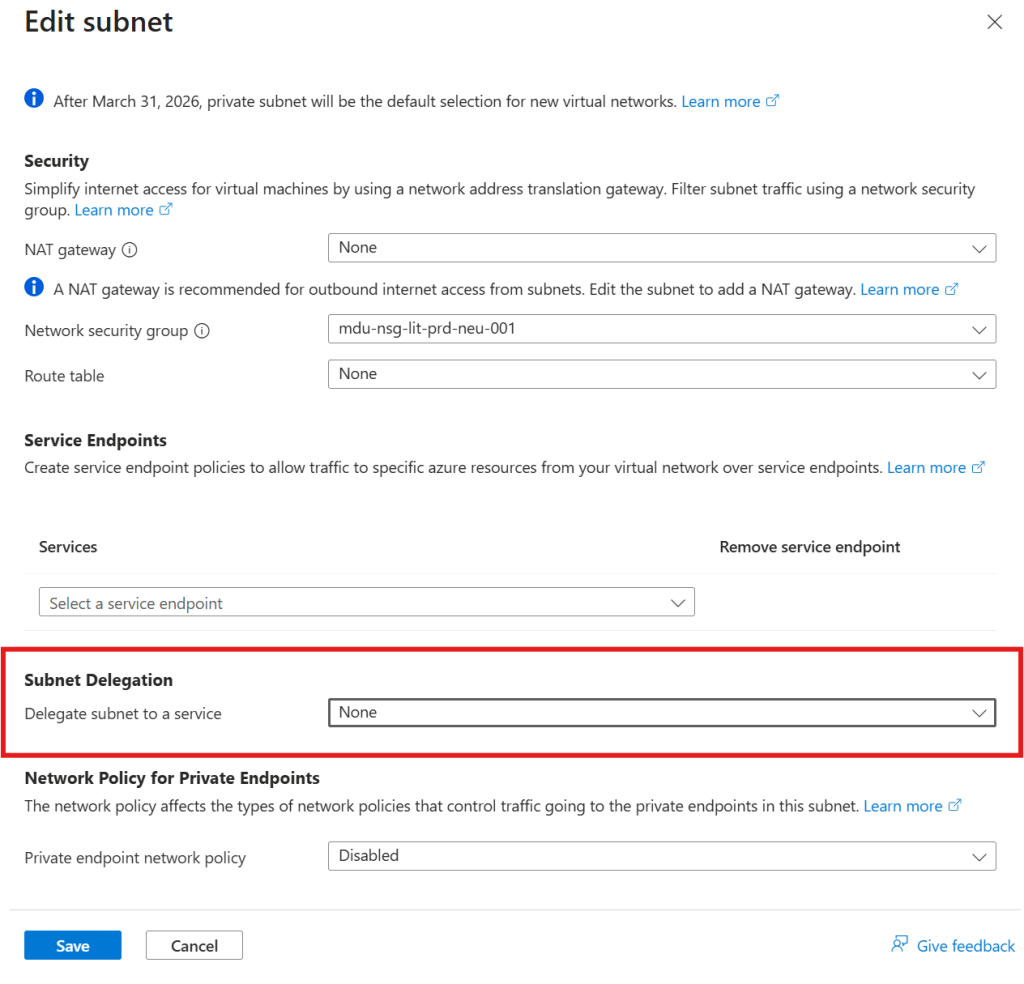
That’s it. That’s the ninety-second fix.

In Terraform, it looks like this:

delegation {
name = "sql-managed-instance-delegation"
service_delegation {
name = "Microsoft.Sql/managedInstances"
actions = [
"Microsoft.Network/virtualNetworks/subnets/join/action",
"Microsoft.Network/virtualNetworks/subnets/prepareNetworkPolicies/action",
"Microsoft.Network/virtualNetworks/subnets/unprepareNetworkPolicies/action"
]
}
}

If you’re deploying via infrastructure-as-code — which you should be for any Landing Zone work — delegation needs to be defined in the subnet configuration from the start, not added reactively when a deployment fails.

Conclusion

Subnet delegation is a small concept with an outsized potential to cause problems during deployments and migrations. The key points:

  • Some PaaS services require exclusive control over a dedicated, delegated subnet
  • Deployment failures caused by missing delegation are poorly surfaced by Azure’s error messaging, which means diagnosis takes much longer than the fix
  • The services that require delegation include SQL Managed Instance, Container Instances, Databricks, Container Apps, and NetApp Files — these are common enterprise workloads, not edge cases
  • The fix, once identified, takes about ninety seconds
  • The right response is to make delegation a first-class design consideration in your subnet inventory and Landing Zone documentation

And if you haven’t hit this yet: now you’ll know what you’re looking at before the next deployment.

100 Days of Cloud – Day 38: Terraform on Azure Cloud Shell Part 4

Its Day 38 of 100 Days of Cloud, and I’m continuing my learning journey on Infrastructure as Code (IaC) by using Terraform.

In the previous post, we looked at the different types of variables we can use in Terraform, how we reference them across across terraform config files, and how powerful they can be in helping to make our code reusable.

Todays post is all about modules, which are used to break our terraform deployments up into multiple segments that are much easier to manage. Lets dive in and take a look.

Modules

Modules are a way to split your Terraform code into multiple segments that they can be managed more easily and by cross functional teams.

Lets go back to our traditional setup, which will have the following components:

  • Operating System
  • Network Connectivity
  • Database
  • Web Application

In our first post on Terraform back on Day 35, we had all of these bundled into a single main.tf file. As our infrastructure footprint in Azure or other Cloud Services grows, this single file will grow exponentially and will make management very dificult, particularly if multiple teams are accessing. There is also the risk that mistakes can be made that could take down the entire infrastructure.

Modules effectively sit in their own file structure, and are called from the main.tf file. If we look at the example below, the root or parent main.tf file sits at the top of the directory structure, and we then have the directory for the storage-account module sitting below that with its own main.tf and variables.tf configuration files :

If we look at the main.tf file, we can see that the resource group code is there as normal, however when we get down to create the storage account, we’re calling the module from the underlying directory structure. If we look the main.tf file within the module, we can see that it contains the basic information required to create the storage account:

What’s missing here is the Terraform source/version and provider code blocks, however in a modules configuration all of that happens in the parent main.tf file. So when we run terraform apply on the parent directory, all providers for the child modules are initialised also.

So why bother break it all up into modules? It goes back to what we said at the start about managing our code effectively, and breaking each of the components out to be managed individually. This also helps from a source repository perspective: instead of having all elements in a single file managed by multiple users or departments, each module can have its own source repository (in Github for example) managed by a teamthat can then be pulled from the repository whenever changes are made. This whats known as “Mono Repo” versus “Multi Repo”.

Image Credit: Luke Orrelana/Cloudskills.io

In the module block, we can also directly reference a Github repository to get the most up to date version of our code. There are multiple sources that can be referenced directly in the code, and full details can be found here.

Learning Resources

Lets wrap this up by looking the learning resources that are available. There are loads of excellent Terraform leaning resources out there. The best place to start is at HashiCorp Learn, which has full tutorials for all of the major cloud providers. Terraform Registry is the place to go for all providers and modules you need to deploy infrastructure.

You then need to look at courses – the aforementioned Luke Orrelana does an excellent Terraform on Azure course over at Cloudskills.io, and Michael Levan has a Terraform for All course on his YouTube Channel. Both Luke and Michael are HashiCorp Ambassadors which is teh HashiCorp equivalent of an MVP, so if you see these guys producing content you know its going to be good (and definitely doing a better job than me of trying to explain how this works!).

Conclusion

And thats all for today! I hope you’ve enjoyed the last few posts on Terraform and learning how powerful a tool it can be. Until next time!

100 Days of Cloud – Day 37: Terraform on Azure Cloud Shell Part 3

Its Day 37 of 100 Days of Cloud, and I’m continuing my learning journey on Infrastructure as Code (IaC) by using Terraform.

In the previous post, we looked at how Terraform State stores information and acts as a database of the resources deployed in Azure. We also looked at Interpolation and how this is used to reference different parts of the Terraform configuration and the dependencies needed to deploy parts of our infrastructure (such as deploying a subnet into a vnet).

Todays post is all about variables – we saw a sample of that on our first post where I used some variables when initially deploying our Resource Group. However, we need to go deeper than that and see how powerful variables can be in helping to make our code reusable, because ultimately that is the point of using Infrastructure as Code. So lets dive in and take a look.

Types of Variables

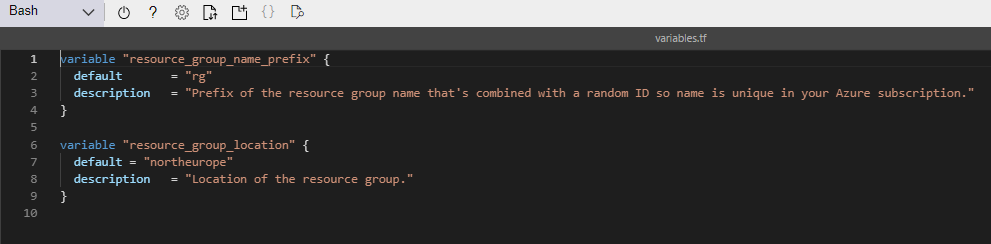
Lets go back to Day 35 when I introduced variables in my resource group deployment. We saw the following 2 variables defined in the variables.tf file:
String Variable

This is the first of our variable types which is a string. This is a sequence of characters representing text, so in our example above it represents the prefix to be used for the resource group name, and also the default location to deploy our resource group into. You could also use this for the likes of admin usernames/passwords, or VM Size/Type we wish to deploy.

List Variable

The next type of variable is a list, which is a sequence of values. In our example, this can be used to define the address space for vnets or subnets. Lists are always surrounded by square brackets.

Map Variable

Next type is a map – this is a list of key value pairs where each value is defined by a label – so in the example above, we are using the map variable to define the type of storage we want to use based on the locations.

Object Variable

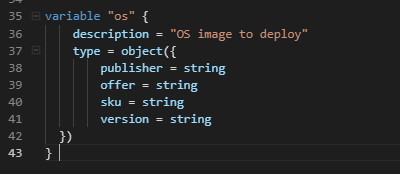
Next type is object – this is a structured variable that can contain different types of values where named attributes each have their own type.

There are 2 other types of variables – a number (which can be a whole number or a fraction) or a boolean variable (which is basically true or false).

So thats the list of variable types, and the above examples show how they would be defined in our variables.tf file. But for the most part the above is just a list of definitions of variables, so where do we store the actual values we want to use?

Variable Inputs

There are 3 ways we can input variables for use with our Terraform code:

  • Environment Variables – this uses the “TF_VAR_” prefix for all variables you want to store locally. So for example, to store a password variable, you would run export TF_VAR_PASSWORD="password", and then declare the variable in the variables.tf file.
  • Command Line Switch- we can just use the -var parameter on the command line to input the variables when running terraform apply. So for example, we could run terraform apply -var="location=northeurope" to specify the location we want to deploy to.
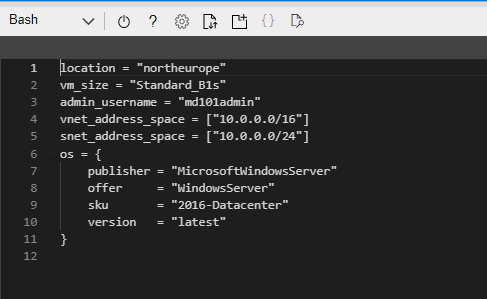
  • terraform.tfvars file – this is a file that is deployed in the same location as the main.tf and variables.tf files and contains a set of key value pairs that are the variable and its value. An exmaple of this is shown below:

We can see that the variables are on the left and the values are on the right.

Calling Variables in Main.tf

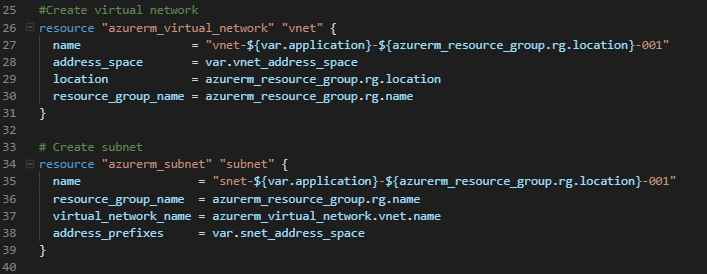
So now we have our variables defined in our terraform.tfvars file, we can now call them from our main.tf when running terraform apply. If you recall on Day 35, I used the var. syntax in the code to call the variables from variables.tf. If we look at the main.tf file now, we can see where this is now calling all of our variables, for example virtual network and subnet:

And below is the virual machine code block:

Now, the eagle-eyed will have noticed that although I’m calling a var.admin_password variable, I didn’t have that defined in my terraform.tfvars file. What will happen here when I run terraform apply is that I will be prompted to input the password, or indeed any variables that are missing.

There is another safer, more secure and in my opinion much cooler way to call the password in, and thats by calling in a secret that is stored in Azure Key Vault. You can find the code for this here.

Conclusion

So now we’re starting to piece things together and understand how the code can become re-usable. For example, we could just copy the main.tf and variables.tf files out and create separate terraform.tfvars files for multiple deployments across multiple teams or regions depending on requirements.

And thats all for today! In the final post in the Terraform series, we’ll dive into modules and how they can used for multiple resources in your architecture when using Terraform. Until next time!

100 Days of Cloud – Day 36: Terraform on Azure Cloud Shell Part 2

Its Day 36 of 100 Days of Cloud, and I’m continuing my learning journey on Infrastructure as Code (IaC) by using Terraform.

In the previous post, we started working with Terraform on Azure Cloud Shell, created and described the function of the Terraform configuration files, and finally deployed an Azure Resource Group. Lets jump back in and start by looking at Terraform State.

Terraform State

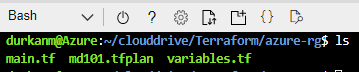
Back in the Cloud Shell, and if we go to our directory where the files are located and do an ll, we can see the config files and also our .tfplan file that we outputted is also in place. We also see that we now have a terraform.tfstate file present:

Lets run cat terraform.tfstate to see whats in the file:

We can see that the file is in JSON format, and contains the information that we used to create our resource group, including the Terraform version, providers used, location and name.

Important Note #1 – We can also see that the tfstate file contains sensitive metadata such as id and other attributes. – this is why it important to never save the tfstate file in a public respository. So as a best practice on Github for example, if you are storing your Terraform config on Github, make sure to add the terraform.tfstate to the list of files to ignore when making a commit – you can find the details on how to do this here.

And thats what tfstate is doing – its acting as a database to store information about what has been deployed in Azure. When running terraform plan, the tfstate file is refreshed to match what it can see in the environment.

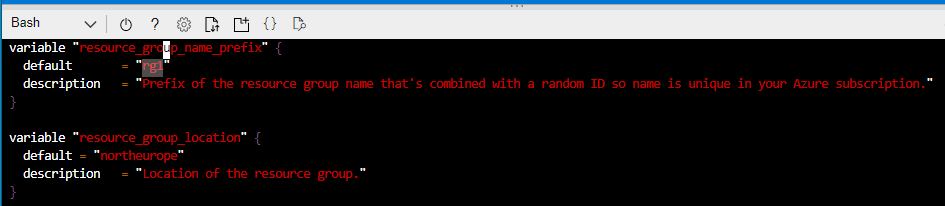
But what happens if we make changes to Azure or indeed our Terraform configuration files – let see that in action. If you recall, we used the variables.tf file in conjunction with main.tf to use varibales to deploy the resource group. So what I’ll do here is go into the variables.tf file and change the prefix of the resource group name to rg1:

So we’ll save that and run terraform plan again:

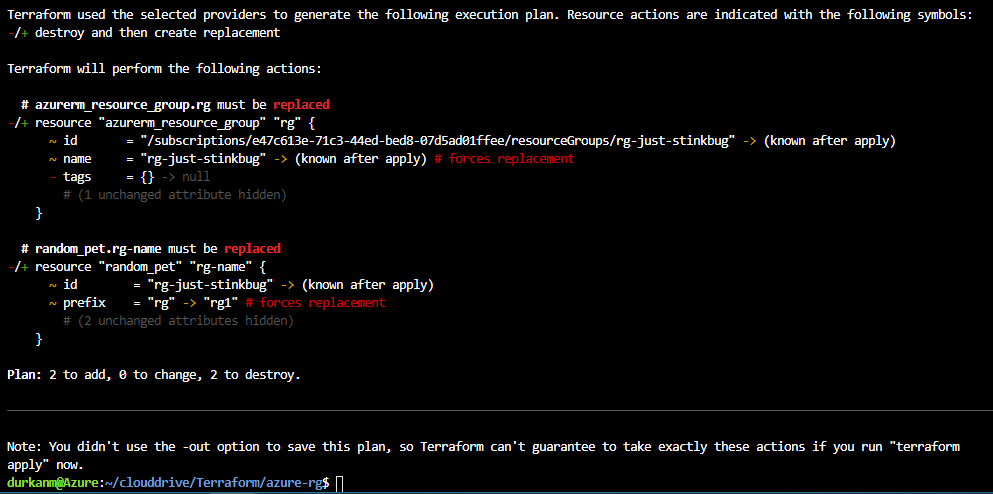
The first thing we see on the output is that its doing a refresh to check for the state of resources in Azure and compare them against the terraform.tfstate file. And immediately, its seeing a discrepancy and telling us that objects have changed (these are the changes made to the variables.tf file). And if we scroll down further:

Its telling me that the resources need to be replaced, so its going to destroy them and create new ones based on the changes.

Important Note #2 – We need to look carefully and understand what this is doing – this is going to destroy existing resources. In this case, I only have a resource group deployed. But what if I had other resources deployed in that resource group, such as a Virtual Machine, Cosmos DB or a Web instance. Yep, they would be blown away as well and replaced by new ones in the new resource group that gets deployed. Thats all very well in a test environment, but in production this could have disastrous consequences.

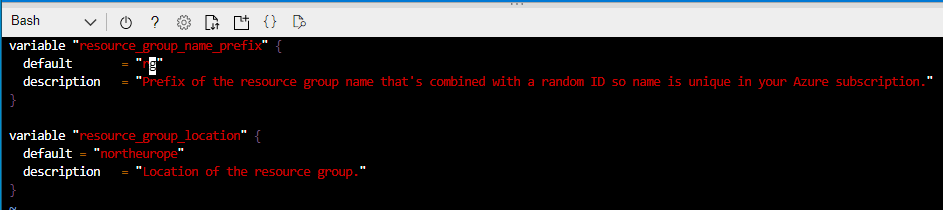
So lets reverse the changes and put my variables.tf file back the way it was:

And lets run terraform plan again just to be sure:

So again, its telling me that there has been a change to config files, but its now reporting that the infrastructure matches the configuration, so no changes need to be made.

So thats Terraform State, lets move on to adding more resources to our Terraform deployment.
Interpolation

We want to add resources to our existing resource group, so we’ll go back in and modify our main.tf file and add the code to do that. If we go to https://registry.terraform.io/, we can search and find details for all of the modules we want to add.
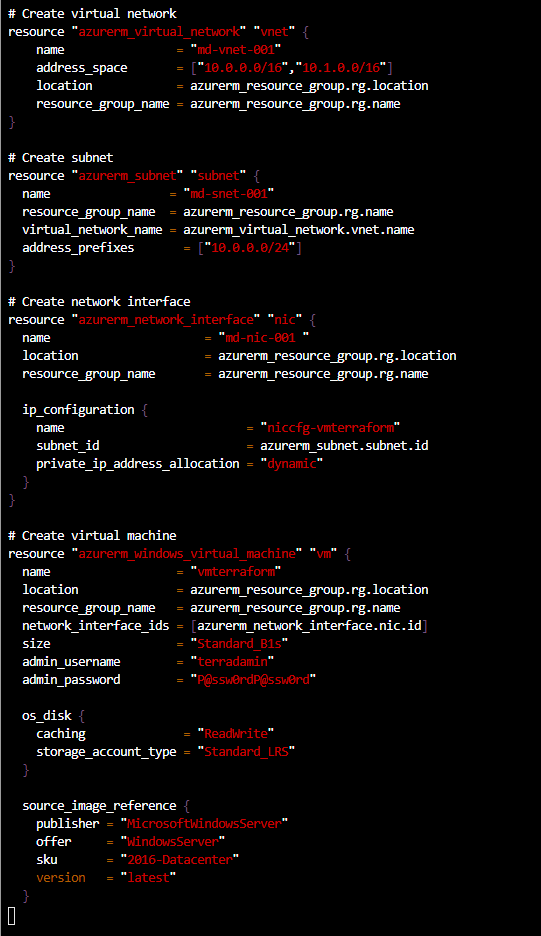
What we’ll add is a virtual network, a subnet, a network interface and a windows virtual machine into our resource group. to do this, we’ll add the following code to our main.tf file:

Important Note #3 – As this is a test, I’m putting the passwords into my config file in plain text. You would never do this in production, and I’ll go through how to do this in a later post.

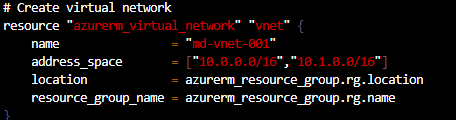
If we study each of the sections, we can see that we are referencing the resources we need to deploy each of the new resources into. So for example, when deploying the virtual network, we are referencing the resource group higher in the configuration file by the resource type, not directly using the resource group name:

Same happens when we create the subnet, we reference the virtual network configuration, not the name directly:

And in a nutshell, thats how Interpolation works in Terraform. Instead of having to hard code names of dependencies when creating infra, Terraform can reference other sections of the config file for references instead. Whats important about this is you can see how it can easily make your infrastructure scalable very quickly.

So now lets run terraform plan -out md101.tfplan and see what happens:

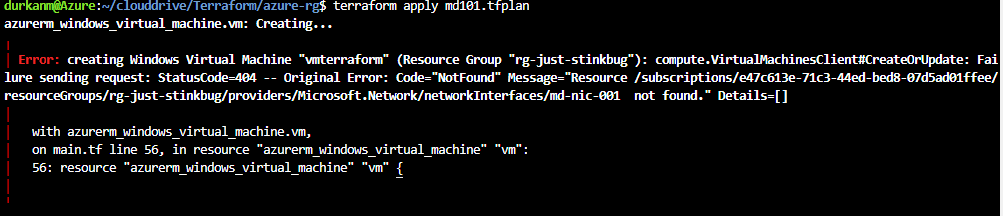
And we can see that we have the resources to add. So lets run terraform apply md101.tfplan to deploy the infrastructure:

Bah, error! Its complining about the NIC not being found. When I look in the portal, its there, so need to look back at my code. And I find the problem – I’ve left a trailing space in the name of the NIC, hence Terraform is saying it can’t find it:

So lets tidy that up and run the plan and apply again:

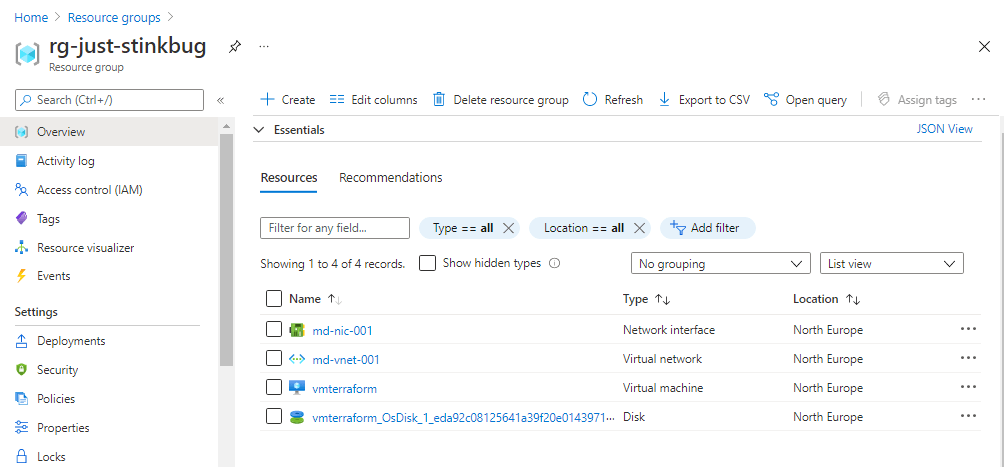
Looking much better now! And a quick check of the portal shows me the resources are created:

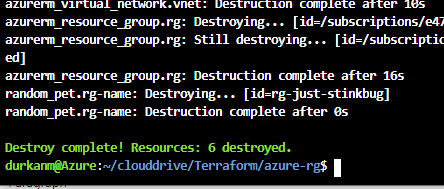
And now last but certainly not least, because I’ve not used best security practises in creating this, I’m immediately going to run terraform destroy to tear down the infrastructure:

I type “yes” and its bye-bye “rg-just-stinkbug” …… 😦

And thats all for today! In the next post, we’ll dive further into variables, and how to securely store items like passwords when using Terraform. Until next time!

100 Days of Cloud – Day 35: Terraform on Azure Cloud Shell Part 1

Its Day 35 of 100 Days of Cloud, and I’m continuing my learning journey on Infrastructure as Code (IaC) by using Terraform.

In the previous post, I described the definition of Infrastructure as Code, how you don’t need to be a developer or have a development background to use IaC services, and how Terraform is a declarative programming language (instead of telling the code how to do something, we define the results that we expect to see and tell the program to go and do it).

I also gave the steps of how to install Terraform on your own device and adding it into Visual Studio Code. However, because Terraform is built into the Azure Cloud Shell, I’m going to use it directly from there.

Using Terraform in Azure Cloud Shell

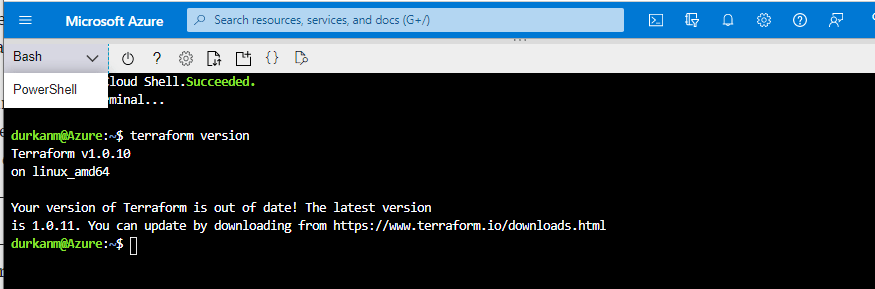
We need to browse to shell.azure.com from any browser and log on using our Azure credentials. This will open the Cloud Shell, adn we have the option to use either Bash or PowerShell. I’ve selected Bash for this session, and when I run terraform version it will give me the version of Terraform available to me in the shell.

Now, we can see that the latest version is not installed – this is not something we need to worry about as Cloud Shell automatically updates to the latest version of Terraform within a couple of weeks of its release.

Now, we need to create a directory to store our Terraform configuration files and code. A default directory called “clouddrive” is available by default in each Cloud Shell session. I’ll cd into that directory, and create a directory structure using the mkdir command

Now we need to create 3 files called main.tf, variables.tf and outputs.tf. Lets quickly describe what these files are for:

  • main.tf: This is our main configuration file where we are going to define our resource definition.
  • variables.tf: This is the file where we are going to define our variables.
  • outputs.tf: This file contains output definitions for our resources.

The name of each file doesn’t need to be the above as we’ll see in the examples – terraform can interpret each of the the files as long as it ends with .tf extension,however the above is a standard naming convention followed in terraform community and make it easier when working in teams on terraform projects.

To create the files, we use the vim command. In main.tf, we’ll add the following code:

Lets step through this block of code.

Firstly, we see the word terraform defined at the top, this is telling us that this is the main configuration file. The required_providers is telling us that Azure is the provider that is required to create the infrastructure (more on providers in a minute). The first resource block is creating the name of the resource group, but also pointing at a var string which will be located in the variables.tf file. The second resource block is again pointing to a var string which will give us the location of the resource group as defined in the variables.tf file.

One thing to note here – both resource blocks contain the code "random_pet" – this is used to generate random pet names that are intended to be used as unique identifiers for resources. Terraform can also use random ids, integers, passwords, strings etc. You can find full documentation here.

Now, back to our files – we’ll now create variables.tf and add the following code:

We can see that this is giving us descrptions of the variables – if we compare the main.tf file above we can now see what is being called from the resource blocks.

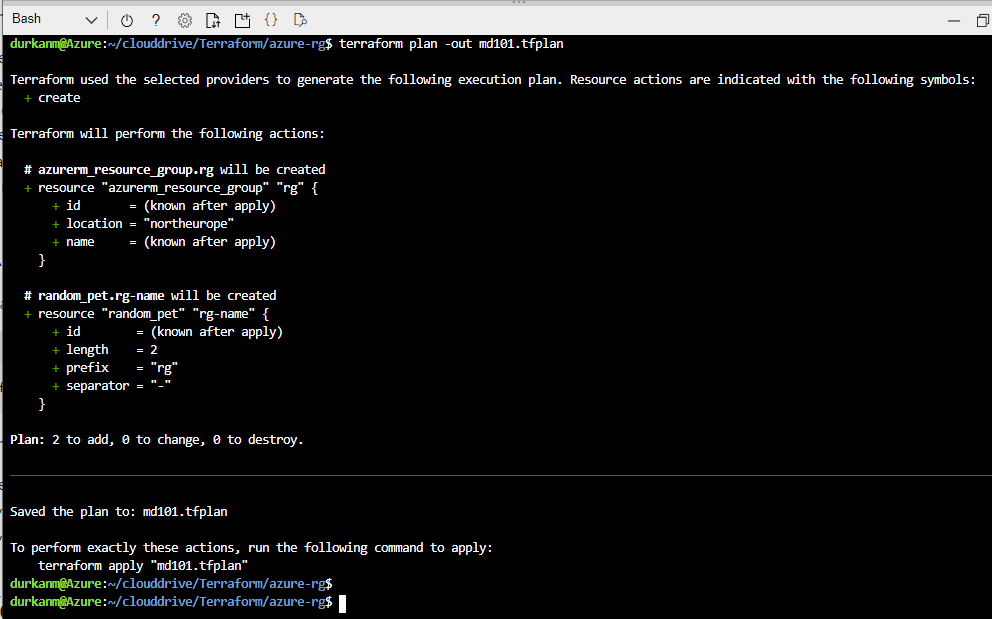
Now, back in the shell we need to run terraform init – this is going to initialise the terraform environment for this project and download the required providers as specified in the main.tf file. Once that runs, we get this output:

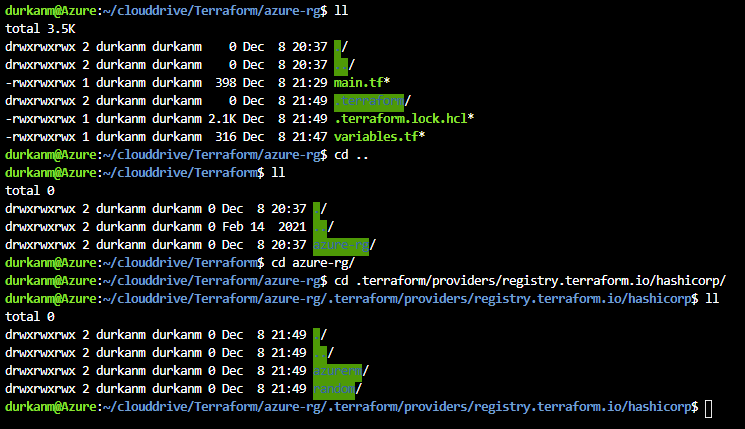
I we run an ll now, we can see there is a .terraform directory available, and if we drill down we can see that this has downloaded the providers for us:

So now, we need to run terraform plan-out md101.tfplan – this creates and execution plan so we can see what is going to happen, but it doesn’t create anything. The -out parameter just outputs the plan to a file. This is useful if you are creating multiple plans and need to apply or destroy them at a later stage. We can see there are “2 to add, 0 to change, 0 to destroy”:

We can also this that this has been saved to out outfile:

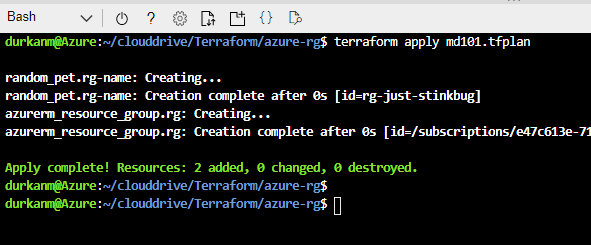
Now lets run terraform apply md101.tfplan to execute and create our Resource Group:

And if we check in the portal, we can see that we have created rg-just-stinkbug:

If we wanted to destroy the resources, the command to run would be terraform destroy md101.tfplan.

But we’re not going to do that – because in the next post, I’ll look at adding resources to that existing resourge group we’ve created. I’ll also look at the Terraform State file, and look at why its important to manage resources that have been deployed with Terraform only with Terraform and not manually within the Portal, ARM or PowerShell. Until next time!

100 Days of Cloud – Day 34: Infrastructure as Code with Terraform

Its Day 34 of on 100 Days of Cloud, and in todays post I’m starting my learning journey on Infrastructure as Code (IaC).

Infrastructure as Code is one of the phrases we’ve heard a lot about in the last few years as the Public Cloud has exploded. In one of my previous posts on AWS, I gave a brief description of AWS CloudFormation, which is the built-in AWS Tool that was decribed as:

  • Infrastructure as Code tool, which uses JSON or YAML based documents called CloudFormation templates. CloudFormation supports many different AWS resources from storage, databases, analytics, machine learning, and more

I’ll go back to cover AWS CloudFormation at a later date when I get more in-depth into AWS. For today and the next few days, I’m heading back across into Azure to see how we can use HashiCorp Terraform to deploy and manage infrastructure in Azure.

In previous posts on Azure, we looked at the 3 different ways to deploy Infrastructure in Azure:

Over the coming days, we’ll look at deploying, changing and destroying existing infrastructure in Azure using Infrastructure as Code using Terraform.

Before we move on….

Now before we go any further and get into the weeds of Terraform and how it works, I want to allay some fears.

When people see the word “Code” in a service description, the automatic assumption is that you need to be a developer to understand and be competent in using this method of deploying infrastructure. As anyone who knows me and those of you who have read my bio know, I’m not a developer and don’t have a development background.

And I don’t need to be in order to use tools like Terraform and CloudFormation. There are loads of useful articles and training courses out there which walks you through using these tools and understanding them. The best place to start is the official HashiCorp Learn site, which gives learning patch for all the major Cloud providers (AWS/Azure/GCP) and also for Docker, Oracle and Terraform Cloud. If you search for HashiCorp Ambassadors such as Michael Levan and Luke Orrelana, they have Video Content on YouTube, CloudAcademy and Cloudskills.io which walks you through the basics of Terraform.

Fundamentals of Terraform

Terraform was originally programmed using JSON, but then switched to use HCL, which stands for HashiCorp Configuration Language. Its very similar to JSON, but has additional capabilities built in. While JSON and YAML are more suited for Data Structures, HCL used syntax that is specifically designed for building structured configuration.

One of the main things we need to understand before moving forward with Terraform is what the above means.

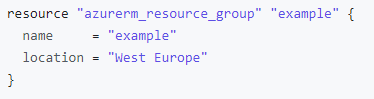
HCL is declarative programming language – this means that we define what needs to be done and the results that we expect to see, instead of telling the program how to do it (which is imperative programming). So if we look at the example HCL config of an Azure Resource Group below, we see that we need to provide specific values:

Image Credit: HashiCorp

When Terraform is used to deploy infrastructure, it creates a “state” file that defines what has been deployed. So if you deploy with Terraform, you need to manage with Terraform also. Making changes to any infrastructure directly can cause corruption in Terraform configuration files and may lead to losing your Infrastructure.

For Azure users, the latest version of Terraform is already build into the Azure Cloud Shell. In order to get Terraform working on your machine, we need to follow these steps:

  • Go to Terraform.io and download the CLI.
  • Extract the file to a folder, and then create a System Environment Variable that points to it.
  • Open PowerShell and run terraform version to make sure it is installed.
  • Install the Hashicorp Terraform extension in VS Code

Conclusion

So thats the basics of Terraform. In the next post, we’ll be running throug the 4 steps to install Terraform on our machine, show how we get connected into Azure from VS Code and then start looking at Terraform Configuration Files and Providers. Until next time!