Its Day 83 of my 100 Days of Cloud journey, and todays post is a hill….
The slight rise you see in the picture above leads off the old Dublin to Galway road and onto a back road where my house is.
You wouldn’t call it a hill – it doesn’t look very challenging to walk or run up it. But this “hill” comes at the end of a variety of 5km, 8km or 10km running routes (or a combination of any of these) that are located around my house. And depending on how you feel or how the run went, this “hill” at the end of the run could be a step too far. It has defeated me too many times to mention – you drag your legs over the last km and as it rears into view, the lactic acid in my legs screams NOOOOO!!!!!
There are a variety of reasons why it defeats me, but in general:
I set off too fast early in the run and have no energy left
Dehydration or hot days leads to fatigue
I don’t have the motivation to get up the hill
Everyone has their own version of the hill, and this is also relevant to the juggling we have to do in balancing our work lives, family lives and other interests or commitments.
Like a lot of people, I’m an “all-in, 100%” type of person when it comes to the different aspects of my life. I don’t want to look back with any regrets that I didn’t do something fully in work, wasn’t there for a family dinner, wasn’t available to bring my kids to their activities. I want to learn every day, attend every User Group or Meetup, and blog and give back to the community as much as I can. I also want to be able to run or exercise, put my kids to bed and read them a story, and spend time with my wife in the evenings.
But there are some days when not all of the above is possible. There are some days when we have long or bad days in work, and then you get home late to find there is no time for that family dinner as its straight out to priotitise whatever activities te kids have on that day. And by the time you finally get home that night, you are exhausted to the point where the motivation for learning and blogging just isn’t there.
Image Credit: SAP
And thats brings me back to the “hill”. We all have our own “hill”, some hills are higher than others and we embrace and scale them with gusto and energy. But sometimes its the small ones that defeat you.
Its not a failure. It called life. Sometimes we need to step back and accept that the next “hill” we encounter isn’t going to happen today. Take the time to step back, reset yourself, and get back to it the next day or when you feel ready.
On the days it happens, its useful to reflect and work out why. Write down the timeline of your day. What went wrong? Did it cause a ripple effect that put the entire day out of sync? Was it avoidable, and if so how can you make sure it won’t happen again? If needed, look back to the day before. Did you get enough sleep? Did you go to bed later than usual? If so, why? Did you really need to watch 3 episodes of Better Call Saul?
You’re now getting into Habit Hacking, where you can look at your habits and see whats going wrong. My favourite one is our obsession with SmartPhones and the concept of “Social Media doom-scrolling” either before you sleep at night or first thing in the morning. Do you need your phone beside the bed? If its just as an alarm, go buy an alarm clock or a watch with an alarm and then commit to putting your phone away at 9pm every night (effectively a Digital Sunset). Go to bed and read (I mean an actual book, not a Kindle or App) or meditate to relax yourself. Next morning, try to give yourself an hour before reaching for the phone (so this is a Digital Sunrise!). Try to not pick up your phone for 10 hours.
Habit Hacking works the same way for running or any other sport – most people have a protocol before and after their exercise routine, and this affects the performance during the exercise.
Finally, for those of you who are interested – on the day I took the photo, the hill had defeated me. I hadn’t properly hydrated prior to the run. That was a week ago. I’ve gone back to habit hacking and my own protocol, returned and conquered the hill twice since. I have no doubt it will defeat me again some day, but thats the circle of life.
Hope you enjoyed this post, until next time (when we get back into Tech)!
Its Day 82 of my 100 Days of Cloud journey, and in todays post I’m going to look at options for managing Containers in Azure.
In the last post, we looked at the comparison between Bare Metal or Physical Servers, Virtual Servers and Containers and the pros and cons of each.
We also introducted Docker, which is the best known method of managing containers using the Docker Engine and built-in Docker CLI for command management.
The one thing we didn’t show was how to install Docker or use any of the commands to manage our containers. This is because I’ve previously blogged about this and you can find all of the details as part of my series about Monitoring with Grafana and InfluxDB using Docker Containers. Part 1 shows how you can create your Docker Host running on an Ubuntu Server VM (this could also run on a Bare Metal Physical Server), and Part 2 shows the setup and configuration of Docker Containers that have been pulled from Docker Hub. So head over there and check that out, but don’t forget to come back here!
Docker Context
By default when running any Docker commands from the CLI, Docker automatically assumes that you wish to use the local Docker Host for storing and running your containers. However, you can manage multiple Docker or Kubernetes hosts or nodes by specifying contexts. A single Docker CLI can have multiple contexts. Each context contains all of the endpoint and security information required to manage a different cluster or node. The docker context command makes it easy to configure these contexts and switch between them.
In short, this means that you can manage container instances that are installed on multiple hosts and/or multiple cloud providers from a single Docker CLI.
Let take a look at the different options for managing containers in Azure.
The Docker CLI Method
In order to use containers in Azure using Docker, we first need to log on to Azure using the docker login azure command, which will prompt us for Azure credentials. Once entered, this will return “login succeeded”:
We then need to create a context by running the docker context create aci command. This will associate Docker with an Azure subscription and resource group that you can use to create and manage container instances. So we would run docker context create aci myacicontext to create a context called myacicontext.
This will select your Azure subscription ID, then prompt to select an existing resource group or create a new resource group. If you choose a new resource group, it’s created with a system-generated name. Like all Azure resources, Azure container instances must be deployed into a resource group
Once thats completed, we then run docker context use myacicontext – this ensures that any subsequent commands will run in this context. We can now use docker run to deploy containers into our Azure resource group and manage these using the Azure CLI. So lets run the following command to deploy a quickstart container runing Node.js that will give us a static website:
docker run -p 80:80 mcr.microsoft.com/azuredocs/aci-helloworld
We can now run docker ps to see the running container and get the Public IP that we can use to browse to it:
And if we log onto the Portal, we can see our running container:
So as we’ve always done, lets remember to remove the container by running docker stop sweet-chatterjee, and then docker rm sweet-chatterjee. These commands stops and deletes the Azure Container Instance:
Finally, run docker ps to ensure the container has stopped and is no longer running.
The Azure Portal Method
There are multiple ways to create and manage containers natively in Azure. We’ll look at the portal method in this post, and reference the remaining options at the end of the page.
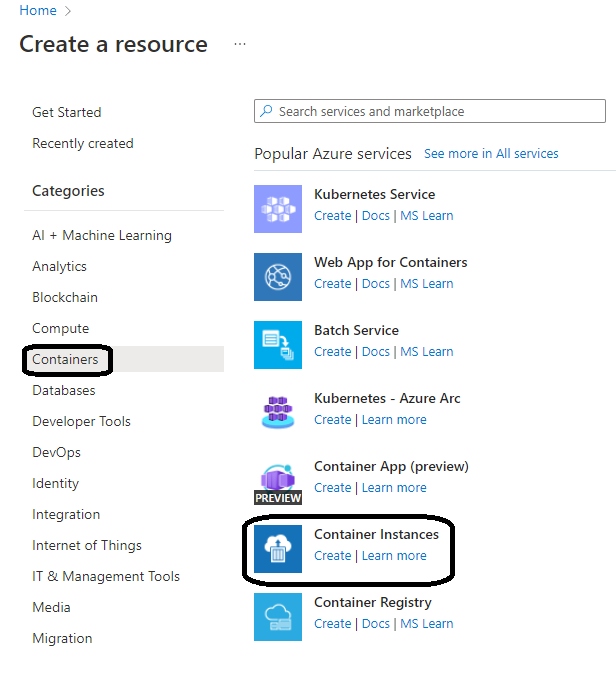
To create the container, log on to the Portal and select Container Instances from the Marketplace:
Once we select create, we are brought into the now familiar screen for creating resources in Azure:
One important thing to note on this screen is the “Image Source” option – we can select container images from either:
The quickstarts that are available in Azure.
Images stored in your Azure Container Registry.
Other registry – this can be Docker or other public or private container registry.
On the “Networking” screen, we need to specify a public DNS name for our container, and also the ports we wish to expose across the Public Internet
And once thats done, we click “Review and Create” to deploy our container:
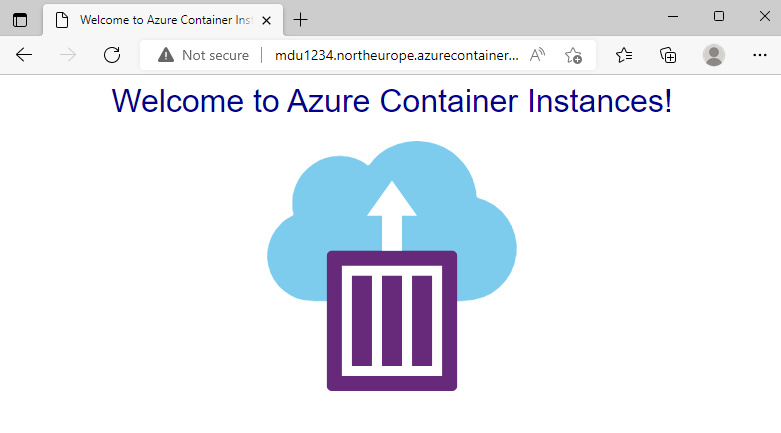
Once thats done, we can see the FQDN or Public IP that we can use to browse to the container:
As always, make sure to stop and delete the container instance once finished if you are running these in a test environment.
There are a total of four other options in Azuire for creating and managing containers:
So thats a look at how we can create and manage Azure Container Instances using both Docker CLI and the wide range of options available in Azure.
Azure Container Instances is a great solution for any scenario that can operate in isolated containers, including simple applications, task automation, and build jobs. You can find all of the documentation on Azure Container Instances here.
Its Day 81 of my 100 Days of Cloud journey, and in todays post I’m going to attempt to give an introduction to containers.
Containers. But not the sort we’re going to talk about…..
I’m building up to look at Kubernetes in later posts but as the saying goes “we need to walk before we can run”, so its important before we dive into container orchestration that we understand the fundamentals of containers.
Containers v Virtualization
Lets start with the comparison that we all make and compare the differences between containers and virtualization. Before that though, lets reverse even further into the mists of time……
Bare Metal or Physical Servers
Image Credit – Rick Vanover/Veeam Software
Back in the “good old days” (were they really that good?), you needed a Physical Server to run each one of your applications (or if you were really brave, you ran multiple applictions on a single server). These were normally large noisy beasts that took up half a rack in your datacenter. You had a single operating system per machine, and any recovery in general took time as the system needed to be rebuilt in full up to the application layer before any data recovery was performed.
Virtualization
Image Credit – Rick Vanover/Veeam Software
As processing power and capacity increased, applications running on physical servers were unable to utilise the increased resources available, which left a lot of wasted resources left unused. At this point, Virtualization enabled us to install a hypervisor which ran on the physical servers. This allowed us to create Virtual Machines that ran alongside each other on the physical hardware.
Each VM can run its own unique guest operating system, and different VMs running on the same hypervisor can run different OS versions and versions. The hypervisor assigns resources to that VM from the underlying Physical resource pool based on either static values or dynamic values which would scale up or down based on the resource demands.
The main benefits that virtualization gives:
The ability to consolidate applications onto a single system, which gave huge cost savings.
Reduced datacenter footprint.
Faster Server provisioning and improved backup and disaster recovery timelines.
In the development lifecycle, where as opposed to another monster server being purchased and configured, a VM could be quickly spun up which mirrored the Production environment and could be used for the different stages of the development process (Dev/QA/Testing etc).
There are drawbacks though, and the main ones are:
Each VM has separate OS, Memory and CPU resources assigned which adds to resource overhead and storage footprint. So all of that spare capacity we talked about above gets used very quickly.
Although we talked about the advantage of having separate environments for the development lifecycle, the portability of these applications between the different stages of the lifecycle is limited in most cases to the backup and restore method.
Containers
Image Credit – Jenny Fong/Docker
Finally, we get to the latest evolution of compute which is Containers. A container is a lightweight environment that can be used to build and securely run applications and their dependencies.
A container works like a virtual machine in that it utilizes the underlying resources offered by the Container Host, but instead of packaging your code with an Operating System, each container only contains the code and dependencies needed to run the application and runs as a process inside the OS Kernel. This means that containers are smaller and more portable, and much faster to deploy and run.
So how do I run Containers?
In On-Premise and test environments, Windows Containers ships on the majority of Windows Client and Server Operating Systems as a built-in feature that is available to use. However, for the majority of people who use containers, Docker is the platform of choice.
Docker is a containerization platform used to develop, ship, and run containers. It doesn’t use a hypervisor, and you can run Docker on your desktop or laptop if you’re developing and testing applications.
The desktop version of Docker supports Linux, Windows, and macOS. For production systems, Docker is available for server environments, including many variants of Linux and Microsoft Windows Server 2016 and above.
When you install Docker on either your Linux or Windows environment, this installs the Docker Engine which contains:
Docker client – command-line application named docker that provides us with a CLI to interact with a Docker server. The docker command uses the Docker REST API to send instructions to either a local or remote server and functions as the primary interface we use to manage our containers.
Docker server – The dockerd daemon responds to requests from the client via the Docker REST API and can interact with other daemons. The Docker server is also responsible for tracking the lifecycle of our containers.
Docker objects – there are several objects that you’ll create and configure to support your container deployments. These include networks, storage volumes, plugins, and other service objects. We’ll take a look at these in the next post when we demo the setup of Docker.
So where do I get the Containers from?
Docker provides the worlds largest respository of container images called Docker Hub. This is a public repository and contains ready made containers from both official vendors (such as WordPress, MongoDB, MariaDB, InfluxDB, Grafana, Jenkins, Tomcat, Apache Server) and also bespoke containers that have been been contributed by developers all over the world.
So there is effectively a Docker Container for every available scenario. And if you need to create one for your own scenario, you just pull the version from the Docker Hub, make your changes and push it back up to Docker Hub and mark it as public and available for use.
But what if I don’t want to store my container images in a public registry?
Thats where the Private Container Registry option comes in. Your organization or team can have access to a private registry where you can store images that are in use in your environment. This is particularly useful when you want to have version control and governance over what images you want to use in your environment.
For example, if you want to run InfluxDB and run the command to pull the InfluxDB container from the Docker Hub, by default you will get the latest stable version (which is 2.2). However, your application may need to use or only support version 1.8, so you need to specify that when pulling from the registry.
Because images are pulled from the Docker Hub by default, you need to specify the location of your Private Container Registry (in https notation) when pulling images.
There are a number of different options for where to store your Private Container Registry:
Docker Hub allows companies to host directly
Azure Container Registry
Amazon Elastic Container Registry
Google Container Registry
IBM Container Registry
Conclusion
So thats a brief overview of containers and how Docker is the proprietary software in use for managing them. In the next post, we’ll look at setting up a Docker Host machine and creating an Azure Container Registry to house our private Docker Images.
Its Day 80 of my 100 Days of Cloud journey, and todays post is taking a quick look at how to administer your Microsoft 365 tenancy.
Over the previous posts, we’ve looked at how to migrate our users from our on-premises environment into Microsoft 365, and along the way we’ve chosen identity models and a suitable licensing model for our organisation.
So thats it, the hard work is done! Time for a coffee, put the feet up and read the news. Maybe do the crossword, or even todays Wordle…..
Not so fast. You now have your users in Microsoft 365, you need to manage and administer your environment. Don’t forget that Microsoft 365 is a SaaS service, so you still need to manage it using Microsoft 365 Admin Center.
Admin Center overview
The admin center can be used to manage user accounts and mailboxes, configure the Office 365 cloud environment, monitor statistics, and so on.
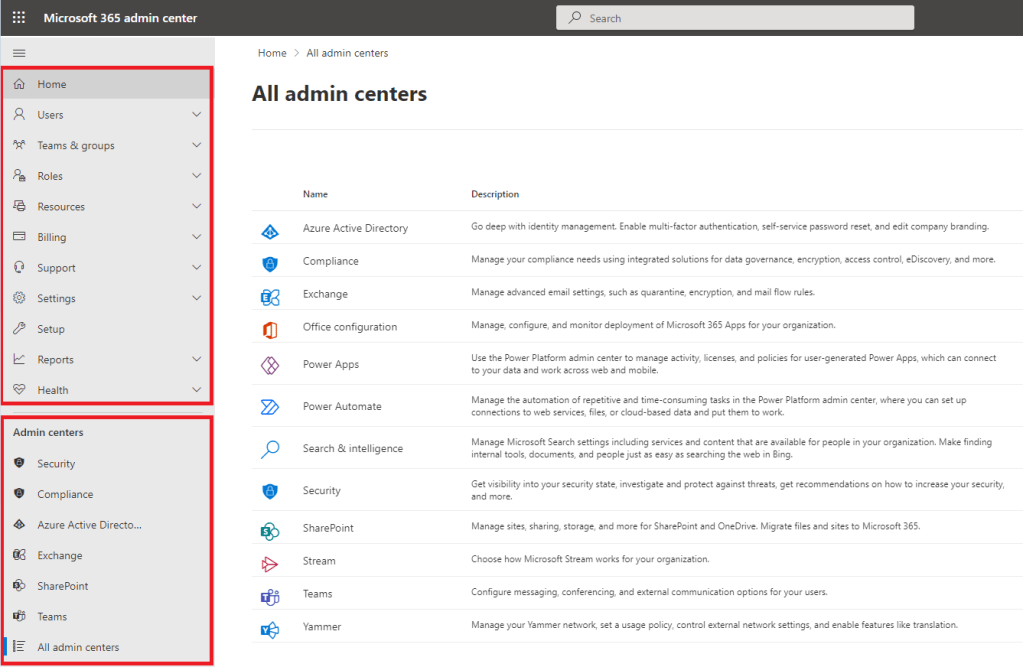
When you log on to the Admin Center, there are 2 main panels down the left hand side:
Tenant and User Management panel – this is where you will manage the following:
Users – the most common task for administrators is managing user accounts. You can perform tasks such as manage users (add, edit, delete, export users), reset passwords, assign or remove user licenses.
Groups – manage Office 365 groups, security groups, distribution lists and shared mailboxes in your organization. You will also see groups that have been synchronized from our on-premises environment.
Roles – when you sign up for a Microsoft 365 trial, the user who you sign up up with becomes a Global Admin and has full access over all aspects of the tenant. Roles allows you to assign different admin roles for other users (administrators). This is useful if you want to delegate some authority to other administrators who should be focused on Exchange management, license management or SharePoint management, without giving those users the full Global Admin role.
Resources – allows you to create and manage resources, such as SharePoint sites and conference rooms for conference purposes.
Billing – view your subscription status, purchase additional Microsoft cloud services, check billing and payments, and configure payment methods.
Support – allows you to create support requests to Microsoft if needed and view recent service requests and their status.
Settings – allows you to manage global settings including authentication settings, email settings, calendar, external sharing, password policy, Azure Active Directory integration.
Setup – details for your subscription, assign or manage software licenses, manage domains and data migration.
Reports – gives detailed reports showing how users inside your company use Microsoft 365 applications. You can monitor which applications are favorite among users and compare dynamics for the selected period (7, 30, 90 or 180 days).
Health – used to check the health of your Office 365 services.
Admin Centers panel – this is where you will access the individual Admin centers for each of the Microsoft 365 services in your tenancy, including:
Security – Get visibility into your security state, investigate and protect against threats, get recommendations on how to increase your security, and more.
Compliance – Manage your compliance needs using integrated solutions for data governance, encryption, access control, eDiscovery, and more.
Azure Active Directory – Allows you to configure Azure AD for Office 365 and synchronization with Windows Server Active Directory; to manage users, groups and policies; and to set access parameters for third-party applications that interact with Office 365 via Microsoft APIs.
Exchange – manage Office 365 user accounts and mailboxes. Configure group mailboxes, anti-spam protection, mail flow rules, and so on.
SharePoint – configure the Microsoft cloud environment so that users in the organization can collaborate.
Teams – allows you to schedule meetings for teams by using Skype for business, manage teams, set policies, view reports, and so on.
All admin centers – Opens a page with a full list of Office 365 admin centers, including admin centers for OneDrive, Yammer Enterprise, Dynamics 365, Power Apps, Skype for business, and other services.
So what happens next?
The answer to that is really up to your organisation and how you want to benefit from the range of services available in Microsoft 365. As I’ve stated previously, the main reason why companies migrate their workloads is to remove the overhead of managing and maintaining an on-premises Exchange environment, and the underlying Operating Systems, Storage, Networking, Security and Patch Management that goes along with it.
Of course, how you develop and use these services this depends on what licensing level you have chosen (and if you missed that, take a look back at Day 78), but effectively the main options that organisations will end up using are:
Teams – this allows instant messaging, user-to-user voice calling, team collaboration and file repostories (backed by SharePoint), and an optional full VOIP service where you can migrate your PABX to Teams Voice.
SharePoint – we looked at this on Day 72 where we compared migrating file data to SharePoint or Azure Files.
Azure Active Directory – this allows conditional acces and multi-factor authentication to be built into your tenant identify, as we looked at on Day 56.
Conclusion
And thats a quick look at the different options available in the Microsoft 365 admin center.
There is lots of great information out there on Microsoft 365 that goes into far more detail that I have, and a great startng point is Microsoft Docs here.
If you want to follow someone in the community to get a full overview of Microsoft/Office365 and all of the services and updates, there is no one better than Tony Redmond, who you can follow on Twitter here or you can read his updates on Petri.com here. He’s also the principal author of Office 365 for IT Pros books and blog.
Its Day 78 of my 100 Days of Cloud journey, and as promised todays post is all about the wide range of different licensing options available in Microsoft 365.
The migration planning is going well, and at this point we’ve decided the following:
Migration has been signed off, so tenancy created!
We know how we’re going to authenticate users!
We know how we’re going to synchronize our users identities!
We know what migration strategy we’re going to use!
Now all we need to decide on is what applications and services our users need once they migrate. So ……
We need to decide what licenses we need …..
Ugh.
Anyone who has dealt with Microsoft licensing knows that its a potential minefield due to the depth of options available. I mean, does anyone really understand how many OS and SQL Core License Packs you need to run your on-premise SCVMM Server with underlying SQL Server Enterprise Edition installed on a Windows Server DataCenter OS thats running on a VM in a 4-Node AzureStack HCI Cluster?
Nope, neither do I.
While an initial look at the Microsoft 365 plans would suggest that this is no different, its important to understand how the plans are structured. Lets start with the basics and what these plans are called. You can either have a Microsoft 365 Business Plan or an Office 365 Enterprise Plan, so lets explore the options in both and why you would choose one over the other.
Microsoft 365 Business Plans
Microsoft 365 Business Plans are recomended for companies with less that 300 users, and provide a cost effective way to migrate your users.
All Microsoft 365 Business Plans comes with the following features included:
50GB Mailbox per user.
50GB Archive Mailbox per user.
Office Online (web versions of Outlook, Excel, Word, PowerPoint and OneNote).
Maximum of 1TB OneDrive personal storage for each user (this can be reduced depending on your requirements).
1 TB SharePoint Storage per tenancy, plus 10GB for each additional user (this can be increased with Storage Add-Ons if required).
Microsoft Teams.
Yammer.
Active Directory SSO for synchronized users.
Content Search and Basic Auditing.
In effect, the above list is what you get with the Microsoft 365 Business Basic plan, which is the lowest offering at $5.00 per month. As you can see, lots of great features, but the one thing thats missing is Desktop versions of the Office Apps.
For that, we need to go up to the next level of plan which is Microsoft 365 Business Standard, which at $12.50 per month is the most worthwhile plan to go for in your initial migration stage. As well as what’s listed above, this gives you the following add-ons:
Desktop versions of Outlook, Word, Excel, PowerPoint and OneNote.
Desktop versions of Access and Publisher.
Install apps on up to 5 devices across all platforms.
And thats all you get as an extra. Just apps. But bear in mind, there is also a separate Microsoft 365 Apps for Business plan which is just Desktop versions of the apps and comes in a $8.25 per month.
Lets go up to the top level which is Microsoft 365 Business Premium, which comes in at $22.00 per month. Pricey, but on top of all of the above, you also get the following:
Microsoft Endpoint Manager.
Mobile Application Management.
Intune.
Windows Autopilot.
Shared Computer Activation (Use Office apps on Remote Desktop Services or Citrix).
Defender for Endpoint.
Defender for Office 365.
Windows Defender.
Azure Active Directory Premium P1.
Conditional Access.
Azure Information Protection.
Sensitivity Labels.
Office365 Data Loss Prevention.
Office Message Encryption.
Litigation Hold.
As you can see from from this list, Business Premium goes deep into the realm of data security, compliance and governance.
You can find more details on Microsoft 365 Business Plans here.
Office 365 Enterprise Plans
Office 365 Enterprise plans are designed for companies with more than 300 users who need more advanced features such as eDiscovery.
The plans structures are effectively the same as above with some subtle differences. Lets run through these quickly, and start with Office 365 E1 which comes in at $10.00 per month and gives you the following:
50GB Mailbox per user.
50GB Archive Mailbox per user.
Office Online (web versions of Outlook, Excel, Word, PowerPoint and OneNote).
Maximum of 1TB OneDrive personal storage for each user (this can be reduced depending on your requirements).
1 TB SharePoint Storage per tenancy, plus 10GB for each additional user (this can be increased with Storage Add-Ons if required).
Microsoft Teams.
Yammer.
Active Directory SSO for synchronized users.
Content Search and Basic Auditing.
So in effect, the same as Microsoft 365 Business Basic above. When we move up to Office 365 E3 for $23.00 per month, we get the following add-ons:
100GB mailbox per user.
Unlimited archive mailbox per user.
Desktop versions of apps.
5TB of OneDrive Storage per user.
Shared Computer Activation (Use Office apps on Remote Desktop Services or Citrix).
Azure Information Protection for Office 365.
Office365 Data Loss Prevention.
Office Message Encryption.
eDiscovery.
Litigation Hold.
The top level plan is Office 365 E5 which is $38.00 per month. There are only a few add-ons provided here, but as you can see they are big ones:
PowerBI Pro for Data Analyics.
Phone System and Audio Conferencing.
Defender for Office365 Plan 2.
Advanced eDiscovery and Audit.
You cna find out more about Office 365 Enterprise Plans here.
Which one to choose?
As you can see, plenty of choice there. Just to clarify, you can use Office 365 Enterprise licenses in organisations with under 300 users as well if you feel this is a better option for your business.
For smaller business, the recommendation is to stick with the Microsoft 365 Business plans as they provide more of an “all-in-one” solution given the amount of features that are bundled into the licenses. Larger companies and those with specific regulatory requirements will make more use of the Group Policy, DLP, Compliance and Information Protection offerings available in the Office 365 Enterprise plans.
The key here is to use your 30-day trial wisely and roadtest each of the plans available to see which one is the best fit for your business.
The license plans I’ve described above cover the majority of companies, however its good to be aware that there is a also a set of Microsoft 365 plans specifically designed for Frontline workers. You can find more details on those here.
Conclusion
And thats a look at the different licensing plans available in Microsoft 365 and Office 365! Hope you enjoyed this post, until next time!

Its Day 77 of my 100 Days of Cloud journey, and as promised todays post is taking a closer look at the different migration options available to you for moving your on-premise Email workloads to Microsoft 365.
In the last post, we saw the first of those options where we discovered how Exchange Hybrid configuration works. However, this also ties you into keeping an Exchange Server active in your on-premise environment, which for the majority of businesses is costly and negates one of the main drivers of migration: removing the management and cost overhead of maintaining an on-premise email environment.
Migration Options
You can migrate all email, calendar items, tasks and contacts from user mailboxes to Office 365 from an existing on-premises Exchange Server environment.
The available methods are cutover, staged, and Exchange Hybrid migrations. These migration methods copy over all mail data, including contacts, calendar items, and tasks.
You can also use (IMAP) migration from Exchange servers, and if your Exchange server is older than Exchange 2003, or if your on-premise email system is a non-Exchange system. However, you need to be aware that an IMAP migration will copy over only email data.
We’ve already see how Exchange Hybrid works, lets take a look at the other 2 options.
Cutover Migration
A cutover migration moves all of your mailboxes at one time in a single batch. This sort of Office 365 migration process can be used if the email infrastructure runs on Exchange versions from 2003 to 2013.
You can move your entire email organization to Microsoft 365 or Office 365 over a few days and manage user accounts in Microsoft 365 or Office 365.
A maximum of 2,000 mailboxes can be migrated to Microsoft 365 or Office 365 using a cutover Exchange migration. However, it is recommended that you only migrate 150 mailboxes at a time.
The primary domain name used for your on-premises Exchange organization must be an accepted domain owned by you in your Microsoft 365 or Office 365 organization.
After the migration is complete, each user who has an on-premises Exchange mailbox also will be a new user in Microsoft 365 or Office 365. However, you must still assign licenses to users whose mailboxes are migrated.
After your on-premises and Microsoft 365 or Office 365 organizations are set up for a cutover migration, post-setup tasks could impact your users.
Administrators or users must configure desktop computers to ensure these are set up for use with Microsoft 365 or Office 365.
Potential delay in email routing until the MX record is changed from on-premise to Microsoft 365.
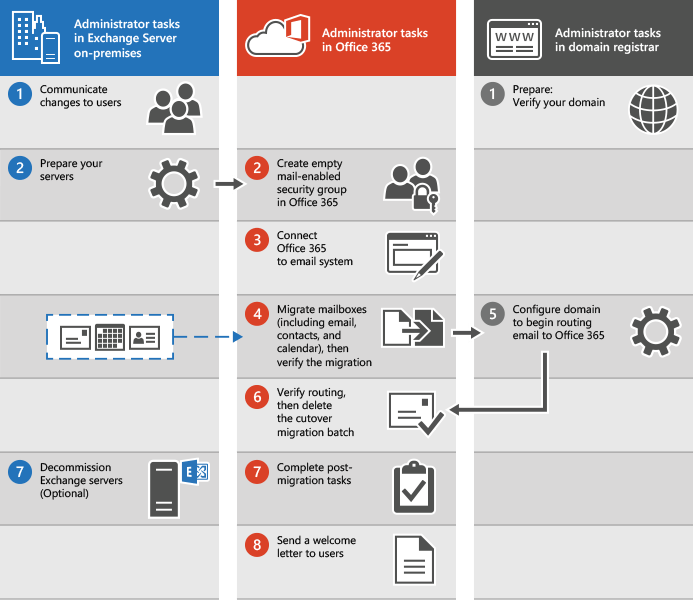
The steps needed to run a cutover migration are shown in the image below:
Image Credit: Microsoft
The administrator communicates upcoming changes to users and verifies domain ownership with the domain registrar.
The administrator prepares the servers for a cutover migration and creates empty mail-enabled security groups in Microsoft 365 or Office 365.
The administrator connects Microsoft 365 or Office 365 to the on-premises email system (this is called creating a migration endpoint).
The administrator migrates the mailboxes and then verifies the migration.
Grant Microsoft 365 or Office 365 licenses to your users.
The administrator configures the domain to begin routing email directly to Microsoft 365 or Office 365.
The administrator verifies that routing has changed, and then deletes the cutover migration batch.
The administrator completes post-migration tasks in Microsoft 365 or Office 365 (assigns licenses to users and creates an Autodiscover Domain Name System (DNS) record), and optionally decommissions the on-premises Exchange servers.
The administrator sends a welcome letter to users to tell them about Microsoft 365 or Office 365 and to describe how to sign in to their new mailboxes.
Further detail on how Cutover Migration works can be found here.
Staged Migration
For Exchange server versions running either 2003 or 2007, the only supported migration method to Microsoft O365 is Staged Migration. With this migration type, you can move your entire email infrastructure in batches. This method is beneficial for legacy Exchange servers if you have more than 2000 seats; however, for a successful migration, some critical factors need to be taken into consideration:
You must synchronize accounts between your on-premises Active Directory domain and Microsoft 365 or Office 365 by using Azure Active Directory sync for a staged migration to work.
The primary domain name used for your on-premises Exchange organization must be a domain verified to your Microsoft 365 or Office 365 organization.
You can migrate only user mailboxes and resource mailboxes. Other recipient types, such as distribution groups, contacts, and mail-enabled users are migrated to Microsoft 365 or Office 365 through the process of directory synchronization.
Out of Office messages aren’t migrated with user mailboxes. The user needs to recreate the Out of Office message after the mailbox is migrated.
If you limited the connections to your source email system, it’s a good idea to increase them to improve migration performance.
The steps needed to run a staged migration are shown in the image below:
Image Credit: Microsoft
The administrator synchronizes the list of users between their on-premises environment and Microsoft 365 or Office 365.
The administrator creates a comma-separated value (CSV) file that contains a row for each user whose on-premises mailbox will be migrated in the migration batch.
The administrator creates and runs a staged migration batch by using the migration dashboard in the Exchange admin center.After the administrator starts the migration batch, Exchange Online does the following:
Verifies that directory synchronization is enabled.
Checks that a mail-enabled user exists in the Microsoft 365 or Office 365 organization for each user listed in the CSV file. Mail-enabled users are created in Microsoft 365 or Office 365 as a result of the directory synchronization process.
Converts the Microsoft 365 or Office 365 mail-enabled user to an Exchange Online mailbox for each user in the migration batch.
Begins initial synchronization. Exchange Online processes up to N migration requests at one time. N represents the maximum number of concurrent migrations that the administrator specified when creating the migration endpoint used for the migration batch. By default, initial synchronization is performed on 20 mailboxes at a time until all mailboxes in the migration batch are migrated.
Configures mail forwarding. The TargetAddress property on the on-premises mailbox is configured with the email address of the Exchange Online mailbox. This process means that mail sent to the on-premises mailbox is forwarded to the corresponding Exchange Online mailbox.
After it creates the Exchange Online mailbox and configures mail forwarding for each user in the CSV file, Exchange Online sends a status email message to the administrator. This status message lists the number of mailboxes that were successfully migrated and how many couldn’t be migrated. The message also includes links to migration statistics and error reports that contain more detailed information. At this point, users can start using their Exchange Online mailboxes.
As part of initial synchronization, Exchange Online then migrates all email messages, contacts, and calendar items from the on-premises mailboxes to Exchange Online mailboxes. Exchange Online sends a final migration report when the data migration is complete.
After a migration batch is complete and the administrator verifies that all mailboxes in the batch are successfully migrated, the administrator can convert the on-premises mailboxes to mail-enabled users.
If a user opens their mailbox with Outlook, the Autodiscover service tries to connect to the on-premises mailbox. After you convert on-premises mailboxes to mail-enabled users, the Autodiscover service uses the mail-enabled user to connect Outlook to the Exchange Online mailbox after the user creates a new Outlook profile.
The administrator creates additional migration batches, submitting a CSV file for each one.
The administrator runs additional migration batches.
The administrator resolves any issues. After all on-premises mailboxes in a batch are successfully migrated, the administrator deletes the migration batch.
Users can use their Exchange Online mailboxes.
The administrator, to complete the transition to Exchange Online and Microsoft 365 or Office 365, performs post-configuration tasks such as:
Assign licenses to Microsoft 365 or Office 365 users.
Configure the MX record to point to your Microsoft 365 or Office 365 organization so that email is delivered directly to Exchange Online mailboxes.
Create an Autodiscover Domain Name System (DNS) record for your Microsoft 365 or Office 365 organization.
Further detail on how Cutover Migration works can be found here.
Conclusion
So thats a look at the different migration options available to migrate your on-premise Exchange environment to Microsoft 365 tenant.
In the next post, we’ll look at the myriad of different licensing options available. Hope you enjoyed this post, until next time!
Its Day 76 of my 100 Days of Cloud journey, and as promised todays post is taking a closer look at how Exchange Hybrid configuration works.
In the last 2 posts, we’ve looked at the following:
The different authentication methods available.
Ways to protect both our administrator and user accounts.
Preparing the key attributes in our Active Directory for synchronization.
Created our Microsoft 365 Trial tenant.
Added our production domain and saw how DNS records could be added.
Installed and configured Azure AD Connect and looked at the different options for user synchronization and authentication.
While looking at our DNS records, we decided not to implement them as we wanted to configure an Exchange Hybrid environment. This is one of the options available to you once you start to plan your cloud migration journey.
Lets take a look at what the benefits are, and how it works.
Exchange Hybrid explained
There is a saying I’ve heard in the IT industry for years – “Its easy to get your Data into the Cloud, but its not easy to get it out”.
I’ll take a further look at the different migration options available to you in the next post, however all of these option will be “on-board” only, which means that you can only migrate your on-premise mailboxes to Microsoft 365, but cannot migrate them out.
Exchange Hybrid is the only option available were you have the option to both “on-board” and “off-board” users. You maintain at least one of your on-premise Exchange Servers, and install the Hybrid Agent which allows communication between your on-premise environment and Microsoft 365.
The key features offered in a Hybrid deployment are:
Secure mail routing between on-premises and Exchange Online organizations.
Both on-premises and Exchange Online organizations use the same shared domain namespace or SMTP domain.
A unified global address list (GAL), also called a “shared address book.”
Free/busy and calendar sharing between on-premises and Exchange Online organizations.
Centralized control of inbound and outbound mail flow. All inbound and outbound Exchange Online messages to be routed through the on-premises Exchange organization.
A single Outlook on the web URL for both the on-premises and Exchange Online organizations.
The ability to move existing on-premises mailboxes to the Exchange Online organization. Exchange Online mailboxes can also be moved back to the on-premises organization if needed.
Centralized mailbox management using the on-premises Exchange admin center (EAC).
Message tracking, MailTips, and multi-mailbox search between on-premises and Exchange Online organizations.
Cloud-based message archiving for on-premises Exchange mailboxes. Exchange Online Archiving can be used with a hybrid deployment.
An example of how a typical Exchange Hybrid deployment works is shown in the diagram below:
Image Credit: Microsoft
Prerequisities
The following prerequisites need to be in place before creating your Hybrid Deployment:
Exchange Server Roles:
2016 and newer: Mailbox Server Role.
2013: At least one instance of Mailbox and Client Access Server roles (preferably on one server).
2010: At least on instance of Mailbox, Hub Transport Client Access Server roles (preferably on one server).
Microsoft 365 or Office 365 plan that support Directory Synchronization.
Active Directory synchronization: Deploy the Azure Active Directory Connect tool to enable Active Directory synchronization with your on-premises organization.
Autodiscover DNS records.
Valid digital Certificates from a trusted public CA.
EdgeSync is required if you’ve deployed Edge Transport servers in your on-premises organization and want to configure the Edge Transport servers for hybrid secure mail transport.
Installation
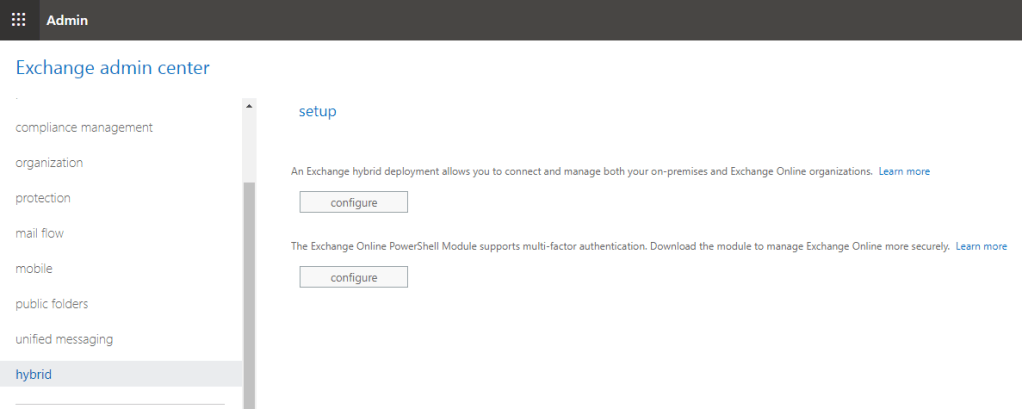
To install and configure the Exchange Hybrid deployment, you need to firstly go to the Exchange Online admin center, go to the “hybrid” menu and select the option to configure an Exchange Hybrid deployment:
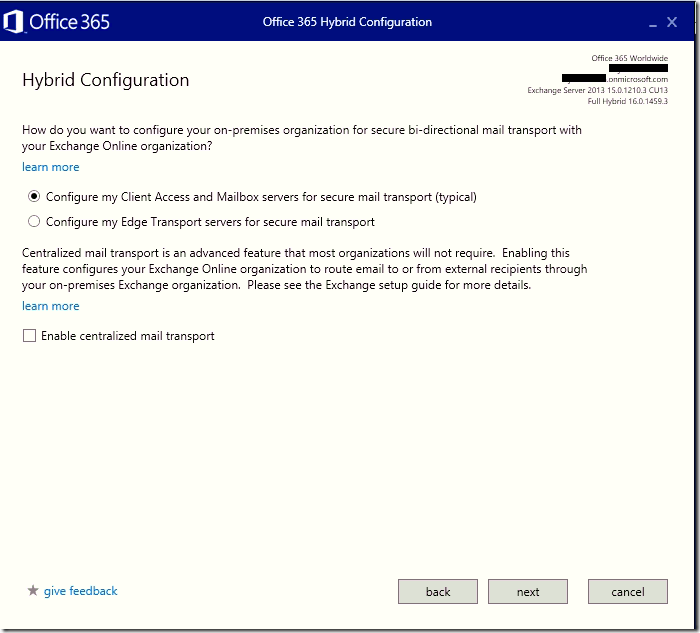
This will redirect you to download the Hybrid Configuration Wizard. The wizard will run through each screen and present you with the options required.
While all of teh options and screens are important during the setup, the main ones to look for are:
Choosing a Minimal or Full Hybrid deployment: this provides the option to use the deployment woth minimal configuration for migration purposes only, or else to maximise the full features of the deployment.
Bi-directional Transport Configuration for Client Access and Mailbox Servers, and also Edge Servers for secure transport:
Once the wizard completes, you will be able to log onto Exchange Online and complete a migration of an on-premise user by selecting them from the Global Address list. You can also migrate the users back to the on-premise Exchange.
There are some excellent “how-to” articles on how this process works, this article at Azure365Pro is worth a read to see how the process works in full.
Is it worth doing?
And so we come to the main question.
A lot of people either haven’t heard of Hybrid deployments because the assumption is that any migration to Microsoft 365 will be done by the traditional methods (Cutover/Staged/IMAP), or else don’t want to invest in a Hybrid deployent because of the complexity of the environment and also the costs involved in maintaining infrastructure.
We have to remember that one of the drivers for moving to Microsoft 365 is removing the overhead of maintaining an on-premise email environment.
The other point that needs to be made is that when you have migrated all of your mailboxes to Microsoft 365 and want to decommission the Hybrid deployment, all of your mailboxes then need to become fully cloud managed identities. There is also a consideration around 3rd-party services that use Exchange for SMTP communications.
Conclusion
So thats a look at how you can use Hybrid Configuration to enable your on-premise Exchange environment to co-exist with your Microsoft 365 tenant during the migration process.
In the next post, we’ll look at the different mailbox migration options available. Hope you enjoyed this post, until next time!

Its Day 75 of my 100 Days of Cloud journey, and today I’m looking at how Azure AD Connect is configured and how it synchronizes your on-premise identities to the Azure AD Tenant for use in Microsoft 365.
But first up, lets take a look at how we can create our Microsoft 365 tenancy and get it configured for use with our domains so its ready for use.
Create your Microsoft 365 Tenant
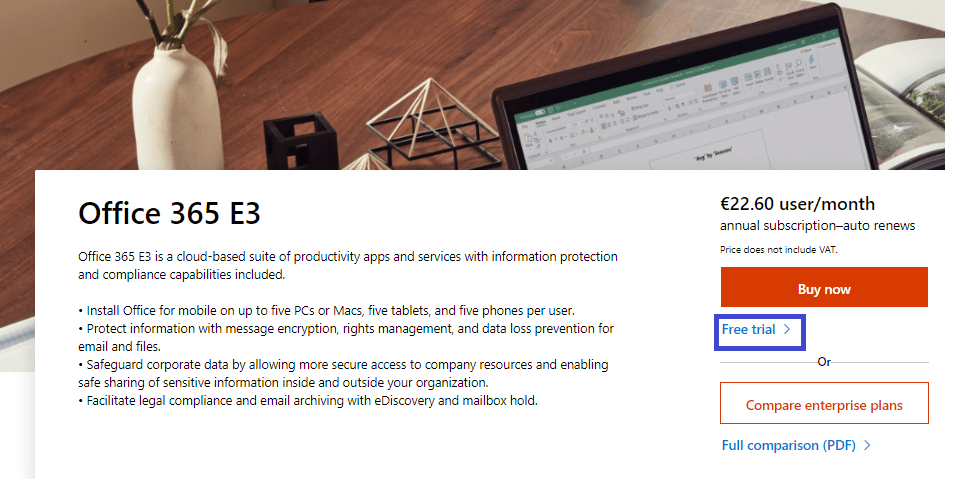
To create your tenant, you need to browse to the Office 365 E3 product page and click on the “Free Trial” option. E3 is the default trial option as it gives you the best experience of all the tools available for 30 days:
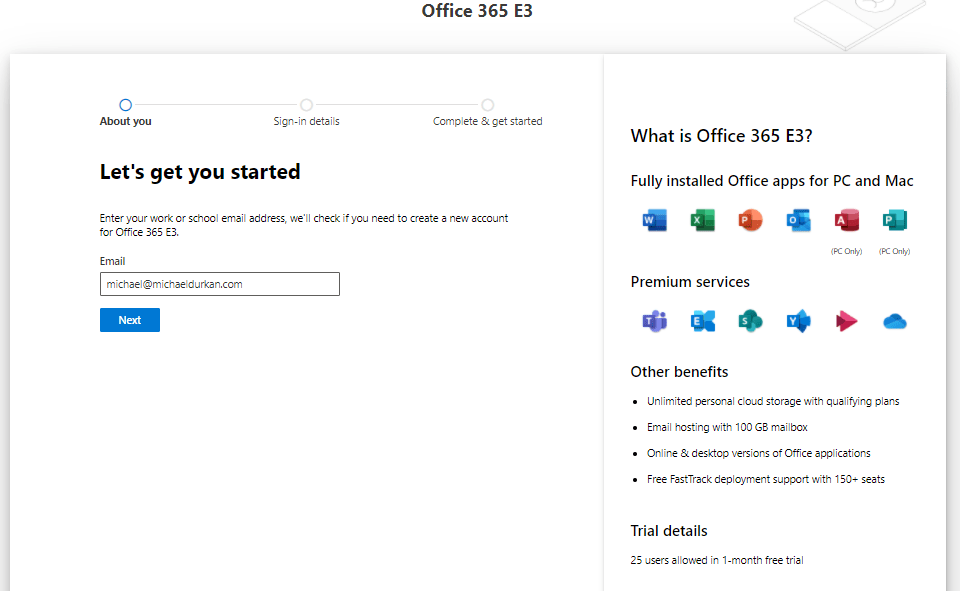
Clicking on “Free Trial” brings you into the registration screen. You need to enter the first email address you want to use with the tenant. This won’t configure anything, its just checking that the domain isn’t already configured for Microsoft 365.
We can also see on the right of the screen whats included with the E3 license, plus the benefits. We are allowed up to 25 users for the trial, this is a good number for testing.
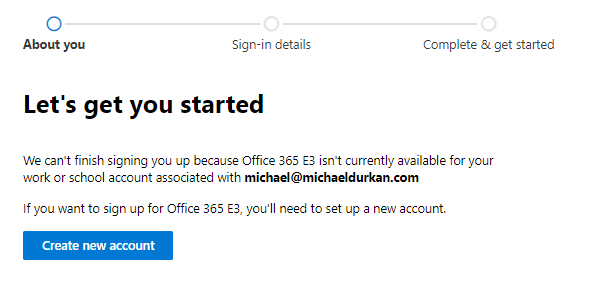
Click on “Create New Account”:
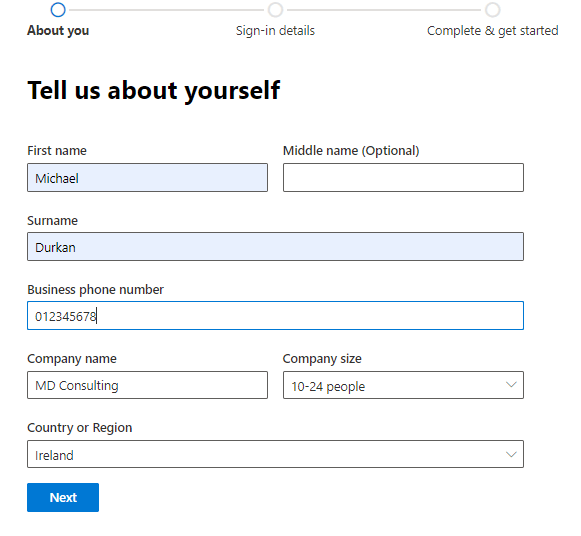
This brings you into the “Tell us about yourself” screen where you need to answer some questions about your organisation:
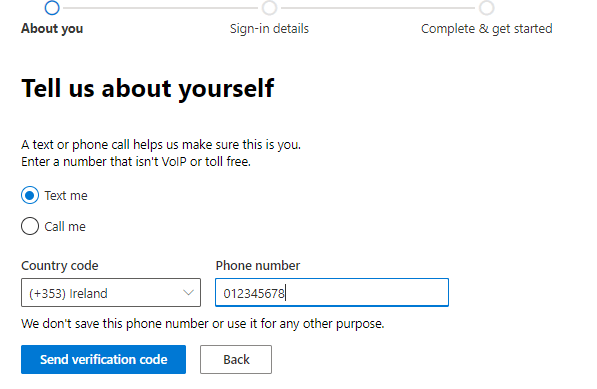
When you click next, you are asked to verify your identity via SMS or Call:
Once you get verified, you are then prompted to add your domain name. Add the domain name. Try to use the same domain name as the primary email domain that you want to use with the tenant.
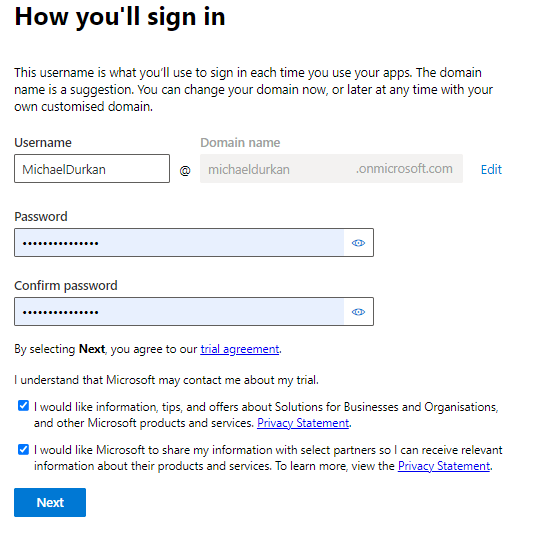
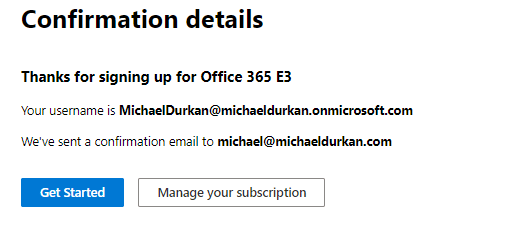
Click “Next” and this will create your account. Once that completes, the screen below will appear and you can click on “Manage your subscription” to log in
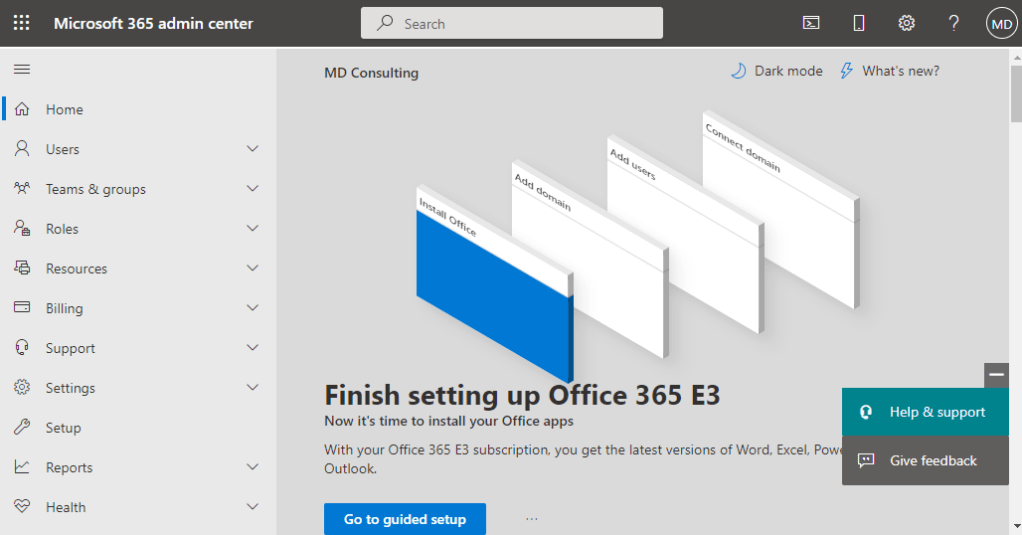
And now you are logged into the Microsoft 365 admin center and can manage your subscription! This is always available to log on to at https://admin.microsoft.com/ using the credentials you created above.
NOTE – The tenant I have set up above is a trial and I’m only going to use it for testing and for the purposes of the blog. So at some point in the next 30 days, I’m going to delete it as I’ve done with Azure resources in previous blog posts and I would advise you to do so as well (unless you really want to pay for your own Microsoft 365 tenant). The article here shows how to do this from within the Microsoft 365 Services and subscriptions page.
Add your Domain to your tenant
So lets fast forward 30 days – the trial has ended, your users are happy and you’ve decided as a business to migrate your existing workloads to Microsoft 365. The next step is to add your production domain and verify it.
So in the Microsoft 365 admin center, go to the “Settings” menu and select “Domains”. You have the option here to buy a domain which will redirect you to a 3rd party provider, and you can only use this option once your trial period has ended. This is useful if you need
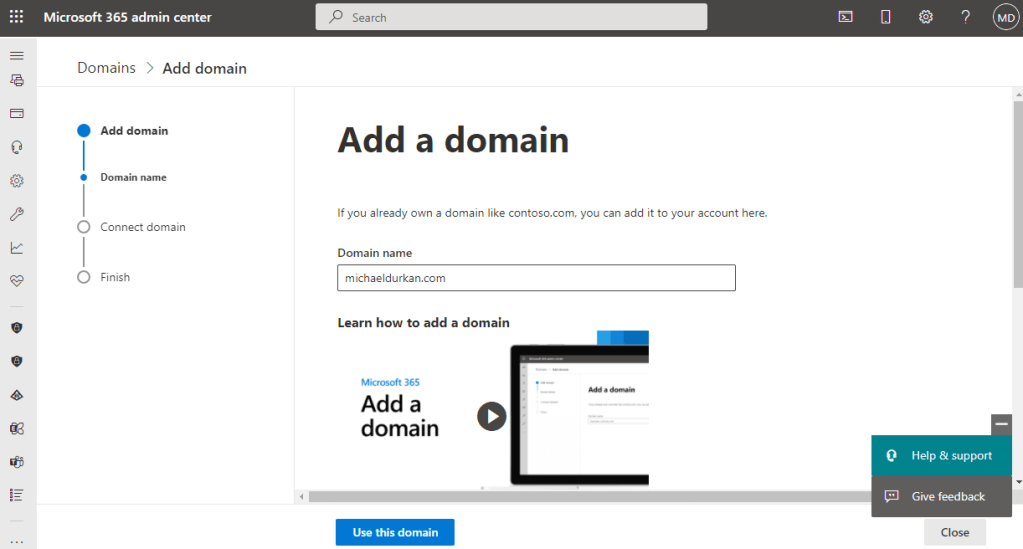
However, we’re going to add our existing domain, so click on “Add Domain”
This brings us into the “Add Domain” screen. Enter the domain name you want to use and click on the “Use this Domain” button at the bottom of the screen:
The next screen provides a list of options for verifying the domain. Now, because the blog is on WordPress, its giving me the option to sign in to WordPress to verify. Unless your Website is hosted on WordPress, you’re not going to see this option, but wil see the 3 options below that.
The most common is the option to “Add a TXT record to the domain’s DNS records”, so we’ll select that and click “Continue”:
This detects who the hosting provider is, and provides you with the TXT record you need to add to your public DNS Records, so I’ll do that in the background and click “Verify” (this may take up to 30 minutes after you add the TXT to work):
Once thats verified, we get a screen asking us to connect our domain and set up DNS records. Again, I’m seeing the option to let Microsoft add the records for me automatically to WordPress (and this may also work depending on who your hosting provider is), however I’m going to choose the second option to add my own DNS records so we can take a look at whats provided:
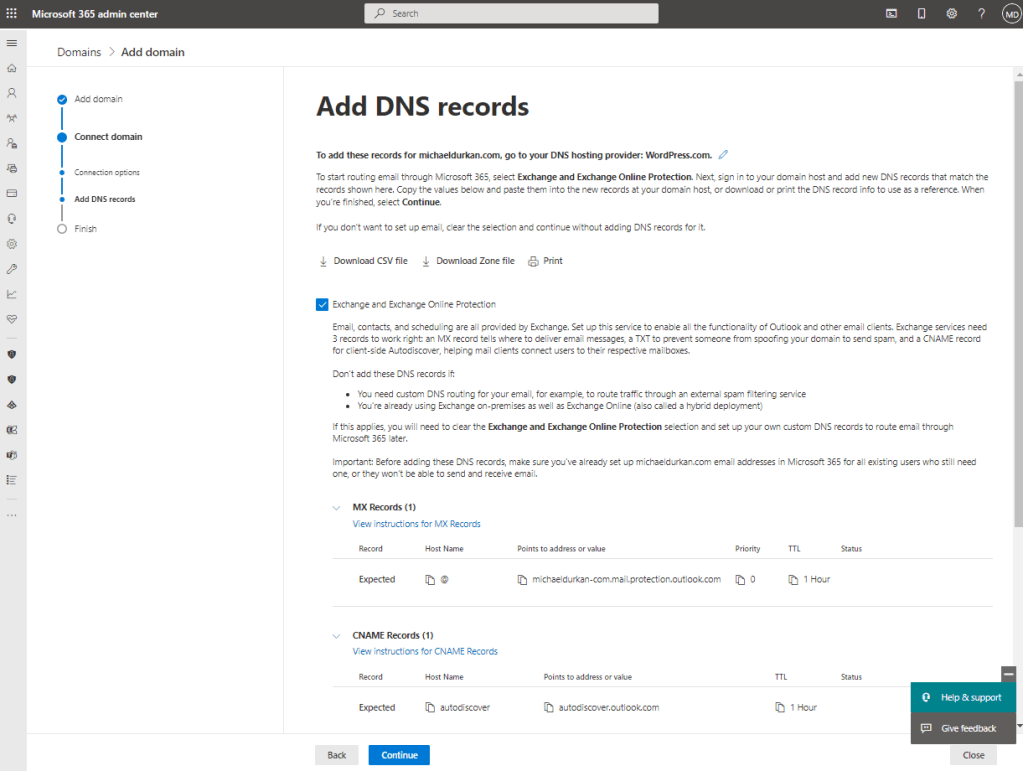
The next screen gives me the MX Records I need to get set up with email initially, and there are also options for Skype for Business and Intune MDM at the bottom of the screen if required.
I wanted to show you this page to ensure you understand the process and how it works. However at this stage, I’m going to go back to the previous screen and click “Skip and do this later”. The reason is that this will impact mailflow, and our configuration doesn’t have a Hybrid configuration in place yet to support the mailflow.
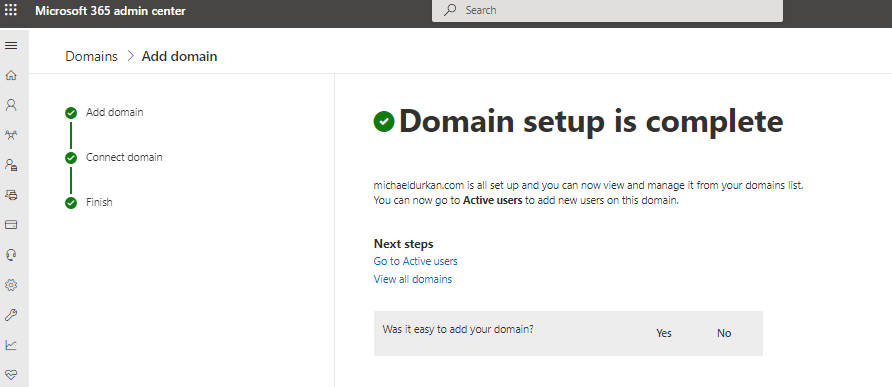
Once we finish, we get a screen to say the setup is complete, and we can see our domain listed in the admin center.
Azure AD Connect Installation
Once your domain is registered in the portal, you should now be in a position to synchronise your user accounts so its time to install and configure Azure AD Connect.
To do this, we go to the “Users” menu and select “Active Users”. Once that screen appears, we click on the “ellipses” and select “Directory synchronization”:
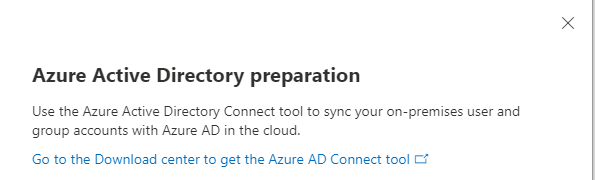
This brings us to a screen with an external link to download the Azure AD Connect tool:
At the time of writing this post, the current Azure AD Connect version is 2.1.1.0 and is only supported on Windows Server 2016 and Windows Server 2019. There are a number of other prerequisistes that need to be satisfied before installing Azure AD Connect:
Azure AD Tenant: this is created for you when you sign up for the Microsoft 365 Trial.
Domain needs to be verified: we’ve done this above.
The on-premise Active Directory forest and domain functional levels must be Windows Server 2003 or later. The domain controllers can run any level as long as this condition is met. This also means that you don’t need to install Azure AD Connect on a Domain Controller.
The Domain Controller used by Azure AD during the setup must be writable and not a read-only domain controller (RODC). Even though you may have other writable domain controllers in your environment, Azure AD doesn’t support write redirects.
Enabling the Active Directory recycle bin is recommended.
The PowerShell execution policy neds to be set to “RemoteSigned” on the Server that Azure AD Connect is installed on.
Installing on Windows Server Core is not supported.
Finally as discussed in the last post, this is a good time to ensure the UPN and proxyAddress attributes are set correctly on your on-premise environment.
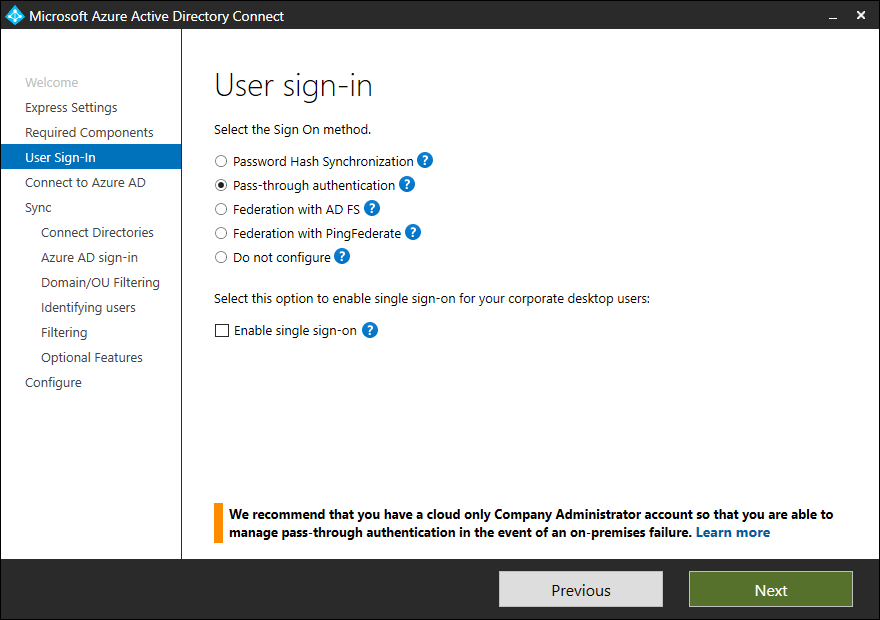
So now you can go ahead and install Azure AD Connect. As per the previous post, there are different authentication methods to choose from and these are available as install options in the Azure AD Connect installation wizard:
Password Hash Synchronization (PHS) – this can be run as express installation and assumes the following:
You have a single Active Directory forest on-premises.
You have an enterprise administrator account you can use for the installation.
You have less than 100,000 objects in your on-premises Active Directory.
With an Express installation, you get:
Password hash synchronization from on-premises to Azure AD for single sign-on.
A configuration that synchronizes users, groups, contacts, and Windows 10 computers.
Synchronization of all eligible objects in all domains and all OUs. At the end of the installation, you can run the installation wizard again and choose to filter domains or OU’s.
Automatic upgrade is enabled to make sure you always use the latest available version.
The other option is Pass-through authentication (PTA). If you have already run an express installation, all you need to do is select the “Change user sign-in” task from the Azure AD Connect application, select next and pick PTA as the sign-in method. Once successful, this will install the PTA agent on the same server as Azure AD Connect is installed on.
What you then need to do is ensure that Pass-through authentication is enabled on your tenant in the Azure AD Connect blade in your Azure AD tenant.
NOTE – if you turn this feature on, it will affect all users in your managed domain, and not just for signing on to Microsoft 365, but other services such as Azure or Dynamics that you may be using the tenant for. So you need to be very aware of the effects of making this change.
Your on-premise users and computers will now synchronize to your Microsoft 365 tenant.
Conclusion
So thats the quick tour of setting up your tenant, adding domains and confirming DNS settings, and installing and configuring Azure AD Connect.
In the next post, we’ll look at setting up the Hybrid Configuration to enable your on-premise Exchange environment to co-exist with your Microsoft 365 tenant during the migration process. Hope you enjoyed this post, until next time!
Its Day 74 of my 100 Days of Cloud journey, and today I’m jumping back into the Microsoft 365 ecosystem and taking a look at the steps needed to prepare your on-premise Active Directory environment.
We touched on Microsoft 365 briefly on Day 72 when we looked at whether migrating your on-premise File Server to Azure Files or SharePoint was the best option for your business. We also commented that a migration to Microsoft 365 hosted email was traditionally the first step that the majority of companies have taken or will take in their journey to Public Cloud environemnts.
I’ve decided to step back and look at Microsoft 365 as a whole and the services offered in the next few posts where we can see how each service can provide a benefit to your business. But before we do that, lets take a look at the preparation needed to decide on which identity models to use, and the preparation needed on your on-premise Active Directory environment if using the Hybrid identity model.
Authentication Methods
But before that happens or you decide on any migration strategy, you need to decide how your users will authenticate to those Cloud Services. For this we have 2 options
Cloud-only identity: A cloud-only identity uses user accounts that exist only in Azure AD. Cloud-only identity is typically used by small organizations that do not have on-premises servers or do not use AD DS to manage local identities. All management of these identities is performed using the Microsoft 365 admin center and Windows PowerShell with the Microsoft Azure Active Directory Module.
Hybrid identity: Hybrid identity uses accounts that originate in an on-premises AD DS and have a copy in the Azure AD tenant of a Microsoft 365 subscription. Most changes, with the exception of specific account attributes, only flow one way. Changes that you make to AD DS user accounts are synchronized to their copy in Azure AD. Azure AD Connect runs on an on-premises server, provides ongoing account synchronization, checks for changes in the AD DS, and forwards those changes to Azure AD
So that all makes sense! Now lets introduce another layer of complexity and choice. If you choose a Cloud-only identity model, things are straightforward. However, if you choose a Hybrid model, you have 2 authentication options:
Managed Authentication: this is where Azure AD handles the authentication process. And nested within this, you have 2 options:
Password hash synchronization (PHS): this is where Azure AD performs the authentication using a hash of the password that has been syncronized from your on-premise Active Directory.
Image Credit: Microsoft
Pass-through authentication (PTA): this is where Azure AD redirects the authentication request back to your on-premise Active Directory.
Image Credit: Microsoft
2. Federated authentication: this is is primarily for large enterprise organizations with more complex authentication requirements. AD DS identities are synchronized with Microsoft 365 and users accounts are managed on-premises. With federated authentication, users have the same password on-premises and in the cloud and they do not have to sign in again to use Microsoft 365.
Managing and Protecting Privileged Accounts and Administrator Roles
The general rule of thumb is that we should never assign administrator roles to everyday user accounts, especially accounts that have been synchronized from on-premise.
You should assign dedicated Cloud-only identities for administrator roles, and protects these accounts with Multi-Factor Authentication, and/or Azure AD Priveleged Identity Management for on-demand, just-in-time assignment of adminstrator roles. You should also consider using a privileged access workstation (PAW). A PAW is a dedicated computer that is only used for sensitive configuration tasks, such as Microsoft 365 configuration that requires a privileged account.
Managing and Protecting User Accounts
While administrator accounts are the first ones to get protected, sometimes we forget about protecting our user accounts. While we have recommended MFA for administrator accounts, we need to be enabling and enforcing MFA for all users.
We can also enabled other advanced features (depending on our license levels):
Security Defaults: this feature requires all of your users to use MFA with the Microsoft Authenticator app. Users have 14 days to register for MFA with the Microsoft Authenticator app from their smart phones, which begins from the first time they sign in after security defaults has been enabled. After 14 days have passed, the user won’t be able to sign in until MFA registration is completed.
Azure AD Password Protection: detects and blocks known weak passwords and their variants and can also block additional weak terms that are specific to your organization. Default global banned password lists are automatically applied to all users in an Azure AD tenant. You can define additional entries in a custom banned password list. When users change or reset their passwords, these banned password lists are checked to enforce the use of strong passwords.
Conditional Access policies: a set of rules that specify the conditions under which sign-ins are evaluated and access is granted. We looked at this in detail on Day 57.
Keep the following in mind:
You cannot enable security defaults if you have any Conditional Access policies enabled.
You cannot enable any Conditional Access policies if you have security defaults enabled.
Active Directory Domain Services Preparation
Before you synchronize your AD DS to your Azure AD tenant, you need to clean up your AD DS. This is an important step as if its not performed correctly, it can lead to a significant negative impact on the deployment process. It might take days, or even weeks, to go through the cycle of directory synchronization, identifying errors, and re-synchronization.
While there are a number of attributes you need to prepare for synchronization, the most important ones are:
userPrincipalName (UPN): this needs to be a valid and unique value for each user object, as the AD DS UPN matches the Azure AD UPN. This is what users will use to authenticate, and is required to be in the Internet-style sign-in format, for example “firstname.lastname@yourdomain.com”.
A note on this – Active Directory use the sAMAccountName attribute to authenticate. It recommended that prior to syncing your identities, this should match the userPrincipalName to avoid confustion for both users and administrators, however this is not necessary.
Another note – if you are using multiple mail domains, you can add multiple UPN suffixes. The article here shows how to add these and also how to change the UPN for each or multiple users.
mail: This is the users Primary email address, and needs to be unique for each user. This can only contain a single value.
proxyAddress: This is the users email addresses, again it needs to be unique for each user object. It cannot contain any spaces or invalid characters. This can have multiple entries if you have multiple mail domains in use.
A note here – The Primary address will be same as the mail attribute, and will be in the format “SMTP:name@domain1.com”. Additional addresses will be in the format “smtp:name@domain2.com” (note the uppercase and lowercase).
displayName: This is how your name will be displayed in the Global Address list, and is a combination of the givenName and surname attributes. Its not necessary to be unique, however it is recommended to avoid confusion.
For optimal use of the Global Address List, its recommended that these attributes are populated and correct for each account:
givenName
surname
displayName
Job Title
Department
Office
Office Phone
Mobile Phone
Fax Number
Street Address
City
State or Province
Zip or Postal Code
Country or Region
Conclusion
In this post, we looked at the steps required to prepare for synchronization for choosing an identity model, administrator and user security, and finally user account and attribute preparation.
In the next post, we’ll look at the steps to install Azure AD Connect to synchroniuze your identities. Hope you enjoyed this post, until next time!
Its Day 73 of my 100 Days of Cloud journey, and today its a quick post about the importance of attending and being a member of Azure and Cloud User Groups.
User Groups are a great way meet new people and network in the community, but also to learn new skills from guest speakers who are experts.
Over the last few weeks, I’ve attended some excellent User Group sessions with some awesome people in the Cloud Community, such as:
All of these User Groups and many more can be found on meetup.com, and you can also follow all of the speakers above on both Twitter (links above) or search for them on LinkedIn. Also, most of the sessions from these User Groups are available on their YouTube Channels a few days after the events.
So log on to meetup and search for a User Group or Community near you, or you can attend these awesome ones above while they are still hosted as online events!