100 Days of Cloud – Day 59: Azure Lighthouse

Its Day 59 of my 100 Days of Cloud journey, and todays post is all about Azure Lighthouse.

No, its not that sort of Lighthouse…..

Azure Lighthouse enabled centalized management of multiple tenants, whcih can be utilized by:

  • Service Providers who wish to manage their Customer tenants from their own Tenant.
  • Enterprise Organisations with multiple tenants who wish to manage these from a single tenancy.

In each of the above examples, the customer in the underlying tenant maintains control over who has access to their tenant, which resources they can access, and what levels of access they have.

Benefits

The main benefit of Azure Lighthouse is to Service Providers, as it helps them to efficiently build and deliver managed services. Benefits include:

  • Management at scale: Customer engagement and life-cycle operations to manage customer resources are easier and more scalable. Existing APIs, management tools, and workflows can be used with delegated resources, including machines hosted outside of Azure, regardless of the regions in which they’re located.
  • Greater visibility and control for customers: Customers have precise control over the scopes they delegate for management and the permissions that are allowed. They can audit service provider actions and remove access completely at any time.
  • Comprehensive and unified platform tooling: Azure Lighthouse works with existing tools and APIs, Azure managed applications, and partner programs like the Cloud Solution Provider program (CSP). This flexibility supports key service provider scenarios, including multiple licensing models such as EA, CSP and pay-as-you-go. You can integrate Azure Lighthouse into your existing workflows and applications, and track your impact on customer engagements by linking your partner ID.
  • Work more efficiently with Azure services like Azure Policy, Microsoft Sentinel, Azure Arc, and many more. Users can see what changes were made and by whom in the activity log, which is stored in the customer’s tenant and can be viewed by users in the managing tenant.
  • Azure Lighthouse is non-regional, which means you can manage tenants for multiple customers across multiple regions separately.
Image Credit: Microsoft

Visibility

  • Service Providers can manage customers’ Azure resources securely from within their own tenant, without having to switch context and control planes. Service providers can view cross-tenant information in the “My Customers” page in the Azure portal.
  • Customer subscriptions and resource groups can be delegated to specified users and roles in the managing tenant, with the ability to remove access as needed.
    The “Service Providers” page lets customers view and manage their service provider access.

Onboarding

When a customer’s subscription or resource group is onboarded to Azure Lighthouse, two resources are created: 

  • Registration definition – The registration definition contains the details of the Azure Lighthouse offer (the managing tenant ID and the authorizations that assign built-in roles to specific users, groups, and/or service principals in the managing tenant. A registration definition is created at the subscription level for each delegated subscription, or in each subscription that contains a delegated resource group.
  • Registration Assignment – The registration assignment assigns the registration definition to the onboarded subscription(s) and/or resource group(s). A registration assignment is created in each delegated scope. Each registration assignment must reference a valid registration definition at the subscription level, tying the authorizations for that service provider to the delegated scope and thus granting access.

Once this happens, Azure Lighthouse creates a logical projection of resources from one tenant onto another tenant. This lets authorized service provider users sign in to their own tenant with authorization to work in delegated customer subscriptions and resource groups. Users in the service provider’s tenant can then perform management operations on behalf of their customers, without having to sign in to each individual customer tenant.

How it works

At a high level, here’s how Azure Lighthouse works:

  1. Identify the roles that your groups, service principals, or users will need to manage the customer’s Azure resources.
  2. Specify this access and onboard the customer to Azure Lighthouse either by publishing a Managed Service offer to Azure Marketplace, or by deploying an Azure Resource Manager template. This onboarding process creates the two resources described above (registration definition and registration assignment) in the customer’s tenant.
  3. Once the customer has been onboarded, authorized users sign in to your managing tenant and perform tasks at the specified customer scope (subscription or resource group) per the access that you defined. Customers can review all actions taken, and they can remove access at any time.

Conclusion

And thats a brief overview of Azure Lighthouse, you can find more detailed information, service descriptions and concepts in the Microsoft Documentation here. Hope you enjoyed this post, until next time!

100 Days of Cloud – Day 58: Azure Content Delivery Network

Its Day 58 of my 100 Days of Cloud journey, and todays post is a quick overview of Azure Content Delivery Network.

A content delivery network is a global distributed network of servers that deliver cached to users based on their location. Examples of content that can be delivered via a CDN is Websites or Blob Storage Data.

Overview

Azure CDN uses the concept of distributed servers called Point-of-Presence servers (or POPs for short). These POPs stored cached content on edge servers that are located close to the locations where the user requests the content from, therefore reducing latency.

The benefits of using Azure CDN to deliver web site assets include:

  • Better performance and improved user experience for end users.
  • Scaling for better hadling of high loads, such as product launches or seasonal sales.
  • Content is served to users directly from edge servers so that less traffic is sent to the origin server.

Azure CDN POP Locations are worldwide, and a full list can be found here.

How it works

Image and Steps Credit – Microsoft
  1. A user (Alice) requests a file (also called an asset) by using a URL with a special domain name, such as <endpoint name>.azureedge.net. This name can be an endpoint hostname or a custom domain. The DNS routes the request to the best performing POP location, which is usually the POP that is geographically closest to the user.
  2. If no edge servers in the POP have the file in their cache, the POP requests the file from the origin server. The origin server can be an Azure Web App, Azure Cloud Service, Azure Storage account, or any publicly accessible web server.
  3. The origin server returns the file to an edge server in the POP.
  4. An edge server in the POP caches the file and returns the file to the original requestor (Alice). The file remains cached on the edge server in the POP until the time-to-live (TTL) specified by its HTTP headers expires. If the origin server didn’t specify a TTL, the default TTL is seven days.
  5. Additional users can then request the same file by using the same URL that Alice used, and can also be directed to the same POP.
  6. If the TTL for the file hasn’t expired, the POP edge server returns the file directly from the cache. This process results in a faster, more responsive user experience.

In order to use CDN, you need to create a CDN Profile in your Azure Subscription. A CDN Profile is a collection of CDN Endpoints, and you can configure each endpoint to deliver specific content. You can then use the CDN profile in conjunction with your Azure App Service to deliver the App to the CDN locations in your Profile.

However one thing to note, if you are delivering different content types, you will need to create multiple CDN profiles. There are limits set per Azure Subscriptions on CDN, details can be found here.

There are different pricing tiers in CDN which apply to different content types, and you can avail of CDN Network services from Akamai or Verizon as well as Microsoft. You can find full details on pricing here.

Conclusion

You can get a full overview of Azure Content Delivery Network from Microsoft docs here. Hope ou enjoyed this post, until next time!

100 Days of Cloud – Day 57: Azure Conditional Access

Its Day 57 of my 100 Days of Cloud journey, and today I’m taking a look at Azure Conditional Access.

In the last post, we looked at the state of MFA adoption across Microsoft tenancies, and the different feature offerings that are available with the different types of Azure Active Directory License. We also saw that if your licences do not include Azure AD Premium P1 or P2, its recommended you upgrade to one of these tiers to include Conditional Access as part of your MFA deployment.

Lets take a deeper look at what Conditional Access is, and why its an important component in securing access to your Azure, Office365 or Hybrid environments.

Overview

Historically, IT Environments were located on-premise, and companies with multiple sites communicated with each other using VPNs between sites. So in that case, you needed to be inside one of your offices to access any Applications or Files, and a Firewall protected your perimeter against attacks. In vary rare cases, a VPN Client was provided to those users who needed remote access and this needed to be connected in order to access resources.

Thats was then. These days, the security perimeter now goes beyond the organization’s network to include user and device identity.

Conditional Access uses signals to make decisions and enforce organisational policies. The simplest way to describe them is as “if-then” statements:

  • If a user wants to access a resource,
  • Then they must complete an action.

It impotant to note that conditional access policies shouldn’t be used as a first line of defense and is only enforced after the first level of authentication has completed

How it works

Conditional Access uses signals that are taken into account when making a policy decision. The most common signals are:

  • User or group membership:
    • Policies can be targeted to specific users and groups giving administrators fine-grained control over access.
  • IP Location information:
    • Organizations can create trusted IP address ranges that can be used when making policy decisions.
    • Administrators can specify entire countries/regions IP ranges to block or allow traffic from.
  • Device:
    • Users with devices of specific platforms or marked with a specific state can be used when enforcing Conditional Access policies.
    • Use filters for devices to target policies to specific devices like privileged access workstations.
  • Application:
    • Users attempting to access specific applications can trigger different Conditional Access policies.
  • Real-time and calculated risk detection:
    • Signals integration with Azure AD Identity Protection allows Conditional Access policies to identify risky sign-in behavior. Policies can then force users to change their password, do multi-factor authentication to reduce their risk level, or block access until an administrator takes manual action.
  • Microsoft Defender for Cloud Apps:
    • Enables user application access and sessions to be monitored and controlled in real time, increasing visibility and control over access to and activities done within your cloud environment.

We then combine these signals with decisions based on the evaluation of the signal:

  • Block access
    • Most restrictive decision
  • Grant access
    • Least restrictive decision, can still require one or more of the following options:
      • Require multi-factor authentication
      • Require device to be marked as compliant
      • Require Hybrid Azure AD joined device
      • Require approved client app
      • Require app protection policy (preview)

When the above combinations of signals and decisions are made, the most commonly applied policies are:

  • Requiring multi-factor authentication for users with administrative roles
  • Requiring multi-factor authentication for Azure management tasks
  • Blocking sign-ins for users attempting to use legacy authentication protocols
  • Requiring trusted locations for Azure AD Multi-Factor Authentication registration
  • Blocking or granting access from specific locations
  • Blocking risky sign-in behaviors
  • Requiring organization-managed devices for specific applications

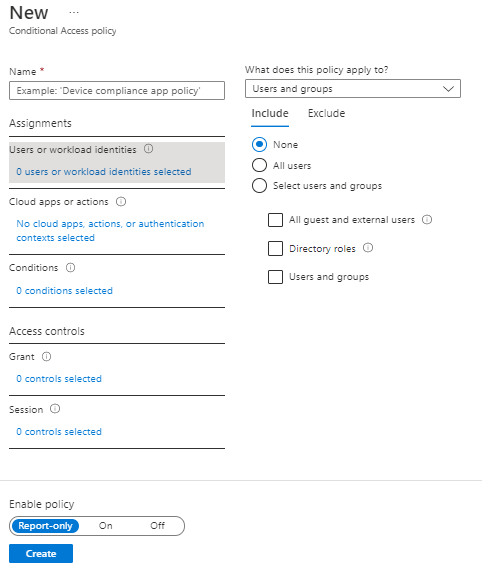
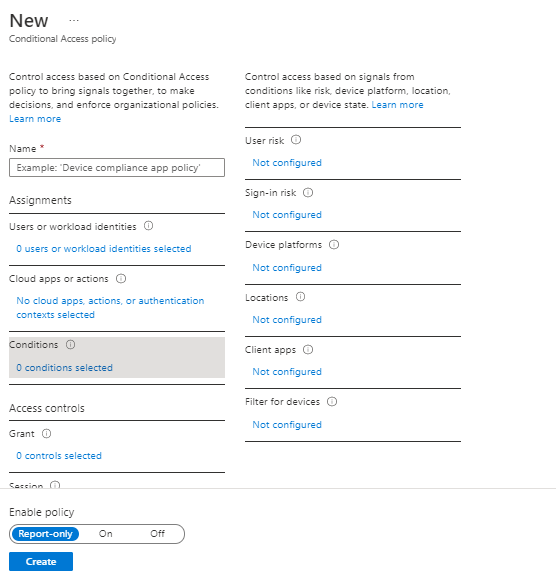
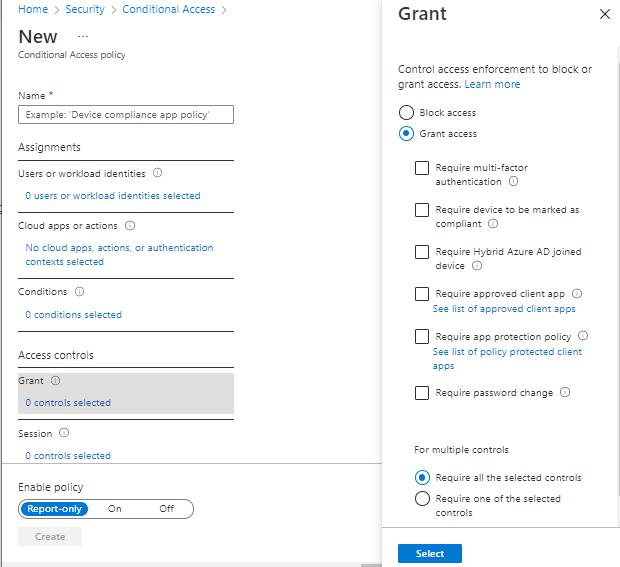
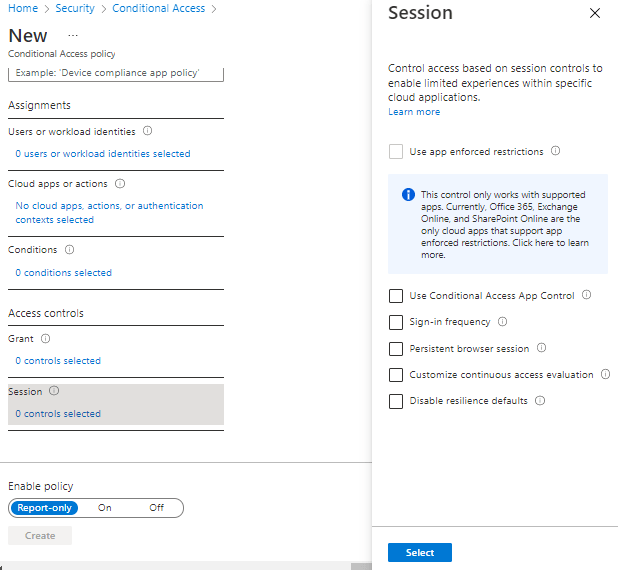
If we look at the Conditional Access blade under Security in Azure and select “Create New Policy”, we see the options avaiable for creating a policy. The first 3 options are under Assignments:

  • Users or workload identities – this defines users or groups that can have the policy applied, or who can be excluded from the policy.
  • Cloud Apps or Actions – here, you select the Apps that the policy applies to. Be careful with this option! Selecting “All cloud apps” also affects the Azure Portal and may potentially lock you out:
  • Conditions – here we assign the conditions sich as locations, device platforms (eg Operating Systems)

The last 2 options are under Access Control:

  • Grant – controls the enforcement to block or grant access

Session – this controls access such as time limited access, and browser session controls.

We can also see from the above screens that we can set the policy to “Report-only” mode – this is useful when you want to see how a policy affects your users or devices before it is fully enabled.

Conclusion

You can find more details on Conditional Access in the official Microsoft documentation here. Hope you enjoyed this post, until next time!
100 Days of Cloud – Day 56: Azure Active Directory and the low level of MFA Adoption

Its Day 56 of my 100 Days of Cloud journey, and today I’m taking a look at Azure Active Directory and MFA Adoption.

We already looked at Azure Active Directory and RBAC roles on Day 4, but today I’m looking at this from a different angle. The reason is because of this article from Catalin Cimpanu telling us that MFA Adoption across all Microsoft Enterprise tenants sits at 22%. And while we may think this is low, this is compared to 11% 2 years ago, and as low as 1% 2 years before that.

This is despite the fact that in August 2019, Microsoft said that customers who enabled MFA for their accounts ended up blocking 99.9% of all attacks. On average, around 0.5% of all accounts get compromised each month

So why the low adoption? The first thought is because of licensing constraints, and I thought about that in relation to both Microsoft 365, Office365 and the various Azure Active Directory offerings.

Lets take a look at Azure AD first – there are 4 different offerings of Azure AD:

  • Free – this version is intended for small businesses and has a limit of 500000 objects. It is primarily intended as an authentication and access control mechanism and supports user provisioning and basic user management functions such as creating, deleting and modifying user accounts. These users can take advantage of self-service password change, and admins can create global lists of banned passwords or require multifactor authentication (MFA). There is no SLA with the Free Edition
  • Office 365 Apps – this is the underlying directory service required to operate the applications on the Office 365 platform, such as Exchange Online for email and SharePoint Online for content management. It has the same features and capabilities as the Free version, but it also adheres to a service-level agreement (SLA) of 99.9% availability. This version comes by default will all Office 365 and Microsoft 365 subscriptions.
  • Premium P1 – this contains the following additional features:
    • Custom banned passwords,
    • Self-service passwords,
    • Group access management,
    • Advanced security and usage reports,
    • Dynamic groups,
    • Azure Information Protection integration,
    • SharePoint limited access,
    • Terms of Use,
    • Microsoft Cloud App Security Integration.
  • Premium P2 – as well as the above, this adds on:
    • vulnerabilities and risky accounts detection,
    • risky events integration,
    • risk-based conditional access policies.

In all of the above offerings MFA is offered as a default, even in the Free tier. So the different levels of licensing in Office365 have no bearing on enabling MFA.

The recommended method for enabling MFA is detailed in this article, where it is recommended that either Azure AD Premium P1 or P2.

So now lets look at the different Office 365 and Microsoft 365 versions – below are the versions where Azure AD Premium P1 and P2 are included:

  • Azure AD Premium P1
    • Office365 E3
    • Microsoft 365 Business Premium
  • Azure AD Premium P2
    • Office 365 E5

If your tenant uses the Free Office 365 versions without Conditional Access, you can use security defaults to protect users. Users are prompted for MFA as needed, but you can’t define your own rules to control the behavior. However, if your licences do not include Azure AD Premium P1 or P2, its recommended you upgrade to one of these tiers to include Conditional Access as part of your MFA deployment.

Conclusion

Hope you enjoyed this post, now go and get enabling MFA on your Azure AD, Office 365 and Microsoft 365 Tenants! Until next time!

100 Days of Cloud – Day 55: Azure Functions

Its Day 55 of my 100 Days of Cloud journey, and today I’m going to attempt to understand and explain Azure Functions.

What are Azure Functions?

Azure Functions is one of the ways that allow you to create serverless applications in Azure. All you need to do is write the code you need for the problem or task that you wish to perform, without having to worry about create a whole application or infrastructure to run the code for you.

Depending on what language you need your application to use, this link gives full details for the languages that are supported for Azure Functions. There are also Developer References for each of the languages which give full details of how to develop your desired functions using the supported languages. Azure Functions uses a code-first (imperative) development model

All functions contain 2 pieces – your code and the config file, which is called function.json. The function.json file contains the function’s trigger, bindings and other configuration settings.

Function App

A function app provides an execution context in Azure in which your functions run. As such, it is the unit of deployment and management for your functions. A function app is comprised of one or more individual functions that are managed, deployed, and scaled together.

A function app requires a general Azure Storage account, which supports Azure Blob, Queue, Files, and Table storage.

Hosting Plans

When you create a function app in Azure, you must choose a hosting plan for your app. There are three basic hosting plans available for Azure Functions:

  • Consumption plan – This is the default hosting plan. It scales automatically and you only pay for compute resources when your functions are running. Instances of the Functions host are dynamically added and removed based on the number of incoming events.
  • Functions Premium plan – Automatically scales based on demand using pre-warmed workers which run applications with no delay after being idle, runs on more powerful instances, and connects to virtual networks.
  • App service plan – Run your functions within an App Service plan at regular App Service plan rates. Best for long-running scenarios where Durable Functions can’t be used.

Triggers and Bindings

What is the funniest comedy sketch of all time? Mirror writers pick their  most hilarious moments - Mirror Online
A different kind of Trigger ……

Azure Functions are event driven – this means that an event or trigger is required in order for the function to run and the underlying code to execute. Each function must only have one trigger.

The most common types of triggers are:

  • Timer – Execute a function at a set interval.
  • HTTP – Execute a function when an HTTP request is received.
  • Blob – Execute a function when a file is uploaded or updated in Azure Blob storage.
  • Queue – Execute a function when a message is added to an Azure Storage queue.
  • Azure Cosmos DB – Execute a function when a document changes in a collection.
  • Event Hub – Execute a function when an event hub receives a new event.

Bindings are a way to both declaratively connect resources to functions and also to pass parameters from resources into a function. Bindings can be created as Input bindings, Output bindings or both.

Triggers and bindings let you avoid hardcoding access to other services within your code, therefore making it re-usable. Your function receives data (for example, the content of a queue message) in function parameters. You send data (for example, to create a queue message) by using the return value of the function.

Scaling

We can see in our hosting plans above that depending on which one you choose, this wil dictate how Azure Functions will scale and the maxiumum resouirces that are assigned to a function app.

Azure Functions uses a component called the scale controller to monitor the rate of events and determine whether to scale out or scale in. The scale controller uses heuristics for each trigger type. For example, when you’re using an Azure Queue storage trigger, it scales based on the queue length and the age of the oldest queue message.

Scaling can vary on a number of factors, and scale differently based on the trigger and language selected. There are a some scaling behaviors to be aware of:

  • Maximum instances: A single function app only scales out to a maximum of 200 instances. A single instance may process more than one message or request at a time though, so there isn’t a set limit on number of concurrent executions.
  • New instance rate: For HTTP triggers, new instances are allocated, at most, once per second. For non-HTTP triggers, new instances are allocated, at most, once every 30 seconds. Scaling is faster when running in a Premium plan.

By default, Consumption plan functions scale out to as many as 200 instances, and Premium plan functions will scale out to as many as 100 instances. You can specify lower maximum instances for each app if required.

Real-World Examples

So while all of the above theory is interesting, we still haven’t answered the key question which is where would we need to use Azure Functions?

Lets take a look at some real world examples of where Azure Functions would be useful:

  • Take a snapshot of a Virtual Machine before updates are scheduled to be applied.
  • Monitor expiry dates of Certificates and trigger an email to be sent 30 days before they expire.
  • When a Virtual machine is deleted, remove it from Monitoring.
  • When a CPU spikes above 90%, send a message to a Teams Channel.

Conclusion

So thats a whistle stop overview of Azure Functions. There are tons of brilliant resources out there where you can dive in and learn about Azure Functions in greater depth, such as the Microsoft Learn Module as part of the AZ-204 learning path which gives a full lab on creating your own function using a HTTP trigger.

Hope you enjoyed this post, until next time!
100 Days of Cloud – Day 54: Azure App Service Advanced Settings

Its Day 54 of my 100 Days of Cloud journey, and today I’m going to attempt to understand and explain some of the Advanced Settings and Service Limits in Azure App Service.

In previous posts, we looked at the fundamentals of Azure App Service:

  • It can use multiple programming languages to run your Web Apps or Services.
  • Benefits of using App Service over on-premise hosting.
  • The various App Service plans available.
  • Manual or Automated deployment options using familiar tools.
  • Integrate directly with multiple providers for authentication.

We then looked at how to deploy a Web App using both the manual deployment method and automated deployment using GitHub actions.

Deployment Slots

Let take a look at the concept of deployment slots based on our Web App deployment. You want to make changes to your application, but want to ensure that it is full tested before publishing the changes into production. Because we are using the free tier, we only have the “production” instance available to us and our default URL was this:

https://myday53webapp.azurewebsites.net/

Upgrading our App Service plan to a Standard or Premium tier allows us to introduce separate deployment slots for testing changes to our Web App before publishing into Production. For reference, the following is the number of slots available in each plan:

  • Standard – 5 Slots
  • Premium – 20 Slots
  • Isolated – 20 Slots

We can upgrade our plan from the “Deployment Slots” menu within the Web App:

Based on the limits above, we could have slots for Production, Development and Testing for a single Web App. What this will do is create staging environments that have their own dedicated URLs in order for us to test the changes. So for example if we called our new slot “development”, we would get the following URL:

https://myday53webapp-development.azurewebsites.net/

Once we have our staging environment in place, we can now do our testing and avail of swap operations. This allows us to swap the production and development slots. In effect, this is exactly what happens – the old “production” slot becomes the “development” slot, and any changes that have been made in the development slot is pushed into production. The advantage of this approach is that if there are any errors found that were not discovered during testing, you can quickly roll back to the old version by performing another swap operation.

One of the other big advantages of slots is that you can route a portion of your production traffic to different slots. A good example of a use case for this would be to allow a portion of your users access to beta apps or features that have been published.

By default, new slots are given a 0% weighting, so if you wanted 10% of your users to access beta features that are in staging or development slots, you need to specify this on the Deployment Slots blade:

Scaling

There are 2 options for scaling and app in App Service:

  • Scale up – this is where more compute resources such as CPU, memory, disk space. We can see the options available for Scale up from the menu blade in our Web App in the portal:
  • Scale out – this increases the number of VM instances that run your app or service. As with Deployment Slots, there are maximum limits set on Scale out based on the pricing tier that is in use:
  • Free – Single shared instance, so no scaling
  • Standard – 10 Dedicated instances
  • Premium – 20 Dedicated instances
  • Isolated – 100 Dedicated instances

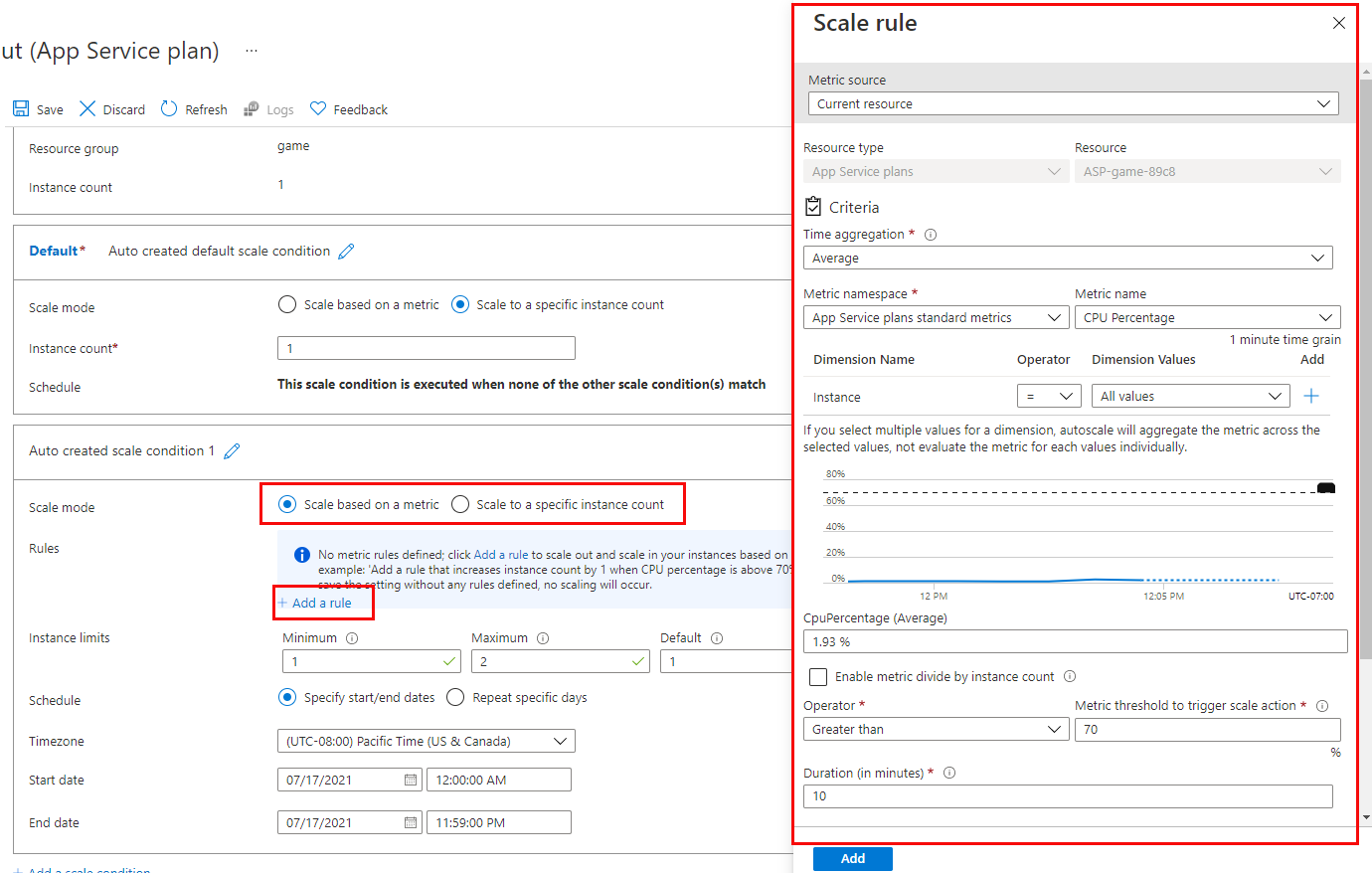
If using a Web App, we can also use autoscaling based on a number of criteria and triggers:

Enabling autoscale
The scale rule settings pane.

Full details can be found in this Microsoft Learn article. However, note that we must upgrade from the Free tier to use either manual or auto scaling options.

Conclusion

So thats an overview of Deployment Slots and Scaling options in Azure App Service. Hope you enjoyed this post, until next time!
100 Days of Cloud – Day 53: Deploy Web App using Azure App Service

Its Day 53 of my 100 Days of Cloud journey, and today I’m going to deploy a Web App using Azure App Service using both manual and automated deployment methods.

In the previous post, we looked at the fundamentals of Azure App Service:

  • It can use multiple programming languages to run your Web Apps or Services.
  • Benefits of using App Service over on-premise hosting.
  • The various App Service plans available.
  • Manual or Automated deployment options using familiar tools.
  • Integrate directly with multiple providers for authentication.

Manual Deployment

So with all the theory out of the way, lets dive in and deploy a Web App. We’ll start with the manual deployment method. Login to the Azure portal and open the Cloud Shell from the menu bar.

The location of Cloud Shell launch button.

After the shell opens be sure to select the Bash environment:

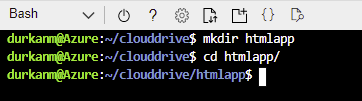
Next up, we need to create a htmlapp directory to store the files and code for our Web App:

Next, we’ll run this command in order to clone a sample Web App from the Azure Samples respository on GitHub, There are over two thousand code samples available in multiple languages, and you can browse the site here to find what you’re looking for.

git clone https://github.com/Azure-Samples/html-docs-hello-world.git

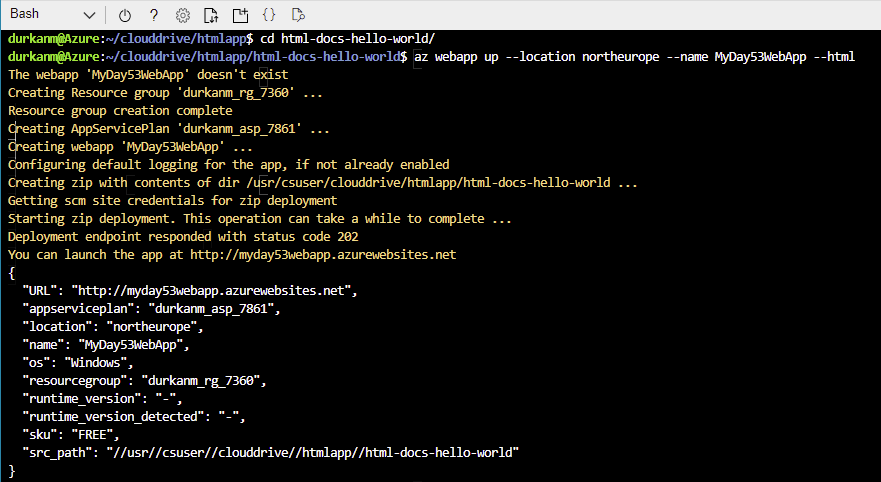
Now, change to the directory that contains the sample code and run the following command:

az webapp up --location <MyLocation> --name <MyAppName> --html

Replace <myLocation> with the Azure region that you want to deploy the Web App to, and <myAppName> with a name for your WebApp. So in my case, I’ll be running this command:

az webapp up --location northeurope --name MyDay53WebApp --html

Running this command does a number of things:

  • Creates a resource group
  • Creates an App Service Plan
  • Creates the Web App
  • Configures default logging for the app

We can see all of this info in the output from the command. We need to make a note of the Resource Group as we’ll need this later for both re-deployment and removal.

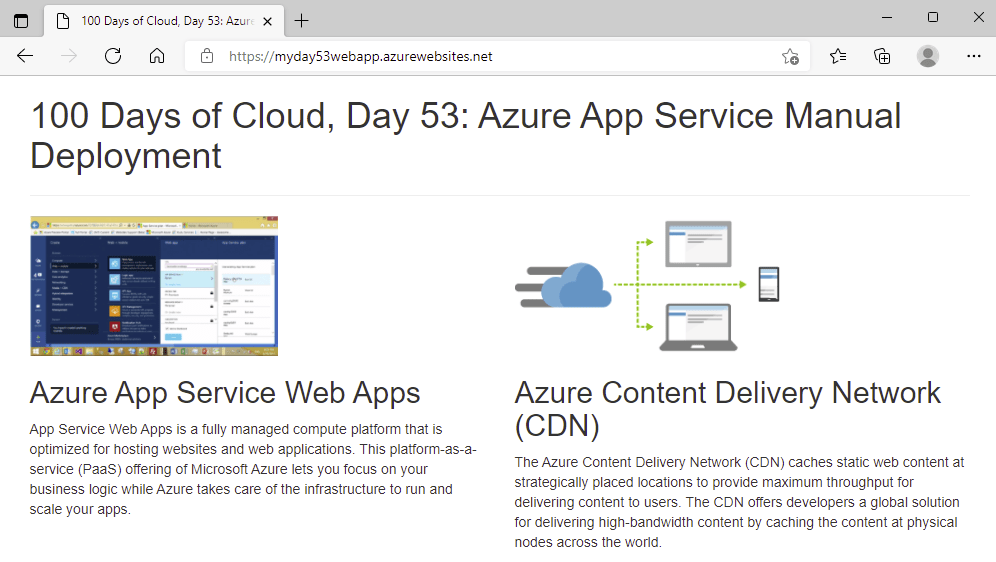
So now if we browse to the URL provided in the output:

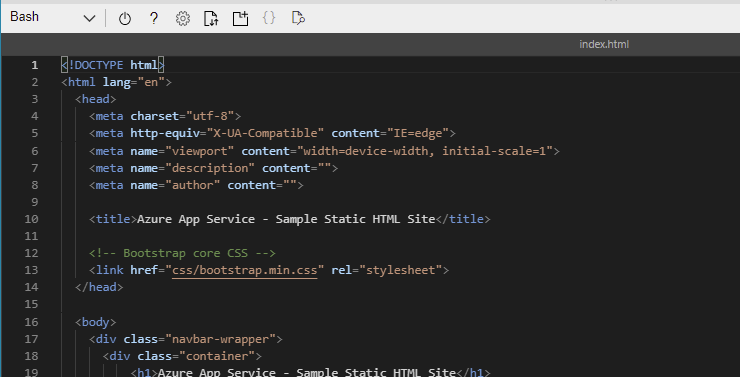
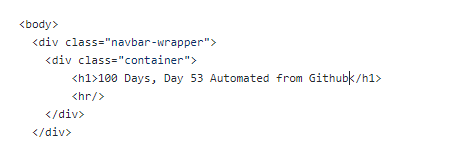
We can see that the sample website is available. So now lets change the heading – from our bash shell we’ll run code index.html to open the editor.

We can see in Line 10 the title that we saw when we browsed to the site, and on line 19 the header at the top of the page. Lets change this to something different:

We use ctrl-s to save and ctrl-q to quit the editor. Now, we;ll run the same command we ran earlier to redeploy the Web App:

az webapp up --location northeurope --name MyDay53WebApp --html

As we can see from the command output, it detects that the WebApp name specified already exists so will deploy the new content to this app.

And now when we refresh the page, we see that both the header and the title have changed as expected:

Automated Deployment using GitHub

So now lets take a look at one of ways to automate deployment and update of our Web App – we’ll demonstrate this using GitHub.

The first thing we need to do it locate our sample Web App respository in GitHub. Once we locate this, we’ll click on the “Fork” button:

What this does is takes a copy of the repository into our own GitHub account, so now I can see it here:

Now we can use this repository in a CI/CD Deployment model where changes to the App are pushed into production every time we make changes to the code.

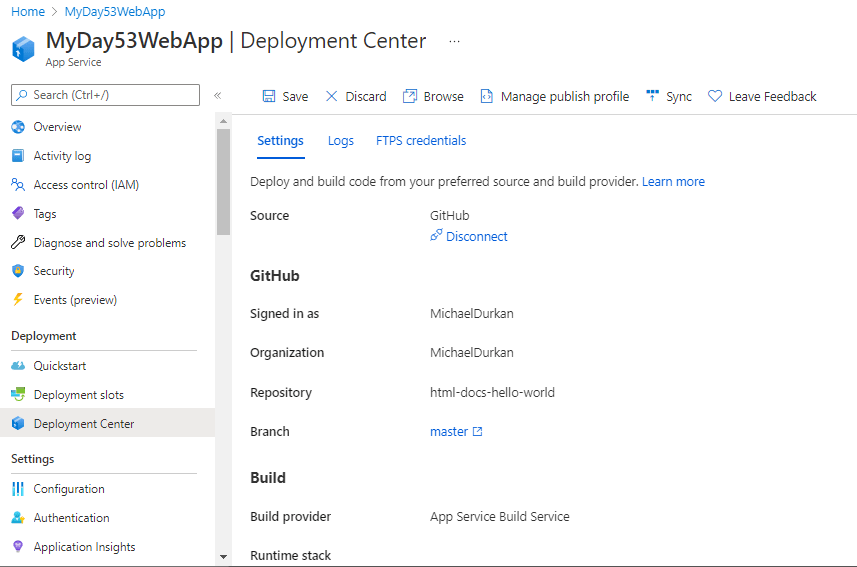
So back into the Azure Portal we go, and we need to locate our existing Web App, and click on “Deployment Center”. We can see there is warning that we are in the Production Slot – this is because we are using the Free Tier for this deployment – we’ll look at deployment slots in the next post. So we start by clicking on “Source*” to select the code source, and we select “GitHub”

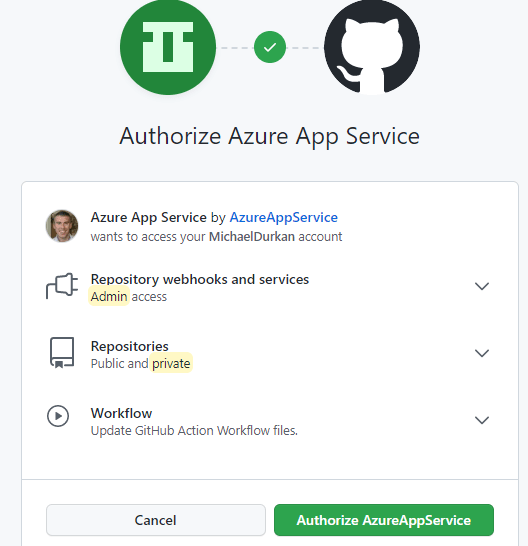
Now, we need to Authorise Github as the provider:

And now we click “Authorize App Service”

Once we’re loged into Github, we can select the Repository and Branch that we wish to use in our deployment. One thing that I changed here was the Build Provider – where we see “Building with GitHub Actions”, I changed this to “App Service Build Service”

Once all of the options are selected, click on “Save” and a page will appear confirming the settings selected:

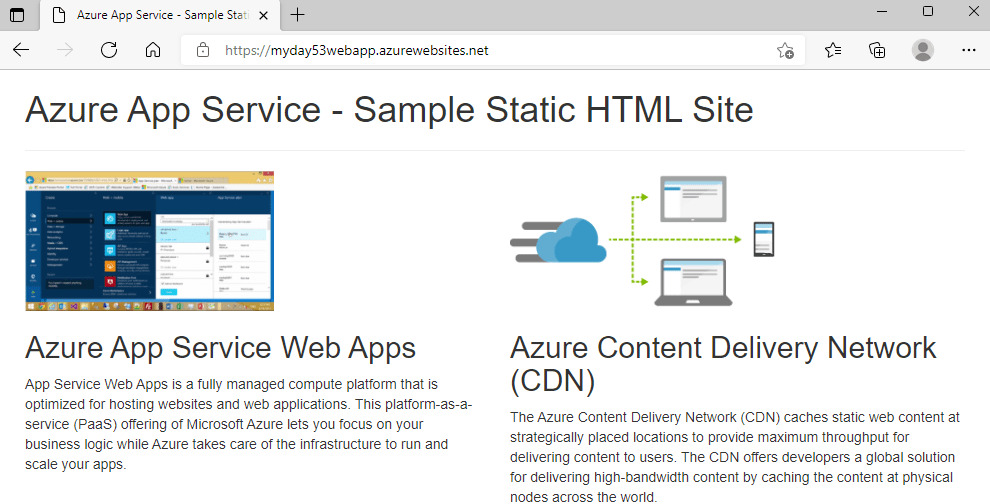
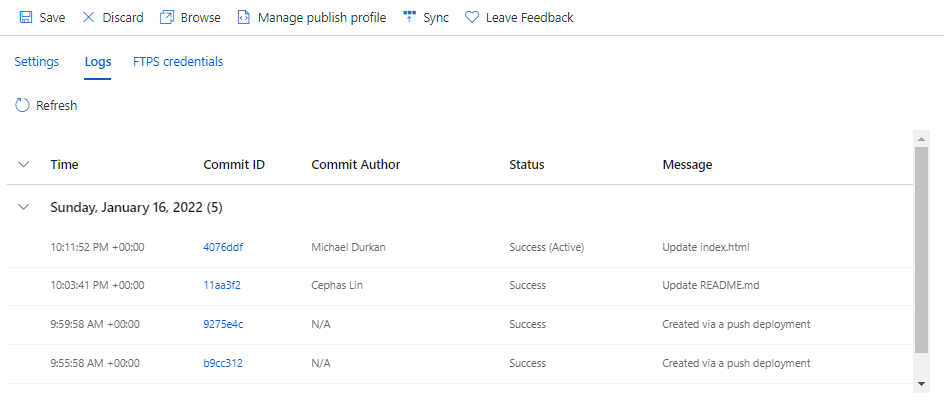
So this is now effectively live, if we click on “Logs”, we can see that this created an update to our deployment. And because we are now using the base respository files, we can browse to the site and see we are back to the default title and heading on the site:

So now, we can edit the index.html file directly on GitHub to make changes:

So we’ll do a commit of the changes in GitHub. And if we check our logs again, we can see another deployment has happened:

And if we refresh the website, we can see our changes automatically got published!

Conclusion

So thats an overview of deploying to Azure App Service using manual and automated deployment methods. In the next post, we’ll look at more advanced options like auto-scaling and deployment slots.

Hope you enjoyed this post, until next time!

100 Days of Cloud – Day 52: Azure App Service

Its Day 52 of my 100 Days of Cloud journey, and today I’m taking a look at Azure App Service.

How to Create a Serverless Meme-as-a-Service

After all my promises on Day 49 around doing further blogs on services such as AKS, Azure Monitor, Azure Security Center or Azure File Sync, I’m sure you weren’t expecting me to head off into another direction. The truth is dear reader that I have a rather embarrassing admission to make – I failed to follow my own advice….lets set the scene.

We go back in time to Day 17 where I spoke about the then upcoming Microsoft Ignite Cloud Skills Challenge, which enabled you to obtain a free exam voucher for completing an MS Learn Module. The exam voucher needs to be used by March 15th, and from the list of exams that were on the eligibility list, below were the ones that were of interest to me:

But of course Michael jumped ahead and booked the betas for AZ-800 and AZ-801 (as described in Day 47 and Day 51). So those 2 get scratched off the list and I get left with a choice of 3. And my own advice from Day 17 is ringing in my head:

Its not worth doing it if the only reason is for a free voucher and you don’t really know what to use it for, and then just take an exam for the sake of it because you have the voucher.

So what do I do? I could let the exam expire, or I could pick one of the 3 remaining and give it a go. And as this 100 Days journey is learning experience, I decide to go for the one that I will freely admit I know the least about, and thats AZ-204. Loading up the Microsoft Learn modules from the official exam page, the first thing I see is Azure App Service! A-ha! This looks familiar, and it should as the content was covered briefly on AZ-104.

Overview of Azure App Service

Azure App Service is a Platform as a Service (PaaS) offering that is used to host web applications, REST APIs and mobile back end services.

Because this is a PaaS offering, the underlying infrastructure is fully managed and patched by Azure. You can choose to run App Service on either Windows or Linux platforms depending on your application requirements. Because of this, you can use any programming language to run your Web Applications or Service, and these can the be hosted on App Service. This list includes but is not limited to:

  • .NET
  • Java
  • Node.js
  • Ruby
  • PHP
  • Python

Benefits of App Service

Because Azure App Service is a PaaS offering, it means that you are only responsible for managing the application/service and the data. Everything else is managed by Azure.

As well as the range of programming languages that are supported, you can also run scripts or executables as background services.

You can also scale in/out (adds/removes additional VMs as required) or scale up/down (adds/removes CPU or memory resources as required).

Lets compare this to hosting on your own on-premise servers. You are responsible for the following:

  • Procurement of Physical Servers, Storage, Networking equipment
  • Power and Cooling
  • Networking setup and security
  • Virtualization, Operating System (Installation, Patching, System Upgrades)
  • Middleware Components
  • Configuration of Web Services such as Apache, IIS or Nginx

App Service Plans

As with all Azure Services, there are different pricing tiers that define the compute resources that are allocated to your App Service. There are 4 different tiers to choose from:

  • Shared compute: Both Free and Shared share the resource pools of your apps with the apps of other customers. These tiers allocate CPU quotas to each app that runs on the shared resources, and the resources can’t scale out.
  • Dedicated compute: The Basic, Standard, Premium, PremiumV2, and PremiumV3 tiers run apps on dedicated Azure VMs. Only apps in the same App Service plan share the same compute resources. The higher the tier, the more VM instances are available to you for scale-out.
  • Isolated: This tier runs dedicated Azure VMs on dedicated Azure Virtual Networks. It provides network isolation on top of compute isolation, and maximum scale-out capabilities. You should run in Isolated if your app is resource intensive or needs to scale independently of other apps.
  • Consumption: This tier is only available to Azure Function apps. It scales the functions dynamically depending on workload.

Deployment Options for App Service

You have multiple options for deployment of your App Service. Automated deployment options are:

  • Azure DevOps
  • GitHub
  • Bitbucket

All of these options allow you to build your code, test and generate releases, and push the code changes to Azure. You also can maintain version control with these options.

Manual deployment options are:

  • Git – Web Apps have a Git URL that you can use a remote repository to deploy your Web App.
  • Azure CLI – you can package Web Apps and deploy them using CLI.
  • ZIP Deploy – Use curl or similar http to send a zip of your deployment files to App Service.
  • FTP/S – you can push your code directly to App Service over FTP or FTPS.

Authentication

Azure App Service allows you to integrate directly with multiple providers such as Azure AD, Facebook, Google or Twitter. This feature is built directly into the platform and doesn’t require any coding, language or security expertise to implement.

Conclusion

So thats an overview of the foundations of Azure App Service. In the next post, we’ll go through a demo of deploying a Web App using both manual and automated methods, and look at more advanced options like configuring diagnostic settings, auto-scaling and deployment slots.

Hope you enjoyed this intro to Azure App Service, until next time!

100 Days of Cloud – Day 51: AZ-801 Exam Day!

Its Day 51 of my 100 Days of Cloud Journey, and today I sat Exam AZ-801: Configuring Windows Server Hybrid Advanced Services (beta).

AZ-801 is the second exam required for the new Windows Server Hybrid Administrator Associate certification, which was announced at Windows Server Summit 2021. The first is Az-800 (Administering Windows Server Hybrid Core Infrastructure), which I blogged about in a previous post last week.

This certification is seen by many as the natural successor to the retired MCSE certifications which retired in January 2021, primarily because it focuses in some part on the on-premise elements within Windows Server 2019.

Because of the NDA, I’m not going to disclose any details on the exam, however compared to last weeks exam I felt that this exam is more heavily weighted towards Azure as opposed to last weeks exam which had a more even split. There are also some elements of Windows Server 2022 included in the exam.

The list of skills measured as their weightings are as follows:

  • Secure Windows Server on-premises and hybrid infrastructures (25-30%)
  • Implement and manage Windows Server high availability (10-15%)
  • Implement disaster recovery (10-15%)
  • Migrate servers and workloads (20-25%)
  • Monitor and troubleshoot Windows Server environments (20-25%)

Like all beta exams, the results won’t be released until a few weeks after the exam officially goes live so I’m playing the waiting game! In the meantime, you can check out these resources if you want to study and take the exam:

Hope you enjoyed this post, until next time!

100 Days of Cloud – Day 50: Halfway Review!

Its Day 50 of my 100 Days of Cloud Journey.

FIFTY!!

Meme Creator - Funny You are only halfway there Meme Generator at  MemeCreator.org!

So I’m only at the halfway point (thanks SpongeBob)! I owe everyone in the community and on the various social platforms who have supported, encouraged, commented, criticised (which was welcome btw!) all throughout this journey a massive thank you, and here’s to the next 50 days!

Todays post is a brief one, as I’m going to do a quick review of the journey so far and what I hope to achieve in the next 50 days.

So lets start off with some numbers – Day 1 of the journey started back on September 16th. If we do a countback thats 114 days, so I’m averaging a post every 2 days.

I initially went into this challenge with the intention of blogging every single day, however I very quicky realised that that wasn’t going to be possible. Both work and family committments have had to take priotity at certain times in the journey. There is also the issue of burnout – I posted on Day 22 about mindfulness, taking breaks and looking after number one.

The main reason for taking on this journey was to learn – again I realised early in the challenge that there was loads to learn on this journey, and I wanted to be sure I had a proper understanding of what I was learning and blogging about before it was posted. It may take me another 114 days to finish, maybe longer or shorter than that – and thats fine with me. Its a marathon, not a sprint!

Back to the content itself – apart from a few diversions off into Terraform, Linux and AWS, the blog has pretty much been domainated by Azure so far. And probably will be going forward – as I said in my previous post there are a number of things I touched on there that need dedicated blog posts.

The blog has also been dominated by a traditonal “compute/storage/networks infrastructure” focus to date. There are going to be more posts about that, my hope though is to divert away into Serverless at some point. However as others have probably found on these journeys, you drill down into a topic and find multiple other things connected to that topic that needs to be researched and learned. So I may not get to looking at AWS and GCP as much as I had intended. Hey, maybe that means I’ll have to do 100 Days journeys on those platforms as well ;).

Hope you enjoyed this post (and hope you’ll stay with me on the journey for the next 50!). Until next time!