100 Days of Cloud – Day 28: AWS Cloud Practitioner Essentials Day 1

Its Day 28 of my 100 Days of Cloud journey, and todays post is about the first 2 modules of my AWS Skillbuilder course on AWS Cloud Practitioner Essentials.

This is the official pre-requisite course on the AWS Skillbuilder platform (which for comparison is the AWS equivalent of Microsoft Learn) to prepare candidates for the AWS Certified Cloud Practitioner certification exam.

Let’s have a quick overview of what the first 2 modules covered, the technologies discussed and key takeaways.

Module 1 – Cloud Computing Concepts

Module 1 covers the core concepts of cloud computing and describes the different deployment models you can use when deploying your infrastructure. As a reminder, these are:

  • Cloud Deployment – where you can migrate existing applications to the cloud, or you can design and build new applications which are fully hosted in the cloud.
  • On Premise Deployment – also known as Private Cloud, this is where you host all infrastructure in your own On-Premises self-managed hardware in your own Datacenter, where you manage all costs associated with power, cooling and hardware refresh/upgrade.
  • Hybrid Deployment – this is where you host some elements of your infrastructure on-premises and some elements in the cloud with Site-to-Site VPN connectivity between the sites.

Module 1 also covers the main benefits of cloud computing:

  • Variable Expense – Instead of a massive upfront cost outlay (CapEx), you only pay for what you use and are billed monthly (OpEx).
  • No Datacenter maintenance, so IT teams can focus on whats important.
  • Visible Capacity – you pay for what you use, so can scale up or down based on demand.
  • Economies of Scale – where the more people use the service, the lower the costs are.
  • Increase Speed and Agility – ability to create platforms in minutes as opposed to waiting for Hardware, configuration, and testing.
  • Go Global in Minutes – full scalable across global regional datacenters.

Module 2 – AWS Compute Services

Module 2 looks at the various AWS Compute Services offerings. Here’s a quick overview of these services:

EC2

This is the Amazon Core Compute Service where you can create virtual machines running Windows or Linux using an array of built-in operating systems and configurations. EC2 is highly flexible, cost effective and quick to get running. It comes in a range of instance types which are designed to suit different computing needs:

  • General Purpose – provides balanced resources for Compute, Memory, CPU and Storage
  • Compute optimized – ideal for compute intensive applications that require high processing. Examples of these would be batch processing, scientific modelling, gaming servers or ad engines.
  • Memory Optimized – ideal for Memory-intensive applications such as open-source databases, in-memory caches, and real time big data analytics.
  • Accelerated Compute – ideal for Graphics Processing, functions or data pattern matching.
  • Storage optimized – High performance storage which are ideal for database processing, data warehousing or analytics workloads.

EC2 also different pricing models to suit your needs, such as dedicated, reserved or spot instances, on-demand pay as you go, or 1-or-3 year savings plans.

EC2 also provides auto-scaling functionality so you can scale up or down based on the demand of your workloads. You can set minimum, maximum, and desired capacity settings to meet both your demand and costs models.

Elastic Load Balancing

So you have your EC2 instances and have scaled out in response to workload demand. But how do you equally distribute the load among each server? This is where Elastic Load Balancer comes in.

  • Automatically distributes incoming application traffic across multiple resources
  • Although Elastic Load Balancing and Amazon EC2 Auto Scaling are separate services, they work together to help ensure that applications running in Amazon EC2 can provide high performance and availability.

Messaging and Queuing

This is based on a Microservices approach where services are loosely coupled together, and uses 2 main services:

  • Amazon Simple Notification Service (Amazon SNS) is a publish/subscribe service where a publisher publishes messages to subscribers. Subscribers can be web servers, email addresses, AWS Lambda functions, or several other options.
  • Amazon Simple Queue Service (Amazon SQS) is a message queuing service. Using Amazon SQS, you can send, store, and receive messages between software components, without losing messages or requiring other services to be available. In Amazon SQS, an application sends messages into a queue. A user or service retrieves a message from the queue, processes it, and then deletes it from the queue.

Serverless

The term “serverless” means that your code runs on servers, but you do not need to provision or manage these servers. AWS Lambda is is a service that lets you run code without needing to provision or manage servers. I’ll look more closely at AWS Lambda in a future post where I’ll do a demo of how it works

Containers

AWS provides a number or Container services, these are:

  • Amazon Elastic Container Service (Amazon ECS) is a highly scalable, high-performance container management system that enables you to run and scale containerized applications on AWS. Amazon ECS supports Docker containers
  • Amazon Elastic Kubernetes Service (Amazon EKS) is a fully managed service that you can use to run Kubernetes on AWS.
  • AWS Fargate is a serverless compute engine for containers. It works with both Amazon ECS and Amazon EKS. When using AWS Fargate, you do not need to provision or manage servers. AWS Fargate manages your server infrastructure for you

And that’s all for today! Hope you enjoyed this post, join me again next time for more AWS Core Concepts!

100 Days of Cloud – Day 27: Taking the plunge into AWS

Its Day 27 of my 100 Days of Cloud Journey, and today I’m in a bit of a spot ….

On Day 26, I started Day 1 of the Linux Cloud Engineer Bootcamp hosted by Cloudskills.io where I learned how to create Azure Linux Instances using Certificate-based authentication.

Day 2 of the Bootcamp started, and Mike is talking about Linux instances on AWS. And that stopped me in my tracks.

Why? Because I haven’t looked at AWS in all that much detail. So instead of continuing with the Linux Bootcamp, I’m going to go back to the start and learn about AWS from the start.

What I know ….

What I know about AWS at this point is that it is built primarily on 3 Core Services which are:

  • EC2 – EC2 (Or “Elastic Cloud Compute” to give its full title) this is the core AWS Compute Service. Similar to Virtual Machines in Azure, you can run Windows or Linux workloads in the cloud.
  • IAM – AWS IAM is how you manage permissions, think of it as the equivalent of the Azure Active Directory service as its used to grant access to resources in AWS. However, IAM also controls how AWS Services talk to each other.
  • S3 – S3 is AWS’s flexible storage service, which can be used to host a variety of data types such as websites, logs, databases, backups etc.

No matter what you do in AWS, at some point you will use the core trio of EC2, IAM and S3.

Its hard to pick “Core Services”, but the others that need to be looked at are:

  • RDS – AWS Hosted Database
  • Route 53 – DNS Routing and Domain Purchasing/Management
  • CloudWatch – Monitoring for AWS
  • CloudFormation – AWS Infrastructure-as-Code

OK, so that’s the core services. But it not enough to just know about them and how they compare to Azure, I want to get in depth and get to know how AWS works and feel as comfortable in that as I do in Azure. So its time to go learning again!

AWS Learning Path

Having looked at the options, I’ve established the best place to start is at the mothership. AWS offer Free Training to prepare for the AWS Certified Cloud Practitioner certification exam:

https://aws.amazon.com/certification/certified-cloud-practitioner/

Having looked at the content, this is in effect the equivalent to the AZ-900 Azure Fundamentals Certification, which was the first Azure Certification I achieved. While this is a fundamentals exam and some people choose to skip this and go straight to the more technical certifications, I felt the AZ-900 was well worth taking for the giving a full overview and familiarity of Azure Services.

So that’s why I’m taking the same approach to the AWS Platform: learn from the ground up, gain an overview of all services and then go forward into the more technical aspects.

The AWS Training for the AWS Certified Cloud Practitioner can be found here:

https://explore.skillbuilder.aws/learn/course/external/view/elearning/134/aws-cloud-practitioner-essentials?scr=detail

Hope you enjoyed this post, I’ll keep you informed of progress! Until next time!

100 Days of Cloud – Day 25: Azure Storage

Its Day 25 of my 100 Days of Cloud journey, and todays post is about Azure Storage.

Azure Storage comes in a variety of Storage Types and Redundancy models. This post will provide a brief overview of these services, and I’ll attempt to give an understanding of what Storage Types you should be using for the different technologies in your Cloud Platforms.

Core Storage Services

Azure Storage offers five core services: Blobs, Files, Queues, Tables, and Disks. Let’s explore each and establish some common use cases.

Azure Blobs

This is Azure Storage for Binary Large Objects. This is used for unstructured data such as logs, images, audio, and video. Typical scenarios for using Azure Blob Storage is:

  • Web Hosting Data
  • Streaming Audio and Video
  • Log Files
  • Backup Data
  • Data Analytics

You can access Azure Blob Storage using tools like Azure Import/Export, PowerShell Modules, Application connections, and the Azure Storage Rest API.

Blob Storage can also be directly accessed over HTTPS using https://<storage-account>.blob.core.windows.net

Azure Files

Azure Files is effectively a traditional SMB File Server in the Cloud. Think of it like a Network Attached Storage (NAS) Device hosted in the Cloud that is highly available from anywhere in the world.

Shares from Azure Files can be mounted directly on any Windows, Linux or macOS device using the SMB protocol. You can also cache an Azure File Share locally on a Windows Server IN your environment – only locally access files are cached, and these are then written back to the parent Azure Files Share in the Cloud.

Azure Files can also be directly accessed over HTTPS using https://<storage-account>.file.core.windows.net

Azure Queues

Azure Queues are used for asynchronous messaging between application components, which is especially useful when decoupling those components (ex. microservices) while retaining communication between them. Another benefit is that these messages are easily accessible via HTTP and HTTPS.

Azure Tables

Azure Table Storage stores non-relational structured data (NoSQL) in a schema-less way, because there is no schema, its easy to adapt your data structure as your applications requirements change.

Azure Disks

Alongside Blobs, Azure Disks is the most common Azure Storage Type. If you are using Virtual Machines, then you are most likely using Azure Disks.

Storage Tiers

Azure offers 3 Storage Tiers that you can apply to your Storage Accounts. This allows you to store data in Azure in the most Cost Effective manner:

  • Hot tier – An online tier optimized for storing data that is accessed or modified frequently. The Hot tier has the highest storage costs, but the lowest access costs.
  • Cool tier – An online tier optimized for storing data that is infrequently accessed or modified. Data in the Cool tier should be stored for a minimum of 30 days. The Cool tier has lower storage costs and higher access costs compared to the Hot tier.
  • Archive tier – An offline tier optimized for storing data that is rarely accessed, and that has flexible latency requirements, on the order of hours. Data in the Archive tier should be stored for a minimum of 180 days.

Storage Account Types

For all the above Core Storage Services that I’ve listed, you will more than likely use a Standard General-Purpose v2 Storage Account as this is the standard storage account type for all of the above scenarios. There are however 2 others you need to be aware of:

  • Premium block blobs – used in scenarios with high transactions rates, or scenarios that use smaller objects or require consistently low storage latency
  • Premium file shares – Used in Azure Files where you require both SMB and NFS capabilities. The default Storage Account only provides SMB.

Storage Redundancy

Finally, lets look at Storage Redundancy. There are 4 options:

  • LRS (Locally-redundant Storage) – this creates 3 copies of your data in a single Data Centre location. This is the least expensive option but is not recommended for high availability. LRS is supported for all Storage Account Types.

Credit – Microsoft

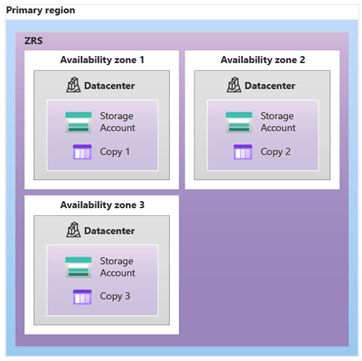
  • ZRS (Zone-redundant Storage) – this creates 3 copies of your data across 3 different Availability Zones (or physically distanced locations) in your region. ZRS is supported for all Storage Account Types.

Credit – Microsoft

  • GRS (Geo-redundant Storage) – this creates 3 copies of your data in a single Data Centre in your region (using LRS). It then replicates the data to a secondary location in a different region and performs another LRS copy in that location. GRS is supported for Standard General-Purpose v2 Storage Accounts only.

Credit – Microsoft

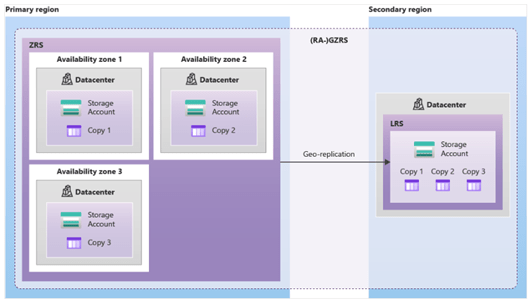
  • GZRS (Geo-zone-redundant Storage) – this creates 3 copies of your data across 3 different Availability Zones (or physically distanced locations) in your region. It then replicates the data to a secondary location in a different region and performs another LRS copy in that location. GZRS is supported for Standard General-Purpose v2 Storage Accounts only.

Credit – Microsoft

Conclusion

As you can see, Storage Accounts are not just about storing files – there are several considerations you need to make around cost, tiers and redundancy when planning Storage for your Azure Application or Service.

Hope you enjoyed this post, until next time!

100 Days of Cloud — Day 24: Azure Import/Export and Azure Data Box

It’s Day 24 of my 100 Days of Cloud journey, and todays post is about the Azure Import/Export and Azure Data Box solutions.

In the previous post on Azure Backup, I briefly talked about offline seeding of Azure Data where network, cost and time constraints were a factor, and how Azure Import/Export and Azure Data Box could be used. Today, I’ll take a closer look at these solutions and what the use cases and benefits are.

Azure Import/Export

Azure Import/Export service is used to import large amounts of data to Azure Blob storage or Azure Files by shipping your own disk drives to an Azure datacenter. You can also use the service to export Azure Blob storage data to disk drives and ship these to your On-Premises location.

You should use Azure Import/Export when the network bandwidth available to you is not sufficient to upload/download the data directly. You should use the service in the following scenarios:

  • Migration of data to Azure
  • Distributing content to multiple sites
  • Backup of On-Premise Data to Azure
  • Data Recovery from Azure Storage to On-Premise

The Import Workflow is as follows:

  • Determine data to be imported, the number of drives you need, and the destination blob location for your data in Azure storage.
  • Use the WAImportExport tool to copy data to disk drives. Encrypt the disk drives with BitLocker.
  • Create an import job in your target storage account in Azure portal. Upload the drive journal files.
  • Provide the return address and carrier account number for shipping the drives back to you.
  • Ship the disk drives to the shipping address provided during job creation.
  • Update the delivery tracking number in the import job details and submit the import job.
  • The drives are received at the Azure data center and the data is copied to your destination blob location.
  • The drives are shipped using your carrier account to the return address provided in the import job.
Credit: Microsoft

The Export workflow works in a similar way:

  • Determine the data to be exported, number of drives you need, source blobs or container paths of your data in Blob storage.
  • Create an export job in your source storage account in Azure portal.
  • Specify source blobs or container paths for the data to be exported.
  • Provide the return address and carrier account number for shipping the drives back to you.
  • Ship the disk drives to the shipping address provided during job creation.
  • Update the delivery tracking number in the export job details and submit the export job.
  • The drives are received and processed at the Azure data center.
  • The drives are encrypted with BitLocker and the keys are available via the Azure portal.
  • The drives are shipped using your carrier account to the return address provided in the import job.
Credit: Microsoft

A full description of the Azure Import/Export Service can be found here.

Azure Data Box

Azure Data Box is similar to Azure Import/Export, however the key difference is that Microsoft will send you a proprietary storage device. These come in 3 sizes:

  • Data Box Disk — 5 x 8TB SSD’s, so 40TB in total
  • Data Box — 100TB NAS Device
  • Data Box Heavy — Up to 1PB (Petabyte) of Data

Once these devices are used, they are then sent back to Microsoft and imported into your target.

You can use Azure Data Box for the following import scenarios:

  • Migration of Data to Azure
  • Initial Bulk Transfer (for example backup data)
  • Periodic Data Upload (where a large amount of data is periodically generated On-Premise

You can use Azure Data Box for the following export scenarios:

  • Taking a copy of Azure Data back to On-Premise
  • Security Requirements, for example if the data cannot be held in Azure due to legal requirements
  • Migration from Azure to On-Premise or another Cloud provider

The Import flow works as follows:

  • Create an order in the Azure portal, provide shipping information, and the destination Azure storage account for your data. If the device is available, Azure prepares and ships the device with a shipment tracking ID.
  • Once the device is delivered, power on and connect to the device. Configure the device network and mount shares on the host computer from where you want to copy the data.
  • Copy data to Data Box shares.
  • Return the device back to the Azure Datacenter.
  • Data is automatically copied from the device to Azure. The device disks are then securely erased as per NIST guidelines.

The Export flow is similar to the above, and works as follows:

  • Create an export order in the Azure portal, provide shipping information, and the source Azure storage account for your data. If the device is available, Azure prepares a device. Data is copied from your Azure Storage account to the Data Box. Once the data copy is complete, Microsoft ships the device with a shipment tracking ID.
  • Once the device is delivered, power on and connect to the device. Configure the device network and mount shares on the host computer to which you want to copy the data.
  • Copy data from Data Box shares to the on-premises data servers.
  • Ship the device back to the Azure datacenter.
  • The device disks are securely erased as per NIST guidelines.

A full description of Azure Data Box can be found here.

Hope you enjoyed this post, until next time!!

100 Days of Cloud — Day 23: Azure Backup

It’s Day 23 of my 100 Days of Cloud journey, and todays post is about Azure Backup.

In previous posts, I talked about Azure Migrate and how it can help your cloud migration journey with assessments and cost calculators, and also about how Azure Site Recovery can act as a full Business Continuity and Disaster recovery solution.

Azure Backup provides a secure and cost effective solution to backup and recover both On-Premise and Azure cloud-based Virtual Machines, Files, Folders, Databases and even Azure Blobs and Managed Disks.

Azure Backup — Vaults

Azure Backups are stored in Vaults. There are 2 types of Vault:

  • Recovery Services Vault
  • Backup Vault

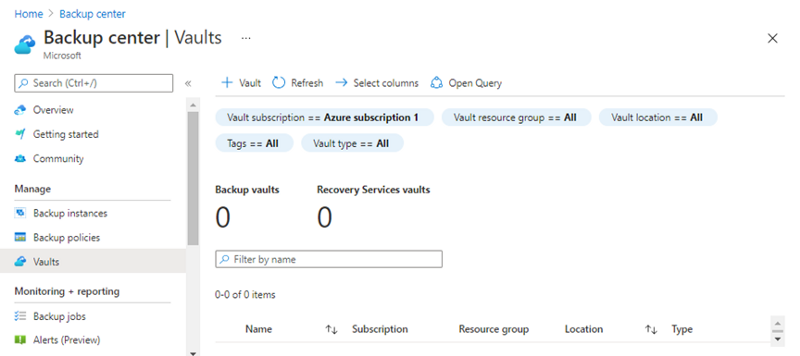
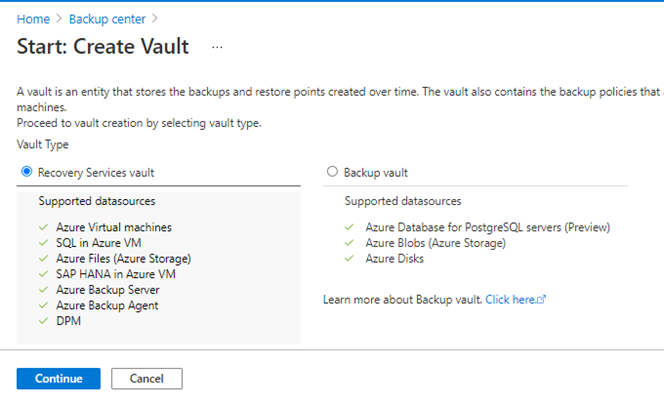
If we go to the Azure Portal and browse to the Backup Center, we can see “Vaults” listed in the menu:

When we click on the button “+ Vault”, this gives us a screen which shows the differences between a Recovery Service vault and a Backup vault. It’s useful to make a note of these as it will help with planning your Backup Strategy.

So what is a vault? In simple terms, it’s an Azure Storage entity that’s used to hold data. And in much the same way as other Azure Storage Services, a vault has the following features:

  • You can monitor backed up items in the Vault
  • You can manage Vault access with Azure RBAC

– You can specify how the vault is replicated for redundancy. By default, Recovery Services vaults use Geo-redundant storage (GRS), however you can select Locally redundant storage (LRS) or Zone-redundant Storage (ZRS) depending on your requirements.

Azure Backup — Supported Scenarios

There are a number of scenarios you can use Azure Backup with:

  • You can back up on-premises Windows machines directly to Azure by installing the Azure Backup Microsoft Azure Recovery Services (MARS) agent on each machine (Physical or Virtual). Linux machines aren’t supported.
  • You can back up on-premises machines to a backup server — either System Center Data Protection Manager (DPM) or Microsoft Azure Backup Server (MABS). You can then back up the backup server to a Recovery Services vault in Azure. This is useful in scenarios where you need to keep longer term backups for multiple months/years in line with your organization’s data retention requirements.
  • You can back up Azure VMs directly. Azure Backup installs a backup extension to the Azure VM agent that’s running on the VM. This extension backs up the entire VM.
  • You can back up specific files and folders on the Azure VM by running the MARS agent.
  • You can back up Azure VMs to the MABS that’s running in Azure, and you can then back up the MABS to a Recovery Services vault.

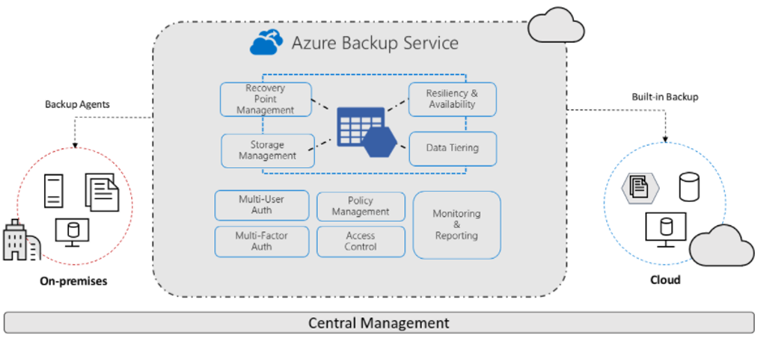
The diagram below shows a high level overview of Azure Backup:

Credit: Microsoft Docs

Azure Backup — Policy

Like the majority of backup systems, Azure Backup relies on Policies. There are a few important points that you need to remember when using Backup Policies:

  • A backup policy is created per vault.
  • A policy consists of 2 components, Schedule and Retention.
  • Schedule is when to take a backup, and can be defined as daily or weekly.
  • Retention is how long to keep a backup, and this can be defined as daily, weekly, monthly or yearly.
  • Monthly and yearly retention is referred to as Long Term Retention (LTR)
  • If you change the retention period of an existing backup policy, the new retention will be applied to all of the older recovery points also.

Azure Backup — Offline Backup

The options we’ve discussed so far are applicable to online backup using either the MARS Backup Agent or local Agents using Azure Backup Server or DPM. These options are only really useful if you have a reasonably small amount of data to back up, and also have the bandwidth to transfer these backups to Azure.

However in some cases, you may have terabytes of data to transfer and it would not be possible from a network bandwidth perspective to do this. This is where Offline backup can help. This is offered in 2 modes:

  • Azure Data Box — this is where Microsoft sends you a proprietary, tamper resistant Data Box where you can seed your data and send this back to Microsoft for upload in the Data Center to your Azure Subscription.
  • Azure Import/Export Service — This is where you provision temporary storage known as the staging location and use prebuilt utilities to format and copy the backup data onto customer-owned disks.

Azure Backup — Benefits

Azure Backup delivers these key benefits:

  • Offload of On-Premise backup workloads and long term data retention to Azure Storage
  • Scale easily using Azure Storage
  • Unlimited Data Transfer, and no data charges for inbound/outbound data
  • Centralized Monitoring and Management
  • Short and Long-term data retention
  • Multiple redundancy options using LRS, GRS or ZRS
  • App Consistent backups
  • Offline seeding for larger amounts of data

Conclusion

Azure Backup offers a secure and cost-effective way to back up both On-Premise and Cloud resources. As usual, the full overview of the Azure Backup offering can be found on Microsoft Docs.

Hope you enjoyed this post, until next time!!

100 Days of Cloud – Day 22: Looking after Number One

It’s Day 22, and today’s post is about something we are talking more and more about, but still don’t talk enough about.

It’s time to talk about Mental Health, relaxation and recharging the batteries.

As I type this, I’m sitting on the balcony of a holiday apartment looking out over the rooftops of Albufeira, Portugal to a sunset over the Mediterranean Ocean. My children are lying on the couches in our apartment, exhausted from a day in the pool, while my wife and I enjoy a glass of red wine to round off the day.

This is Heaven.

I haven’t thought about work or technology in 5 days.

I don’t do this enough.

Not the holidays to Portugal, but the disconnect. As a society, we live a life of being constantly turned on, connected into either work or social media, constantly on call and with out minds buzzing.

Think about the times you’ve missed that walk, run, cycle, gym session. Think about the family meals or gatherings you’ve missed. A great quote I saw recently: Work won’t remember you were there, but your family will remember you weren’t there.

For me, this week has been about all of those things. My phone is back at home in my desk drawer (sorry Work if you’re trying to contact me…), this is being typed on my daughter’s iPad.

This week will relax and rest my mind, make me come stronger as a person, a more relaxed and chilled out husband and father, a better employee with a fresh perspective and ideas (so watch out Work!).

And it’s not just about this week. This week is the start of the “factory reset” as I like to call it. Back to walks, runs, family meals. Back to putting devices and screens away and picking up a good book. Back to being “there”, and I mean the right “there”.

I’ve started a good book this week, I’ll have to finish it now. And that will lead me to the next book, when I’ll be reading it to the backdrop of a cold Irish winter as opposed to a Mediterranean sunset!

Stay safe, and look after yourself. It’s OK not to be OK. It’s OK to take a step back. And it’s good to talk about it.

Hope you enjoyed this post, until next time!!

100 Days of Cloud — Day 21: Azure Mask

It’s Day 21 of my 100 Days of Cloud journey!

Today’s post is another short one, and is a quick overview of how Azure Mask can help you exclude any sensitive content or subscription information when creating content and using screenshots or video footage from the Azure Portal.

Azure Mask was created by Pluralsight author and Developer Advocate Brian Clark, and is a browser extension that can be toggled on/off when creating content from the Azure Portal. It’s currently supported on Edge or Chrome browsers.

What it does is blur/hide any personal information such as email address, subscription information once the toggle is set to on. This is great for content creation as it means any screenshots don’t need to be edited or blurred out afterwards.

You can find the source code and instructions for enabling Azure Mask in your browser here on Brian’s Github Page:

https://github.com/clarkio/azure-mask

Hope you enjoyed this post,until next time!!

100 Days of Cloud — Day 20: Cloud Harmony

It’s Day 20 of my 100 Days of Cloud journey! Day 20! So I’m 1/5th of the way there. Thanks to everyone for your support and encouragement to date, it is very much appreciated!

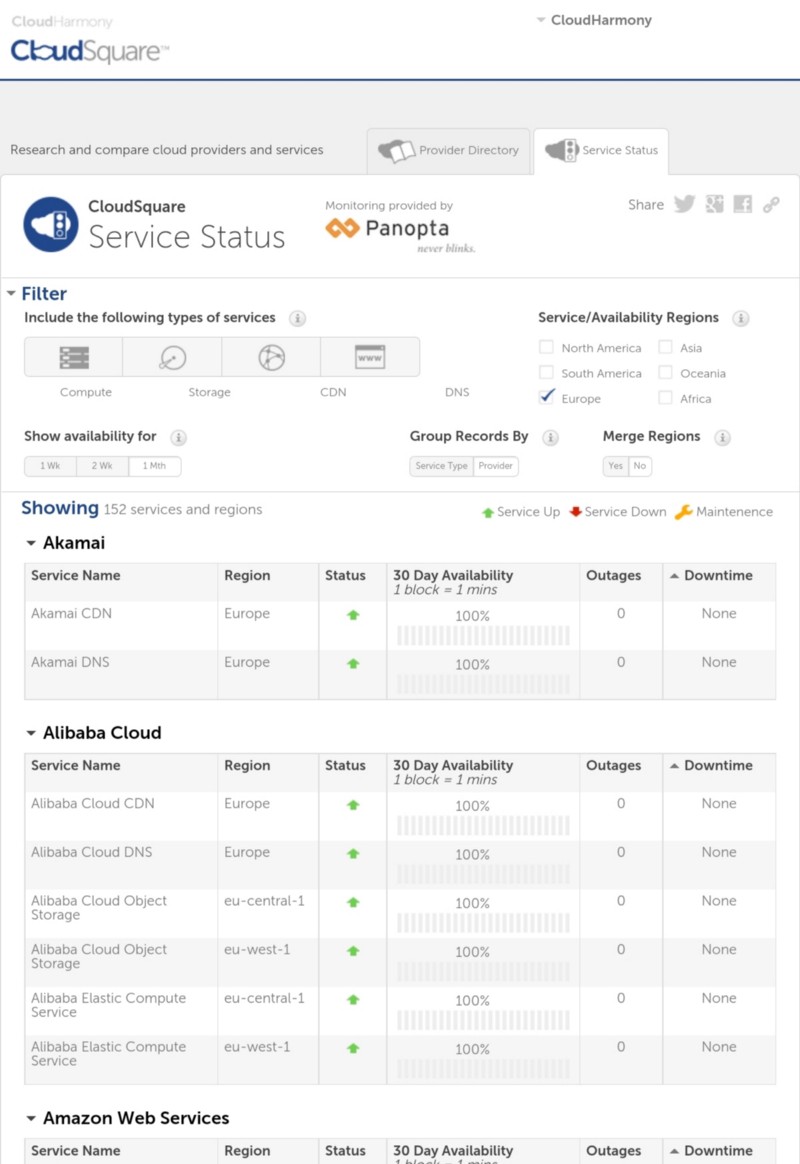
Today’s post is a short one, and is a quick overview of a Cloud Availability Website called Cloud Harmony.

Cloud Harmony gives an real time overview of availability and status of all services across all Cloud providers and platforms across all regions!

The Cloud providers supported include:

– Azure
– AWS
– GCP
– Alibaba
– Digital Ocean
– Microsoft365

All of these providers have their own availability and alerting platforms (such as Azure Monitor), but if you are operating with multiple cloud operators or using Cloud DNS services like Akamai or Cloudflare in your environment, Cloud Harmony is a great reference point to get a high level overview of the status of your Cloud Service Health at a glance.

Many thanks to the great Tim Warner for pointing this out to me. You can find Tim at Pluralsight or on his YouTube channel!

Hope you enjoyed this post, until next time!

100 Days of Cloud — Day 19: Azure Site Recovery

Its Day 19 of my 100 Days of Cloud journey, and todays post is about Azure Site Recovery.

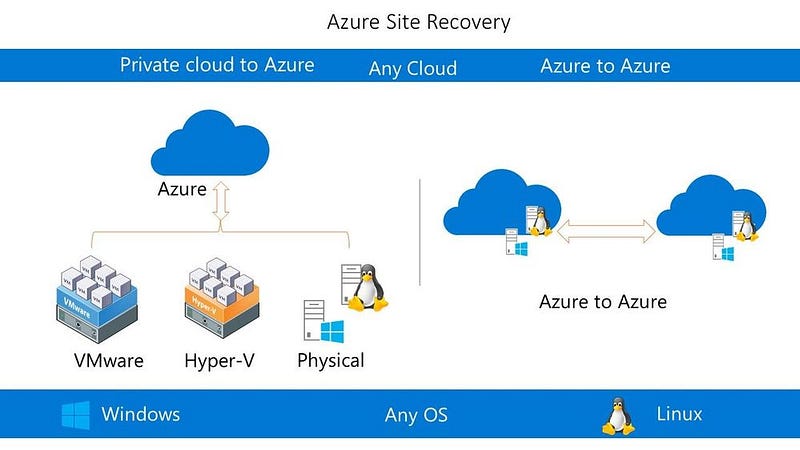
Credit — Microsoft IT Ops Talk Community/Sarah Lean

We saw in the previous post how easy it is to migrate infrastructure to the cloud from on-premise Virtual and Physical environments using the steps and features that Azure Migrate can offer.

Azure Site Recovery

Azure Site Recovery is another “replication” offering in the Azure Service portfolio that provides replication of machines from any of these primary locations to Azure:

  • On-Premise Physical
  • On-Premise Virtual (Hyper-V or VMware)
  • Azure VMs from a different region
  • AWS Windows instances

However, while Azure Migrate is a “cloud migration” service offering, Azure Site Recovery is a Business Continuity/Disaster Recovery offering.

How it works?

The steps for setting up Azure Site Recovery are mostly similar for all scenarios. You need to do the following steps:

  • Create an Azure Storage account, which will store images of the replicated VMs.
  • Create a Recovery Services Vault, which will store metadata for VM and Replication configurations.
  • Create an Azure Network, which VMs will use when replicated to Azure.
  • Ensure that your on-premise workloads have access to replicate to Azure and any ports are open on your firewall.
  • Install the Azure Site Recovery Provider on any source VMs you wish to replicate to Azure.
  • Create a Replication Policy, which includes replication frequency and recovery point retention.
  • Once Replication is running, run a Test Failover using an isolated network to ensure your replicated VMs are in a consistent state.
  • Once the Test Failover is completed, run a full failover to Azure. This will make Azure your Primary Site, and will replicate any changes back to your on-premise VMs. Once this is completed, you can fail back to make the on-premise VMs your Primary Site again, and the data will be consistent! Pretty Cool!!

Service Features

Azure Site Recovery includes the following features to help ensure your workloads keep running in the event of outages:

  • Replication from On-Premise-Azure, Azure-Azure, AWS to Azure.
  • Workload Replication from supported Azure, AWS or On-Premise VM or Physical Server.
  • RPO and RTO targets in line with your business and audit requirements.
  • Flexible failover and Non-Disruptive testing.

Conclusion

Azure Site Recovery can play a key role in the Business Continuity and Disaster Recovery strategy for your business. A full overview of Azure Site Recovery can be found here, and for a full demo of the service, contact your local Microsoft Partner.

Hope you enjoyed this post, until next time!!

100 Days of Cloud — Day 15: Azure Key Vault

Its Day 15, and todays post is on Azure Key Vault.

Lets think about the word “vault” and what we would use a vault for. The image that springs to mind immediately for me is the vaults at Gringotts Wizarding Bank from the Harry Potter movies — deep down, difficult to access, protected by a dragon etc…

This is essentially what a vault is — a place to store items that you want to keep safe and hide from the wider world. This is no different in the world of Cloud Computing. In yesterdays post on System Managed Identities, we saw how Azure can eliminate the need for passwords embedded in code, and use identities in conjunction with Azure Active Directory Authentication

Azure Key Vault is a cloud service for securely storing and accessing secrets. A secret is anything that you want to tightly control access to, such as API keys, passwords, certificates, or cryptographic keys.

What is Azure Key Vault?

In a typical IT environment, secrets, passwords, certificates, API-tokens and keys are used all over multiple platforms including source code, configuration files, digital formats and even on pieces of paper (sad but true ☹️).

An Azure Key Vault integrates with other Azure services and resources like SQL servers, Virtual Machines, Web Application, Storage Accounts etc. It is available on per-region basis, which means that a key vault must be deployed in the same Azure region where it is intended to be used with services and resources.

As an example, an Azure Key Vault must be available in the same region where an Azure virtual machine is deployed so that it can be used for storing Content Encryption Key (CEK) for Azure Disk Encryption.

Unlike other Azure resources, where the data is stored in general storage, an Azure Key Vault is backed by a Hardware Security Module (HSM).

How Azure Key Vault works

When using Key Vault, application developers no longer need to store security information in their application. Not having to store security information in applications eliminates the need to make this information part of the code. For example, an application may need to connect to a database. Instead of storing the connection string in the app’s code, you can store it securely in Key Vault.

Your applications can securely access the information they need by using URIs. These URIs allow the applications to retrieve specific versions of a secret. There is no need to write custom code to protect any of the secret information stored in Key Vault.

Authentication is done via Azure Active Directory. Authorization may be done via Azure role-based access control (Azure RBAC) or Key Vault access policy. Azure RBAC can be used for both management of the vaults and access data stored in a vault, while key vault access policy can only be used when attempting to access data stored in a vault.

Each Vault has a number of roles, but the most important ones are:

  • Vault Owner — this role controls who can access the vault and what permissions they have (read/create/update/delete keys)
  • Vault consumer: A vault consumer can perform actions on the assets inside the key vault when the vault owner grants the consumer access. The available actions depend on the permissions granted.
  • Managed HSM Administrators: Users who are assigned the Administrator role have complete control over a Managed HSM pool. They can create more role assignments to delegate controlled access to other users.
  • Managed HSM Crypto Officer/User: Built-in roles that are usually assigned to users or service principals that will perform cryptographic operations using keys in Managed HSM. Crypto User can create new keys, but cannot delete keys.
  • Managed HSM Crypto Service Encryption User: Built-in role that is usually assigned to a service accounts managed service identity (e.g. Storage account) for encryption of data at rest with customer managed key.

The steps to authenticate against a Key Vault are:

  1. The application which needs authentication is registered with Azure Active Directory as a Service Principal.
  2. The key Vault Owner/Administrator will then create a Key Vault and then attaches the ACLs (Access Control Lists) to the Vault so that the Application can access it.
  3. The application initiates the connection and authenticates itself against the Azure Active Directory to get the token successfully.
  4. The application then presents this token to the Key Vault to get access.
  5. The Vault validates the token and grants access to the application based on successful token verification.

Conclusion

Azure Key Vault streamlines the secret, key, and certificate management process and enables you to maintain strict control over secrets/keys that access and encrypt your data.

You can check out this Azure QuickStart Template which automatically creates a Key Vault.

Hope you enjoyed this post, until next time!!