Azure VNET Integration Doesn’t Mean Your Resources Are Private

Most audit, design workshops, and architecture reviews have some version of the same moment. Someone points at a diagram, taps the App Service box, and says “that’s fine, it’s got VNet integration.”

The box gets a tick, the review moves on, and 6 months later a pen test (normally driven by a security incident that was only found when the performance of the App became seriously degraded) finds the same App Service answering requests on its public azurewebsites.net hostname from anywhere on the internet.

VNet integration and network isolation are not the same thing, and Azure’s naming does nothing to help tell them apart. VNet integration is about where your traffic can go. Private Endpoints are about who can reach you.

This post works through the confusion service by service, then covers the other part of the puzzle: once inbound and outbound are both locked down, the PaaS service still has to be told to route outbound traffic to a firewall or NVA that can actually see it.

This post also briefly touches on Subnet Delegation but does not go into this in detail. If you want a deeper dive on that, check out my post on that topic here.

Two Doors

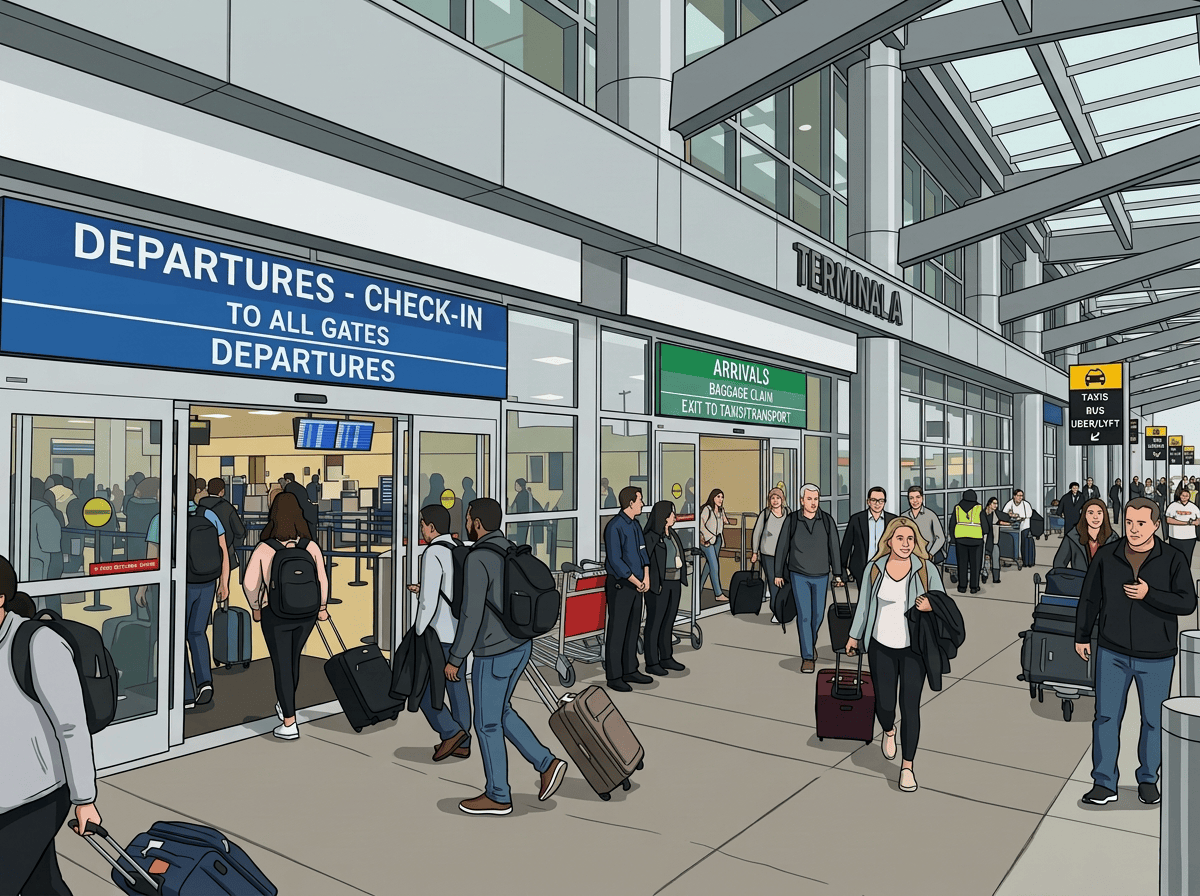
In an everyday real-world scenario, think of a PaaS resource as having two separate doors, similar to any airport you’ve ever had the pleasure of passing through. There is one door which everyone enters through (Departures because you need to get somewhere, and anyone can go through those doors until they need to show a boarding pass at security to prove they are allowed to board their flight), and a separate door which everyone exits through (Arrivals, from where you then set off to either remember where you’ve parked, or else head for the nearest taxi, bus or train).

In PaaS, the inbound door controls who can call the resource, and by default it faces the internet through a shared, multi-tenant public endpoint. Locking it down means giving the resource a private IP inside your VNet and turning the public endpoint off, which on Azure is almost always done with a Private Endpoint backed by Azure Private Link.

The outbound door controls where the resource’s own traffic goes when it calls something else: a database, a storage account, a downstream API. Regional VNet integration solves this one, giving the compute a presence inside a delegated subnet so its outbound calls can reach VNet-resident resources, respect NSGs and UDRs, and use custom DNS.

VNet integration only opens the outbound door. Microsoft’s own documentation for App Service is blunt about it: virtual network integration “gives your app access to resources in your virtual network, but it doesn’t grant inbound private access to your app,” and is “used only to make outbound calls from your app into your virtual network.”

Enable VNet integration on an App Service, an API Management instance, or a Logic App, and its public inbound endpoint keeps answering exactly as it did before. Locking down the inbound side is a separate, additional piece of configuration, and for most PaaS services that means Private Endpoints.

App Service and Functions

Let’s start with App Service and Functions (on Premium or Elastic Premium plans) as they share the same regional VNet integration model, so the same rules apply to both along with some additional granular controls.

Turning on VNet Integration gets the app talking to VNet-resident resources, peered VNets, and anything reachable over service or private endpoints.

This does nothing for inbound traffic though. An App Service with VNet integration switched on is still fully reachable at its public hostname unless a Private Endpoint is added separately and, usually, public network access disabled on the app itself.

There’s a second surprise on the outbound side that catches even people who know about the inbound gap. By default, regional VNet integration only routes RFC1918 traffic (10.0.0.0/8, 172.16.0.0/12, 192.168.0.0/16) through the VNet. Everything else, including calls to the public internet, still leaves the platform directly. Routing all outbound traffic through the VNet, so it can be inspected by a firewall, filtered by NSGs, or forced through a NAT gateway, has to be explicitly turned on.
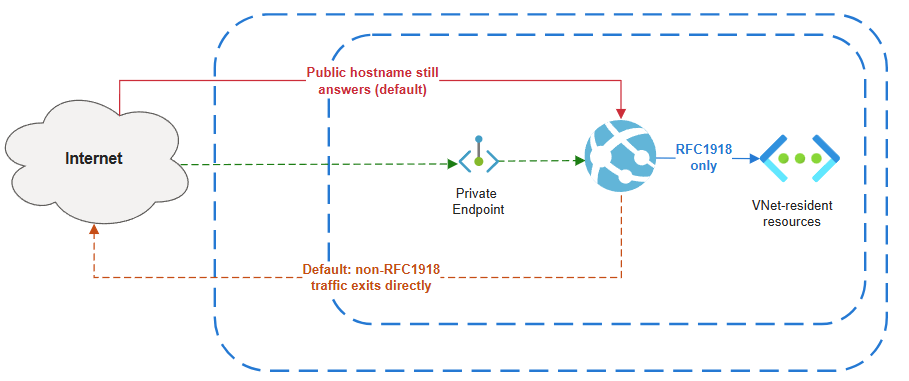
The current mechanism is the outboundVnetRouting.allTraffic=true property on the site. This means that both app and configuration traffic (image pulls, content share, backup and restore) is routed for inspection:

az resource update --resource-group <group-name> --name <app-name> \
--resource-type "Microsoft.Web/sites" \
--set properties.outboundVnetRouting.allTraffic=true

One thing to note here, you can go to granular levels here if you need to. You can use the narrower applicationTraffic=true (application traffic only) setting, which means configuration traffic stays on the public route. You can also enable the imagePullTraffic, contentShareTraffic, backupRestoreTraffic, or managedIdentityTraffic properties individually, which is useful when you want to use specific traffic types without forcing everything else through the VNet.

The older vnetRouteAllEnabled site property and WEBSITE_VNET_ROUTE_ALL app setting still work for backwards compatibility, but the recommendation is to use outboundVnetRouting since it can be audited with a built-in Azure Policy definition.

Full details can be found here.

API Management: the source of all confusion…..

API Management is where this causes the most confusion, because the tier names make the wrong assumption about what is possible.

Standard v2 and Premium v2 both support VNet integration for outbound connectivity to isolated backends. On Standard v2, that’s the only VNet option available, and it is explicitly outbound-only: the gateway, management plane, and developer portal all remain publicly accessible.
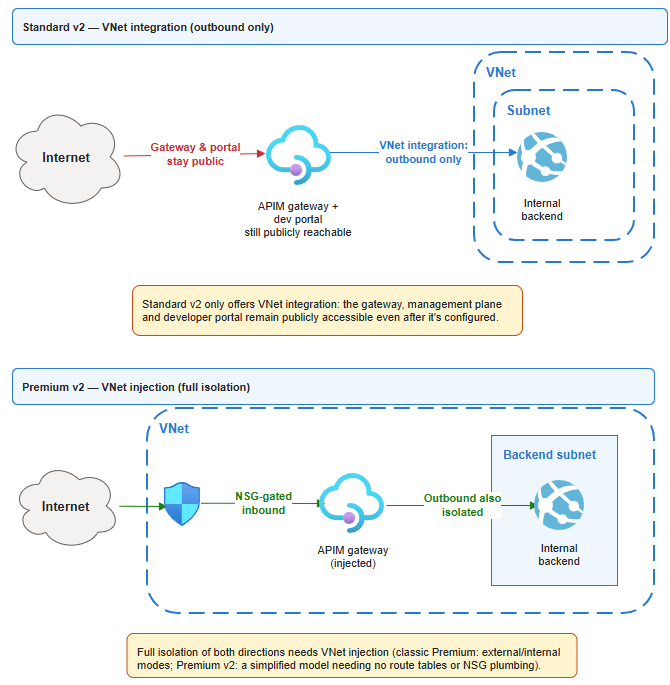
Getting the front door private needs either an inbound Private Endpoint, available across most tiers including Standard v2.

APIM Premium (Classic) adds another layer of confusion with VNet injection, which means the APIM instance is deployed directly into the APIM Delegated Subnet for full isolation.

This then gets even more confusing when you get to Premium v2: an NSG is still required on the subnet, but it collapses roughly a dozen rules (load-balancer health probes, Traffic Manager, Storage, SQL, Entra ID, Event Hub, certificate-chain hosts) down to essentially one — an outbound allow to Azure Key Vault (plus whatever your own backends need).

Logic Apps Standard

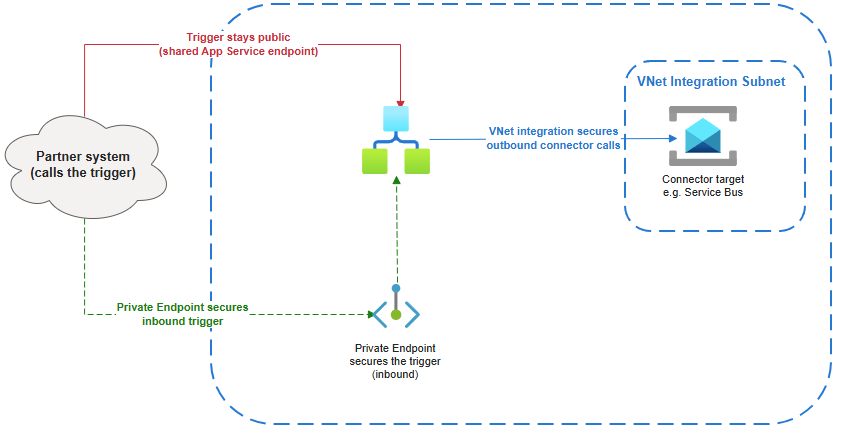
Logic Apps Standard makes the split between inbound and outbound unusually explicit, because Azure’s own documentation for it describes them as two separate features you configure separately: “Setting up virtual network integration affects only outbound traffic. To secure inbound traffic, which continues to use the App Service shared endpoint, review Set up inbound traffic through private endpoints.“

VNet integration gets a workflow’s HTTP actions and connector calls routed privately, but does nothing to the trigger endpoint a partner system calls to start the workflow: that stays on the shared public endpoint until a Private Endpoint is added. The reverse holds too, since adding a Private Endpoint for inbound doesn’t touch outbound traffic. Both are genuinely needed, configured independently, for a Logic App that’s private in both directions.
Service Bus: Off By Default and SKU-dependent

Service Bus is one of the great annoyances across the range of Azure services because private networking capabilites are only available by selecting the highest and most expensive SKU that the service offers.

Private Endpoints and VNet service endpoints both require the Premium tier; Basic and Standard namespaces can’t use either. Provisioning at Premium doesn’t switch anything off on its own, though. The publicNetworkAccess property defaults to Enabled, so the namespace answers over the internet using its access keys until someone explicitly sets it to Disabled.
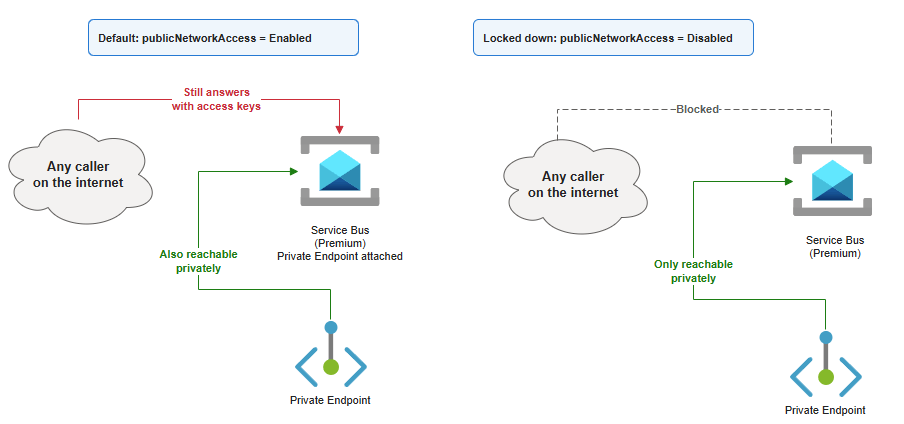
A Premium namespace with a Private Endpoint attached but publicNetworkAccess left on default isn’t privately reachable only, it’s reachable both ways, defeating the point of paying for Premium at all.

Application Gateway: Isn’t that Public?

Application Gateway flips the pattern deliberately: its job is to be the public entry point in front of things made private everywhere else, sitting between the internet and a backend pool that itself uses Private Endpoints.

The gotcha here isn’t VNet integration, it’s DNS. When the backend pool target is an App Service or API Management instance reached through its Private Endpoint, Application Gateway still needs to resolve that service’s hostname to the private endpoint IP, not the public one. Resolve to the public IP and health probes and traffic either fail outright or silently route around the private path.
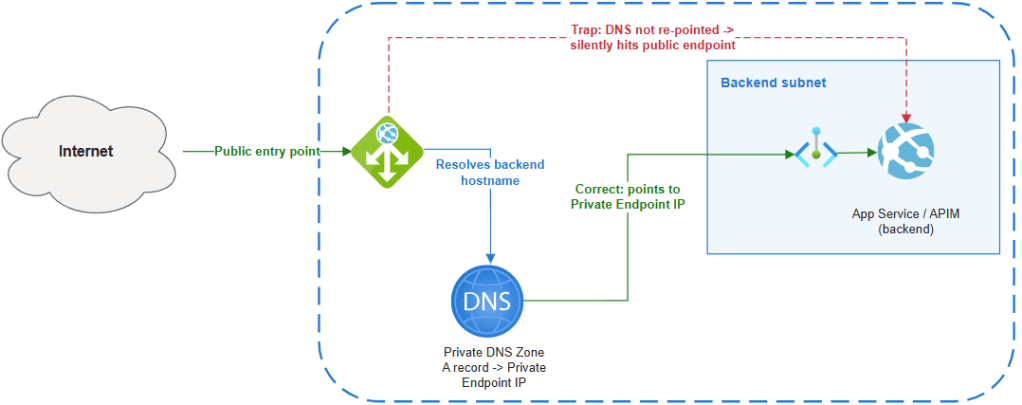
Getting this right means a Private DNS Zone linked to the gateway’s VNet with an A record pointing the service’s hostname at the Private Endpoint’s IP, checked and verified, not assumed.

Of course, confusion reigns again with Application Gateway as you have the ability to deploy a Private instance to service traffic on a private frontend IP linked to your VNET with no Public IP on the frontend. The same rules apply though, if DNS is not set up correctly, backends can be reached on their public endpoints.

Getting Outbound Traffic Back to Azure Firewall

Everything above deals with whether traffic goes into or out of the VNet at all. The remaining half is making sure that once outbound traffic is in the VNet, it actually reaches the inspection point rather than routing around it.

The mechanism is a User Defined Route on the integration subnet with a 0.0.0.0/0 destination and a next hop of the Azure Firewall’s private IP. For App Service and Functions specifically, this only works once Route All is also enabled, because a 0.0.0.0/0 UDR is meaningless to traffic the platform never sent into the VNet in the first place. Deploying the firewall requires a dedicated AzureFirewallSubnet of at least a /26, and forced tunneling of internet-bound traffic also needs an AzureFirewallManagementSubnet, since forced tunneling removes the firewall’s own ability to route its management traffic out the regular path.

Two things always go wrong once this is wired up. Longest prefix match wins, always: Azure injects system routes for the VNet’s own address space with a next hop of “Virtual Network” automatically, and because a route like 10.0.0.0/16 is more specific than a 0.0.0.0/0 UDR, intra-VNet traffic keeps flowing directly between subnets regardless of the default route.
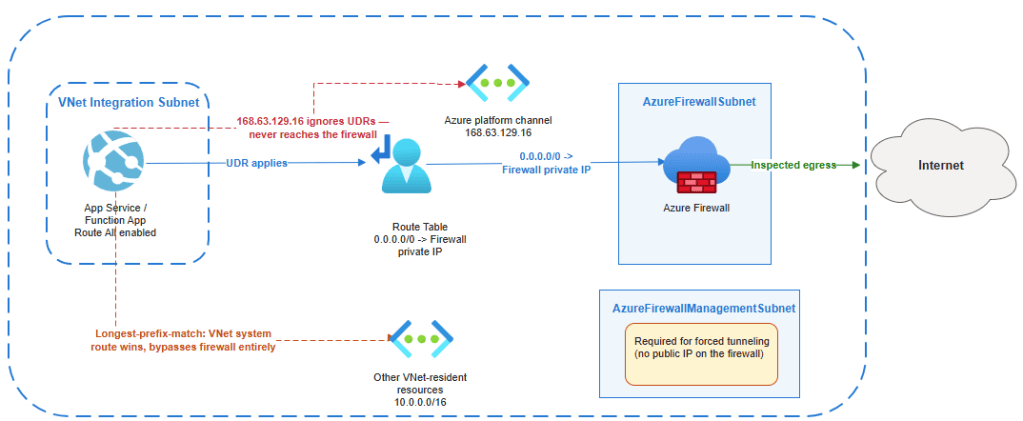
168.63.129.16 ignores your route table, and Microsoft’s documentation is explicit that it “isn’t subject to user defined routes.” It carries platform traffic (DNS resolution, VM agent heartbeats, load balancer health probes) and a 0.0.0.0/0 route to the firewall will never see it. It’s not a gap that you need to close, but it does mean “all outbound traffic goes through the firewall” is never literally true.

Inbound vs Outbound by Service

ServiceMinimum SKUInbound privacyOutbound privacy
App Service / FunctionsBasic (web apps); Premium/Elastic Premium (Functions)Private Endpoint + disable public accessRegional VNet integration + Route All
API ManagementStandard v2 (outbound only); Premium/Premium v2 (full isolation)Inbound Private Endpoint, or VNet injection (Premium/Premium v2)VNet integration (Standard v2, Premium v2)
Logic Apps StandardAny Standard planPrivate EndpointVNet integration
Service BusPremiumPrivate EndpointSame Private Endpoint, or VNet service endpoints
Application GatewayStandard_v2 / WAF_v2Private frontend IP (optional)N/A, it’s the entry point

Conclusion

The pattern across every service is the same: Azure gives you granular, composable controls, and in line with the Shared Responsibility model pushes the responsibility back on you to implement these controls in line with your own privacy and security requirements.

Deploying a service that contains VNet Integration capabilities does not mean you can call it done. VNet Integration and Network Isolation are not the same thing. In summary:

  • VNet integration is a routing control for outbound calls, not a privacy control.
  • Private Endpoints are the privacy control, and a separate, additional step for every service above.
  • Route All and the firewall UDR are a third, independent layer deciding whether outbound traffic actually reaches the inspection point built for it.

Azure Networking Zero to Hero – Intro and Azure Virtual Networks

Welcome to another blog series!

This time out, I’m going to focus on Azure Networking, which covers a wide range of topics and services that make up the various networking capabilities available within both Azure cloud and hybrid environments. Yes I could have done something about AI, but for those of you who know me, I’m a fan of the classics!

The intention is to have this blog series serve as both a starting point for anyone new to Azure Networking who is looking to start a learning journey towards that AZ-700 certification, or as an easy reference point for anyone looking for a list of blogs specific to the wide scope of services available in the Azure Networking family.

There isn’t going to be a set number of blog posts or “days” – I’m just going to run with this one and see what happens! So with that, lets kick off with our first topic, which is Virtual Networks.

Azure Virtual Networks

So lets start with the elephant in the room. Yes, I have written a blog post about Azure Virtual Networks before – 2 of them actually as part of my “100 Days of Cloud” blog series, you’ll find Part 1 and Part 2 at these links.

Great, so thats todays blog post sorted!!! Until next ti …… OK, I’m joking – its always good to revise and revisit.

After a Resource Group, a virtual network is likely to be the first actual resource that you create. Create a VM, Database or Web App, the first piece of information it asks you for is what Virtual Network to your resource in.

But of course if you’ve done it that way, you’ve done it backwards because you really should have planned your virtual network and what was going to be in it first! A virtual network acts as a private address space for a specific set of resource groups or resources in Azure. As a reminder, a virtual network contains:

  • Subnets, which allow you to break the virtual network into one or more dedicated address spaces or segments, which can be different sizes based on the requirements of the resource type you’ll be placing in that subnet.
  • Routing, which routes traffic and creates a routing table. This means data is delivered using the most suitable and shortest available path from source to destination.
  • Network Security Groups, which can be used to filter traffic to and from resources in an Azure Virtual Network. Its not a Firewall, but it works like one in a more targeted sense in that you can manage traffic flow for individual virtual networks, subnets, and network interfaces to refine traffic.

A lot of wordy goodness there, but the easiest way to illustrate this is using a good old diagram!

Lets do a quick overview:

  • We have 2 Resource Groups using a typical Hub and Spoke model where the Hub contains our Application Gateway and Firewall, and our Spoke contains our Application components. The red lines indicate peering between the virtual networks so that they can communicate with each other.
  • Lets focus on the Spoke resource group – The virtual network has an address space of 10.1.0.0/16 defined.
  • This is then split into different subnets where each of the components of the Application reside. Each subnet has an NSG attached which can control traffic flow to and from different subnets. So in this example, the ingress traffic coming into the Application Gateway would then be allows to pass into the API Management subnet by setting allow rules on the NSG.
  • The other thing we see attached to the virtual network is a Route Table – we can use this to define where traffic from specific sources is sent to. We can use System Routes which are automatically built into Azure, or Custom Routes which can be user defined or by using BGP routes across VPN or Express Route services. The idea in our diagram is that all traffic will be routed back to Azure Firewall for inspection before forwarding to the next destination, which can be another peered virtual network, across a VPN to an on-premises/hybrid location, or straight out to an internet destination.

Final thoughts

Some important things to note on Virtual Networks:

  • Planning is everything – before you even deploy your first resource group, make sure you have your virtual networks defined, sized and mapped out for what you’re going to use them for. Always include scaling, expansion and future planning in those decisions.
  • Virtual Networks reside in a single resource group, but you technically can assign addresses from subnets in your virtual network to resources that reside in different resource groups. Not really a good idea though – try to keep your networking and resources confined within resource group and location boundaries.
  • NSG’s are created using a Zero-Trust model, so nothing gets in or out unless you define the rules. The rules are processed in order of priority (lowest numbered rule is processed first), so you would need to build you rules on top of the default ones (for example, RDP and SSH access if not already in place).

Hope you enjoyed this post, until next time!!

100 Days of Cloud — Day 11: Azure Virtual Networks (Part 2 — Peering)

Its Day 11 of 100 Days of Cloud, and as promised its part 2 of Azure Virtual Networks.

In the last post I covered creating a Virtual Network, having multiple subnets and also have NSG Rules govern how subnets within the same Virtual Network communicate.

Today’s post is about Virtual Network Peering, or Vnet Peering. This allows you to seamlessly connect 2 Azure Virtual Networks. Once connected, these networks communicate over the Microsoft backbone infrastructure, so no public internet, gateways or VPN’s are required for the networks to communicate.

Overview of Vnet Peering

Vnet peering enables you to connect two Azure virtual networks without using VPN or Public Internet. Once peered, the virtual networks appear as one, for connectivity purposes. There are two types of VNet peering.

  • Regional VNet peering connects Azure virtual networks in the same region.
  • Global VNet peering connects Azure virtual networks in different regions. When creating a global peering, the peered virtual networks can exist in any Azure public cloud region or China cloud regions, but not in Government cloud regions. You can only peer virtual networks in the same region in Azure Government cloud regions.

Once the peering connection is created, traffic routed through Microsoft’s private backbone network only, it never goes out onto the internet.

Naturally, Global Vnet Peering has a higher cost than Regional Vnet peering. Check out Microsoft’s Azure Pricing site for Virtual Networks here, which gives full details of the costs of each.

Benefits of Vnet Peering

The benefits of using virtual network peering, include:

  • Resources in either network can directly connect with resources in the peered network.
  • A low-latency, high-bandwidth connection between resources in peered virtual networks.
  • Use of NSG’s in peered Vnets to block access to other virtual networks or subnets.
  • Data Transfer between virtual networks across subscriptions, Azure Active Directory tenants, deployment models, and Azure regions.
  • Peering of Networks created using ARM Templates or using classic deployment models (Portal/PowerShell/CLI) to each other.
  • No downtime in either virtual network is required when creating the peering, or after the peering is created.

Demo

Let’s dive into a demonstration to see how this works. To do this, I’ll need to create 2 VMs in separate Virtual Networks. I’ll create these in separate regions also. Another thing I need to make sure of is that the Subnets do not overlap.

So I’ll jump into PowerShell first and use this command to create a Resource Group called “Prod_VMs”:

New-AzVM -ResourceGroupName “Prod_VMs” -Location northeurope -Name “ProdVM1” -VirtualNetworkName “ProdVM1” -SubnetName “ProdVM1” -SubnetAddressPrefix “192.168.2.0/24” -SecurityGroupName “ProdVM1” -OpenPorts 3389 -ImageName Win2016Datacenter -Size Standard_B2s -OsDiskDeleteOption Delete -Credential (Get-Credential) -Verbose

I’ll then use the same command with different input values to create the second VM in a resource group called “Test_VMs”:

New-AzVM -ResourceGroupName “Test_VMs” -Location eastus -Name “TestVM1” -VirtualNetworkName “TestVM1” -AddressPrefix “10.10.0.0/16” -SubnetName “TestVM1” -SubnetAddressPrefix “10.10.2.0/24” -SecurityGroupName “TestVM1” -OpenPorts 3389 -ImageName Win2016Datacenter -Size Standard_B2s -OsDiskDeleteOption Delete -Credential (Get-Credential) –Verbose

Once the 2 VMs are created, we need to note the Private IP Addresses they’ve been assigned. In the “Overview” screen on each, we note that they have been given the first available IP in their Subnets.

So it’s 192.168.2.4 for ProdVM1:

And its 10.10.2.4 for TestVM1:

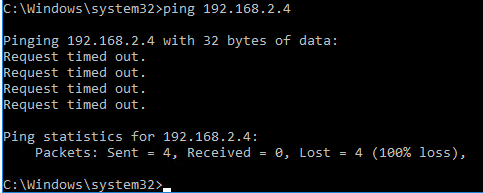
And just to be sure, lets launch TestVM1 and see if we can ping ProdVM1:

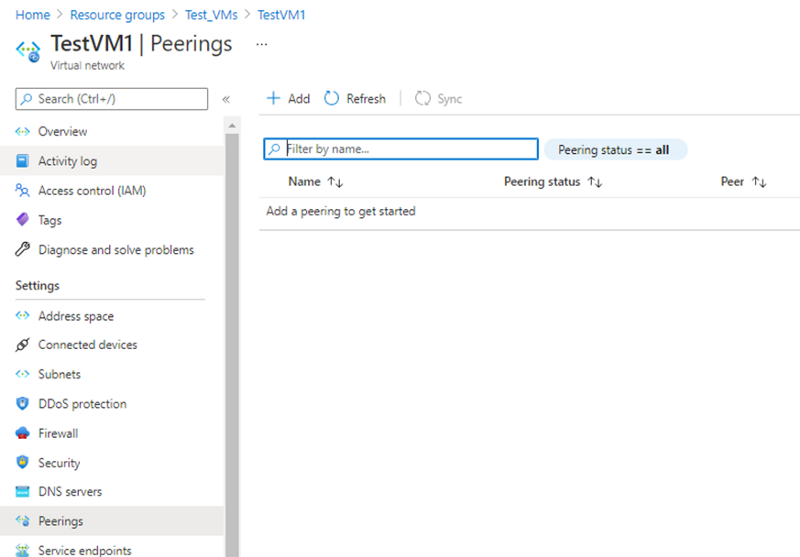
Back in the Portal, I’ll go into the TestVM1 Virtual Network and in the left hand menu go to Peerings:

And when I click Add, this brings me into the options for adding Peering:

As I can see, I need to specify the Peering in both Directions. I can also see that I can specify to Allow or Block Traffic, so I can peer the networks but only allow traffic to flow in one direction.

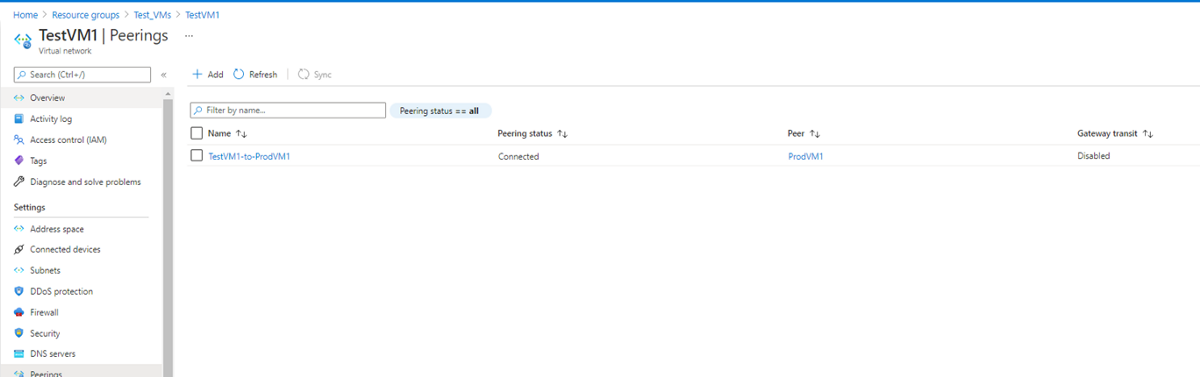
So when I click “Add”, this sets up the Peering on both sides:

I can now see on “TestVM1” that I’m connected to “ProdVM1”:

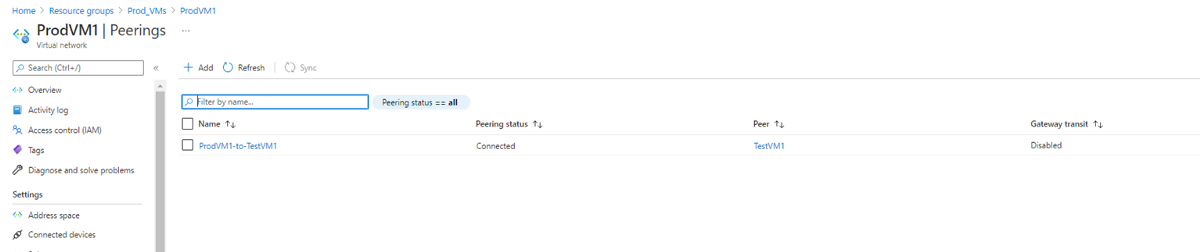
And same on the other side:

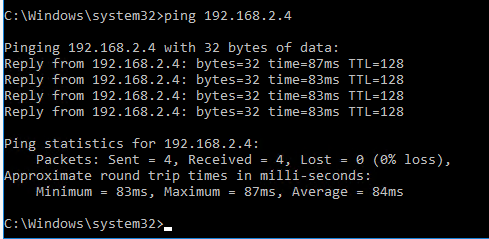
Now, lets test ping connectivity from TestVM1 to ProdVM1:

And that is how to set up Vnet Peering of Azure Virtual Networks!

Important Points!

There a few things you need to know about Vnet Peering before we close this post out. Vnet Peerings are not transitive. So in a Hub and Spoke Topology where VnetA is peered with VnetB, and VNetA is peered with VnetC, this doesn’t automatically mean that VNetB can talk to VnetC. There are 3 options available to make this work:

  • VnetB would need to be peered directly with VnetC. However, lets say you have a large environment and would need to create multiple peerings. This would then create a Mesh Topology which is more difficult to manage in the long term.
  • The second option is to use Azure Firewall or another virtual network appliance in the Hub Network. Then create routes to forward traffic from the Spoke Networks to the Azure Firewall, which can then route to the other Spoke Networks. We saw in the “Add peering” screen the option to Allow “Traffic Forwarded from a remote Virtual Network”, this needs to be enabled.
  • The third option is to use VPN gateway transit on the Hub Virtual Network to route traffic between spokes. This is effectively the same option as Azure Firewall, but this choice will impact latency and throughput

Both option 2 and 3 can also be used to route traffic from on-premise networks when using Site-to-Site (S2S) or Point-to-Site (P2S) connections to Azure.

Conclusion

I hope you enjoyed this post on Azure Virtual Networks! Next time, I’ll create a P2S VPN Connection in order to connect directly to my Virtual Networks from my laptop via a Gateway Subnet.

Hope you enjoyed this post, until next time!!

100 Days of Cloud — Day 10: Azure Virtual Networks (Part 1)

It’s Day 10 of 100 Days of Cloud, and as promised in the last post, I’m going to talk about Azure Virtual Networks in today’s post and also the next post, so there will be 2 parts dedicated to Virtual Networks.

You’ll have seen Virtual Networks created as I was going through the Virtual Machine creating posts. So, what more is there to know about Virtual Networks? I mean, it’s just a private network in Azure for your resources with block of Subnets and IP Addresses that can be used to provide network connectivity, right?

Well yes, but that’s not all. Let’s dive into Virtual Networks and learn how they are the fundamental building block for your networks in Azure.

Overview

An Azure Virtual Network (VNet) is a network or environment that can be used to run VMs and applications in the cloud. When it is created, the services and Virtual Machines within the Azure network interact securely with each other. This is what we saw in the Default NSG Rules — any resources within the Virtual Network can talk to each other by default.

Virtual networks also provide the following key functionality:

  • Communication with the Internet: Outbound Internet connectivity is enabled by default for all resources in the VNet.
  • Communication between Azure resources: This is achieved in 3 ways, within the Virtual Network, through Service Endpoints, and through Vnet Peering.
  • Communication with On-Premise resources, using VPN (Site-to-Site or Point-to-Site) or Azure Express Route.
  • Filter Network Traffic: Using either NSG’s or Virtual Appliances such as Firewalls.
  • Route Network Traffic: You can control where traffic is routed for each subnet using route tables, or use BGP (Border gateway protocol) to learn your On-Premise routes when using VPN or Azure Express Route.

A Virtual Network contains the following components:

  • Subnets, which allow you to break the Vnet into one or more segments.
  • Routing, which routes traffic and creates a routing table. This means data is delivered using the most suitable and shortest available path from source to destination
  • Network Security Groups, which I covered in detail in Day 9.

One Vnet, Multiple Subnets

So I talked above about having multiple Subnets in a Vnet. This isn’t a new concept for anyone who has ever managed an On-Premise environment with multiple subnets — chances are at some point you would have expanded the network from good old “192.168.1.0/24”.

We’ve seen how a Virtual network and Subnet are created automatically when you create a Virtual Machine using default settings. Let’s expand on that and create a second VM on a new subnet in an existing Vnet to see how it behaves.

Referring quickly back to Day 8, I created a “Prod_VMs” resource group and Virtual machine. This used the default settings as I ran this PowerShell command to create:

New-AzVM –Name ProdVM1 –ResourceGroupName Prod_VMs –Location northeurope -Verbose

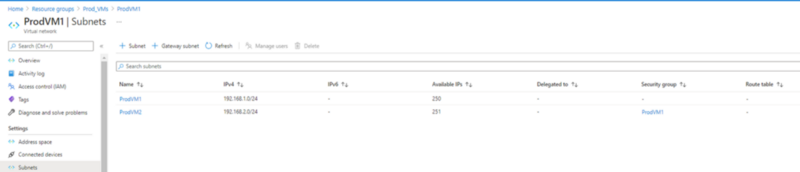
This in turn created a ProdVM1 Vnet which contained the following subnet:

So now, I’m going to create a second subnet called “ProdVM2” within this Vnet. And seeing as I’m in the Portal already, I’ll add it from there! So I click on the “+ Subnet” button to begin the process. As I can see below, it asks me for the following information:

  • Name of the new Subnet
  • Subnet Address range (this needs to be within the address range of the Vnet). I can also add a IPv6 range if required.
  • NAT Gateway — this is needed to specify a Public IP Address to use for Outbound connectivity. I’ll leave this blank for now
  • Network Security Group — this associates the Subnet with an NSG. I’ll choose the resource group NSG here.
  • Route Table — needed for routing traffic for our subnet. Again, I’ll leave this blank.
  • Service Endpoints — this option allows secure and direct access to the endpoint of an Azure Service without needing a Public IP Address on the Vnet. You can read more about Service Endpoints here.
  • Subnet Delegation — this option means to can delegate the subnet specifically for a specified Azure resource, such as SQL, Web Hosting or Containers.

Once I have all options filled in, this is what I see:

And when I click save, this is what I see in the Portal under my Virtual Network:

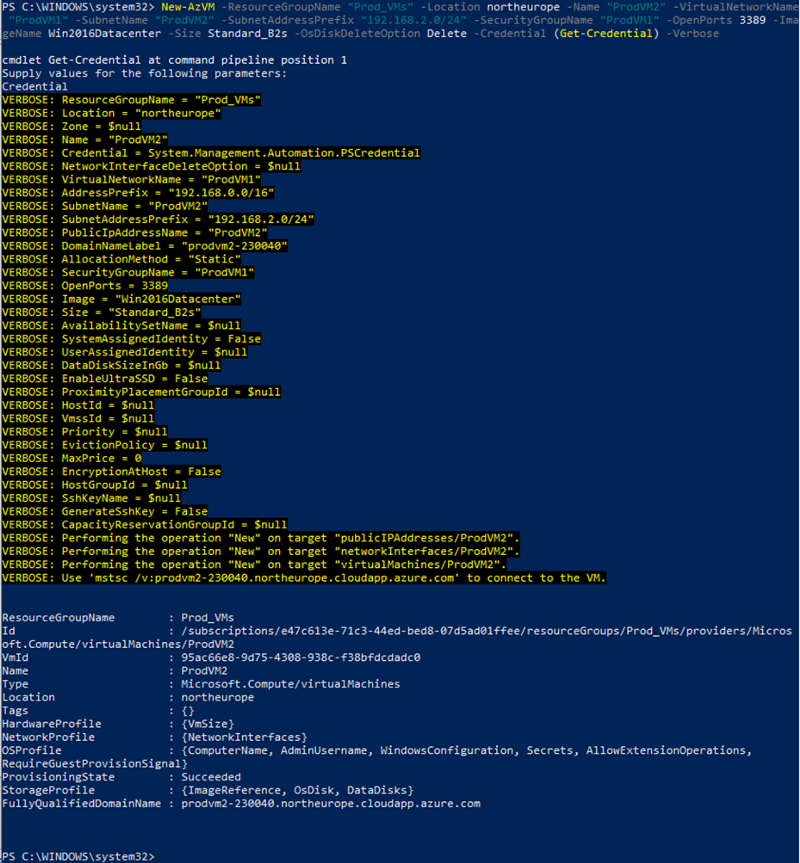
Now I have a new subnet, I’m going to deploy a new Virtual Machine to that Subnet. I’m going to open PowerShell to do this, and I’ll enter this command to create the VM, specifying the Vnet, subnet and NSG I want to deploy it to:

New-AzVM -ResourceGroupName “Prod_VMs” -Location northeurope -Name “ProdVM2” -VirtualNetworkName “ProdVM1” -SubnetName ProdVM2 -SubnetAddressPrefix “192.168.2.0/24” -SecurityGroupName “ProdVM1” -OpenPorts 3389 -ImageName Win2016Datacenter -Size Standard_B2s -OsDiskDeleteOption Delete -Credential (Get-Credential) –Verbose

And if I check the Resource group, I can see my 2 VM’s with all resources present. Note that I don’t have a Virtual network or NSG dedicated to VM2:

Now, before I go any further. We can now see from the above how important it is to define your naming convention correctly in Azure when creating resources. This is indeed a lab environment which I’ll deleting, but in a Production environment you’ll need to know how to identify machines correctly.

Testing using NSGs

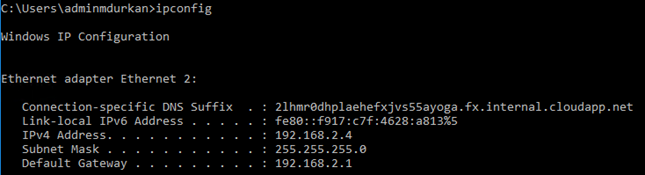
What I want to test now is connectivity between resources in the same Vnet to prove this works. I RDP into the 2 machines (which are on different subnets). A quick “ipconfig” on both gives me the IP Addresses of both, and they do indeed correspond to the subnets I created:

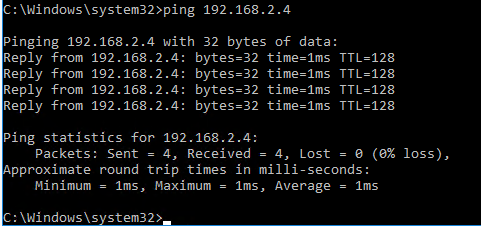
Now I’ll ping the machines from each other:

And it’s successful, so this proves that even though the 2 machines are in different subnets, they can communicate as the NSG Rules for traffic inside the Vnet allow this.

Now let’s mess this up a little! I’ll go into my NSG and add a rule denying Ping/ICMP from ProdVM1 to ProdVM2:

And if I try again to ping, it times out:

Conclusion

So as we can see, Virtual Networks are the building blocks of building your Azure Networks and resources from the ground up. They need to be planned properly to ensure the network design both meets your needs from a functionality and security standpoint. You also need to ensure the networks you create in Azure does not overlap with any of your On-Premise networks in the event you are operating in a Hybrid environment.

I did say that this was Part 1 of Virtual Networks — the next post is Part 2 where I’ll be delving into Vnet Peering, which allows you to connect to resources across Virtual Networks located either in the same region or across regions. and showing how that works.

Hope you enjoyed this post, until next time!!