AKS Networking – Which model should you choose?

In the previous post, we broke down AKS Architecture Fundamentals — control plane vs data plane, node pools, availability zones, and early production guardrails.

Now we move into one of the most consequential design areas in any AKS deployment:

Networking.

If node pools define where workloads run, networking defines how they communicate — internally, externally, and across environments.

Unlike VM sizes or replica counts, networking decisions are difficult to change later. They shape IP planning, security boundaries, hybrid connectivity, and how your platform evolves over time.

This post takes a look at AKS networking by exploring:

  • The modern networking options available in AKS
  • Trade-offs between Azure CNI Overlay and Azure CNI Node Subnet
  • How networking decisions influence node pool sizing and scaling
  • How the control plane communicates with the data plane

Why Networking in AKS Is Different

With traditional Iaas and PaaS services in Azure, networking is straightforward: a VM or resource gets an IP address in a subnet.

With Kubernetes, things become layered:

  • Nodes have IP addresses
  • Pods have IP addresses
  • Services abstract pod endpoints
  • Ingress controls external access

AKS integrates all of this into an Azure Virtual Network. That means Kubernetes networking decisions directly impact:

  • IP address planning
  • Subnet sizing
  • Security boundaries
  • Peering and hybrid connectivity

In production, networking is not just connectivity — it’s architecture.


The Modern AKS Networking Choices

Although there are some legacy models still available for use, if you try to deploy an AKS cluster in the Portal you will see that AKS offers two main networking approaches:

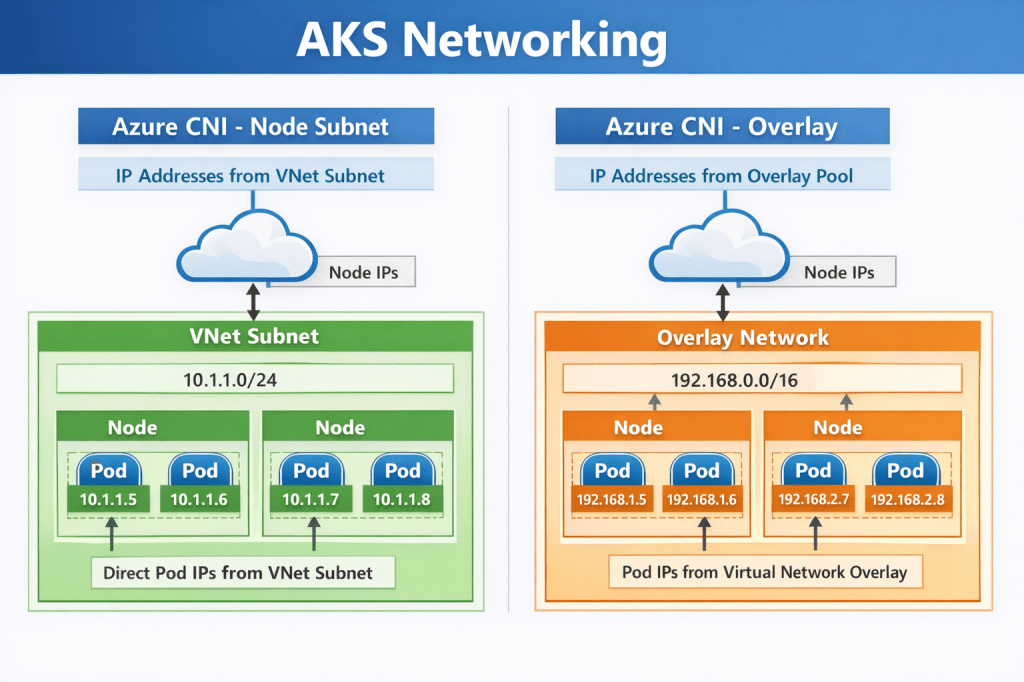
  • Azure CNI Node Subnet (flat network model)
  • Azure CNI Overlay (pod overlay networking)

As their names suggest, both use Azure CNI. The difference lies in how pod IP addresses are assigned and routed. Understanding this distinction is essential before you size node pools or define scaling limits.


Azure CNI Node Subnet

This is the traditional Azure CNI model.

Pods receive IP addresses directly from the Azure subnet. From the network’s perspective, pods appear as first-class citizens inside your VNet.

How It Works

Each node consumes IP addresses from the subnet. Each pod scheduled onto that node also consumes an IP from the same subnet. Pods are directly routable across VNets, peered networks, and hybrid connections.

This creates a flat, highly transparent network model.

Why teams choose it

This model aligns naturally with enterprise networking expectations. Security appliances, firewalls, and monitoring tools can see pod IPs directly. Routing is predictable, and hybrid connectivity is straightforward.

If your environment already relies on network inspection, segmentation, or private connectivity, this model integrates cleanly.

Pros

  • Native VNet integration
  • Simple routing and peering
  • Easier integration with existing network appliances
  • Straightforward hybrid connectivity scenarios
  • Cleaner alignment with enterprise security tooling

Cons

  • High IP consumption
  • Requires careful subnet sizing
  • Can exhaust address space quickly in large clusters

Trade-offs to consider

The trade-off is IP consumption. Every pod consumes a VNet IP. In large clusters, address space can be exhausted faster than expected. Subnet sizing must account for:

  • node count
  • maximum pods per node
  • autoscaling limits
  • upgrade surge capacity

This model rewards careful planning and penalises underestimation.

Impact on node pool sizing

With Node Subnet networking, node pool scaling directly consumes IP space.

If a user node pool scales out aggressively and each node supports 30 pods, IP usage grows rapidly. A cluster designed for 100 nodes may require thousands of available IP addresses.

System node pools remain smaller, but they still require headroom for upgrades and system pod scheduling.


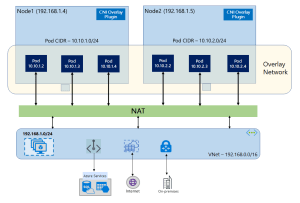
Azure CNI Overlay

Azure CNI Overlay is designed to address IP exhaustion challenges while retaining Azure CNI integration.

Pods receive IP addresses from an internal Kubernetes-managed range, not directly from the Azure subnet. Only nodes consume Azure VNet IP addresses.

How It Works

Nodes are addressable within the VNet. Pods use an internal overlay CIDR range. Traffic is routed between nodes, with encapsulation handling pod communication.

From the VNet’s perspective, only nodes consume IP addresses.

Why teams choose it

Overlay networking dramatically reduces pressure on Azure subnet address space. This makes it especially attractive in environments where:

  • IP ranges are constrained
  • multiple clusters share network space
  • growth projections are uncertain

It allows clusters to scale without re-architecting network address ranges.

Pros

  • Significantly lower Azure IP consumption
  • Simpler subnet sizing
  • Useful in environments with constrained IP ranges

Cons

  • More complex routing
  • Less transparent network visibility
  • Additional configuration required for advanced scenarios
  • Not ideal for large-scale enterprise integration

Trade-offs to consider

Overlay networking introduces an additional routing layer. While largely transparent, it can add complexity when integrating with deep packet inspection, advanced network appliances, or highly customised routing scenarios.

For most modern workloads, however, this complexity is manageable and increasingly common.

Impact on node pool sizing

Because pods no longer consume VNet IP addresses, node pool scaling pressure shifts away from subnet size. This provides greater flexibility when designing large user node pools or burst scaling scenarios.

However, node count, autoscaler limits, and upgrade surge requirements still influence subnet sizing.


Choosing Between Overlay and Node Subnet

Here are the “TLDR” considerations when you need to make the choice of which networking model to use:

  • If deep network visibility, firewall inspection, and hybrid routing transparency are primary drivers, Node Subnet networking remains compelling.
  • If address space constraints, growth flexibility, and cluster density are primary concerns, Overlay networking provides significant advantages.
  • Most organisations adopting AKS at scale are moving toward overlay networking unless specific networking requirements dictate otherwise.

How Networking Impacts Node Pool Design

Let’s connect this back to the last post, where we said that Node pools are not just compute boundaries — they are networking consumption boundaries.

System Node Pools

System node pools:

  • Host core Kubernetes components
  • Require stability more than scale

From a networking perspective:

  • They should be small
  • They should be predictable in IP consumption
  • They must allow for upgrade surge capacity

If using Azure CNI, ensure sufficient IP headroom for control plane-driven scaling operations.

User Node Pools

User node pools are where networking pressure increases. Consider:

  • Maximum pods per node
  • Horizontal Pod Autoscaler behaviour
  • Node autoscaling limits

In Azure CNI Node Subnet environments, every one of those pods consumes an IP. If you design for 100 nodes with 30 pods each, that is 3,000 pod IPs — plus node IPs. Subnet planning must reflect worst-case scale, not average load.

In Azure CNI Overlay environments, the pressure shifts away from Azure subnets — but routing complexity increases.

Either way, node pool design and networking are a single architectural decision, not two separate ones.


Control Plane Networking and Security

One area that is often misunderstood is how the control plane communicates with the data plane, and how administrators securely interact with the cluster.

The Kubernetes API server is the central control surface. Every action — whether from kubectl, CI/CD pipelines, GitOps tooling, or the Azure Portal — ultimately flows through this endpoint.

In AKS, the control plane is managed by Azure and exposed through a secure endpoint. How that endpoint is exposed defines the cluster’s security posture.

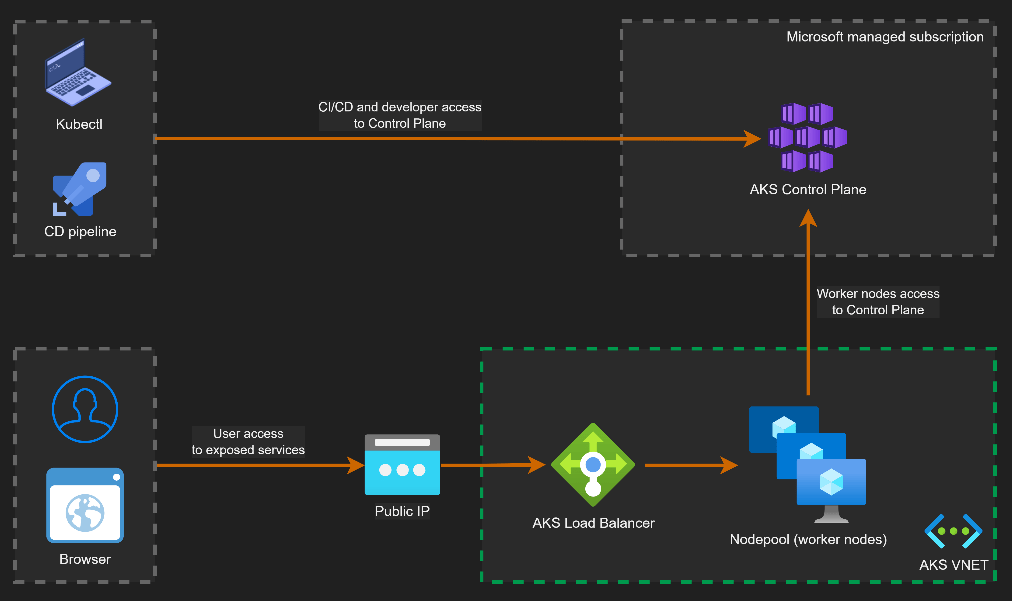
Public Cluster Architecture

By default, AKS clusters expose a public API endpoint secured with authentication, TLS, and RBAC.

This does not mean the cluster is open to the internet. Access can be restricted using authorized IP ranges and Azure AD authentication.

Image: Microsoft/Houssem Dellai

Key characteristics:

  • API endpoint is internet-accessible but secured
  • Access can be restricted via authorized IP ranges
  • Nodes communicate outbound to the control plane
  • No inbound connectivity to nodes is required

This model is common in smaller environments or where operational simplicity is preferred.

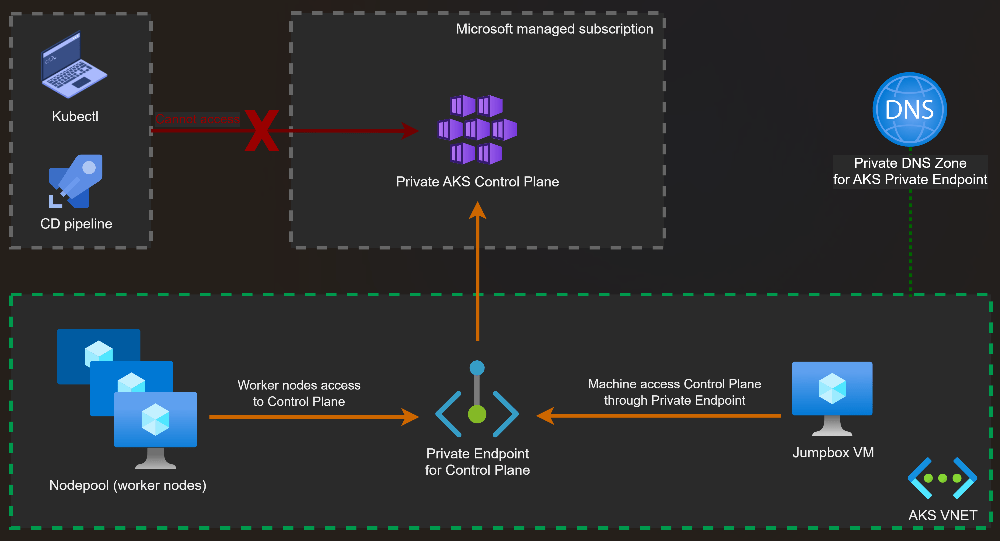
Private Cluster Architecture

In a private AKS cluster, the API server is exposed via a private endpoint inside your VNet.

Image: Microsoft/Houssem Dellai

Administrative access requires private connectivity such as:

  • VPN
  • ExpressRoute
  • Azure Bastion or jump hosts

Key characteristics:

  • API server is not exposed to the public internet
  • Access is restricted to private networks
  • Reduced attack surface
  • Preferred for regulated or enterprise environments

Control Plane to Data Plane Communication

Regardless of public or private mode, communication between the control plane and the nodes follows the same secure pattern.

The kubelet running on each node establishes an outbound, mutually authenticated connection to the API server.

This design has important security implications:

  • Nodes do not require inbound internet exposure
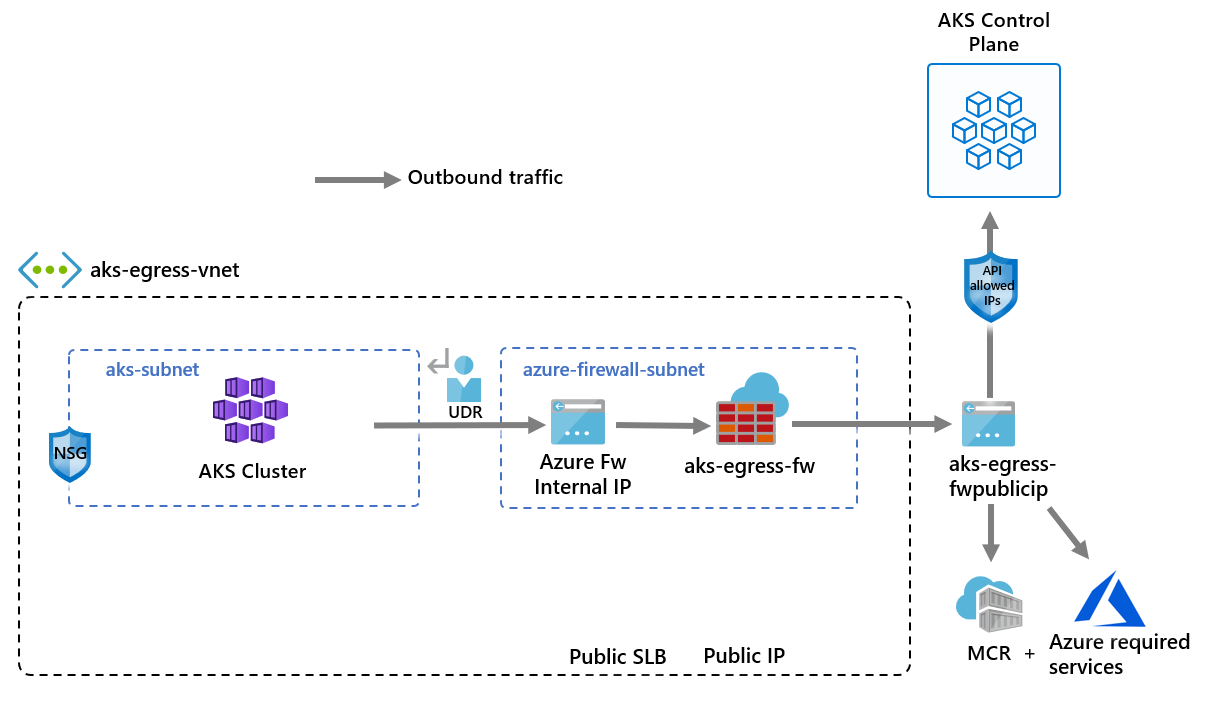
  • Firewall rules can enforce outbound-only communication
  • Control plane connectivity remains encrypted and authenticated

This outbound-only model is a key reason AKS clusters can operate securely inside tightly controlled network environments.

Common Networking Pitfalls in AKS

Networking issues rarely appear during initial deployment. They surface later when scaling, integrating, or securing the platform. Typical pitfalls include:
  • subnets sized for today rather than future growth
  • no IP headroom for node surge during upgrades
  • lack of outbound traffic control
  • exposing the API server publicly without restrictions

Networking issues rarely appear on day one. They appear six months later — when scaling becomes necessary.


Aligning Networking with the Azure Well-Architected Framework

  • Operational Excellence improves when networking is designed for observability, integration, and predictable growth.
  • Reliability depends on zone-aware node pools, resilient ingress, and stable outbound connectivity.
  • Security is strengthened through private clusters, controlled egress, and network policy enforcement.
  • Cost Optimisation emerges from correct IP planning, right-sized ingress capacity, and avoiding rework caused by subnet exhaustion.

Making the right (or wrong) networking decisions in the design phase has an effect across each of these pillars.


What Comes Next

At this point in the series, we now understand:

  • Why Kubernetes exists
  • How AKS architecture is structured
  • How networking choices shape production readiness

In the next post, we’ll stay on the networking theme and take a look at Ingress and Egress traffic flows. See you then!

What Is Azure Kubernetes Service (AKS) and Why Should You Care?

In every cloud native architecture discussion you have had over the last few years or are going to have in the coming years, you can be guaranteed that someone has or will introduce Kubernetes as a hosting option on which your solution will run.

There’s also different options when Kubernetes enters the conversation – you can choose to run:

Kubernetes promises portability, scalability, and resilience. In reality, operating Kubernetes yourself is anything but simple.

Have you’ve ever wondered whether Kubernetes is worth the complexity—or how to move from experimentation to something you can confidently run in production?

Me too – so let’s try and answer that question. For anyone who knows me or has followed me for a few years knows, I like to get down to the basics and “start at the start”.

This is the first post is of a blog series where we’ll focus on Azure Kubernetes Service (AKS), while also referencing the core Kubernetes offerings as a reference. The goal of this series is:

By the end (whenever that is – there is no set time or number of posts), we will have designed and built a production‑ready AKS cluster, aligned with the Azure Well‑Architected Framework, and suitable for real‑world enterprise workloads.

With the goal clearly defined, let’s start at the beginning—not by deploying workloads or tuning YAML, but by understanding:

  • Why AKS exists
  • What problems it solves
  • When it’s the right abstraction.

What Is Azure Kubernetes Service (AKS)?

Azure Kubernetes Service (AKS) is a managed Kubernetes platform provided by Microsoft Azure. It delivers a fully supported Kubernetes control plane while abstracting away much of the operational complexity traditionally associated with running Kubernetes yourself.

At a high level:

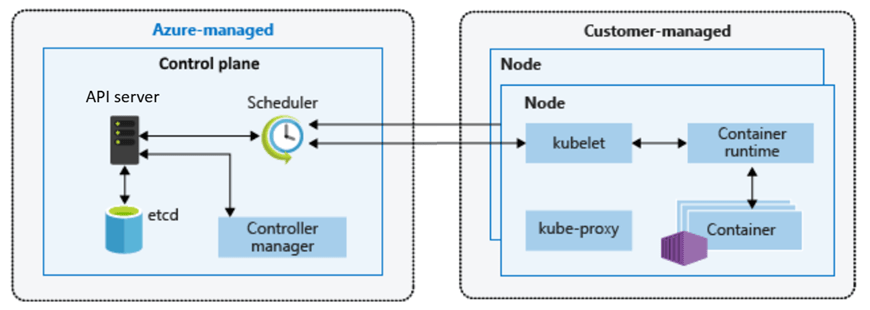
  • Azure manages the Kubernetes control plane (API server, scheduler, etcd)
  • You manage the worker nodes (VM size, scaling rules, node pools)
  • Kubernetes manages your containers and workloads

This division of responsibility is deliberate. It allows teams to focus on applications and platforms rather than infrastructure mechanics.

You still get:

  • Native Kubernetes APIs
  • Open‑source tooling (kubectl, Helm, GitOps)
  • Portability across environments

But without needing to design, secure, patch, and operate Kubernetes from scratch.

Why Should You Care About AKS?

The short answer:

AKS enables teams to build scalable platforms without becoming Kubernetes operators.

The longer answer depends on the problems you’re solving.

AKS becomes compelling when:

  • You’re building microservices‑based or distributed applications
  • You need horizontal scaling driven by demand
  • You want rolling updates and self‑healing workloads
  • You’re standardising on containers across teams
  • You need deep integration with Azure networking, identity, and security

Compared to running containers directly on virtual machines, AKS introduces:

  • Declarative configuration
  • Built‑in orchestration
  • Fine‑grained resource management
  • A mature ecosystem of tools and patterns

However, this series is not about adopting AKS blindly. Understanding why AKS exists—and when it’s appropriate—is essential before we design anything production‑ready.


AKS vs Azure PaaS Services: Choosing the Right Abstraction

Another common—and more nuanced—question is:

“Why use AKS at all when Azure already has PaaS services like App Service or Azure Container Apps?”

This is an important decision point, and one that shows up frequently in the Azure Architecture Center.

Azure PaaS Services

Azure PaaS offerings such as App Service, Azure Functions, and Azure Container Apps work well when:

  • You want minimal infrastructure management responsibility
  • Your application fits well within opinionated hosting models
  • Scaling and availability can be largely abstracted away
  • You’re optimising for developer velocity over platform control

They provide:

  • Very low operational overhead – the service is an “out of the box” offering where developers can get started immediately.
  • Built-in scaling and availability – scaling comes as part of the service based on demand, and can be configured based on predicted loads.
  • Tight integration with Azure services – integration with tools such as Azure Monitor and Application Insights for monitoring, Defender for Security monitoring and alerting, and Entra for Identity.

For many workloads, this is exactly the right choice.

AKS

AKS becomes the right abstraction when:

  • You need deep control over networking, runtime, and scheduling
  • You’re running complex, multi-service architectures
  • You require custom security, compliance, or isolation models
  • You’re building a shared internal platform rather than a single application

AKS sits between IaaS and fully managed PaaS:

Azure PaaS abstracts the platform for you. AKS lets you build the platform yourself—safely.

This balance of control and abstraction is what makes AKS suitable for production platforms at scale.


Exploring AKS in the Azure Portal

Before designing anything that could be considered “production‑ready”, it’s important to understand what Azure exposes out of the box – so lets spin up an AKS instance using the Azure Portal.

Step 1: Create an AKS Cluster

  • Sign in to the Azure Portal
  • In the search bar at the top, Search for Kubernetes Service
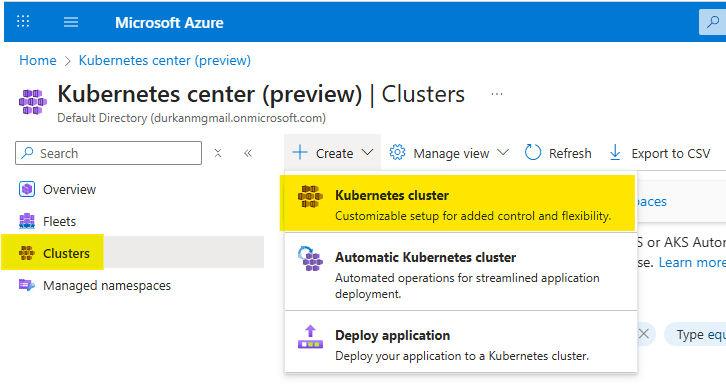
  • When you get to the “Kubernetes center page”, click on “Clusters” on the left menu (it should bring you here automatically). Select Create, and select “Kubernetes cluster”. Note that there are also options for “Automatic Kubernetes cluster” and “Deploy application” – we’ll address those in a later post.
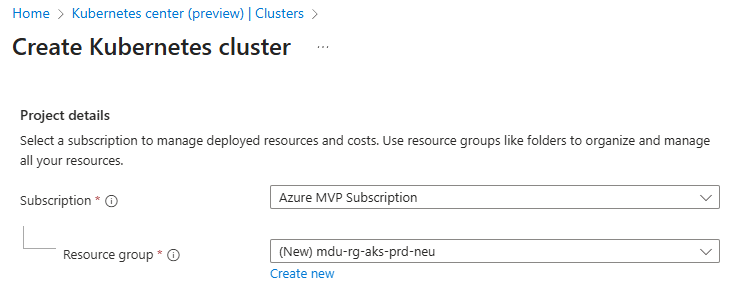
  • Choose your Subscription and Resource Group
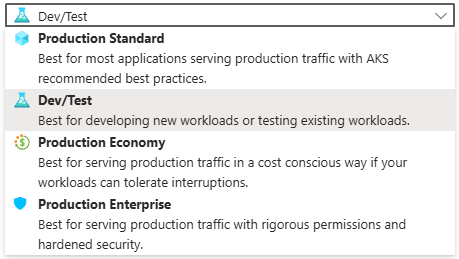
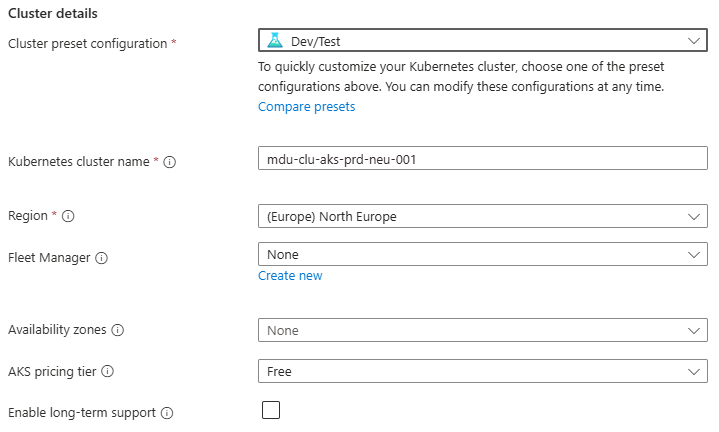
  • Enter a Cluster preset configuration, Cluster name and select a Region. You can choose from four different preset configurations which have clear explanations based on your requirements
  • I’ve gone for Dev/Test for the purposes of spinning up this demo cluster.
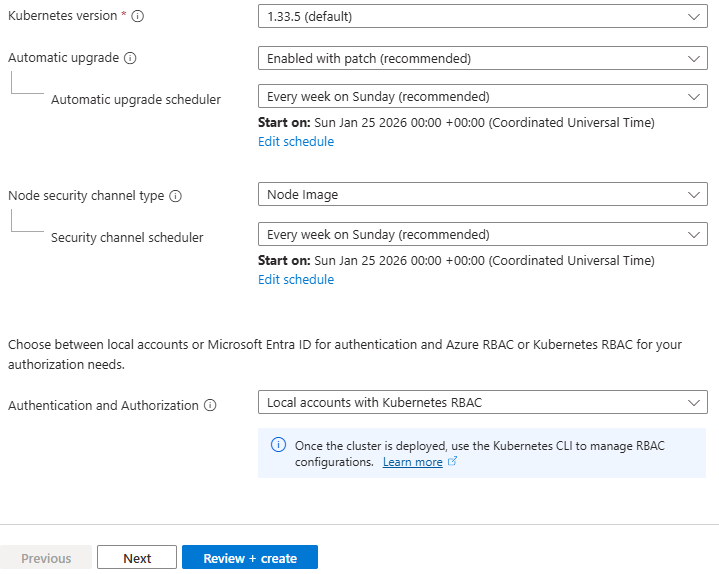
  • Leave all other options as default for now and click “Next” – we’ll revisit these in detail in later posts.

Step 2: Configure the Node Pool

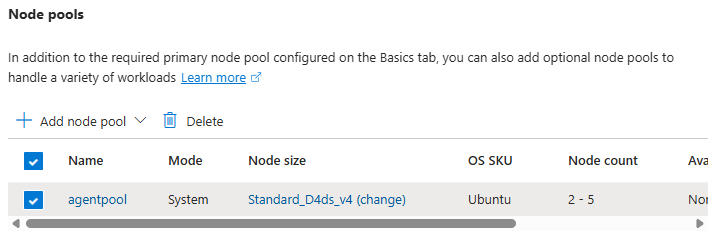
  • Under Node pools, there is an agentpool automatically added for us. You can change this if needed to select a different VM size, and set a low min/max node count

    This is your first exposure to separating capacity management from application deployment.
    Step 3: Networking

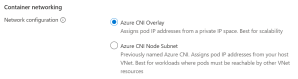
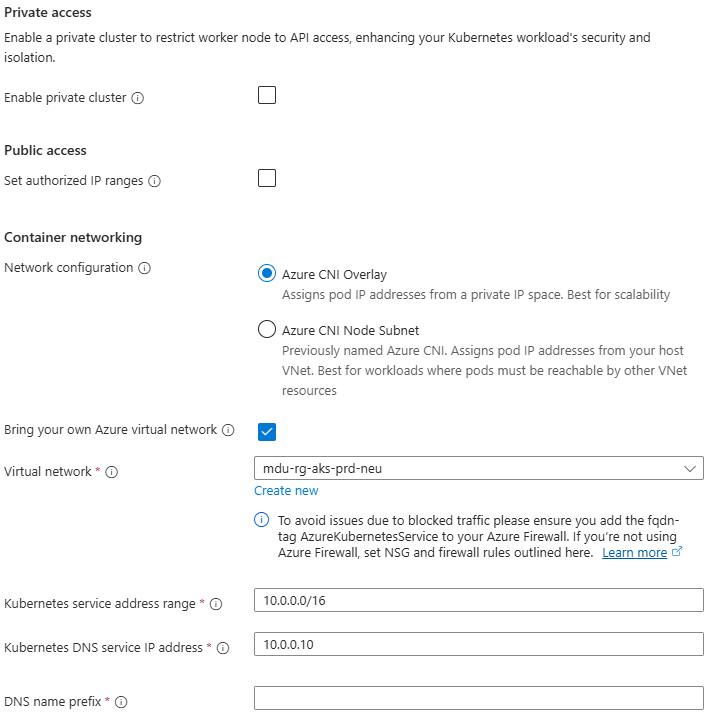
    Under Networking, you will see options for Private/Public Access, and also for Container Networking. This is an important chopice as there are 2 clear options:

    • Azure CNI Overlay – Pods get IPs from a private CIDR address space that is separate from the node VNet.
    • Azure CNI Node Subnet – Pods get IPs directly from the same VNet subnet as the nodes.

    You also have the option to integrate this into your own VNet which you can specify during the cluster creation process.

    Again, we’ll talk more about these options in a later post, but its important to understand the distinction between the two.

    Step 4: Review and Create

    Select Review + Create – note at this point I have not selected any monitoring, security or integration with an Azure Container Registry and am just taking the defaults. Again (you’re probably bored of reading this….), we’ll deal with these in a later post dedicated to each topic.

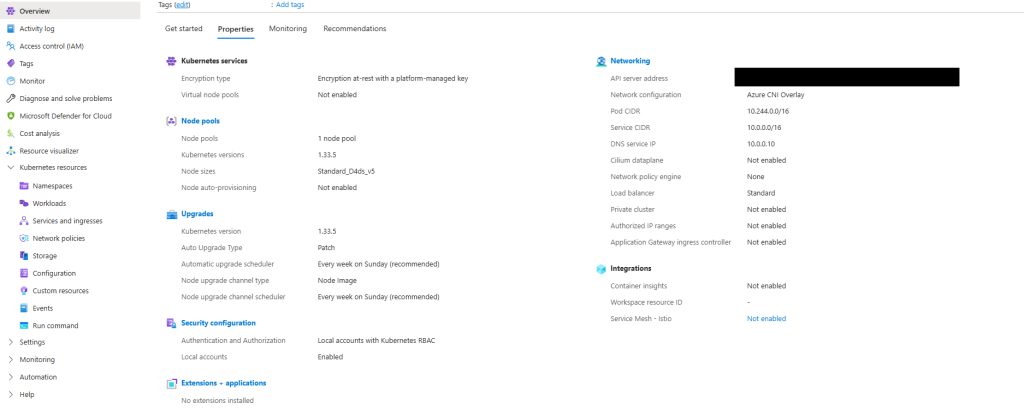
    Once deployed, explore:

    • Node pools
    • Workloads
    • Services and ingresses
    • Cluster configuration

    Notice how much complexity is hidden – if you scroll back up to the “Azure-managed v Customer-managed” diagram, you have responsibility for managing:

    • Cluster nodes
    • Networking
    • Workloads
    • Storage

    Even though Azure abstracts away responsibility for things like key-value store, scheduler, controller and management of the cluster API, a large amount of responsibility still remains.


    What Comes Next in the Series

    This post sets the foundation for what AKS is and how it looks out of the box using a standard deployment with the “defaults”.

    Over the course of the series, we’ll move through the various concepts which will help to inform us as we move towards making design decisions for production workloads:

    • Kubernetes Architecture Fundamentals (control plane, node pools, and cluster design), and how they look in AKS
    • Networking for Production AKS (VNets, CNI, ingress, and traffic flow)
    • Identity, Security, and Access Control
    • Scaling, Reliability, and Resilience
    • Cost Optimisation and Governance
    • Monitoring, Alerting and Visualizations
    • Alignment with the Azure Well Architected Framework
    • And lots more ……

    See you on the next post!

    Azure Networking Zero to Hero – Network Security Groups

    In this post, I’m going to stay within the boundaries of our Virtual Network and briefly talk about Network Security Groups, which filter network traffic between Azure resources in an Azure virtual network.

    Overview

    So, its a Firewall right?

    NOOOOOOOOOO!!!!!!!!

    While a Network Security Group (or NSG for short) contains Security Rules to allow or deny inbound/outbound traffic to/from several types of Azure Resources, it is not a Firewall (it may be what a Firewall looked like 25-30 years ago, but not now). NSG’s can be used in conjunction with Azure Firewall and other network security services in Azure to help secure and shape how your traffic flows between subnets and resources.

    Default Rules

    When you create a subnet in your Virtual Network, you have the option to create an NSG which will be automatically associated with the subnet. However, you can also create an NSG and manually associate it with either a subnet, or directly to a Network Interface in a Virtual Machine.

    When an NSG is created, it always has a default set of Security Rules that look like this:

    The default Inbound rules allow the following:

    • 65000 — All Hosts/Resources inside the Virtual Network to Communicate with each other
    • 65001 — Allows Azure Load Balancer to communicate with the Hosts/resources
    • 65500 — Deny all other Inbound traffic

    The default Outbound rules allow the following:

    • 65000 — All Hosts/Resources inside the Virtual Network to Communicate with each other
    • 65001 — Allows all Internet Traffic outbound
    • 65500 — Deny all other Outbound traffic

    The default rules cannot be edited or removed. NSG’s are created initially using a Zero-Trust model. The rules are processed in order of priority (lowest numbered rule is processed first). So you would need to build you rules on top of the default ones (for example, RDP and SSH access if not already in place).

    Configuration and Traffic Flow

    Some important things to note:

    • The default “65000” rules for both Inbound and Outbound – this allows all virtual network traffic. It means that if we have 2 subnets which each have a virtual machine, these would be able to communicate with each other without adding any additional rules.
    • As well as IP addresses and address ranges, we can use Service Tags which represents a group of IP address prefixes from a range of Azure services. These are managed and updated by Microsoft so you can use these instead of having to create and manage multiple Public IP’s for each service. You can find a full list of available Service Tags that can be used with NSG’s at this link. In the image above, “VirtualNetwork” and “AzureLoadBalancer” are Service Tags.
    • A virtual network subnet or interface can only have one NSG, but an NSG can be assigned to many subnets or interfaces. Tip from experience, this is not a good idea – if you have an application design that uses multiple Azure Services, split these services into dedicated subnets and apply NSG’s to each subnet.
    • When using a NSG associated with a subnet and a dedicated NSG associated with a network interface, the NSG associated with the Subnet is always evaluated first for Inbound Traffic, before then moving on to the NSG associated with the NIC. For Outbound Traffic, it’s the other way around — the NSG on the NIC is evaluated first, and then the NSG on the Subnet is evaluated. This process is explained in detail here.
    • If you don’t have a network security group associated to a subnet, all inbound traffic is blocked to the subnet/network interface. However, all outbound traffic is allowed.
    • You can only have 1000 Rules in an NSG by default. Previously, this was 200 and could be raised by logging a ticket with Microsoft, but the max (at time of writing) is 1000. This cannot be increased. Also, there is a max limit of 5000 NSG’s per subscription.

    Logging and Visibility

    • Important – Turn on NSG Flow Logs. This is a feature of Azure Network Watcher that allows you to log information about IP traffic flowing through a network security group,  including details on source and destination IP addresses, ports, protocols, and whether traffic was permitted or denied. You can find more in-depth details on flow logging here, and a tutorial on how to turn it on here.
    • To enhance this, you can use Traffic Analytics, which analyzes Azure Network Watcher flow logs to provide insights into traffic flow in your Azure cloud.

    Conclusion

    NSGs are fundamental to securing inbound and outbound traffic for subnets within an Azure Virtual Network, and form one of the first layers of defense to protect application integrity and reduce the risk of data loss prevention.

    However as I said at the start of this post, an NSG is not a Firewall. The layer 3 and layer 4 port-based protection that NSGs provide has significant limitations and cannot detect other forms of malicious attacks on protocols such as SSH and HTTPS that can go undetected by this type of protection.

    And that’s one of the biggest mistakes I see people make – they assume that NSG’s will do the job because Firewalls and other network security sevices are too expensive.

    Therefore, NSG’s should be used in conjunction with other network security tools, such as Azure Firewall and Web Application Firewall (WAF), for any devices presented externally to the internet or other private networks. I’ll cover these in detail in later posts.

    Hope you enjoyed this post, until next time!!

    Azure Networking Zero to Hero – Routing in Azure

    In this post, I’m going to try and explain Routing in Azure. This is a topic that grows in complexity the more you expand your footprint in Azure in terms of both Virtual Networks, and also the services you use to both create your route tables and route your traffic.

    Understanding Azure’s Default Routing

    As we saw in the previous post when a virtual network is created, this also creates a route table. This contains a default set of routes known as System Routes, which are shown here:

    SourceAddress prefixesNext hop type
    DefaultVirtual Network Address SpaceVirtual network
    Default0.0.0.0/0Internet
    Default10.0.0.0/8None (Dropped)
    Default172.16.0.0/12None (Dropped)
    Default192.168.0.0/16None (Dropped)

    Lets explain the “Next hop types” is in a bit more detail:

    • Virtual network: Routes traffic between address ranges within the address space of a virtual network. So lets say I have a Virtual Network with the 10.0.0.0/16 address space defined. I then have VM1 in a subnet with the 10.0.1.0/24 address range trying to reach VM2 in a subnet with the 10.0.2.0/24 address range. It know to keep this within the Virtual Network and routes the traffic successfully.
    • Internet: Routes traffic specified by the address prefix to the Internet. If the destination address range is not part of a Virtual Network address space, its gets routed to the Internet. The only exception to this rule is if trying to access an Azure Service – this goes across the Azure Backbone network no matter which region the service sits in.
    • None: Traffic routed to the None next hop type is dropped. This automatically includes all Private IP Addresses as defined by RFC1918, but the exception to this is your Virtual Network address space.

    Simple, right? Well, its about to get more complicated …..

    Additional Default Routes

    Azure adds more default system routes for different Azure capabilities, but only if you enable the capabilities:

    SourceAddress prefixesNext hop type
    DefaultPeered Virtual Network Address SpaceVNet peering
    Virtual network gatewayPrefixes advertised from on-premises via BGP, or configured in the local network gatewayVirtual network gateway
    DefaultMultipleVirtualNetworkServiceEndpoint

    So lets take a look at these:

    • Virtual network (VNet) peering: when a peering is created between 2 VNets, Azure adds the address spaces of each of the peered VNets to the Route tables of the source VNets.
    • Virtual network gateway: this happens when S2S VPN or Express Route connectivity is establised and adds address spaces that are advertised from either Local Network Gateways or On-Premises gateways via BGP (Border Gateway Protocol). These address spaces should be summarized to the largest address range coming from On-Premises, as there is a limit of 400 routes per route table.
    • VirtualNetworkServiceEndpoint: this happens when creating a direct service endpoint for an Azure Service, enables private IP addresses in the VNet to reach the endpoint of an Azure service without needing a public IP address on the VNet.

    Custom Routes

    The limitations of sticking with System Routes is that everything is done for you in the background – there is no way to make changes.

    This is why if you need to make change to how your traffic gets routed, you should use Custom Routes, which is done by creating a Route Table. This is then used to override Azure’s default system routes, or to add more routes to a subnet’s route table.

    You can specify the following “next hop types” when creating user-defined routes:

    • Virtual Appliance: This is typically Azure Firewall, Load Balancer or other virtual applicance from the Azure Marketplace. The appliance is typically deployed in a different subnet than the resources that you wish to route through the Virtual Appliance. You can define a route with 0.0.0.0/0 as the address prefix and a next hop type of virtual appliance, with the next hop address set as the internal IP Address of the virtual appliance, as shown below. This is useful if you want all outbound traffic to be inspected by the appliance:
    • Virtual network gateway: used when you want traffic destined for specific address prefixes routed to a virtual network gateway. This is useful if you have an On-Premises device that inspects traffic an determines whether to forward or drop the traffic.
    • None: used when you want to drop traffic to an address prefix, rather than forwarding the traffic to a destination.
    • Virtual network: used when you want to override the default routing within a virtual network.
    • Internet: used when you want to explicitly route traffic destined to an address prefix to the Internet

    You can also use Service Tags as the address prefix instead of an IP Range.

    How Azure selects which route to use?

    When outbound traffic is sent from a subnet, Azure selects a route based on the destination IP address, using the longest prefix match algorithm. So if 2 routes exist with 10.0.0.0/16 and a 10.0.0.0/24, Azure will select the /24 as it has the longest prefix.

    If multiple routes contain the same address prefix, Azure selects the route type, based on the following priority:

    • User-defined route
    • BGP route
    • System route

    So, the initial System Routes are always the last ones to be checked.

    Conclusion and Resources

    I’ve put in some links already in the article. The main place to go for a more in-depth deep dive on Routing is this MS Learn Article on Virtual Network Traffic Routing.

    As regards people to follow, there’s no one better than my fellow MVP Aidan Finn who writes extensively about networking over at his blog. He also delivered this excellent session at the Limerick Dot Net Azure User Group last year which is well worth a watch for gaining a deep understanding of routing in Azure.

    Hope you enjoyed this post, until next time!!

    Azure Networking Zero to Hero – Intro and Azure Virtual Networks

    Welcome to another blog series!

    This time out, I’m going to focus on Azure Networking, which covers a wide range of topics and services that make up the various networking capabilities available within both Azure cloud and hybrid environments. Yes I could have done something about AI, but for those of you who know me, I’m a fan of the classics!

    The intention is to have this blog series serve as both a starting point for anyone new to Azure Networking who is looking to start a learning journey towards that AZ-700 certification, or as an easy reference point for anyone looking for a list of blogs specific to the wide scope of services available in the Azure Networking family.

    There isn’t going to be a set number of blog posts or “days” – I’m just going to run with this one and see what happens! So with that, lets kick off with our first topic, which is Virtual Networks.

    Azure Virtual Networks

    So lets start with the elephant in the room. Yes, I have written a blog post about Azure Virtual Networks before – 2 of them actually as part of my “100 Days of Cloud” blog series, you’ll find Part 1 and Part 2 at these links.

    Great, so thats todays blog post sorted!!! Until next ti …… OK, I’m joking – its always good to revise and revisit.

    After a Resource Group, a virtual network is likely to be the first actual resource that you create. Create a VM, Database or Web App, the first piece of information it asks you for is what Virtual Network to your resource in.

    But of course if you’ve done it that way, you’ve done it backwards because you really should have planned your virtual network and what was going to be in it first! A virtual network acts as a private address space for a specific set of resource groups or resources in Azure. As a reminder, a virtual network contains:

    • Subnets, which allow you to break the virtual network into one or more dedicated address spaces or segments, which can be different sizes based on the requirements of the resource type you’ll be placing in that subnet.
    • Routing, which routes traffic and creates a routing table. This means data is delivered using the most suitable and shortest available path from source to destination.
    • Network Security Groups, which can be used to filter traffic to and from resources in an Azure Virtual Network. Its not a Firewall, but it works like one in a more targeted sense in that you can manage traffic flow for individual virtual networks, subnets, and network interfaces to refine traffic.

    A lot of wordy goodness there, but the easiest way to illustrate this is using a good old diagram!

    Lets do a quick overview:

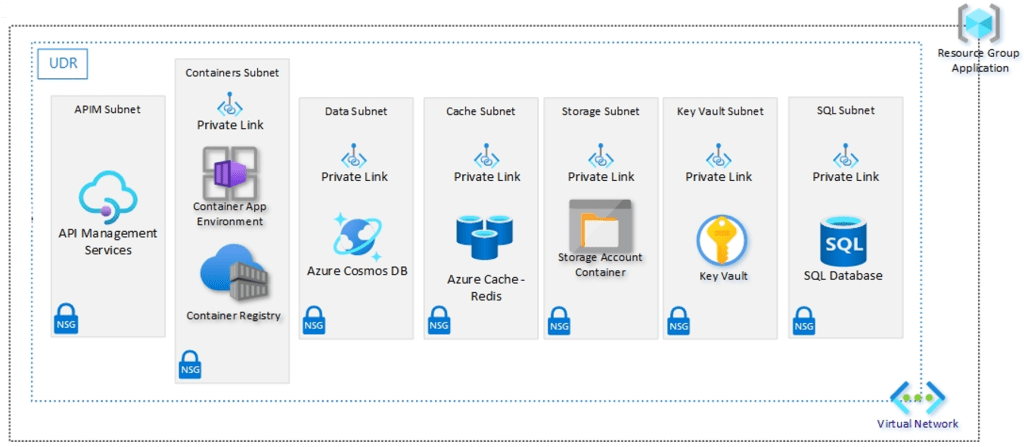
    • We have 2 Resource Groups using a typical Hub and Spoke model where the Hub contains our Application Gateway and Firewall, and our Spoke contains our Application components. The red lines indicate peering between the virtual networks so that they can communicate with each other.
    • Lets focus on the Spoke resource group – The virtual network has an address space of 10.1.0.0/16 defined.
    • This is then split into different subnets where each of the components of the Application reside. Each subnet has an NSG attached which can control traffic flow to and from different subnets. So in this example, the ingress traffic coming into the Application Gateway would then be allows to pass into the API Management subnet by setting allow rules on the NSG.
    • The other thing we see attached to the virtual network is a Route Table – we can use this to define where traffic from specific sources is sent to. We can use System Routes which are automatically built into Azure, or Custom Routes which can be user defined or by using BGP routes across VPN or Express Route services. The idea in our diagram is that all traffic will be routed back to Azure Firewall for inspection before forwarding to the next destination, which can be another peered virtual network, across a VPN to an on-premises/hybrid location, or straight out to an internet destination.

    Final thoughts

    Some important things to note on Virtual Networks:

    • Planning is everything – before you even deploy your first resource group, make sure you have your virtual networks defined, sized and mapped out for what you’re going to use them for. Always include scaling, expansion and future planning in those decisions.
    • Virtual Networks reside in a single resource group, but you technically can assign addresses from subnets in your virtual network to resources that reside in different resource groups. Not really a good idea though – try to keep your networking and resources confined within resource group and location boundaries.
    • NSG’s are created using a Zero-Trust model, so nothing gets in or out unless you define the rules. The rules are processed in order of priority (lowest numbered rule is processed first), so you would need to build you rules on top of the default ones (for example, RDP and SSH access if not already in place).

    Hope you enjoyed this post, until next time!!