Top Highlights from Microsoft Ignite 2024: Key Azure Announcements

This year, Microsoft Ignite was held in Chigaco for in-person attendees as well as virtually with key sessions live streamed. As usual, the Book of News was released to show the key announcements and you can find that at this link.

From a personal standpoint, the Book of News was disappointing as at first glance there seemed to be very few key annoucements and enhancements being provided for core Azure Infrastructure and Networking.

However, there were some really great reveals that were announced at various sessions throughout Ignite, and I’ve picked out some of the ones that impressed me.

Azure Local

Azure Stack HCI is no more ….. this is now being renamed to Azure Local. Which makes a lot more sense as Azure managed appliances deployed locally but still managed from Azure via Arc.

So, its just a rename right? Wrong! The previous iteration was tied to specific hardware that had high costs. Azure Local now brings low spec and low cost options to the table. You can also use Azure Local in disconnected mode.

More info can be found in this blog post and in this YouTube video.

Azure Migrate Enhancements

Azure Migrate is product that has badly needed some improvements and enhancements given the capabilities that some of its competitors in the market offer.

The arrival of a Business case option enables customers to create a detailed comparison of the Total Cost of Ownership (TCO) for their on-premises estate versus the TCO on Azure, along with a year-on-year cash flow analysis as they transition their workloads to Azure. More details on that here.

There was also an announcement during the Ignite Session around a tool called “Azure Migrate Explore” which looked like it provides you with a ready-made Business case PPT template generator that can be used to present cases to C-level. Haven’t seen this released yet, but one to look out for.

Finally, one that may hae been missed a few months ago – given the current need for customers to migrate from VMware on-premises deployments to Azure VMware Solution (which is already built in to Azure Migrate via either Appliance or RVTools import), its good to see that there is a preview feature around a direct path from VMware to Azure Stack HCI (or Azure Local – see above). This is a step forward for customers who need to keep their workloads on-premises for things like Data Residency requirements, while also getting the power of Azure Management. More details on that one here.

Azure Network Security Perimeter

I must admit, this one confused me a little bit at first glance but makes sense now.

Network Security Perimeter allows organizations to define a logical network isolation boundary for PaaS resources (for example, Azure Storage acoount and SQL Database server) that are deployed outside your organization’s virtual networks.

So, we’re talking about services that are either deployed outside of a VNET (for whatever reason) or are using SKU’s that do not support VNET integration.

More info can be found here.

Azure Bastion Premium

This has been in preview for a while but is now GA – Azure Bastion Premium offers enhanced security features such as private connectivity and graphical recordings of virtual machines connected through Bastion.

Bastion offers enhanced security features that ensure customer virtual machines are connected securely and to monitor VMs for any anomalies that may arise.

More info can be found here.

Security Copilot integration with Azure Firewall

The intelligence of Security Copilot is being integrated with Azure Firewall, which will help analysts perform detailed investigations of the malicious traffic intercepted by the IDPS feature of their firewalls across their entire fleet using natural language questions. These capabilities were launched on the Security Copilot portal and now are being integrated even more closely with Azure Firewall.

The following capabilities can now be queried via the Copilot in Azure experience directly on the Azure portal where customers regularly interact with their Azure Firewalls: 

  • Generate recommendations to secure your environment using Azure Firewall’s IDPS feature
  • Retrieve the top IDPS signature hits for an Azure Firewall 
  • Enrich the threat profile of an IDPS signature beyond log information 
  • Look for a given IDPS signature across your tenant, subscription, or resource group 

More details on these features can be found here.

DNSSEC for Azure DNS

I was surprised by this annoucement – maybe I had assumed it was there as it had been available as an AD DNS feature for quite some time. Good to see that its made it up to Azure.

Key benefits are:

  • Enhanced Security: DNSSEC helps prevent attackers from manipulating or poisoning DNS responses, ensuring that users are directed to the correct websites. 
  • Data Integrity: By signing DNS data, DNSSEC ensures that the information received from a DNS query has not been altered in transit. 
  • Trust and Authenticity: DNSSEC provides a chain of trust from the root DNS servers down to your domain, verifying the authenticity of DNS data. 

More info on DNSSEC for Azure DNS can be found here.

Azure Confidential Clean Rooms

Some fella called Mark Russinovich was talking about this. And when that man talks, you listen.

Designed for secure multi-party data collaboration, with Confidential Clean Rooms, you can share privacy sensitive data such as personally identifiable information (PII), protected health information (PHI) and cryptographic secrets confidently, thanks to robust trust guarantees that safeguard your data throughout its lifecycle from other collaborators and from Azure operators.

This secure data sharing is powered by confidential computing, which protects data in-use by performing computations in hardware-based, attested Trusted Execution Environments (TEEs). These TEEs help prevent unauthorized access or modification of application code and data during use. 

More info can be found here.

Azure Extended Zones

Its good to see this feature going into GA and hopefully will provide a pathway for future AEZ’s in other locations.

Azure Extended Zones are small-footprint extensions of Azure placed in metros, industry centers, or a specific jurisdiction to serve low latency and data residency workloads. They support virtual machines (VMs), containers, storage, and a selected set of Azure services and can run latency-sensitive and throughput-intensive applications close to end users and within approved data residency boundaries. More details here.

.NET 9

Final one and slightly cheating here as this was announced at KubeCon the week before – .NET9 has been announced. Note that this is a STS release with an expiry of May 2026. .NET 8 is the current LTS version with an end-of-support date of November 2026 (details on lifecycles for .NET versions here).

Link to the full release announcement for .NET 9 (including a link to the KubeCon keynote) can be found here.

Conclusion

Its good to see that in the firehose of annoucements around AI and Copilot, there there are still some really good enhancements and improvements coming out for Azure services.

MFA and Conditional Access alone won’t save us from Threat Actors

In the end of a week where we have had 2 very different incidents at high profile organisations across the globe, its interesting to look at these and compare them from the perspective of incident response and the “What we could have done to prevent this from happening” question.

Image Credit – PinClipart

Lets analyze that very question – in the aftermath of the majority of cases, the “What could we have done to prevent this from happening” question invariably leads in to the next question of “What measures can we put in place to prevent this from happening in the future”.

The problem with the 2 questions is that they are reactive and come about only because the incident has happened. And it seems that in both incidents, the required security systems were in place.

Or were they?

A brief analysis of the attacks

  • Holiday Inn

If we take the Holiday Inn attack, the hackers (TeaPea) have said in a statement that:

"Our attack was originally planned to be a ransomware but the company's IT team kept isolating servers before we had a chance to deploy it, so we thought to have some funny [sic]. We did a wiper attack instead," one of the hackers said.

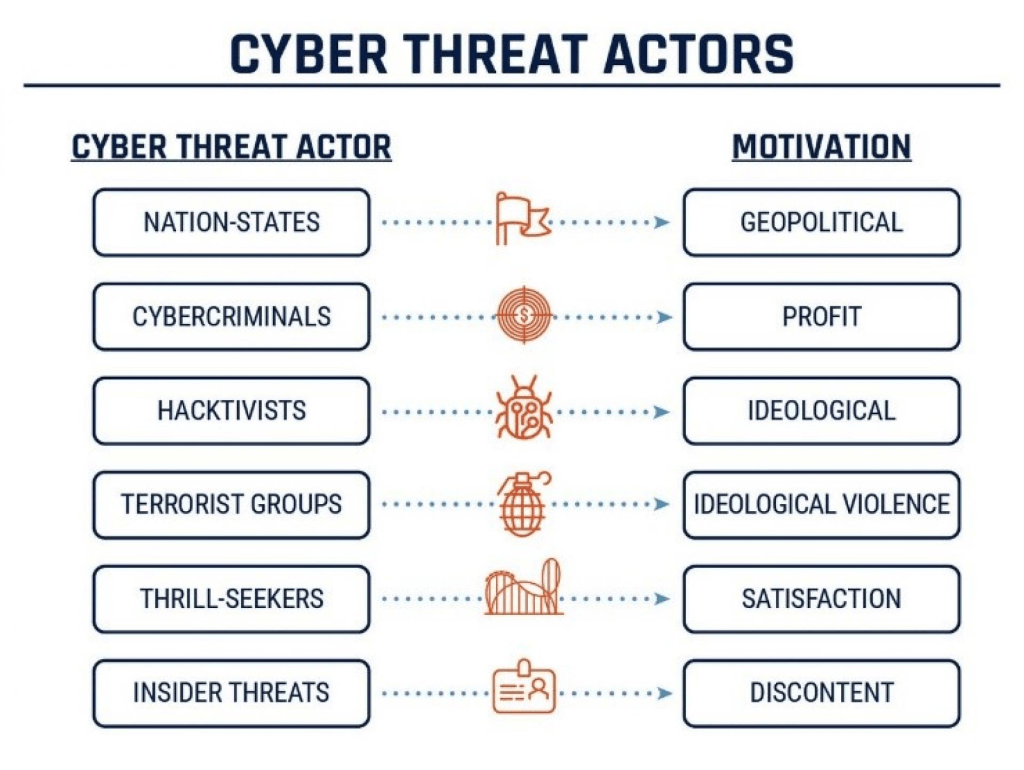
This is interesting because it suggests that the Holiday Inn IT team had a mechanism to isolate the servers in an attempt to contain the attack. The problem was that once the attackers were inside their systems and they realized that the initial scope that their attack was based on wasn’t going to work, their focus changed from Cybercriminals who were trying to make a profit to Terrorism, where they decided to just destroy as much data as they could.

Image Credit – Northern Ireland Cyber Security Centre

Essentially, the problem here is two-fold – firstly, you can have a Data Loss Prevention system in place but its not going to report on or block “Delete” actions until its too late or in some cases not at all.

Second, they managed to access the systems using a weak password. So (am I’m making assumptions here), while the necessary defences and intrusion-detection technologies may have been in place, that single crack in the foundations was all it took.

So the how did they get in? The 2 part of their statement shown below explains it all:

TeaPea say they gained access to IHG's internal IT network by tricking an employee into downloading a malicious piece of software through a booby-trapped email attachment.

The criminals then say they accessed the most sensitive parts of IHG's computer system after finding login details for the company's internal password vault. The password was Qwerty1234.

Ouch ….. so the attack originated as a Social Engineering attack.

  • Uber

We know a lot more about the Uber hack and again this is a case of an attack that originated with Social Engineering. Here’s what we know at this point:

  1. The attack started with a social engineering campaign on Uber employees, which yielded access to a VPN, in turn granting access to Uber’s internal network *.corp.uber.com.
  2. Once on the network, the attacker found some PowerShell scripts, one of which contained hardcoded credentials for a domain admin account for Uber’s Privileged Access Management (PAM) solution.
  3. Using admin access, the attacker was able to log in and take over multiple services and internal tools used at Uber: AWS, GCP, Google Drive, Slack workspace, SentinelOne, HackerOne admin console, Uber’s internal employee dashboards, and a few code repositories.

Again, we’re going to work off the assumption (and we need to make this assumption as Uber had been targeted in both 2014 and 2016) that the necessary defences and intrusion detection was in place.

Once the attackers gained access, the big problem here is the one thats highlighted above – hardcoded domain admin credentials. Once they had those, they could then move across the network doing whatever they pleased. And undetected as well, as its not unusual for a domain admin account to have multiple access across the network. And it looks like Uber haven’t learned from their previous mistakes, because as Mackenzie Jackson of GitGuardian reported:

“There have been three reported breaches involving Uber in 2014, 2016, and now 2022. It appears that all three incidents critically involve hardcoded credentials (secrets) inside code and scripts”

So what can we learn?

What these attacks teach us is that we can put as much technology, intrusion and anomaly detection into our ecosystem as we like, but the human element is always going to be the one that fails us. Because as humans, we are fallible. Its not a stick to beat us with (and like most, I do have a lot of sympathy for those users in Uber, Holiday Inn and all of the other companies who have been victim to attakcs that began with Social Engineering).

Do we need constant training and CyberSecurity programmes in our organisations to ensure that our users are aware of these sorts of attacks? Well, they do now at Uber and Holiday Inn but as I said at the start of the article, this will be a reactive measure for these companies.

The thing is though, most of these programmes are put in as “one-offs” in response to an audit where a checkbox is required to say that such user training has been put in place. And once the box has been checked, they’re forgotten about until the next audit is needed.

We can also say that the priveleged account management processes failed in both companies (weak passwords in one, hardcoded credentials in another).

Conclusion

Multi-Factor Authentication. Conditional Access. Microsoft Defender. Anomaly Detection. EDR and XDR. Information Protection. SOC. SIEM. Priveleged Identity Management. Strong Password Policies.

We can tech the absolute sh*t out of our systems and processes, but don’t forget to train and protect the humans in the chain. Because ultimately when they break, the whole system breaks down.

And the Threat Actors out there know this all too well. They know the systems are there, but they need a human to get them past those walls. MFA and Conditional Access can only save us for so long.

100 Days of Cloud – Day 70: Microsoft Defender for Cloud

Its Day 70 of my 100 Days of Cloud journey, and todays post is all about Azure Security Center! There’s one problem though, its not called that anymore ….

At Ignite 2021 Fall edition, Microsoft announced that the Azure Security Center and Azure Defender products were being rebranded and merged into Microsoft Defender for Cloud.

Overview

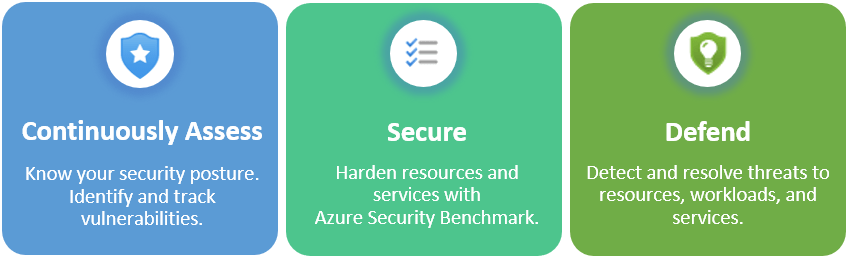
Defender for Cloud is a cloud-based tool for managing the security of your multi-vendor cloud and on-premises infrastructure. With Defender for Cloud, you can:

  • Assess: Understand your current security posture using Secure score which tells you your current security situation: the higher the score, the lower the identified risk level.
  • Secure: Harden all connected resources and services using either detailed remediation steps or an automated “Fix” button.
  • Defend: Detect and resolve threats to those resources and services, which can be sent as email alerts or streamed to SIEM (Security, Information and Event Management), SOAR (Security Orchestration, Automation, and Response) or IT Service Management solutions as required.
Image Credit: Microsoft

Pillars

Microsoft Defender for Cloud’s features cover the two broad pillars of cloud security:

  • Cloud security posture management

CSPM provides visibility to help you understand your current security situation, and hardening guidance to help improve your security.

Central to this is Secure Score, which continuously assesses your subscriptions and resources for security issues. It then presents the findings into a single score and provides recommended actions for improvement.

The guidance in Secure Score is provided by the Azure Security Benchmark, and you can also add other standards such as CIS, NIST or custom organization-specific requirements.

  • Cloud workload protection

Defender for Cloud offers security alerts that are powered by Microsoft Threat Intelligence. It also includes a range of advanced, intelligent, protections for your workloads. The workload protections are provided through Microsoft Defender plans specific to the types of resources in your subscriptions.

The Defender plans page of Microsoft Defender for Cloud offers the following plans for comprehensive defenses for the compute, data, and service layers of your environment:

Microsoft Defender for servers

Microsoft Defender for Storage

Microsoft Defender for SQL

Microsoft Defender for Containers

Microsoft Defender for App Service

Microsoft Defender for Key Vault

Microsoft Defender for Resource Manager

Microsoft Defender for DNS

Microsoft Defender for open-source relational databases

Microsoft Defender for Azure Cosmos DB (Preview)

Azure, Hybrid and Multi-Cloud Protection

Defender for Cloud is an Azure-native service, so many Azure services are monitored and protected without the need for agent deployment. If agent deployment is needed, Defender for Cloud can deploy Log Analytics agent to gather data. Azure-native protections include:

  • Azure PAAS: Detect threats targeting Azure services including Azure App Service, Azure SQL, Azure Storage Account, and more data services.
  • Azure Data Services: automatically classify your data in Azure SQL, and get assessments for potential vulnerabilities across Azure SQL and Storage services.
  • Networks: reducing access to virtual machine ports, using the just-in-time VM access, you can harden your network by preventing unnecessary access.

For hybrid environments and to protect your on-premise machines, these devices are registered with Azure Arc (which we touched on back on Day 44) and use Defender for Cloud’s advanced security features.

For other cloud providers such as AWS and GCP:

  • Defender for Cloud CSPM features assesses resources according to AWS or GCP’s according to their specific security requirements, and these are reflected in your secure score recommendations.
  • Microsoft Defender for servers brings threat detection and advanced defenses to your Windows and Linux EC2 instances. This plan includes the integrated license for Microsoft Defender for Endpoint amongst other features.
  • Microsoft Defender for Containers brings threat detection and advanced defenses to your Amazon EKS and Google’s Kubernetes Engine (GKE) clusters.

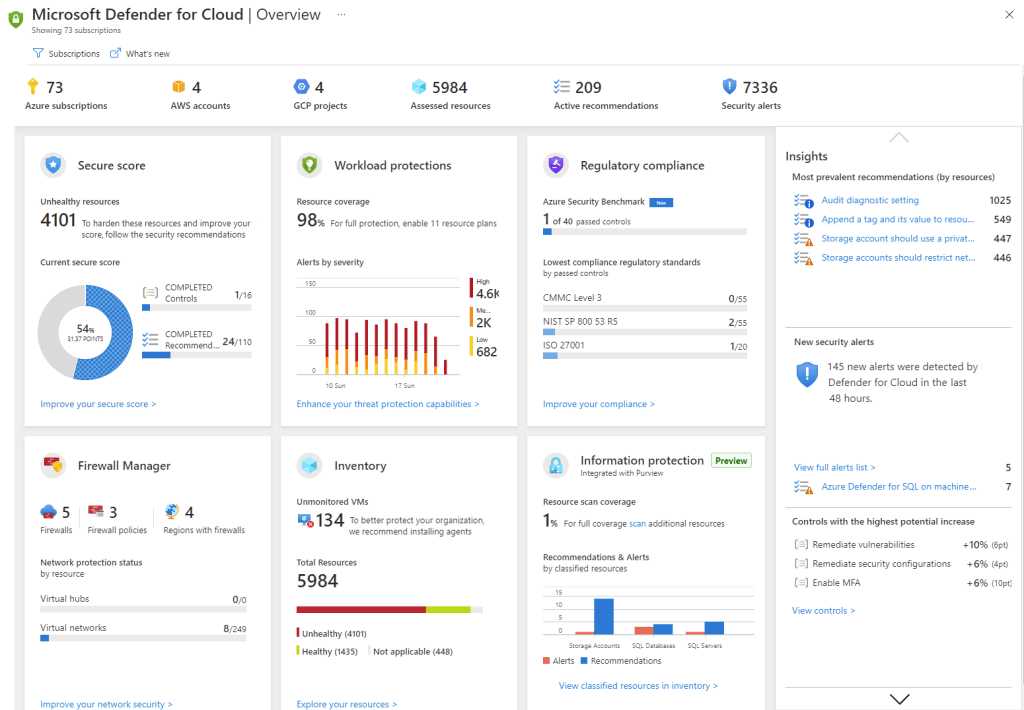
We can see in the screenshot below how the Defender for Cloud overview page in the Azure Portal gives a full view of resources across Azure and multi cloud sunscriptions, including combined Secure score, Workload protections, Regulatory compliance, Firewall manager and Inventory.

Image Credit: Microsoft

Conclusion

You can find more in-depth details on how Microsoft Defender for Cloud can protect your Azure, Hybrid and Multi-Cloud Workloads here.

Hope you enjoyed this post, until next time!

100 Days of Cloud – Day 57: Azure Conditional Access

Its Day 57 of my 100 Days of Cloud journey, and today I’m taking a look at Azure Conditional Access.

In the last post, we looked at the state of MFA adoption across Microsoft tenancies, and the different feature offerings that are available with the different types of Azure Active Directory License. We also saw that if your licences do not include Azure AD Premium P1 or P2, its recommended you upgrade to one of these tiers to include Conditional Access as part of your MFA deployment.

Lets take a deeper look at what Conditional Access is, and why its an important component in securing access to your Azure, Office365 or Hybrid environments.

Overview

Historically, IT Environments were located on-premise, and companies with multiple sites communicated with each other using VPNs between sites. So in that case, you needed to be inside one of your offices to access any Applications or Files, and a Firewall protected your perimeter against attacks. In vary rare cases, a VPN Client was provided to those users who needed remote access and this needed to be connected in order to access resources.

Thats was then. These days, the security perimeter now goes beyond the organization’s network to include user and device identity.

Conditional Access uses signals to make decisions and enforce organisational policies. The simplest way to describe them is as “if-then” statements:

  • If a user wants to access a resource,
  • Then they must complete an action.

It impotant to note that conditional access policies shouldn’t be used as a first line of defense and is only enforced after the first level of authentication has completed

How it works

Conditional Access uses signals that are taken into account when making a policy decision. The most common signals are:

  • User or group membership:
    • Policies can be targeted to specific users and groups giving administrators fine-grained control over access.
  • IP Location information:
    • Organizations can create trusted IP address ranges that can be used when making policy decisions.
    • Administrators can specify entire countries/regions IP ranges to block or allow traffic from.
  • Device:
    • Users with devices of specific platforms or marked with a specific state can be used when enforcing Conditional Access policies.
    • Use filters for devices to target policies to specific devices like privileged access workstations.
  • Application:
    • Users attempting to access specific applications can trigger different Conditional Access policies.
  • Real-time and calculated risk detection:
    • Signals integration with Azure AD Identity Protection allows Conditional Access policies to identify risky sign-in behavior. Policies can then force users to change their password, do multi-factor authentication to reduce their risk level, or block access until an administrator takes manual action.
  • Microsoft Defender for Cloud Apps:
    • Enables user application access and sessions to be monitored and controlled in real time, increasing visibility and control over access to and activities done within your cloud environment.

We then combine these signals with decisions based on the evaluation of the signal:

  • Block access
    • Most restrictive decision
  • Grant access
    • Least restrictive decision, can still require one or more of the following options:
      • Require multi-factor authentication
      • Require device to be marked as compliant
      • Require Hybrid Azure AD joined device
      • Require approved client app
      • Require app protection policy (preview)

When the above combinations of signals and decisions are made, the most commonly applied policies are:

  • Requiring multi-factor authentication for users with administrative roles
  • Requiring multi-factor authentication for Azure management tasks
  • Blocking sign-ins for users attempting to use legacy authentication protocols
  • Requiring trusted locations for Azure AD Multi-Factor Authentication registration
  • Blocking or granting access from specific locations
  • Blocking risky sign-in behaviors
  • Requiring organization-managed devices for specific applications

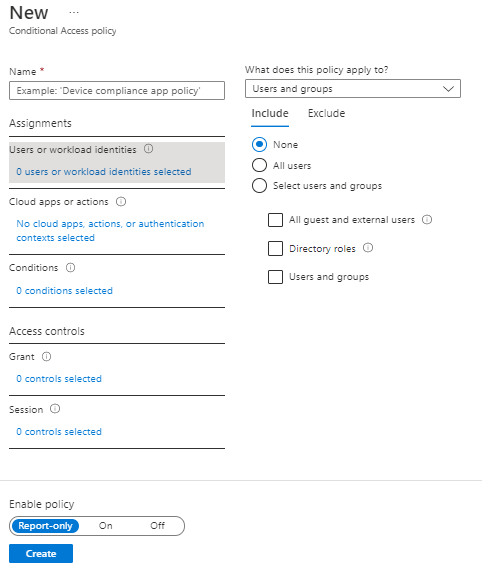
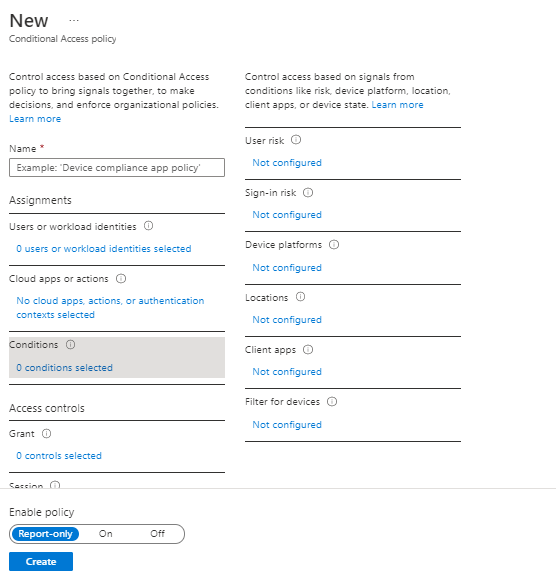
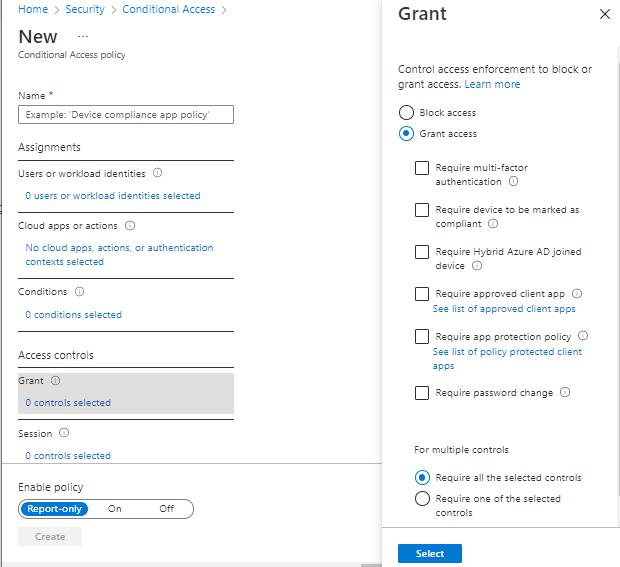
If we look at the Conditional Access blade under Security in Azure and select “Create New Policy”, we see the options avaiable for creating a policy. The first 3 options are under Assignments:

  • Users or workload identities – this defines users or groups that can have the policy applied, or who can be excluded from the policy.
  • Cloud Apps or Actions – here, you select the Apps that the policy applies to. Be careful with this option! Selecting “All cloud apps” also affects the Azure Portal and may potentially lock you out:
  • Conditions – here we assign the conditions sich as locations, device platforms (eg Operating Systems)

The last 2 options are under Access Control:

  • Grant – controls the enforcement to block or grant access

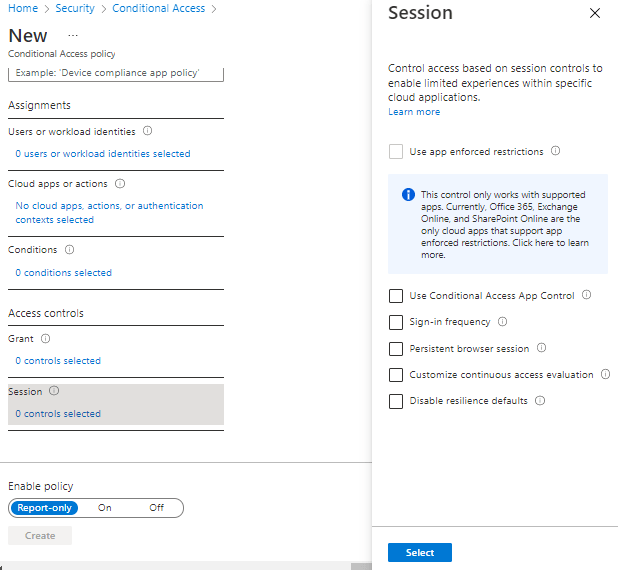
Session – this controls access such as time limited access, and browser session controls.

We can also see from the above screens that we can set the policy to “Report-only” mode – this is useful when you want to see how a policy affects your users or devices before it is fully enabled.

Conclusion

You can find more details on Conditional Access in the official Microsoft documentation here. Hope you enjoyed this post, until next time!

100 Days of Cloud – Day 43: Azure JIT VM Access using Microsoft Defender for Cloud

Its Day 43 of my 100 Days of Cloud Journey, and today I’m looking at Just-In-Time (JIT) VM access and how it can provide further security for your VMs.

JIT is part of Microsoft Defender for Cloud – during the Autumn Ignite 2021, it was announced that Azure Security Center and Azure Defender would be rebranded as Microsoft Defender for Cloud.

There are 3 important points you need to know before configuring JIT:

  • JIT does not support VMs protected by Azure Firewalls which are controlled by Azure Firewall Manager (at time of writing). You must use Rules and cannot use Firewall policies.
  • JIT only supports VMs that have deployed using Azure Resource Manager – Classic deployments are not supported.
  • You need to have Defender for Servers enabled in your subscription.

JIT enables you to lock down inbound traffic to your Azure VMs, which reduces exposure to attacks while also providing easy access if you need to connect to a VM.

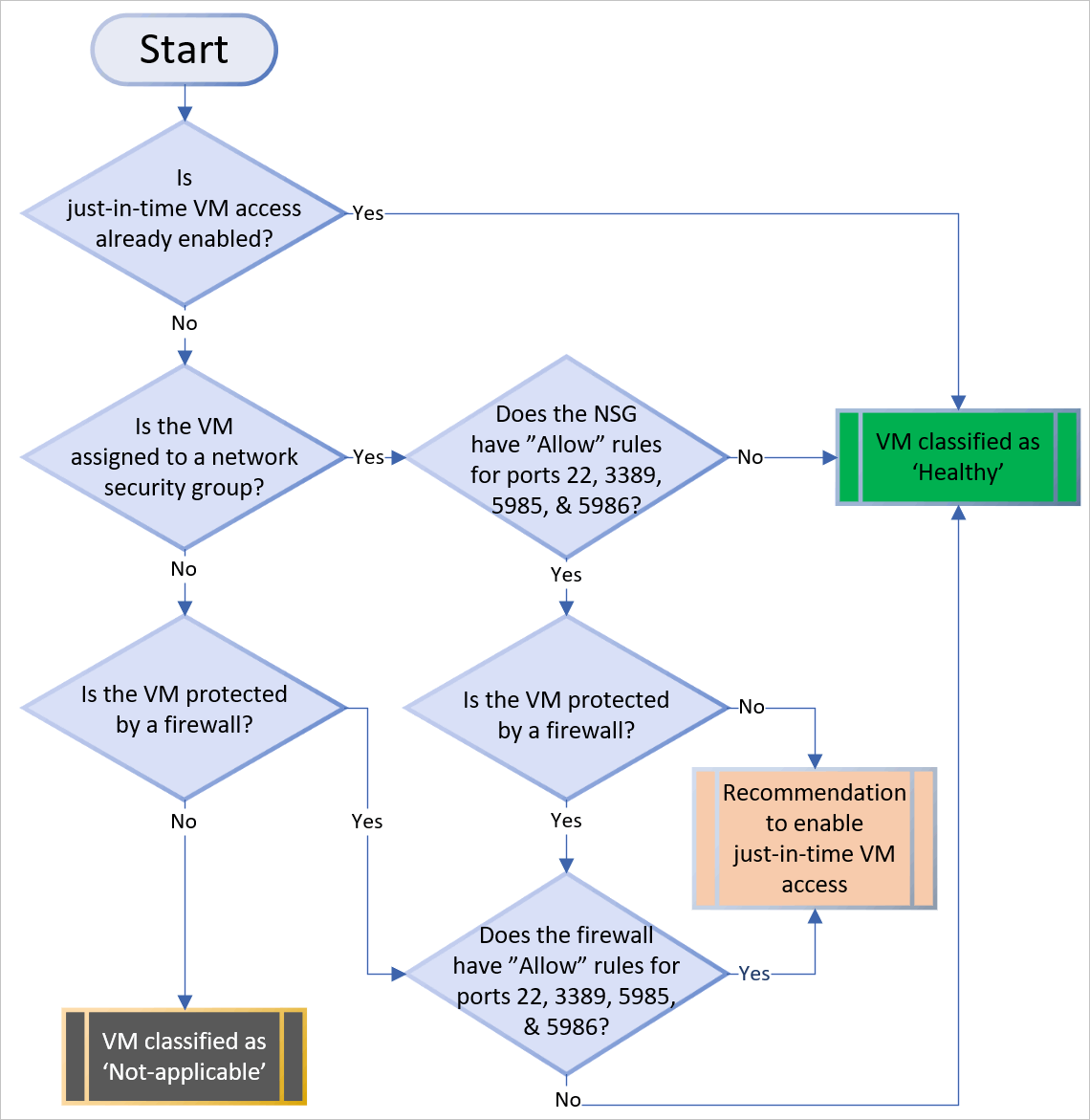
Defender for Cloud uses the following flow to decide how to categorize VMs:

Just-in-time (JIT) virtual machine (VM) logic flow.
Image Credit: Microsoft

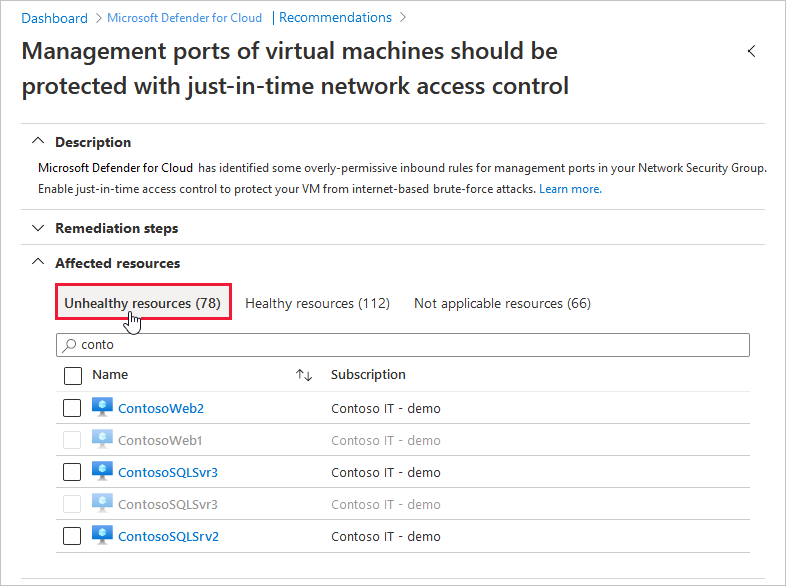
Once Defender for Cloud finds a VM that can benefit from JIT, its add the VM to the “Unhealthy resources” tab under Recommendations:

Just-in-time (JIT) virtual machine (VM) access recommendation.
Image Credit: Microsoft

You can use the steps below to enable JIT:

  • From the list of VMs displaying on the Unhealthy resources tab, select any that you want to enable for JIT, and then select Remediate.
    • On the JIT VM access configuration blade, for each of the ports listed:
      • Select and configure the port using one of the following ports:
        • 22
        • 3389
        • 5985
        • 5986
      • Configure the protocol Port, which is the protocol number.
      • Configure the Protocol:
        • Any
        • TCP
        • UDP
      • Configure the Allowed source IPs by choosing between:
        • Per request
        • Classless Interdomain Routing (CIDR) block
      • Choose the Max request time. The default duration is 3 hours.
    • If you made changes, select OK.
    • When you’ve finished configuring all ports, select Save.

When a user requests access to a VM, Defender for Cloud checks if the user has the correct Azure RBAC permissions for the VM. If approved, Defender for Cloud configures the Azure Firewall and Network Security Groups with the specified ports in order to give the user access for the time period requested, and from the source IP that the user makes the request from.

You can request this access through either Defender for Cloud, the Virtual Machine blade in the Azure Portal, or by using PowerShell or REST API. You can also audit JIT VM access in Defender for Cloud.

For a full understanding of JIT and its benefits, you can check out this article, and also this article shows how to manage JIT VM access. To test out JIT yourself, this link brings you to the official Microsoft Learn exercise to create a VM and enable JIT.

Hope you enjoyed this post, until next time!

100 Days of Cloud – Day 42: Azure Bastion

Its Day 42 of my 100 Days of Cloud Journey, and today I’m taking a look at Azure Bastion.

Azure Bastion is a PaaS VM that you provision inside your virtual network, providing secure and seamless RDP or SSH connectivity to your IAAS VMs directly from the Azure portal over TLS. When you connect via Azure Bastion, your virtual machines do not need a public IP address, agent, or special client software.

We saw in previous posts that when we create a VM in Azure, it automatically creates a Public IP Address, access to which we then need to control using Network Security Groups. Azure Bastion does away with the need for controlling access – all you need to do is create rules to allow RDP/SSH access from the subnet where Bastion is deployed to the subnet where your IAAS VMs are deployed.

Deployment

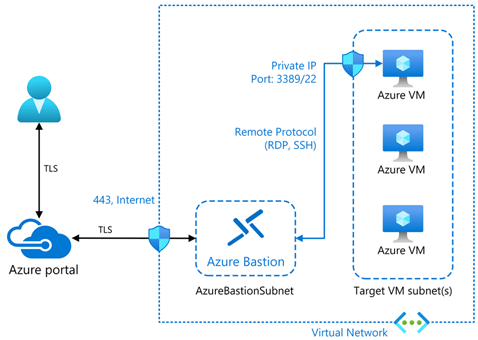
Image Credit – Microsoft
  • We can see in the diagram a typical Azure Bastion deployment. In this diagram:
    • The bastion host is deployed in the VNet.
      • Note – The protected VMs and the bastion host are connected to the same VNet, although in different subnets.
    • A user connects to the Azure portal using any HTML5 browser over TLS.
    • The user selects the VM to connect to.
    • The RDP/SSH session opens in the browser.
  • To deploy an Azure Bastion host by using the Azure portal, start by creating a subnet in the appropriate VNet. This subnet must:
    • Be named AzureBastionSubnet
    • Have a prefix of at least /27
    • Be in the VNet you intend to protect with Azure Bastion

Cross-VNET Connectivity

Bastion can also take advantage of VNET Peering rules in order to connect to VMs in Multiple VNETs that are peered with the VNET where the Bastion host is located. This negates the need for having multiple Bastion hosts deployed in all of your VNETs. This works best in a “Hub and Spoke” configuration, where the Bastion is the Hub and the peered VNETs are the spokes. The diagram below shows how this would work:

Design and Architecture diagram
Image Credit – Microsoft
  • To connect to a VM through Azure Bastion, you’ll require:
    • Reader role on the VM.
    • Reader role on the network information center (NIC) with the private IP of the VM.
    • Reader role on the Azure Bastion resource.
    • The VM to support an inbound connection over TCP port 3389 (RDP).
    • Reader role on the virtual network (for peered virtual networks).

Security

One of the key benefits of Azure Bastion is that its a PAAS Service – this means it is managed and hardened by the Azure Platform and protects againsts zero-day exploits. Because your IAAS VMs are not exposed to the Internet via a Public IP Address, your VMs are protected against port scanning by rogue and malicious users located outside your virtual network.

Conclusion

We can see how useful Bastion can be in protecting our IAAS Resources. You can run through a deployment of Azure Bastion using the “How-to” guides on Microsoft Docs, which you will find here.

Hope you enjoyed this post, until next time!

100 Days of Cloud — Day 16: Azure Firewall

Its Day 16 of 100 Days of Cloud and todays post is about Azure Firewall.

Firewall …. we’ve covered this before haven’t we? Well, yes in a way. In a previous post, I talked about Network Security Groups and how they can be used to filter traffic in and out of a Subnet or a Network Interface in a Virtual Network.

Azure Firewall v NSG

Azure Firewall is a Microsoft-managed Network Virtual Appliance (NVA). This appliance allows you to centrally create, enforce and monitor network security policies across Azure subscriptions and virtual networks (vNets). An NSG is a layer 3–4 Azure service to control network traffic to and from a vNet.

Unlike Azure Firewall, an NSG can only be associated with subnets or network interfaces within the same subscription of Azure VMs. Azure Firewall can control a much broader range of network traffic. It can filter and analyze L3-L4 traffic, as well as L7 application traffic.

Azure Firewall sits at the subscription level and manages traffic going in and out of the vNet. The NSG is then deployed at the subnet level and network interface. The NSG then manages traffic between subnets and virtual machines.

Azure Firewall Features

Azure Firewall includes the following features:

  • Built-in high availability — so no more need for load balancers.
  • Availability Zones — Azure Firewall can span availability zones for greater availability.
  • Unrestricted cloud scalability — Azure Firewall can scale to accommodate changing traffic flows.
  • Application FQDN filtering rules — You can limit outbound HTTP/S traffic or Azure SQL traffic to a specified list of fully qualified domain names (FQDN) including wild cards
  • Network traffic filtering rules — Allow/Deny Rules
  • FQDN tags — makes it easy for you to allow well-known Azure service network traffic through your firewall.
  • Service tags — groups of IP Addresses.
  • Threat intelligence — can identify malicious IP Addresses or Domains.
  • Outbound SNAT support — All outbound virtual network traffic IP addresses are translated to the Azure Firewall public IP.
  • Inbound DNAT support — Inbound Internet network traffic to your firewall public IP address is translated (Destination Network Address Translation) and filtered to the private IP addresses on your virtual networks.
  • Multiple public IP addresses — You can associate up to 250 Public IPs with your Azure Firewall.
  • Azure Monitor logging — All events are integrated with Azure Monitor.
  • Forced tunneling — route all Internet traffic to a designated next hop.
  • Web categories — lets administrators allow or deny user access to web site categories such as gambling websites, social media websites, and others.
  • Certifications — PCI/SOC/ISO Compliant.

Azure Firewall and NSG in Conjuction
NSGs and Azure Firewall work very well together and are not mutually exclusive or redundant. You typically want to use NSGs when you are protecting network traffic in or out of a subnet. An example would be a subnet that contains VMs that require RDP access (TCP over 3389) from a Jumpbox. Azure Firewall is the solution for filtering traffic to a VNet from the outside. For this reason, it should be deployed in it’s own VNet and isolated from other resources. Azure Firewall is a highly available solution that automatically scales based on its workload. Therefore, it should be in a /26 size subnet to ensure there’s space for additional VMs that are created when it’s scaled out.

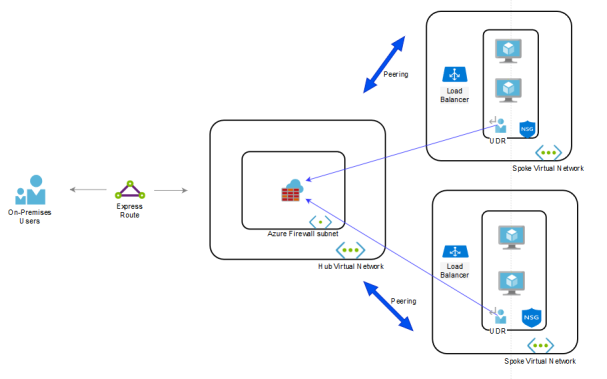
A scenario to use both would be a Hub-spoke VNet environment with incoming traffic from the outside. Consider the following diagram:

The above model has Azure Firewall in the Hub VNet which has peered connections to two Spoke VNets. The Spoke Vnets are not directly connected, but their subnets contain a User Defined Route (UDR) that points to the Azure Firewall, which serves as a gateway device. Also, Azure Firewall is public facing and is responsible for protecting inbound and outbound traffic to the VNet. This is where features like Application rules, SNAT and DNaT come in handy.

Conclusion

If you have a simple environment, then NSGs should be sufficient for network protection. However for large scale Production environments, Azure Firewall provides a far greater scale of protection.

Hope you enjoyed this post, until next time!!

100 Days of Cloud — Day 15: Azure Key Vault

Its Day 15, and todays post is on Azure Key Vault.

Lets think about the word “vault” and what we would use a vault for. The image that springs to mind immediately for me is the vaults at Gringotts Wizarding Bank from the Harry Potter movies — deep down, difficult to access, protected by a dragon etc…

This is essentially what a vault is — a place to store items that you want to keep safe and hide from the wider world. This is no different in the world of Cloud Computing. In yesterdays post on System Managed Identities, we saw how Azure can eliminate the need for passwords embedded in code, and use identities in conjunction with Azure Active Directory Authentication

Azure Key Vault is a cloud service for securely storing and accessing secrets. A secret is anything that you want to tightly control access to, such as API keys, passwords, certificates, or cryptographic keys.

What is Azure Key Vault?

In a typical IT environment, secrets, passwords, certificates, API-tokens and keys are used all over multiple platforms including source code, configuration files, digital formats and even on pieces of paper (sad but true ☹️).

An Azure Key Vault integrates with other Azure services and resources like SQL servers, Virtual Machines, Web Application, Storage Accounts etc. It is available on per-region basis, which means that a key vault must be deployed in the same Azure region where it is intended to be used with services and resources.

As an example, an Azure Key Vault must be available in the same region where an Azure virtual machine is deployed so that it can be used for storing Content Encryption Key (CEK) for Azure Disk Encryption.

Unlike other Azure resources, where the data is stored in general storage, an Azure Key Vault is backed by a Hardware Security Module (HSM).

How Azure Key Vault works

When using Key Vault, application developers no longer need to store security information in their application. Not having to store security information in applications eliminates the need to make this information part of the code. For example, an application may need to connect to a database. Instead of storing the connection string in the app’s code, you can store it securely in Key Vault.

Your applications can securely access the information they need by using URIs. These URIs allow the applications to retrieve specific versions of a secret. There is no need to write custom code to protect any of the secret information stored in Key Vault.

Authentication is done via Azure Active Directory. Authorization may be done via Azure role-based access control (Azure RBAC) or Key Vault access policy. Azure RBAC can be used for both management of the vaults and access data stored in a vault, while key vault access policy can only be used when attempting to access data stored in a vault.

Each Vault has a number of roles, but the most important ones are:

  • Vault Owner — this role controls who can access the vault and what permissions they have (read/create/update/delete keys)
  • Vault consumer: A vault consumer can perform actions on the assets inside the key vault when the vault owner grants the consumer access. The available actions depend on the permissions granted.
  • Managed HSM Administrators: Users who are assigned the Administrator role have complete control over a Managed HSM pool. They can create more role assignments to delegate controlled access to other users.
  • Managed HSM Crypto Officer/User: Built-in roles that are usually assigned to users or service principals that will perform cryptographic operations using keys in Managed HSM. Crypto User can create new keys, but cannot delete keys.
  • Managed HSM Crypto Service Encryption User: Built-in role that is usually assigned to a service accounts managed service identity (e.g. Storage account) for encryption of data at rest with customer managed key.

The steps to authenticate against a Key Vault are:

  1. The application which needs authentication is registered with Azure Active Directory as a Service Principal.
  2. The key Vault Owner/Administrator will then create a Key Vault and then attaches the ACLs (Access Control Lists) to the Vault so that the Application can access it.
  3. The application initiates the connection and authenticates itself against the Azure Active Directory to get the token successfully.
  4. The application then presents this token to the Key Vault to get access.
  5. The Vault validates the token and grants access to the application based on successful token verification.

Conclusion

Azure Key Vault streamlines the secret, key, and certificate management process and enables you to maintain strict control over secrets/keys that access and encrypt your data.

You can check out this Azure QuickStart Template which automatically creates a Key Vault.

Hope you enjoyed this post, until next time!!

100 Days of Cloud — Day 9: Azure Network Security Groups (NSG)

It’s Day 9, and today I’m delving into NSG’s, or Network Security Groups.

During previous posts when I was deploying Virtual Machines, you would have noticed that the deployment created a number of resources in the Resource Groups:

  • Virtual Network
  • Subnet
  • Public IP Address
  • Interface
  • Virtual Machine
  • NSG or Network Security Group

I’ve pretty much flogged Virtual Machines to death at this stage (I can hear the screams, NOOOOOO PLEASE, NO MORE VIRTUAL MACHINES!!!!). Fear not, I’m not going to return to Virtual Machines …. just yet. I’ll deal with Virtual Networks and Subnets in my next post, but today I want to give an overview of NSG’s, how important they are and how useful they can be.

Overview

Network Security Groups in Azure can be used to filter traffic to and from resources in an Azure Virtual Network. It contains Security Rules to allow or deny inbound/outbound traffic to/from several types of Azure Resources. NSG’s can be applied to either Subnets within a Virtual Network, or else directly to a Network Interface in a Virtual Machine.

When an NSG is created, it always has a default set of Security Rules that look like this:

The default Inbound rules allow the following:

  • 65000 — All Hosts/Resources inside the Virtual Network to Communicate with each other
  • 65001 — Allows Azure Load Balancer to communicate with the Hosts/resources
  • 65500 — Deny all other Inbound traffic

The default Outbound rules allow the following:

  • 65000 — All Hosts/Resources inside the Virtual Network to Communicate with each other
  • 65001 — Allows all Internet Traffic outbound
  • 65500 — Deny all other Outbound traffic

It’s pretty restrictive. This is because Azure NSG’s are created initially using a Zero-Trust model. The rules are processed in order of priority (lowest numbered rule is processed first). So you would need to build you rules on top of the default ones (for example, RDP and SSH access if not already in place).

Also, an important thing to remember. I mentioned that you can have an NSG associated with a Subnet or a NIC. You can also have both — a Subnet NSG will always be created automatically with the first Subnet that is created in a Resource Group, you can also create a dedicated NSG for a NIC in a VM that’s sitting in that subnet. In this instance, the NSG associated with the Subnet is always evaluated first for Inbound Traffic, before then moving on to the NSG associated with the NIC. For Outbound Traffic, it’s the other way around — the NSG on the NIC is evaluated first, and then the NSG on the Subnet is evaluated.

Example of an NSG in Action

I’ve created a VM in Azure (as promised, I won’t torture you with this process again 😉….

I click into the VM to look at the settings:

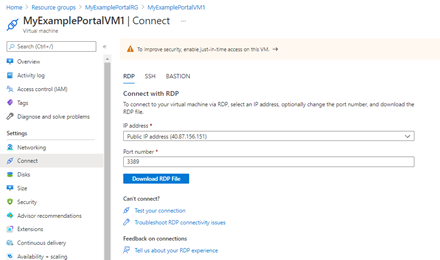
Let’s click on the “Connect” button — this will give us the option to use RDP, SSH or Bastion. I’ll choose RDP:

And this will give us a link to download an RDP File:

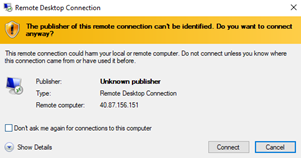
Click Connect:

I get prompted for credentials:

And I’m in!!

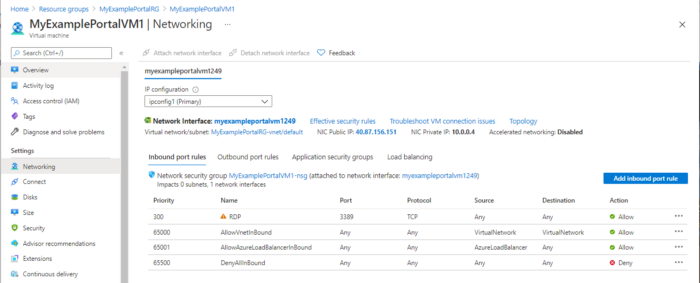
Now, lets take a look “under the hood”. Back in the Portal, and on the side menu, I click “Networking”. This brings me into the Network Security Group for the VM:

I can see that RDP is set to Allow, so I’m going to click on “Allow” in the Action Column, and set the RDP policy to “Deny”:

Now, I’ll try to connect to the VM again:

Exactly what I wanted to see. That’s shows an NSG in action and how you can allow or deny rules.

Some Important Considerations

There are a few things you need to be aware of when using Network Security Groups:

  • You can use the same NSG on multiple Subnets and NICs
  • You can only have 1000 Rules in an NSG by default. Previously, this was 200 and could be raised by logging a ticket with Microsoft, but the max (at time of writing) is 1000. This cannot be increased.
  • Security Rules can affect Traffic between Resources in the same Subnet. So you recall our first default rules for both Inbound and Outbound are to do with “AllowVnetInBound” and “AllowVnetOutBound”. This is a default rule because it allows intra-subnet traffic. If you create a “Deny” Rule above either of these with a lower priority, it can cause communication issues. Of course, there may be a good reason to do this, but just be careful and understand the implications — the default rules exist for a reason!

Conclusion

Now you can use Network Security Groups to filter and manage incoming and outgoing traffic for your virtual network. Network Security Groups provide a simple and effective way to manage network traffic.

Hope you enjoyed this post, until next time!!