100 Days of Cloud – Day 46: Azure Well Architected Framework

Its Day 46 of my 100 Days of Cloud Journey, and today I’m looking at Azure Well Architected Framework.

Over the course of my 100 Days journey so far, we’ve talked about and deployed multiple different types of Azure resources such as Virtual Machines, Network Security groups, VPNs, Firewalls etc.

We’ve seen how easy this is to do on a Dev-based PAYG subscription like I’m using, however for companies who wish to migrate to Azure, Microsoft provides a ‘Well Architected Framework’ which offers guidance in ensuring that any resource or solution that is deployed or architected in Azure conforms to best practices around planning, design, implementation and on-going maintenance and improvement of the solution.

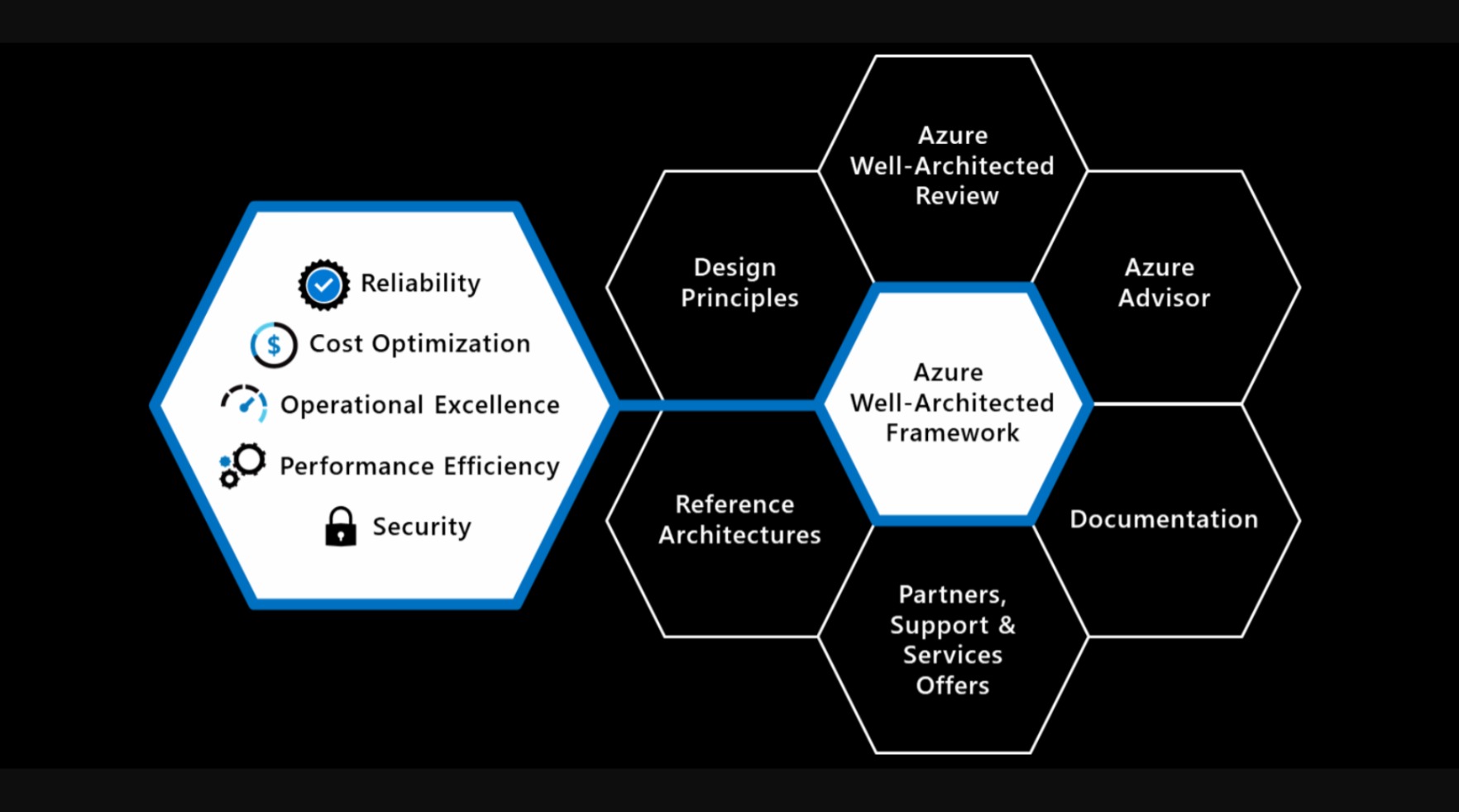
The Well Architected Framework is based on 5 key pillars:

  • Reliability – this is the ability of a system to recover from failures and continue to function, which in itself is built around 2 key values:
    • Resiliency, which returns the application to a fully functional state after a failure.
    • Availability, which defines whether users can access the workload if they need to.
  • Security – protects applications and data from threats. The first thing people would think of here is “firewalls”, which would protects against threats and DDoS attacks but its not that simple. We need to build security into the application from the ground up. To do this, we can use the following areas:
    • Identity Management, such as RBAC roles and System Managed Identities.
    • Application Security, such as storing application secrets in Azure Key Vault.
    • Data sovereignty and encryption, which ensures the resource or workload and its underlying data is stored in the correct region and is encrypted using industry standards.
    • Security Resources, using tools such as Microsoft Dender for Cloud or Azure Firewall.
  • Cost Optimization – managing costs to maximize the value delivered. This can be achieved in the form of using tools such as:
    • Azure Cost Management to create budgets and cost alerts
    • Azure Migrate to assess the system load generated by your on-premise workloads to ensure thay are correctly sized in the cloud.
  • Operational Excellence – processes that keep a system running in production. In most cases, automated deployments leave little room for human error, and can not only be deployed quickly but can also be rolled back in the event of errors or failures.
  • Performance Efficiency – this is the ability of a system to adapt to changes in load. For this, we can think of tools and methodologioes such as auto-scaling, caching, data partitioning, network and storage optimization, and CDN resources in order to make sure your workloads run efficiently.

On top of all this, the Well Architected Framework has six supporting elements wrapped around it:

Diagram of the Well-Architected Framework and supporting elements.
Image Credit: Microsoft
  • Azure Well-Architected Review
  • Azure Advisor
  • Documentation
  • Partners, Support, and Services Offers
  • Reference Architectures
  • Design Principles

Azure Advisor in particular helps you follow best practises by analyzing your deployments and configuration and provides recommends solutions that can help you improve the reliability, security, cost effectiveness, performance, and operational excellence of your Azure resources. You can learn more about Azure Advisor here.

I recommend anyone who is either in the process of migration or planning to start on their Cloud Migration journey to review the Azure Well Architected Framework material to understand options and best practices when designing and developing an Azure solution. You can find the landing page for Well Architected Framework here, and the Assessments page to help on your journey is here!

Hope you all enjoyed this post, until next time!

100 Days of Cloud – Day 45: Azure Spot and Reserved Instances

Its Day 45 of my 100 Days of Cloud Journey, and today I’m looking at Azure Spot Instances and Reserved Instances.

During previous posts where I deployed virtual machines, the deployments were based on a Pay-As-You-Go pricing model, this is one of the 3 pricing models available to us in Azure. While this type of pricing is good for the likes of what I’m doing here (ie quickly spinning up VMs for a demo and then deleting them immediately), its not considered cost effective for organisations who have a Cloud Migration strategy, a long term plan to host a large number of VMs in Azure, and also need the flexibility to use low costs VMs for development or batch processing.

Lets take a look at the other 2 pricing models, starting with Azure Spot Instances.

Azure Spot Instances

Azure Spot instances allow you to utilize any unused Azure Capacity in your region at the fraction of the cost. However, at any point in time when Azure needs the capacity back, the Spot Instances will be evicted and removed from service at 30 seconds notice.

Because of this there is no SLA on Azure Spot instances, so they are not suitable for running production workloads. They are best suited for workloads that can handle interruptions, such as batch processing jobs, Dev/Test environments or Large compute workloads.

There is no availability guarantees, and availablity can vary based on size required, available capacity in your region, time of day etc. Azure will allocate the VM if there is available capacity, however there is no High Availability guarantees.

When the VMs are evicted, they can be either deallocated or deleted based on the policy you set when creating the VMs. Deallocate (this is the default) stops the VM and makes it available to redeploy (however this is not guaranteed and is based on capacity). You will also be charged for the underlying Storage Disk costs. Delete on the other hand will shut down and destroy the VMs and underlying storage.

You can see the full savings you can achieve by using Spot Instance VMs in the Azure Spot VMs Pricing Table here.

Azure Reserved Instances

Azure Reserved Instances is a way to reserve your compute capacity for a period of 1, 3 or 5 years at savings of over 70% when compared to Pay-As-You-Go pricing. This is best suited to Production workloads that need to have 24/7 runtime and high availability.

As we can see in the image from the Reservations blade in the Azure Portal above, you can purchase Azure Reserved Instances for a large number of Azure Resources, not just VMs.

Reservations can be aplied to a specific scope – that can be Subscription (single or multiple subscriptions), Resource Group or a single resource such as a VM, SQL Database or an App Service.

Once you click into any of the options on the Reservations blade, it will bring you into a list of available SKUs that you can purchase:

Another option to factor in is that Azure Reserved Instances can be use with Azure Hybrid Benefit, meaning you can use your on-premise Software Assurance-enabled Windows OS and SQL Server licences, which can bring your savings up to 80%! You can find out more about Azure Hybrid Benefit here, and get the full lowdown on Azure Reserved Instances here.

Conclusion

And thats a wrap on Azure Pricing models – you can see the cost savings you can make based on what your workloads are. Hope you enjoyed this post, until next time!

100 Days of Cloud – Day 44: Azure Arc

Its Day 44 of my 100 Days of Cloud Journey, and today I’m looking at Azure Arc.

Azure Arc is a service that provides you with a single management plane for services that run in Azure, On Premises, or in other Cloud Providers such as AWS or GCP.

The majority of companies have resources both in on-premise and in come cases multiple cloud environments. While monitoring solutions can provide an overview of uptime and performance over a period of time, control and governance of complex hybrid and multi-cloud environments is an issue. Because these environments span multiple cloud and data centers, each of these environments operate their own set of management tools that you need to learn and operate.

Azure Arc solves this problem by allowing you to manage the following resources that are hosted outside of Azure:

  • Servers – both physical and virtual machines running Windows or Linux in both on-premise and 3rd party Cloud providers such as AWS or GCP.
  • Kubernetes clusters – supporting multiple Kubernetes distributions across multiple providers.
  • Azure data services – Azure SQL Managed Instance and PostgreSQL Hyperscale services.
  • SQL Server – enroll SQL instances from any location with SQL Server on Azure Arc-enabled servers.
Azure Arc management control plane diagram
Image Credit: Microsoft

For this post, I’m going to focus on Azure Arc for Servers, however there are a number of articles relating to the 4 different Azure Arc supported resource types listed above – you can find all of the articles here.

Azure Arc currently supports the following Windows and Linux Operating Systems:

  • Windows Server 2012 R2 and later (including Windows Server Core)
  • Ubuntu 16.04 and 18.04 (x64)
  • CentOS Linux 7 (x64)
  • SUSE Linux Enterprise Server (SLES) 15 (x64)
  • Red Hat Enterprise Linux (RHEL) 7 (x64)
  • Amazon Linux 2 (x64)

In order to register a Physical Server or VM with Azure Arc, you need to install the Azure Connected Machine agent on each of the operating systems targeted for Azure Resource Manager-based management. This is an msi installer which is available from the Microsoft Download Center.

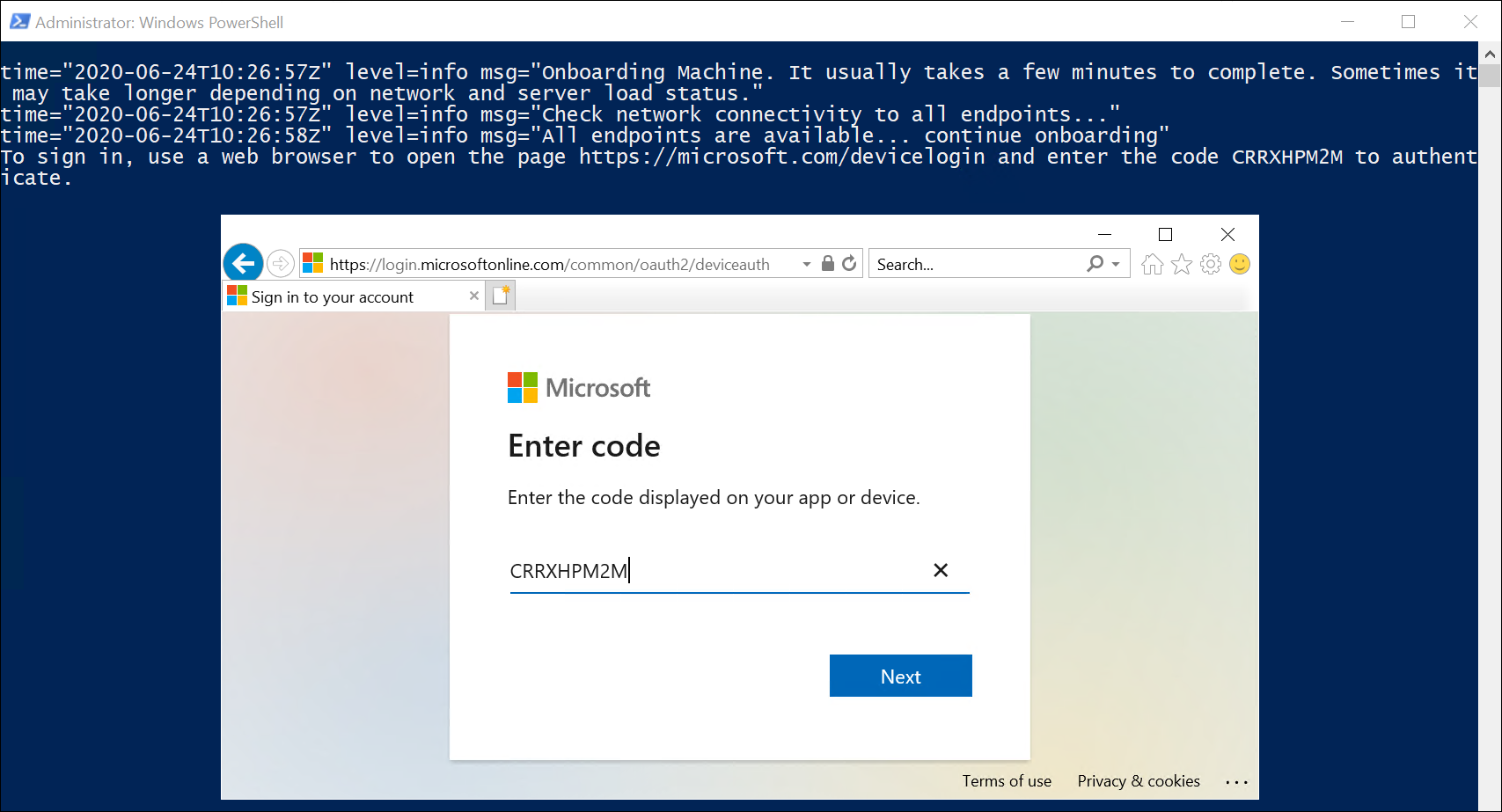
You can also generate a script directly from the Azure Portal which can be used on target computers to download the Azure Connected Machine Agent, install it and connect the server/VM into the Azure Region and Resource Group that you specify:

A screenshot of the Generate script page with the Subscription, Resource group, Region, and Operating system fields selected.
Image Credit: Microsoft
A screenshot of the Administrator: Windows PowerShell window with the installation script running. The administrator is entering a security code to confirm their intention to onboard the machine.
Image Credit: Microsoft

The server then gets registered in Azure Arc as a connected machine:

Azure Arc for Servers: Getting started - Microsoft Tech Community
Image Credit: Microsoft

OK, so now we’ve got all of our servers connected into Azure Arc, what can we do with them? Is it just about visibility?

No. When your machine is connected to Azure Arc, you then have the following capabilities:

  • Protect Servers using Microsoft Defender for Endpoint, which is part of Microsoft Defender for Cloud
  • Collect security-related events in Microsoft Sentinel
  • Automate tasks using PowerShell and Python
  • Use Change Tracking and Inventory to assess configuration changes in installed software and operating system changes such as registry or services
  • Manage operating system updates
  • Monitor system performance using Azure Monitor and and collect data which can be stored in a Log Analytics Workspace.
  • Assign policy baselines using Azure Policy to report on compliance of these connected servers.

Conclusion

We can see how useful Azure Arc can be in gaining oversight on all of your resources that are spread across multiple Cloud providers and On Premise environments. You can check out the links provided above for a full list of capabilities, or else this excellent post by Thomas Maurer is a great starting point in your Azure Arc leaning journey.

Hope you enjoyed this post, until next time!
100 Days of Cloud – Day 43: Azure JIT VM Access using Microsoft Defender for Cloud

Its Day 43 of my 100 Days of Cloud Journey, and today I’m looking at Just-In-Time (JIT) VM access and how it can provide further security for your VMs.

JIT is part of Microsoft Defender for Cloud – during the Autumn Ignite 2021, it was announced that Azure Security Center and Azure Defender would be rebranded as Microsoft Defender for Cloud.

There are 3 important points you need to know before configuring JIT:

  • JIT does not support VMs protected by Azure Firewalls which are controlled by Azure Firewall Manager (at time of writing). You must use Rules and cannot use Firewall policies.
  • JIT only supports VMs that have deployed using Azure Resource Manager – Classic deployments are not supported.
  • You need to have Defender for Servers enabled in your subscription.

JIT enables you to lock down inbound traffic to your Azure VMs, which reduces exposure to attacks while also providing easy access if you need to connect to a VM.

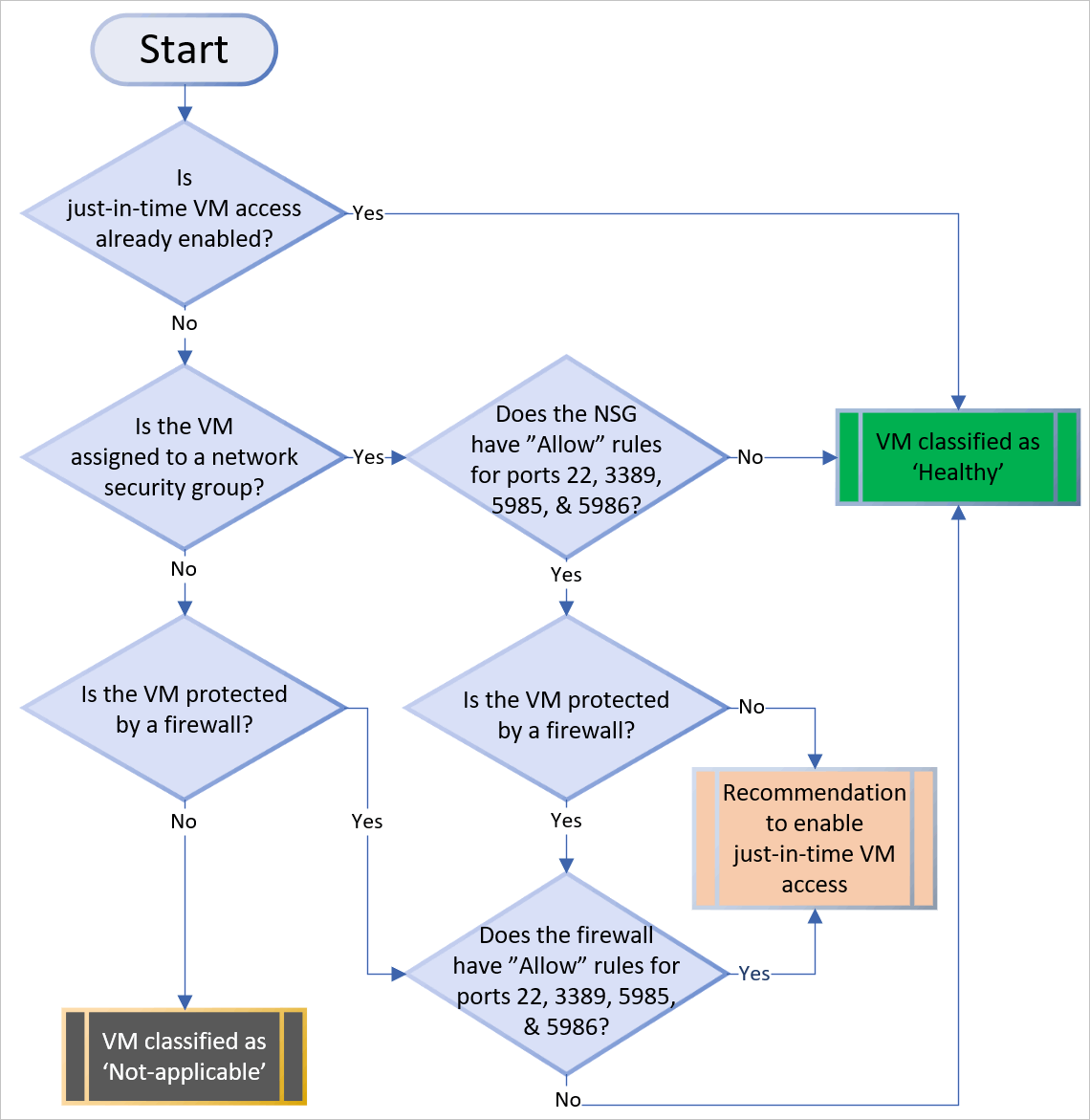
Defender for Cloud uses the following flow to decide how to categorize VMs:

Just-in-time (JIT) virtual machine (VM) logic flow.
Image Credit: Microsoft

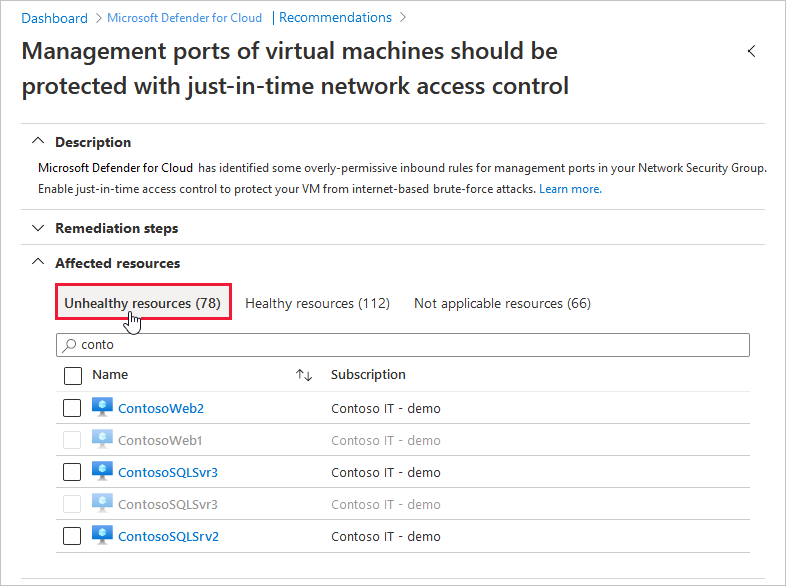
Once Defender for Cloud finds a VM that can benefit from JIT, its add the VM to the “Unhealthy resources” tab under Recommendations:

Just-in-time (JIT) virtual machine (VM) access recommendation.
Image Credit: Microsoft

You can use the steps below to enable JIT:

  • From the list of VMs displaying on the Unhealthy resources tab, select any that you want to enable for JIT, and then select Remediate.
    • On the JIT VM access configuration blade, for each of the ports listed:
      • Select and configure the port using one of the following ports:
        • 22
        • 3389
        • 5985
        • 5986
      • Configure the protocol Port, which is the protocol number.
      • Configure the Protocol:
        • Any
        • TCP
        • UDP
      • Configure the Allowed source IPs by choosing between:
        • Per request
        • Classless Interdomain Routing (CIDR) block
      • Choose the Max request time. The default duration is 3 hours.
    • If you made changes, select OK.
    • When you’ve finished configuring all ports, select Save.

When a user requests access to a VM, Defender for Cloud checks if the user has the correct Azure RBAC permissions for the VM. If approved, Defender for Cloud configures the Azure Firewall and Network Security Groups with the specified ports in order to give the user access for the time period requested, and from the source IP that the user makes the request from.

You can request this access through either Defender for Cloud, the Virtual Machine blade in the Azure Portal, or by using PowerShell or REST API. You can also audit JIT VM access in Defender for Cloud.

For a full understanding of JIT and its benefits, you can check out this article, and also this article shows how to manage JIT VM access. To test out JIT yourself, this link brings you to the official Microsoft Learn exercise to create a VM and enable JIT.

Hope you enjoyed this post, until next time!

100 Days of Cloud – Day 42: Azure Bastion

Its Day 42 of my 100 Days of Cloud Journey, and today I’m taking a look at Azure Bastion.

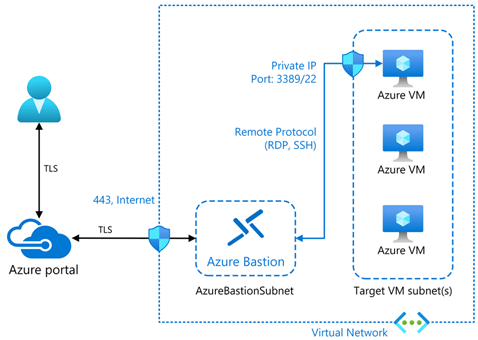
Azure Bastion is a PaaS VM that you provision inside your virtual network, providing secure and seamless RDP or SSH connectivity to your IAAS VMs directly from the Azure portal over TLS. When you connect via Azure Bastion, your virtual machines do not need a public IP address, agent, or special client software.

We saw in previous posts that when we create a VM in Azure, it automatically creates a Public IP Address, access to which we then need to control using Network Security Groups. Azure Bastion does away with the need for controlling access – all you need to do is create rules to allow RDP/SSH access from the subnet where Bastion is deployed to the subnet where your IAAS VMs are deployed.

Deployment

Image Credit – Microsoft
  • We can see in the diagram a typical Azure Bastion deployment. In this diagram:
    • The bastion host is deployed in the VNet.
      • Note – The protected VMs and the bastion host are connected to the same VNet, although in different subnets.
    • A user connects to the Azure portal using any HTML5 browser over TLS.
    • The user selects the VM to connect to.
    • The RDP/SSH session opens in the browser.
  • To deploy an Azure Bastion host by using the Azure portal, start by creating a subnet in the appropriate VNet. This subnet must:
    • Be named AzureBastionSubnet
    • Have a prefix of at least /27
    • Be in the VNet you intend to protect with Azure Bastion

Cross-VNET Connectivity

Bastion can also take advantage of VNET Peering rules in order to connect to VMs in Multiple VNETs that are peered with the VNET where the Bastion host is located. This negates the need for having multiple Bastion hosts deployed in all of your VNETs. This works best in a “Hub and Spoke” configuration, where the Bastion is the Hub and the peered VNETs are the spokes. The diagram below shows how this would work:

Design and Architecture diagram
Image Credit – Microsoft
  • To connect to a VM through Azure Bastion, you’ll require:
    • Reader role on the VM.
    • Reader role on the network information center (NIC) with the private IP of the VM.
    • Reader role on the Azure Bastion resource.
    • The VM to support an inbound connection over TCP port 3389 (RDP).
    • Reader role on the virtual network (for peered virtual networks).

Security

One of the key benefits of Azure Bastion is that its a PAAS Service – this means it is managed and hardened by the Azure Platform and protects againsts zero-day exploits. Because your IAAS VMs are not exposed to the Internet via a Public IP Address, your VMs are protected against port scanning by rogue and malicious users located outside your virtual network.

Conclusion

We can see how useful Bastion can be in protecting our IAAS Resources. You can run through a deployment of Azure Bastion using the “How-to” guides on Microsoft Docs, which you will find here.

Hope you enjoyed this post, until next time!
100 Days of Cloud – Day 41: Linux Cloud Engineer Bootcamp, Day 4


Its Day 41 of my 100 Days of Cloud Journey, and today I’m taking Day 4 and the final session of the Cloudskills.io Linux Cloud Engineer Bootcamp

This image has an empty alt attribute; its file name is image-11.png

This was run live over 4 Fridays by Mike Pfieffer and the folks over at Cloudskills.io, and is focused on the following topics:

  • Scripting
  • Administration
  • Networking
  • Web Hosting
  • Containers

If you recall, on Day 26 I did Day 1 of the bootcamp, , Day 2 on Day 33 after coming back from my AWS studies, and Day 3 was on Day 40.

The bootcamp livestream started on November 12th and ran for 4 Fridays (with a break for Thanksgiving) before concluding on December 10th. However, you can sign up for this at any time to watch the lectures to your own pace (which I’m doing here) and get access to the Lab Exercises on demand at this link:

https://cloudskills.io/courses/linux

Week 4 was all about Containers, and Mike gave us a run through of Docker and the commands we would use to download, run and build our own Docker Images. We then looked at how this works on Azure and how we would spin up Docker Containers in Azure. The Lab exercises include exercises for doing this, and also for running containers in AWS.

The Bootcamp as a whole then concluded with Michael Dickner running though the details around Permissions in the Linux File system and how they affect and can be changed for file/folder owners, users, groups and “everyone”.

Conclusion

That’s all for this post – hope you enjoyed the Bootcamp if you did sign up – if not you can sign up at the link above! I thought it was fun – the big takeaway and most useful day for me was defintely Day 3 when looking at LAMP and MEAN stack and how to run a Web Server on Linux using OpenSource technologies.

Until next time, when we’re moving on to a new topic!

100 Days of Cloud – Day 40: Linux Cloud Engineer Bootcamp, Day 3


Its Day 40 of my 100 Days of Cloud Journey, and today I’m back taking Day 3 of the Cloudskills.io Linux Cloud Engineer Bootcamp

This image has an empty alt attribute; its file name is image-11.png

This is being run over 4 Fridays by Mike Pfieffer and the folks over at Cloudskills.io, and is focused on the following topics:

  • Scripting
  • Administration
  • Networking
  • Web Hosting
  • Containers

If you recall, on Day 26 I did Day 1 of the bootcamp, and completed Day 2 on Day 33 after coming back from my AWS studies. Having completed my Terraform learning journey for now, I’m back to look at Day 3.

The bootcamp livestream started on November 12th, continued on Friday November 19th and December 3rd, and completed on December 10th. So I’m a wee bit behind! However, you can sign up for this at any time to watch the lectures to your own pace (which I’m doing here) and get access to the Lab Exercises on demand at this link:

https://cloudskills.io/courses/linux

Week 3 consisted of Mike going through the steps to create a website hosted on Azure using the LAMP Stack:

A stack of Lamps

No, not that type of lamp stack. I had heard the LAMP Stack before but never really paid much attention to it because in reality, it sounded too much like programming and web development to me. The LAMP Stack refers to the following:

  • L – Linux Operating System
  • A – Apache Web Server
  • M -MySQL Database
  • P – PHP

The LAMP Stack is used in some of the most popular websites in used on the internet today, as its an OpenSource and low cost alternative to commercial software packages.

At the time of writing this post, the world is in the grip of responding to the Log4j vulnerability, so the word “Apache” might scream out to you as something that we shouldn’t be doing. Follow the advice from your software or hardware vendor, and patch as much as you can and as quickly as you can. There is an excellent GitHub Repository here with full details and updates from all major vendors, its a good one to bookmark to check and see if you or your Customers infrastructure may be affected.

The alternative to the LAMP Stack is the MEAN Stack (I could go for another funny meme here but that would be too predicatable!). MEAN stands for:

  • M – MongoDB (data storage)
  • E – Express.js (server-side application framework)
  • A – AngularJS (client-side application framework)
  • N – Node.js (server-side language environment although Express implies Node.js)

Different components, but still open source so essentially trying to achieve the same thing. There is a Microsoft Learn path covering Linux on Azure, which contains a full module on building and running a Web Application with the MEAN Stack on an Azure Linux VM – this is well worth a look.

Conclusion

That’s all for this post – I’ll update as I go through the remaining weeks of the Bootcamp, but to learn more and go through the full content of lectures and labs, sign up at the link above.

I’ll leave you with a quote I heard during the bootcamp that came from the AWS re:Invent 2021 conference – every day there are 60 million EC2 instances spun up around the world. Thats 60 million VMs! And if we look at the Global Market Share across the Cloud providers, AWS has approx 32%. Azure has 21%, GCP has 8%, leaving the rest with 39%. So its safe to say over 100 million VMs daily across the world. It means VMs are still pretty important despite the push to go serverless.

Hope you enjoyed this post, until next time!
100 Days of Cloud – Day 38: Terraform on Azure Cloud Shell Part 4

Its Day 38 of 100 Days of Cloud, and I’m continuing my learning journey on Infrastructure as Code (IaC) by using Terraform.

In the previous post, we looked at the different types of variables we can use in Terraform, how we reference them across across terraform config files, and how powerful they can be in helping to make our code reusable.

Todays post is all about modules, which are used to break our terraform deployments up into multiple segments that are much easier to manage. Lets dive in and take a look.

Modules

Modules are a way to split your Terraform code into multiple segments that they can be managed more easily and by cross functional teams.

Lets go back to our traditional setup, which will have the following components:

  • Operating System
  • Network Connectivity
  • Database
  • Web Application

In our first post on Terraform back on Day 35, we had all of these bundled into a single main.tf file. As our infrastructure footprint in Azure or other Cloud Services grows, this single file will grow exponentially and will make management very dificult, particularly if multiple teams are accessing. There is also the risk that mistakes can be made that could take down the entire infrastructure.

Modules effectively sit in their own file structure, and are called from the main.tf file. If we look at the example below, the root or parent main.tf file sits at the top of the directory structure, and we then have the directory for the storage-account module sitting below that with its own main.tf and variables.tf configuration files :

If we look at the main.tf file, we can see that the resource group code is there as normal, however when we get down to create the storage account, we’re calling the module from the underlying directory structure. If we look the main.tf file within the module, we can see that it contains the basic information required to create the storage account:

What’s missing here is the Terraform source/version and provider code blocks, however in a modules configuration all of that happens in the parent main.tf file. So when we run terraform apply on the parent directory, all providers for the child modules are initialised also.

So why bother break it all up into modules? It goes back to what we said at the start about managing our code effectively, and breaking each of the components out to be managed individually. This also helps from a source repository perspective: instead of having all elements in a single file managed by multiple users or departments, each module can have its own source repository (in Github for example) managed by a teamthat can then be pulled from the repository whenever changes are made. This whats known as “Mono Repo” versus “Multi Repo”.

Image Credit: Luke Orrelana/Cloudskills.io

In the module block, we can also directly reference a Github repository to get the most up to date version of our code. There are multiple sources that can be referenced directly in the code, and full details can be found here.

Learning Resources

Lets wrap this up by looking the learning resources that are available. There are loads of excellent Terraform leaning resources out there. The best place to start is at HashiCorp Learn, which has full tutorials for all of the major cloud providers. Terraform Registry is the place to go for all providers and modules you need to deploy infrastructure.

You then need to look at courses – the aforementioned Luke Orrelana does an excellent Terraform on Azure course over at Cloudskills.io, and Michael Levan has a Terraform for All course on his YouTube Channel. Both Luke and Michael are HashiCorp Ambassadors which is teh HashiCorp equivalent of an MVP, so if you see these guys producing content you know its going to be good (and definitely doing a better job than me of trying to explain how this works!).

Conclusion

And thats all for today! I hope you’ve enjoyed the last few posts on Terraform and learning how powerful a tool it can be. Until next time!
100 Days of Cloud – Day 37: Terraform on Azure Cloud Shell Part 3

Its Day 37 of 100 Days of Cloud, and I’m continuing my learning journey on Infrastructure as Code (IaC) by using Terraform.

In the previous post, we looked at how Terraform State stores information and acts as a database of the resources deployed in Azure. We also looked at Interpolation and how this is used to reference different parts of the Terraform configuration and the dependencies needed to deploy parts of our infrastructure (such as deploying a subnet into a vnet).

Todays post is all about variables – we saw a sample of that on our first post where I used some variables when initially deploying our Resource Group. However, we need to go deeper than that and see how powerful variables can be in helping to make our code reusable, because ultimately that is the point of using Infrastructure as Code. So lets dive in and take a look.

Types of Variables

Lets go back to Day 35 when I introduced variables in my resource group deployment. We saw the following 2 variables defined in the variables.tf file:

String Variable

This is the first of our variable types which is a string. This is a sequence of characters representing text, so in our example above it represents the prefix to be used for the resource group name, and also the default location to deploy our resource group into. You could also use this for the likes of admin usernames/passwords, or VM Size/Type we wish to deploy.

List Variable

The next type of variable is a list, which is a sequence of values. In our example, this can be used to define the address space for vnets or subnets. Lists are always surrounded by square brackets.

Map Variable

Next type is a map – this is a list of key value pairs where each value is defined by a label – so in the example above, we are using the map variable to define the type of storage we want to use based on the locations.

Object Variable

Next type is object – this is a structured variable that can contain different types of values where named attributes each have their own type.

There are 2 other types of variables – a number (which can be a whole number or a fraction) or a boolean variable (which is basically true or false).

So thats the list of variable types, and the above examples show how they would be defined in our variables.tf file. But for the most part the above is just a list of definitions of variables, so where do we store the actual values we want to use?

Variable Inputs

There are 3 ways we can input variables for use with our Terraform code:

  • Environment Variables – this uses the “TF_VAR_” prefix for all variables you want to store locally. So for example, to store a password variable, you would run export TF_VAR_PASSWORD="password", and then declare the variable in the variables.tf file.
  • Command Line Switch- we can just use the -var parameter on the command line to input the variables when running terraform apply. So for example, we could run terraform apply -var="location=northeurope" to specify the location we want to deploy to.
  • terraform.tfvars file – this is a file that is deployed in the same location as the main.tf and variables.tf files and contains a set of key value pairs that are the variable and its value. An exmaple of this is shown below:

We can see that the variables are on the left and the values are on the right.

Calling Variables in Main.tf

So now we have our variables defined in our terraform.tfvars file, we can now call them from our main.tf when running terraform apply. If you recall on Day 35, I used the var. syntax in the code to call the variables from variables.tf. If we look at the main.tf file now, we can see where this is now calling all of our variables, for example virtual network and subnet:

And below is the virual machine code block:

Now, the eagle-eyed will have noticed that although I’m calling a var.admin_password variable, I didn’t have that defined in my terraform.tfvars file. What will happen here when I run terraform apply is that I will be prompted to input the password, or indeed any variables that are missing.

There is another safer, more secure and in my opinion much cooler way to call the password in, and thats by calling in a secret that is stored in Azure Key Vault. You can find the code for this here.

Conclusion

So now we’re starting to piece things together and understand how the code can become re-usable. For example, we could just copy the main.tf and variables.tf files out and create separate terraform.tfvars files for multiple deployments across multiple teams or regions depending on requirements.

And thats all for today! In the final post in the Terraform series, we’ll dive into modules and how they can used for multiple resources in your architecture when using Terraform. Until next time!
100 Days of Cloud – Day 36: Terraform on Azure Cloud Shell Part 2

Its Day 36 of 100 Days of Cloud, and I’m continuing my learning journey on Infrastructure as Code (IaC) by using Terraform.

In the previous post, we started working with Terraform on Azure Cloud Shell, created and described the function of the Terraform configuration files, and finally deployed an Azure Resource Group. Lets jump back in and start by looking at Terraform State.

Terraform State

Back in the Cloud Shell, and if we go to our directory where the files are located and do an ll, we can see the config files and also our .tfplan file that we outputted is also in place. We also see that we now have a terraform.tfstate file present:

Lets run cat terraform.tfstate to see whats in the file:

We can see that the file is in JSON format, and contains the information that we used to create our resource group, including the Terraform version, providers used, location and name.

Important Note #1 – We can also see that the tfstate file contains sensitive metadata such as id and other attributes. – this is why it important to never save the tfstate file in a public respository. So as a best practice on Github for example, if you are storing your Terraform config on Github, make sure to add the terraform.tfstate to the list of files to ignore when making a commit – you can find the details on how to do this here.

And thats what tfstate is doing – its acting as a database to store information about what has been deployed in Azure. When running terraform plan, the tfstate file is refreshed to match what it can see in the environment.

But what happens if we make changes to Azure or indeed our Terraform configuration files – let see that in action. If you recall, we used the variables.tf file in conjunction with main.tf to use varibales to deploy the resource group. So what I’ll do here is go into the variables.tf file and change the prefix of the resource group name to rg1:

So we’ll save that and run terraform plan again:

The first thing we see on the output is that its doing a refresh to check for the state of resources in Azure and compare them against the terraform.tfstate file. And immediately, its seeing a discrepancy and telling us that objects have changed (these are the changes made to the variables.tf file). And if we scroll down further:

Its telling me that the resources need to be replaced, so its going to destroy them and create new ones based on the changes.

Important Note #2 – We need to look carefully and understand what this is doing – this is going to destroy existing resources. In this case, I only have a resource group deployed. But what if I had other resources deployed in that resource group, such as a Virtual Machine, Cosmos DB or a Web instance. Yep, they would be blown away as well and replaced by new ones in the new resource group that gets deployed. Thats all very well in a test environment, but in production this could have disastrous consequences.

So lets reverse the changes and put my variables.tf file back the way it was:

And lets run terraform plan again just to be sure:

So again, its telling me that there has been a change to config files, but its now reporting that the infrastructure matches the configuration, so no changes need to be made.

So thats Terraform State, lets move on to adding more resources to our Terraform deployment.

Interpolation

We want to add resources to our existing resource group, so we’ll go back in and modify our main.tf file and add the code to do that. If we go to https://registry.terraform.io/, we can search and find details for all of the modules we want to add.

What we’ll add is a virtual network, a subnet, a network interface and a windows virtual machine into our resource group. to do this, we’ll add the following code to our main.tf file:

Important Note #3 – As this is a test, I’m putting the passwords into my config file in plain text. You would never do this in production, and I’ll go through how to do this in a later post.

If we study each of the sections, we can see that we are referencing the resources we need to deploy each of the new resources into. So for example, when deploying the virtual network, we are referencing the resource group higher in the configuration file by the resource type, not directly using the resource group name:

Same happens when we create the subnet, we reference the virtual network configuration, not the name directly:

And in a nutshell, thats how Interpolation works in Terraform. Instead of having to hard code names of dependencies when creating infra, Terraform can reference other sections of the config file for references instead. Whats important about this is you can see how it can easily make your infrastructure scalable very quickly.

So now lets run terraform plan -out md101.tfplan and see what happens:

And we can see that we have the resources to add. So lets run terraform apply md101.tfplan to deploy the infrastructure:

Bah, error! Its complining about the NIC not being found. When I look in the portal, its there, so need to look back at my code. And I find the problem – I’ve left a trailing space in the name of the NIC, hence Terraform is saying it can’t find it:

So lets tidy that up and run the plan and apply again:

Looking much better now! And a quick check of the portal shows me the resources are created:

And now last but certainly not least, because I’ve not used best security practises in creating this, I’m immediately going to run terraform destroy to tear down the infrastructure:

I type “yes” and its bye-bye “rg-just-stinkbug” …… 😦

And thats all for today! In the next post, we’ll dive further into variables, and how to securely store items like passwords when using Terraform. Until next time!