Its Day 48 of my 100 Days of Cloud Journey, and today I’m going to run through a quick demo of how to set up Azure Network Adapter.
In previous posts, I looked at the various connectivity offerings that Azure offer to allow access into a Virtual Network from either a peered VNET, an on-premise location using Site to Site VPN or Express Route, or a direct connection from a client PC using a Point to Site VPN.
For the majority of companies who are hosting resources in Azure, a Site to Site VPN will be the most commonly used model, however in most cases this extends their entire on-premise or datacenter location into Azure, and also give them visibility at the very least of all hosted resources.
Azure Network Adapter is a way to set up connectivity from on-premise servers running Windows Server 2019 directly into the Azure Virtual Network of your choice. By using Windows Admin Center to create the connection, this also creates the VPN Gateway Subnet and Certificate options. This eases the pain of creating connections between on-premises environments and Microsoft Azure public cloud infrastructure.
Lets have a look at how this is configured. There are some pre-requisites we need to make this work:
Using Azure Network Adapter to connect to a virtual network requires the following:
An Azure account with at least one active subscription.
An existing virtual network.
Internet access for the target servers that you want to connect to the Azure virtual network.
A Windows Admin Center connection to Azure.
The latest version of Windows Admin Center.
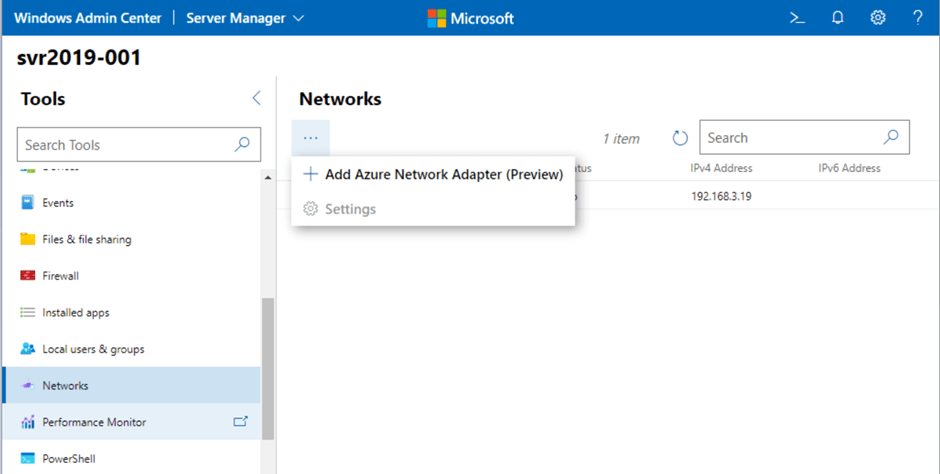
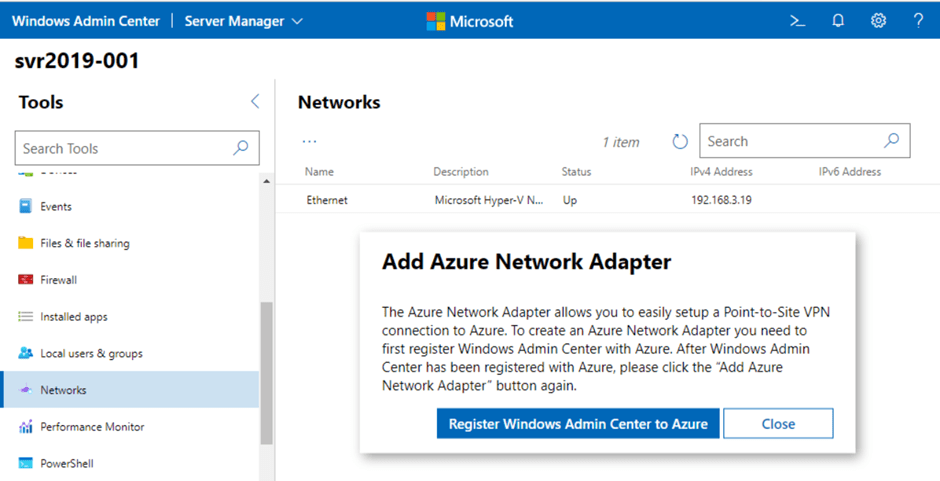
From Windows Admin Center, we browse to the Server we want to add the Azure Network Adapter to. We can see under Networks we have the option to “Add Azure Network Adapter (Preview)”:
When we click, we are prompted to register Windows Admin Center with Azure:
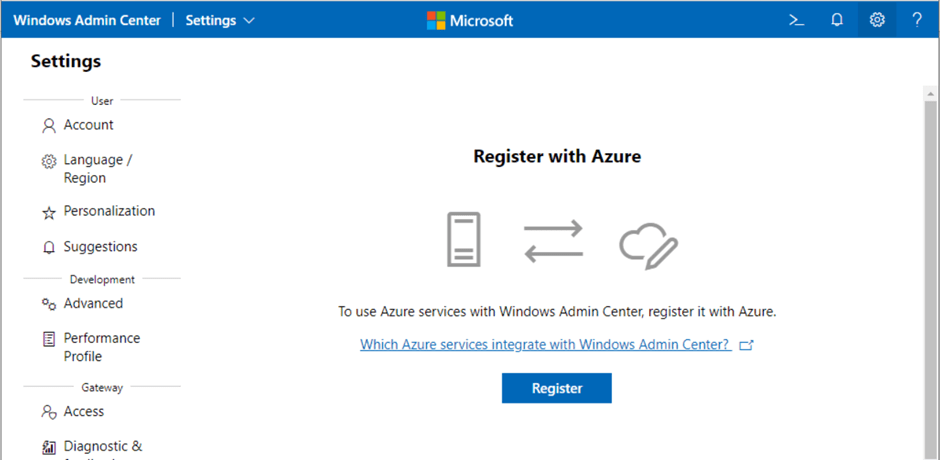
Clicking this brings us into the Account screen where we can register with Azure:
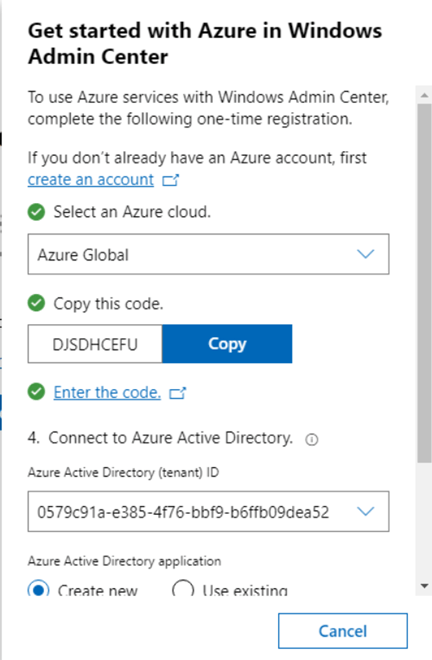
Follow the prompts and enter the correct information to connect to your Azure Tenant
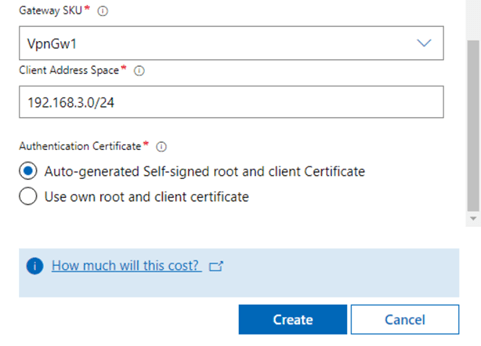
Once we’re connected to Azure, we go back to our Server in Windows Admin Center and add our Azure Network Adapter:
What this will do is both create the network connection to Azure (which is effectively a Point-to-Site VPN Connection) from our Server, but it also creates the VPN Gateway Subnet on the Virtual Network in our Azure Subscription. We also see that we can select a VPN Gateway SKU. When we click the “How much does this cost?” link, we can see pricing details for each of the available SKU’s.
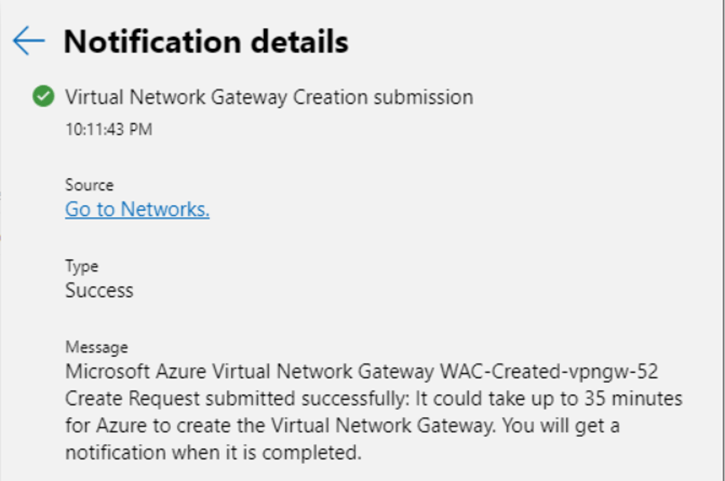
We click create and see Success!! We also see that this can take up to 35 minutes to create.
We then get a notification to say our Point to Site Client Configuration has started:
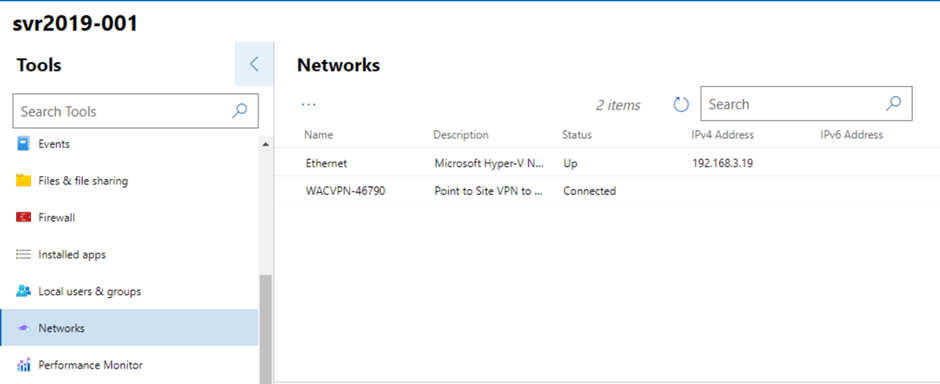
And once that’s completed, we can see our VPN is up and connected:
And we can also see our gateway resources have been created in Azure:
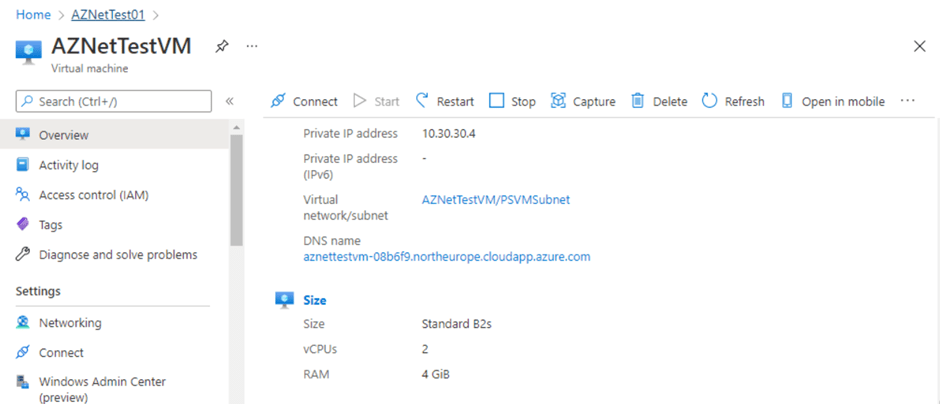
Now, lets see if we can connect directly to our Azure VM. We can see the Private IP Address is 10.30.30.4:
And if we try to open an RDP connection from our Server to the Azure VM, we get a response asking for credentials:
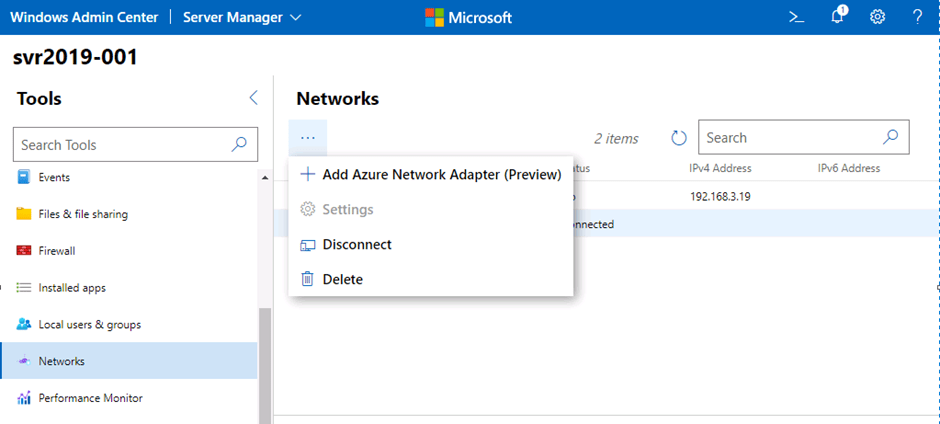
You can disconnect or delete the VPN connection at any time in Windows Admin Center by clicking on the “ellipses” and selecting the required option:
Go ahead and try the demo yourelves, but as always don’t forget to clean up your resources in Azure once you have finished!
Its Day 47 of my 100 Days of Cloud Journey, and today I sat Exam AZ-800: Administering Windows Server Hybrid Core Infrastructure (beta).
AZ-800 is one of 2 exams required for the new Windows Server Hybrid Administrator Associate certification, which was announced at Windows Server Summit 2021. The second exam is Az-801 (Configuring Windows Server Hybrid Advanced Services), which I’m taking next week so will write up a post on that then!
This certification is seen by many as the natural successor to the retired MCSE certifications which retired in January 2021, primarily because it focuses in some part on the on-premise elements within Windows Server 2019.
Because of the NDA, I’m not going to disclose any details on the exam, however I will say that it is exactly as its described – a Hybrid certification bringing together elements of both on-premise and Azure based infrastructure.
The list of skills measured as their weightings are as follows:
Deploy and manage Active Directory Domain Services (AD DS) in on-premises and cloud environments (30-35%)
Manage Windows Servers and workloads in a hybrid environment (10-15%)
Manage virtual machines and containers (15-20%)
Implement and manage an on-premises and hybrid networking infrastructure (15-20%)
Manage storage and file services (15-20%)
Like all beta exams, the results won’t be released until a few weeks after the exam officially goes live so I’m playing the waiting game! In the meantime, you can check out these resources if you want to study and take the exam:
Its Day 46 of my 100 Days of Cloud Journey, and today I’m looking at Azure Well Architected Framework.
Over the course of my 100 Days journey so far, we’ve talked about and deployed multiple different types of Azure resources such as Virtual Machines, Network Security groups, VPNs, Firewalls etc.
We’ve seen how easy this is to do on a Dev-based PAYG subscription like I’m using, however for companies who wish to migrate to Azure, Microsoft provides a ‘Well Architected Framework’ which offers guidance in ensuring that any resource or solution that is deployed or architected in Azure conforms to best practices around planning, design, implementation and on-going maintenance and improvement of the solution.
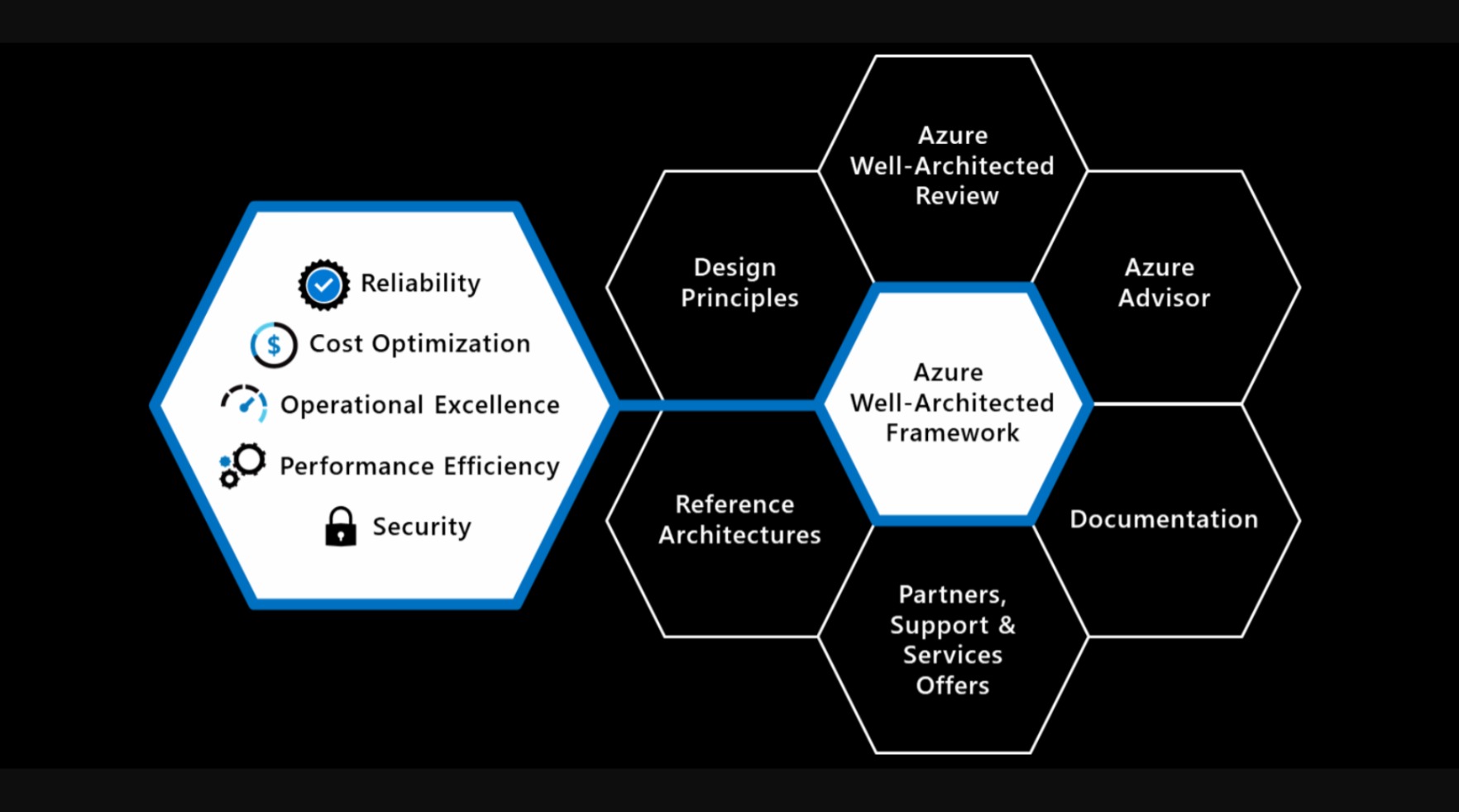
The Well Architected Framework is based on 5 key pillars:
Reliability – this is the ability of a system to recover from failures and continue to function, which in itself is built around 2 key values:
Resiliency, which returns the application to a fully functional state after a failure.
Availability, which defines whether users can access the workload if they need to.
Security – protects applications and data from threats. The first thing people would think of here is “firewalls”, which would protects against threats and DDoS attacks but its not that simple. We need to build security into the application from the ground up. To do this, we can use the following areas:
Identity Management, such as RBAC roles and System Managed Identities.
Application Security, such as storing application secrets in Azure Key Vault.
Data sovereignty and encryption, which ensures the resource or workload and its underlying data is stored in the correct region and is encrypted using industry standards.
Security Resources, using tools such as Microsoft Dender for Cloud or Azure Firewall.
Cost Optimization – managing costs to maximize the value delivered. This can be achieved in the form of using tools such as:
Azure Cost Management to create budgets and cost alerts
Azure Migrate to assess the system load generated by your on-premise workloads to ensure thay are correctly sized in the cloud.
Operational Excellence – processes that keep a system running in production. In most cases, automated deployments leave little room for human error, and can not only be deployed quickly but can also be rolled back in the event of errors or failures.
Performance Efficiency – this is the ability of a system to adapt to changes in load. For this, we can think of tools and methodologioes such as auto-scaling, caching, data partitioning, network and storage optimization, and CDN resources in order to make sure your workloads run efficiently.
On top of all this, the Well Architected Framework has six supporting elements wrapped around it:
Image Credit: Microsoft
Azure Well-Architected Review
Azure Advisor
Documentation
Partners, Support, and Services Offers
Reference Architectures
Design Principles
Azure Advisor in particular helps you follow best practises by analyzing your deployments and configuration and provides recommends solutions that can help you improve the reliability, security, cost effectiveness, performance, and operational excellence of your Azure resources. You can learn more about Azure Advisor here.
I recommend anyone who is either in the process of migration or planning to start on their Cloud Migration journey to review the Azure Well Architected Framework material to understand options and best practices when designing and developing an Azure solution. You can find the landing page for Well Architected Framework here, and the Assessments page to help on your journey is here!
Its Day 45 of my 100 Days of Cloud Journey, and today I’m looking at Azure Spot Instances and Reserved Instances.
During previous posts where I deployed virtual machines, the deployments were based on a Pay-As-You-Go pricing model, this is one of the 3 pricing models available to us in Azure. While this type of pricing is good for the likes of what I’m doing here (ie quickly spinning up VMs for a demo and then deleting them immediately), its not considered cost effective for organisations who have a Cloud Migration strategy, a long term plan to host a large number of VMs in Azure, and also need the flexibility to use low costs VMs for development or batch processing.
Lets take a look at the other 2 pricing models, starting with Azure Spot Instances.
Azure Spot Instances
Azure Spot instances allow you to utilize any unused Azure Capacity in your region at the fraction of the cost. However, at any point in time when Azure needs the capacity back, the Spot Instances will be evicted and removed from service at 30 seconds notice.
Because of this there is no SLA on Azure Spot instances, so they are not suitable for running production workloads. They are best suited for workloads that can handle interruptions, such as batch processing jobs, Dev/Test environments or Large compute workloads.
There is no availability guarantees, and availablity can vary based on size required, available capacity in your region, time of day etc. Azure will allocate the VM if there is available capacity, however there is no High Availability guarantees.
When the VMs are evicted, they can be either deallocated or deleted based on the policy you set when creating the VMs. Deallocate (this is the default) stops the VM and makes it available to redeploy (however this is not guaranteed and is based on capacity). You will also be charged for the underlying Storage Disk costs. Delete on the other hand will shut down and destroy the VMs and underlying storage.
You can see the full savings you can achieve by using Spot Instance VMs in the Azure Spot VMs Pricing Table here.
Azure Reserved Instances
Azure Reserved Instances is a way to reserve your compute capacity for a period of 1, 3 or 5 years at savings of over 70% when compared to Pay-As-You-Go pricing. This is best suited to Production workloads that need to have 24/7 runtime and high availability.
As we can see in the image from the Reservations blade in the Azure Portal above, you can purchase Azure Reserved Instances for a large number of Azure Resources, not just VMs.
Reservations can be aplied to a specific scope – that can be Subscription (single or multiple subscriptions), Resource Group or a single resource such as a VM, SQL Database or an App Service.
Once you click into any of the options on the Reservations blade, it will bring you into a list of available SKUs that you can purchase:
Another option to factor in is that Azure Reserved Instances can be use with Azure Hybrid Benefit, meaning you can use your on-premise Software Assurance-enabled Windows OS and SQL Server licences, which can bring your savings up to 80%! You can find out more about Azure Hybrid Benefit here, and get the full lowdown on Azure Reserved Instances here.
Conclusion
And thats a wrap on Azure Pricing models – you can see the cost savings you can make based on what your workloads are. Hope you enjoyed this post, until next time!

Its Day 44 of my 100 Days of Cloud Journey, and today I’m looking at Azure Arc.
Azure Arc is a service that provides you with a single management plane for services that run in Azure, On Premises, or in other Cloud Providers such as AWS or GCP.
The majority of companies have resources both in on-premise and in come cases multiple cloud environments. While monitoring solutions can provide an overview of uptime and performance over a period of time, control and governance of complex hybrid and multi-cloud environments is an issue. Because these environments span multiple cloud and data centers, each of these environments operate their own set of management tools that you need to learn and operate.
Azure Arc solves this problem by allowing you to manage the following resources that are hosted outside of Azure:
Servers – both physical and virtual machines running Windows or Linux in both on-premise and 3rd party Cloud providers such as AWS or GCP.
Kubernetes clusters – supporting multiple Kubernetes distributions across multiple providers.
Azure data services – Azure SQL Managed Instance and PostgreSQL Hyperscale services.
For this post, I’m going to focus on Azure Arc for Servers, however there are a number of articles relating to the 4 different Azure Arc supported resource types listed above – you can find all of the articles here.
Azure Arc currently supports the following Windows and Linux Operating Systems:
Windows Server 2012 R2 and later (including Windows Server Core)
Ubuntu 16.04 and 18.04 (x64)
CentOS Linux 7 (x64)
SUSE Linux Enterprise Server (SLES) 15 (x64)
Red Hat Enterprise Linux (RHEL) 7 (x64)
Amazon Linux 2 (x64)
In order to register a Physical Server or VM with Azure Arc, you need to install the Azure Connected Machine agent on each of the operating systems targeted for Azure Resource Manager-based management. This is an msi installer which is available from the Microsoft Download Center.
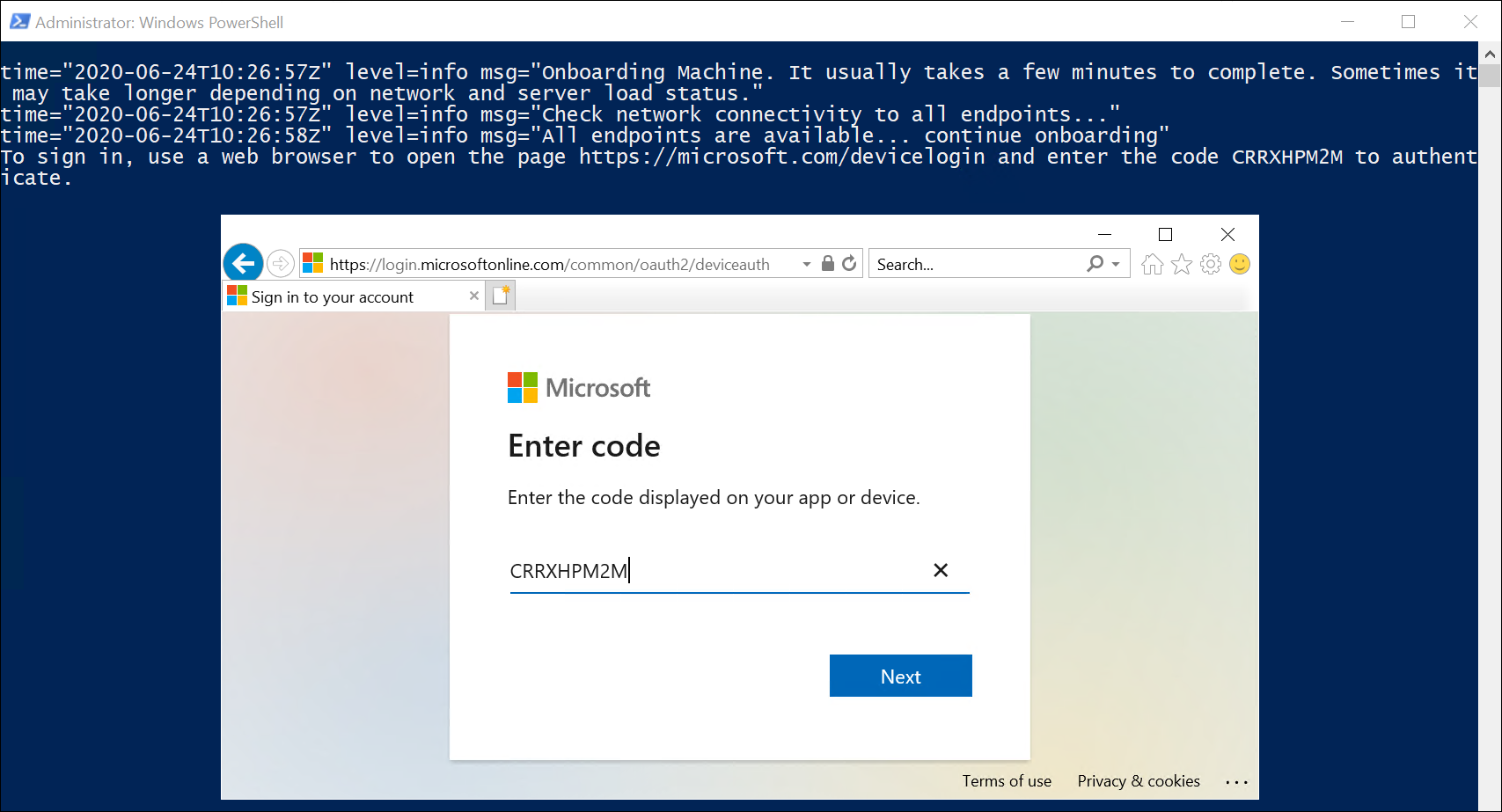
You can also generate a script directly from the Azure Portal which can be used on target computers to download the Azure Connected Machine Agent, install it and connect the server/VM into the Azure Region and Resource Group that you specify:
Image Credit: Microsoft
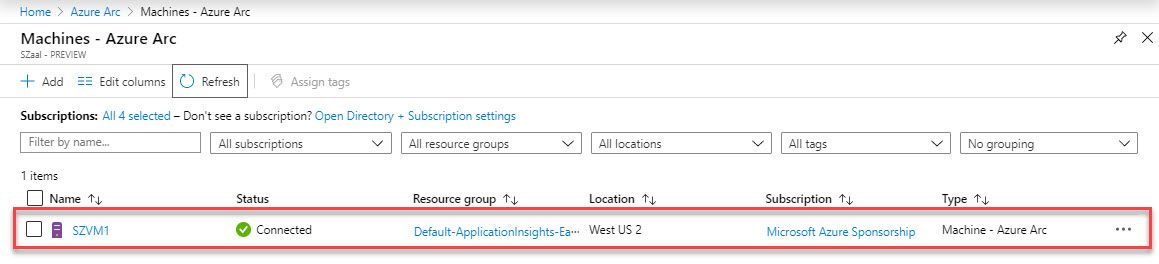
The server then gets registered in Azure Arc as a connected machine:
Image Credit: Microsoft
OK, so now we’ve got all of our servers connected into Azure Arc, what can we do with them? Is it just about visibility?
No. When your machine is connected to Azure Arc, you then have the following capabilities:
Protect Servers using Microsoft Defender for Endpoint, which is part of Microsoft Defender for Cloud
Collect security-related events in Microsoft Sentinel
Automate tasks using PowerShell and Python
Use Change Tracking and Inventory to assess configuration changes in installed software and operating system changes such as registry or services
Manage operating system updates
Monitor system performance using Azure Monitor and and collect data which can be stored in a Log Analytics Workspace.
Assign policy baselines using Azure Policy to report on compliance of these connected servers.
Conclusion
We can see how useful Azure Arc can be in gaining oversight on all of your resources that are spread across multiple Cloud providers and On Premise environments. You can check out the links provided above for a full list of capabilities, or else this excellent post by Thomas Maurer is a great starting point in your Azure Arc leaning journey.
Its Day 43 of my 100 Days of Cloud Journey, and today I’m looking at Just-In-Time (JIT) VM access and how it can provide further security for your VMs.
JIT is part of Microsoft Defender for Cloud – during the Autumn Ignite 2021, it was announced that Azure Security Center and Azure Defender would be rebranded as Microsoft Defender for Cloud.
There are 3 important points you need to know before configuring JIT:
JIT does not support VMs protected by Azure Firewalls which are controlled by Azure Firewall Manager (at time of writing). You must use Rules and cannot use Firewall policies.
JIT only supports VMs that have deployed using Azure Resource Manager – Classic deployments are not supported.
You need to have Defender for Servers enabled in your subscription.
JIT enables you to lock down inbound traffic to your Azure VMs, which reduces exposure to attacks while also providing easy access if you need to connect to a VM.
Defender for Cloud uses the following flow to decide how to categorize VMs:
Image Credit: Microsoft
Once Defender for Cloud finds a VM that can benefit from JIT, its add the VM to the “Unhealthy resources” tab under Recommendations:
Image Credit: Microsoft
You can use the steps below to enable JIT:
From the list of VMs displaying on the Unhealthy resources tab, select any that you want to enable for JIT, and then select Remediate.
On the JIT VM access configuration blade, for each of the ports listed:
Select and configure the port using one of the following ports:
22
3389
5985
5986
Configure the protocol Port, which is the protocol number.
Configure the Protocol:
Any
TCP
UDP
Configure the Allowed source IPs by choosing between:
Per request
Classless Interdomain Routing (CIDR) block
Choose the Max request time. The default duration is 3 hours.
If you made changes, select OK.
When you’ve finished configuring all ports, select Save.
When a user requests access to a VM, Defender for Cloud checks if the user has the correct Azure RBAC permissions for the VM. If approved, Defender for Cloud configures the Azure Firewall and Network Security Groups with the specified ports in order to give the user access for the time period requested, and from the source IP that the user makes the request from.
You can request this access through either Defender for Cloud, the Virtual Machine blade in the Azure Portal, or by using PowerShell or REST API. You can also audit JIT VM access in Defender for Cloud.
For a full understanding of JIT and its benefits, you can check out this article, and also this article shows how to manage JIT VM access. To test out JIT yourself, this link brings you to the official Microsoft Learn exercise to create a VM and enable JIT.
Its Day 42 of my 100 Days of Cloud Journey, and today I’m taking a look at Azure Bastion.
Azure Bastion is a PaaS VM that you provision inside your virtual network, providing secure and seamless RDP or SSH connectivity to your IAAS VMs directly from the Azure portal over TLS. When you connect via Azure Bastion, your virtual machines do not need a public IP address, agent, or special client software.
We saw in previous posts that when we create a VM in Azure, it automatically creates a Public IP Address, access to which we then need to control using Network Security Groups. Azure Bastion does away with the need for controlling access – all you need to do is create rules to allow RDP/SSH access from the subnet where Bastion is deployed to the subnet where your IAAS VMs are deployed.
Deployment
Image Credit – Microsoft
We can see in the diagram a typical Azure Bastion deployment. In this diagram:
The bastion host is deployed in the VNet.
Note – The protected VMs and the bastion host are connected to the same VNet, although in different subnets.
A user connects to the Azure portal using any HTML5 browser over TLS.
The user selects the VM to connect to.
The RDP/SSH session opens in the browser.
To deploy an Azure Bastion host by using the Azure portal, start by creating a subnet in the appropriate VNet. This subnet must:
Be named AzureBastionSubnet
Have a prefix of at least /27
Be in the VNet you intend to protect with Azure Bastion
Cross-VNET Connectivity
Bastion can also take advantage of VNET Peering rules in order to connect to VMs in Multiple VNETs that are peered with the VNET where the Bastion host is located. This negates the need for having multiple Bastion hosts deployed in all of your VNETs. This works best in a “Hub and Spoke” configuration, where the Bastion is the Hub and the peered VNETs are the spokes. The diagram below shows how this would work:
Image Credit – Microsoft
To connect to a VM through Azure Bastion, you’ll require:
Reader role on the VM.
Reader role on the network information center (NIC) with the private IP of the VM.
Reader role on the Azure Bastion resource.
The VM to support an inbound connection over TCP port 3389 (RDP).
Reader role on the virtual network (for peered virtual networks).
Security
One of the key benefits of Azure Bastion is that its a PAAS Service – this means it is managed and hardened by the Azure Platform and protects againsts zero-day exploits. Because your IAAS VMs are not exposed to the Internet via a Public IP Address, your VMs are protected against port scanning by rogue and malicious users located outside your virtual network.
Conclusion
We can see how useful Bastion can be in protecting our IAAS Resources. You can run through a deployment of Azure Bastion using the “How-to” guides on Microsoft Docs, which you will find here.
This post originally appeared on Medium on May 14th 2021
Welcome to Part 4 and the final part of my series on setting up Monitoring for your Infrastructure using Grafana and InfluxDB.
Last time, we set up InfluxDB as our Datasource for the data and metrics we’re going to use in Grafana. We also download the JSON for our Dashboard from the Grafana Dashboards Site and import this into Grafana instance. This finished off the groundwork of getting our Monitoring System built and ready for use.
In the final part, I’ll show you how to install the Telegraf Data collector agent on our WSUS Server. I’ll then configure the telgraf.conf file to query a PowerShell script, which will in turn send all collected metrics back to our InfluxDB instance. Finally, I’ll show you how to get the data from InfluxDB to display in our Dashboard.
Telegraf Install and Configuration on Windows
Telegraf is a plugin-driven server agent for collecting and sending metrics and events from databases, systems, and IoT sensors. It can be downloaded directly from the InfluxData website, and comes in version for all OS’s (OS X, Ubuntu/Debian, RHEL/CentOS, Windows). There is also a Docker image available for each version!
To download for Windows, we use the following command in Powershell:
Once the archive gets extracted, we have 2 files in the folder: telegraf.exe, and telegraf.conf:
Telegraf.exe is the Data Collector Service file and is natively supported running as a Windows Service. To install the service, run the following command from PowerShell:
This will install the Telegraf Service, as shown here under services.msc:
Telegraf.conf is the parameter file, and telegraf.conf reads that to see what metrics it needs to collect and send to the specified destination. The download I did above contains a template telegraf.conf file which will return the recommended Windows system metrics.
To test that the telgraf is working, we’ll run this command from the directory where telegraf.exe is located:
.\telegraf.exe --config telegraf.conf --test
As we can see, this is running telgraf.exe and specifying telgraf.conf as its config file. This will return this output:
This shows that telegraf can collect data from the system and is working correctly. Lets get it set up now to point at our InfluxDB. To do this, we open our telgraf.conf file and go to the [[outputs.influxdb]] section where we add this info:
This is specifying the url/port and database where we want to send the data to. This is the basic setup for telegraf.exe, next up I’ll get it working with our PowerShell script so we can send our WSUS Metrics into InfluxDB.
Using Telegraf with PowerShell
As a prerequisite, we’ll need to install the PoshWSUS Module on our WSUS Server, which can be downloaded from here.
Once this is installed, we can download our WSUS PowerShell script. The link to the script can be found here. If we look at the script, its going to do the following:
Get a count of all machines per OS Version
Get the number of updates pending for the WSUS Server
Get a count of machines that need updates, have failed updates, or need a reboot
Return all of the above data to the telegraf data collector agent, which will send it to the InfluxDB.
Before doing any integration with Telegraf, modify the script to your needs using PowerShell ISE (on line 26, you need to specify the FQDN of your own WSUS Server), and then run the script to make sure it returns the data you expect. The result will look something like this
This tells us that the script works. Now we can integrate the script into our telegraf.conf file. Underneath the “Inputs” section of the file, add the following lines:
This is telling our telegraf.exe service to call PowerShell to run our script at an interval of 300 seconds, and return the data in “influx” format.
Now once we save the changes, we can test our telegraf.conf file again to see if it returns the data from the PowerShell script as well as the default Windows metrics. Again, we run:
.\telegraf.exe --config telegraf.conf --test
And this time, we should see the WSUS results as well as the Windows Metrics:
And we do! Great, and at this point, we can now change our Telegraf Service that we installed earlier to “Running” by running this command:
net start telegraf
Now that we have this done, lets get back into Grafana and see if we can get some of this data to show in the Dashboard!
Configuring Dashboards
In the last post, we imported our blank dashboard using our json file.
Now that we have our Telegraf Agent and PowerShell script working and sending data back to InfluxDB, we can now start configuring the panels on our dashboard to show some data.
For each of the panels on our dashboard, clicking on the title at the top reveals a dropdown list of actions.
As you can see, there are a number of actions you can take (including removing a panel if you don’t need it), however we’re going to click on “Edit”. This brings us into a view where we get access to modify the properties of the Query, and also can modify some Dashboard settings including the Title and color’s to show based on the data that is being returned:
The most important thing for use in this screen is the query
As you can see, in the “FROM” portion of the query, you can change the values for “host” to match the hostname of your server. Also, from the “SELECT” portion, you can change the field() to match the data that you need to have represented on your panel. If we take a look at this field and click, it brings us a dropdown:
Remember where these values came from? These are the values that we defined in our PowerShell script above. When we select the value we want to display, we click “Apply” at the top right of the screen to save the value and return to the Main Dashboard:
And there’s our value displayed! Lets take a look at one of the default Windows OS Metrics as well, such as CPU Usage. For this panel, you just need to select the “host” where you want the data to be displayed from:
And as we can see, its gets displayed:
There’s a bit of work to do in order to get the dashboard to display all of the values on each panel, but eventually you’ll end up with something looking like this:
As you can see, the data on the graph panels is timed (as this is a time series database), and you can adjust the times shown on the screen by using the time period selector at the top right of the Dashboard:
The final thing I’ll show you is if you have multiple Dashboards that you are looking to display on a screen, Grafana can do this by using the “Playlists” option under Dashboards.
You can also create Alerts to go to multiple sources such as Email, Teams Discord, Slack, Hangouts, PagerDuty or a webhook.
Conclusion
As you have seen over this post, Grafana is a powerful and useful tool for visualizing data. The reason for using this is conjunction with InfluxDB and Telegraf is that it had native support for Windows which was what we needed to monitor.
You can use multiple data sources (eg Prometheus, Zabbix) within the same Grafana instance depending on what data you want to visualize and display. The Grafana Dashboards site has thousands of community and official Dashboards for multiple systems such as AWS, Azure, Kubernetes etc.
While Grafana is a wonderful tool, its should be used as part of your monitoring infrastructure. Dashboards provide a great “birds-eye” view of the status of your Infrastructure, but you should use these in conjunction with other tools and processes, such as using alerts to generate tickets or self-healing alerts based on thresholds.
Thanks again for reading, I hope you have enjoyed the series and I’ll see you on the next one!
This post originally appeared on Medium on May 5th 2021
Welcome to Part 3 of my series on setting up Monitoring for your Infrastructure using Grafana and InfluxDB.
Last time, we downloaded our Docker Images for Grafana and InfluxDB, created persistent storage for them to persist our data, and also configured our initial Influx Database that will hold all of our Data.
In Part 3, we’re going to set up InfluxDB as our Datasource for the data and metrics we’re going to use in Grafana. We’ll also download the JSON for our Dashboard from the Grafana Dashboards Site and import this into Grafana instance. This will finish off the groundwork of getting our Monitoring System built and ready for use.
Configure your Data Source
Now we have our InfluxDB set up, we’re ready to configure it as a Data source in Grafana. So we log on to the Grafana console. Click the “Configuration” button (looks like a cog wheel) on the left hand panel, and select “Data Sources”
This is the main config screen for the Grafana Instance. Click on “Add data source”
Search for “influxdb”. Click on this and it will add it as a Data Source:
We are now in the screen for configuring our InfluxDB. We configure the following options:
Query Language — InfluxQL. (there is an option for “Flux”, however this is only used by InfluxDB versions newer than 1.8)
URL — this is the Address of our InfluxDB container instance. Don’t forget to specify the port as 8086.
Access — This will always be Server
Auth — No options needed here
Finally, we fill in our InfluxDB details:
Database — this is the name that we defined when setting up the database, in our case telegraf
User — this is our “johnboy” user
Password — This is the password
Click on “Save & Test”. This should give you a message saying that the Data source is working — this means you have a successful connection between Grafana and InfluxDB.
Great, so now we have a working connection between Grafana and InfluxDB
Dashboards
We now have our Grafana instance and our InfluxDB ready. So now we need to get some data into our InfluxDB and use this in some Dashboards. The Grafana website (https://grafana.com/grafana/dashboards) has hundreds of official and community build dashboards.
As a reminder, the challenge here is to visualize WSUS … yes, I know WSUS. As in Windows Server Update Services. Sounds pretty boring doesn’t it? It’s not really though — the problem is that unless WSUS is integrated with the likes of SCCM, SCOM or some other 3rd party tools (all of which will incur Licensing Costs), it doesn’t really have a good way of reporting and visualizing its content in a Dashboard.
I’ll go to the Grafana Dashboards page and search for WSUS. We can also search by Data Source.
When we click into the first option, we can see that we can “Download JSON”
Once this is downloaded, lets go back to Grafana. Open Dashboards, and click “Import”:
Then we can click “Upload JSON File” and upload our downloaded json. We can also import directly from the Grafana website using the Dashboard ID, or else paste the JSON directly in:
Once the JSON is uploaded, you then get the screen below where you can rename the Dashboard, and specify what Data Source to use. Once this is done, click “Import”:
And now we have a Dashboard. But there’s no data! That’s the next step, we need to configure our WSUS Server to send data back to the InfluxDB.
Next time …..
Thanks again for reading! Next time will be the final part of our series, where we’ll install the Telegraf agent on our WSUS Server, use it to run a PowerShell script which will send data to our InfluxDB, and finally bring the data from InfluxDB into our Grafana Dashboard.
This post originally appeared on Medium on April 19th 2021
Welcome to Part 2 of my series on setting up Monitoring for your Infrastructure using Grafana and InfluxDB.
Last week as well as the series Introduction, we started our Monitoring build with Part 1, which was creating our Ubuntu Server to serve as a host for our Docker Images. Onwards we now go to Part 2, where the fun really starts and we pull our images for Grafana and InfluxDB from Docker Hub, create persistent storage and get them running.
Firstly, lets get Grafana running!
We’re going to start by going to the official Grafana Documentation (link here) which tells us that we need to create a persistent storage volume for our container. If we don’t do this, all of our data will be lost every time the container shuts down. So we run sudo docker volume create grafana-storage:
That’s created, but where is it located? Run this command to find out: sudo find / -type d -name “grafana-storage
This tells us where the file location is (in this case, the location as we can see above is:
Now, we need to download the Grafana image from the docker hub. Run sudo docker search grafana to search for a list of Grafana images:
As we can see, there are a number of images available but we want to use the official one at the top of the list. So we run sudo docker pull grafana/grafana to pull the image:
This will take a few seconds to pull down. We run the sudo docker images command to confirm the image has downloaded:
Now the image is downloaded and we have our storage volume ready to persist our data. Its time to get our image running. Lets run this command:
Wow, that’s a mouthful ….. lets explain what the command is doing. We use “docker run -d” to start the container in the background. We then use the “-p 3000:3000” to make the container available on port 3000 via the IP Address of the Ubuntu Host. We then use “-v” to point at our persistent storage location that we created, and finally we use “grafana/grafana” to specify the image we want to use.
The IP of my Ubuntu Server is 10.210.239.186. Lets see if we can browse to 10.210.239.186:3000 …..
Well hello there beautiful ….. the default username/password is admin/admin, and you will be prompted to change this at first login to something more secure.
Now we need a Data Source!
Now that we have Grafana running, we need a Data Source to store the data that we are going to present via our Dashboard. There are many excellent data sources available, the question is which one to use. That can be answered by going to the Grafana Dashboards page, where you will find thousands of Official and Community built dashboards. By searching for the Dashboard you want to create, you’ll quickly see the compatible Data Source for your desired dashboard. So if you recall, we are trying to visualize WSUS Metrics, and if we search for WSUS, we find this:
As you can see, InfluxDB is the most commonly used, so we’re going to use that. But what is this “InfluxDB” that I speak of.
InfluxDB is a “time series database”. The good people over at InfluxDB explain it a lot better than I will, but in summary a time series database is optimized for time-stamped data that can be tracked, monitored and sampled over time.
I’m going to keep using docker for hosting all elements of our monitoring solution. Lets search for the InfluxDB image on the Docker Hub by running sudo docker search influx:
Again, I’m going to use the official one, so run the sudo docker pull influxdb:1.8 command to pull the image. Note that I’m pulling the InfluxDB image with tag 1.8. Versions after 1.8 use a new DB Model which is not yet widely used:
And to confirm, lets run sudo docker images:
At this point, I’m ready to run the image. But first, lets create another persistent storage area on the host for the InfluxDB image, just like I did for the Grafana one. So we run sudo docker volume create influx18-storage:
Again, lets run the command to find it and get the exact location:
And this is what we need for our command to launch the container:
We’re running InfluxDB on port 8086 as this is its default. So now, lets check our 2 containers are running by running sudo docker ps:
OK great, so we have our 2 containers running. Now, we need to interact with the InfluxDB Container to create our database. So we run sudo docker exec -it 99ce /bin/bash:
This gives us an interactive session (docker exec -it) with the container (we’ve used the container ID “99ce” from above to identify it) so we can configure it. Finally, we’ve asked for a bash session (/bin/bash) to run commands from. So now, lets create our database and set authentication. We run “influx” and setup our database and user authentication:
Next time….
Great! So now that’s done , we need to configure InfluxDB as a Data Source for Grafana. You’ll have to wait for Part 3 for that! Thanks again for reading, and hope to see you back next week where as well as setting up our Data Source connection, we’ll set up our Dashboard in Grafana ready to receive data from our WSUS Server!