Today’s post is another short one, and is a quick overview of how Azure Mask can help you exclude any sensitive content or subscription information when creating content and using screenshots or video footage from the Azure Portal.
Azure Mask was created by Pluralsight author and Developer Advocate Brian Clark, and is a browser extension that can be toggled on/off when creating content from the Azure Portal. It’s currently supported on Edge or Chrome browsers.
What it does is blur/hide any personal information such as email address, subscription information once the toggle is set to on. This is great for content creation as it means any screenshots don’t need to be edited or blurred out afterwards.
You can find the source code and instructions for enabling Azure Mask in your browser here on Brian’s Github Page:
Its Day 19 of my 100 Days of Cloud journey, and todays post is about Azure Site Recovery.
Credit — Microsoft IT Ops Talk Community/Sarah Lean
We saw in the previous post how easy it is to migrate infrastructure to the cloud from on-premise Virtual and Physical environments using the steps and features that Azure Migrate can offer.
Azure Site Recovery
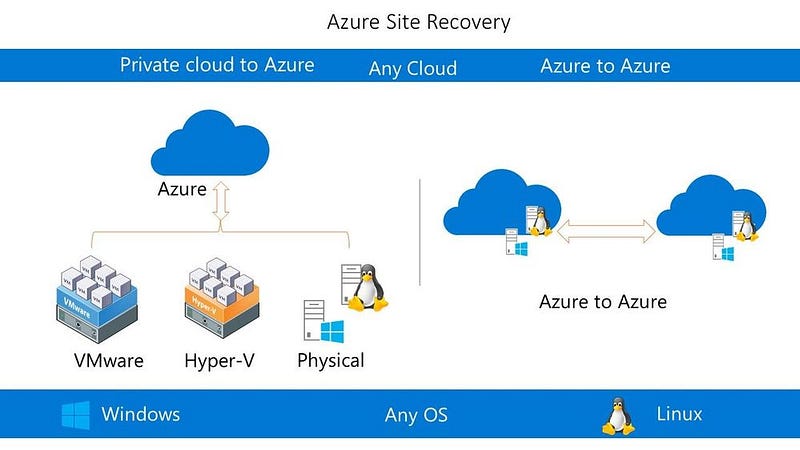
Azure Site Recovery is another “replication” offering in the Azure Service portfolio that provides replication of machines from any of these primary locations to Azure:
On-Premise Physical
On-Premise Virtual (Hyper-V or VMware)
Azure VMs from a different region
AWS Windows instances
However, while Azure Migrate is a “cloud migration” service offering, Azure Site Recovery is a Business Continuity/Disaster Recovery offering.
How it works?
The steps for setting up Azure Site Recovery are mostly similar for all scenarios. You need to do the following steps:
Create an Azure Storage account, which will store images of the replicated VMs.
Create a Recovery Services Vault, which will store metadata for VM and Replication configurations.
Create an Azure Network, which VMs will use when replicated to Azure.
Ensure that your on-premise workloads have access to replicate to Azure and any ports are open on your firewall.
Install the Azure Site Recovery Provider on any source VMs you wish to replicate to Azure.
Create a Replication Policy, which includes replication frequency and recovery point retention.
Once Replication is running, run a Test Failover using an isolated network to ensure your replicated VMs are in a consistent state.
Once the Test Failover is completed, run a full failover to Azure. This will make Azure your Primary Site, and will replicate any changes back to your on-premise VMs. Once this is completed, you can fail back to make the on-premise VMs your Primary Site again, and the data will be consistent! Pretty Cool!!
Service Features
Azure Site Recovery includes the following features to help ensure your workloads keep running in the event of outages:
Replication from On-Premise-Azure, Azure-Azure, AWS to Azure.
Workload Replication from supported Azure, AWS or On-Premise VM or Physical Server.
RPO and RTO targets in line with your business and audit requirements.
Flexible failover and Non-Disruptive testing.
Conclusion
Azure Site Recovery can play a key role in the Business Continuity and Disaster Recovery strategy for your business. A full overview of Azure Site Recovery can be found here, and for a full demo of the service, contact your local Microsoft Partner.
Its Day 18 of my 100 Days of Cloud journey. Yesterday, I attended an Azure Immersion Workshop on Azure Migrate hosted by Insight UK.
Azure Immersion Workshops are a great way to get hand-on access to Azure Technologies in a Sandbox environment with full instructor support. You require a business email address, or an address linked to an active Azure Subscription in order to avail of the full lab experience.
If you simply type “Azure Immersion Workshop” into a Google Search, you will find a list of Microsoft Partners that are running Azure Immersion Workshops in the coming months. This is a full day course, but is well worthwhile if you don’t have or don’t want to use your own on-premise resources to learn the technology.
Azure Migrate Overview
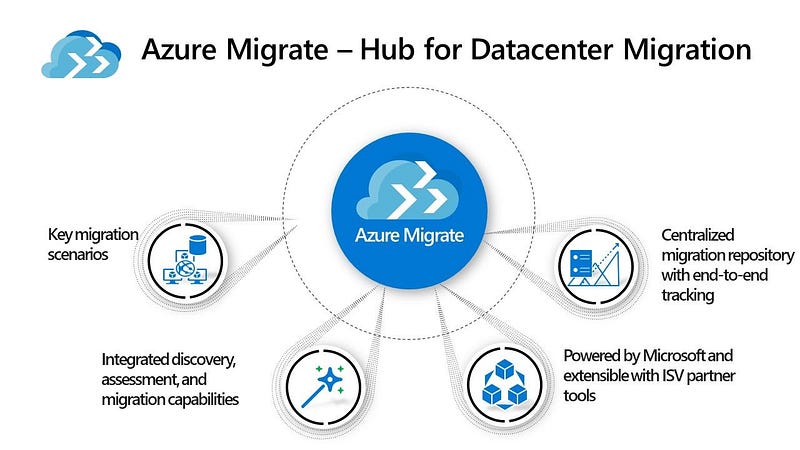
Azure Migrate is an Azure technology which automates planning and migration of your on-premise servers from Hyper-V, VMware or Physical Server environments.
Azure Migrate is broken into the following sections:
Discover — this uses a lightweight VM appliance that can be run on a VM or a Physical server in your on-premise infrastructure. This appliance runs the discovery of VMs and Physical Servers in your environment. Discovery is agentless, so nothing is installed on servers in your environment.
Assessment — once the discovery is completed, you can then run an assessment based on this. The assessment will make recommendations for the target Azure VM size based on what was discovered. This useful to know if you have over/under provisioned resources in your environment, as the assessment will size them correctly based on demand and workloads. Because of this, it is better to run the discovery at normal business hours to get a full overview of your environment.
Migrate — this is the point where you can discover the VMs you want to migrate. The first step is to replicate them to Azure on a Test Migration to ensure everything is working as expected. Azure will also flag any issues that have been detected on VMs so that you can remediate. Once this is completed and you are happy that everything is in place, you can run a full VM Migration.
Containerize — You can also use Azure Migrate to containerize Java web apps and ASP.NET apps that are running on premise and migrate these to either Azure Kubernetes Service (AKS) or Azure App Services.
Azure Migrate also integrates with a number of ISV’s (Independent Software Vendors) such as Carbonite, Lakeside, UnifyCloud and Zerto to offer additional support for assessment and migration of servers.
There are 2 great benefits to using Azure Migrate.
Firstly, the first 30 days of Discover is free so you have time to plan multiple different scenarios in your migration journey.
Secondly, this also integrates with the TCO (Total Cost of Ownership) Calculator to give a full cost breakdown of what hosting in Azure will cost to your organization.
The full description of Azure Migrate and all of its offerings and services can be found here at Microsoft Docs. And as I said above, the best way to get the full experience is to find a local partner that’s running an Azure Immersion Workshop in your area of time zone.
Its Day 16 of 100 Days of Cloud and todays post is about Azure Firewall.
Firewall …. we’ve covered this before haven’t we? Well, yes in a way. In a previous post, I talked about Network Security Groups and how they can be used to filter traffic in and out of a Subnet or a Network Interface in a Virtual Network.
Azure Firewall v NSG
Azure Firewall is a Microsoft-managed Network Virtual Appliance (NVA). This appliance allows you to centrally create, enforce and monitor network security policies across Azure subscriptions and virtual networks (vNets). An NSG is a layer 3–4 Azure service to control network traffic to and from a vNet.
Unlike Azure Firewall, an NSG can only be associated with subnets or network interfaces within the same subscription of Azure VMs. Azure Firewall can control a much broader range of network traffic. It can filter and analyze L3-L4 traffic, as well as L7 application traffic.
Azure Firewall sits at the subscription level and manages traffic going in and out of the vNet. The NSG is then deployed at the subnet level and network interface. The NSG then manages traffic between subnets and virtual machines.
Azure Firewall Features
Azure Firewall includes the following features:
Built-in high availability — so no more need for load balancers.
Availability Zones — Azure Firewall can span availability zones for greater availability.
Unrestricted cloud scalability — Azure Firewall can scale to accommodate changing traffic flows.
Application FQDN filtering rules — You can limit outbound HTTP/S traffic or Azure SQL traffic to a specified list of fully qualified domain names (FQDN) including wild cards
FQDN tags — makes it easy for you to allow well-known Azure service network traffic through your firewall.
Service tags — groups of IP Addresses.
Threat intelligence — can identify malicious IP Addresses or Domains.
Outbound SNAT support — All outbound virtual network traffic IP addresses are translated to the Azure Firewall public IP.
Inbound DNAT support — Inbound Internet network traffic to your firewall public IP address is translated (Destination Network Address Translation) and filtered to the private IP addresses on your virtual networks.
Multiple public IP addresses — You can associate up to 250 Public IPs with your Azure Firewall.
Azure Monitor logging — All events are integrated with Azure Monitor.
Forced tunneling — route all Internet traffic to a designated next hop.
Web categories — lets administrators allow or deny user access to web site categories such as gambling websites, social media websites, and others.
Certifications — PCI/SOC/ISO Compliant.
Azure Firewall and NSG in Conjuction NSGs and Azure Firewall work very well together and are not mutually exclusive or redundant. You typically want to use NSGs when you are protecting network traffic in or out of a subnet. An example would be a subnet that contains VMs that require RDP access (TCP over 3389) from a Jumpbox. Azure Firewall is the solution for filtering traffic to a VNet from the outside. For this reason, it should be deployed in it’s own VNet and isolated from other resources. Azure Firewall is a highly available solution that automatically scales based on its workload. Therefore, it should be in a /26 size subnet to ensure there’s space for additional VMs that are created when it’s scaled out.
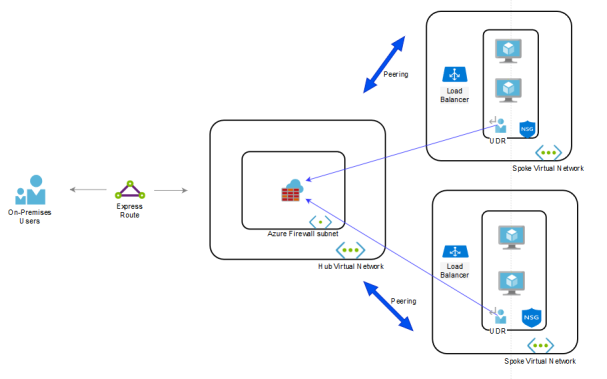
A scenario to use both would be a Hub-spoke VNet environment with incoming traffic from the outside. Consider the following diagram:
The above model has Azure Firewall in the Hub VNet which has peered connections to two Spoke VNets. The Spoke Vnets are not directly connected, but their subnets contain a User Defined Route (UDR) that points to the Azure Firewall, which serves as a gateway device. Also, Azure Firewall is public facing and is responsible for protecting inbound and outbound traffic to the VNet. This is where features like Application rules, SNAT and DNaT come in handy.
Conclusion
If you have a simple environment, then NSGs should be sufficient for network protection. However for large scale Production environments, Azure Firewall provides a far greater scale of protection.
Its Day 15, and todays post is on Azure Key Vault.
Lets think about the word “vault” and what we would use a vault for. The image that springs to mind immediately for me is the vaults at Gringotts Wizarding Bank from the Harry Potter movies — deep down, difficult to access, protected by a dragon etc…
This is essentially what a vault is — a place to store items that you want to keep safe and hide from the wider world. This is no different in the world of Cloud Computing. In yesterdays post on System Managed Identities, we saw how Azure can eliminate the need for passwords embedded in code, and use identities in conjunction with Azure Active Directory Authentication
Azure Key Vault is a cloud service for securely storing and accessing secrets. A secret is anything that you want to tightly control access to, such as API keys, passwords, certificates, or cryptographic keys.
What is Azure Key Vault?
In a typical IT environment, secrets, passwords, certificates, API-tokens and keys are used all over multiple platforms including source code, configuration files, digital formats and even on pieces of paper (sad but true ☹️).
An Azure Key Vault integrates with other Azure services and resources like SQL servers, Virtual Machines, Web Application, Storage Accounts etc. It is available on per-region basis, which means that a key vault must be deployed in the same Azure region where it is intended to be used with services and resources.
As an example, an Azure Key Vault must be available in the same region where an Azure virtual machine is deployed so that it can be used for storing Content Encryption Key (CEK) for Azure Disk Encryption.
Unlike other Azure resources, where the data is stored in general storage, an Azure Key Vault is backed by a Hardware Security Module (HSM).
How Azure Key Vault works
When using Key Vault, application developers no longer need to store security information in their application. Not having to store security information in applications eliminates the need to make this information part of the code. For example, an application may need to connect to a database. Instead of storing the connection string in the app’s code, you can store it securely in Key Vault.
Your applications can securely access the information they need by using URIs. These URIs allow the applications to retrieve specific versions of a secret. There is no need to write custom code to protect any of the secret information stored in Key Vault.
Authentication is done via Azure Active Directory. Authorization may be done via Azure role-based access control (Azure RBAC) or Key Vault access policy. Azure RBAC can be used for both management of the vaults and access data stored in a vault, while key vault access policy can only be used when attempting to access data stored in a vault.
Each Vault has a number of roles, but the most important ones are:
Vault Owner — this role controls who can access the vault and what permissions they have (read/create/update/delete keys)
Vault consumer: A vault consumer can perform actions on the assets inside the key vault when the vault owner grants the consumer access. The available actions depend on the permissions granted.
Managed HSM Administrators: Users who are assigned the Administrator role have complete control over a Managed HSM pool. They can create more role assignments to delegate controlled access to other users.
Managed HSM Crypto Officer/User: Built-in roles that are usually assigned to users or service principals that will perform cryptographic operations using keys in Managed HSM. Crypto User can create new keys, but cannot delete keys.
Managed HSM Crypto Service Encryption User: Built-in role that is usually assigned to a service accounts managed service identity (e.g. Storage account) for encryption of data at rest with customer managed key.
The steps to authenticate against a Key Vault are:
The application which needs authentication is registered with Azure Active Directory as a Service Principal.
The key Vault Owner/Administrator will then create a Key Vault and then attaches the ACLs (Access Control Lists) to the Vault so that the Application can access it.
The application initiates the connection and authenticates itself against the Azure Active Directory to get the token successfully.
The application then presents this token to the Key Vault to get access.
The Vault validates the token and grants access to the application based on successful token verification.
Conclusion
Azure Key Vault streamlines the secret, key, and certificate management process and enables you to maintain strict control over secrets/keys that access and encrypt your data.
Day 14 of 100 Days of Cloud, and today it’s a brief post on Azure Managed Identities.
One of the most common challenges for both developers and Infrastructure admins is the ability to store secrets/credentials/passwords which are needed to authenticate to different components in a solution.
Let’s take a look at a traditional example — you have a 2 Windows Servers running as VMs. One VM hosts a Web Portal where customers can place orders. The second VM hosts the backend SQL Database which holds data for the front end application. As a best practice, there are separate service accounts and passwords in use with administrative permissions for each of the layers of the solution:
Operating System
Web Application
Database
Now, let’s add another layer of complexity. There are 3 different teams that manage each part of the solution.
During a planned upgrade, one of the Web Developers needs to get an urgent change made and makes the error of embedding a password into the code. 2 months later during an audit, all passwords for the solution are changed. But the developer’s recent change suddenly stops working, taking down the entire site!
We’ve all seen this pain happen many times. On-premise, this would normally be solved using the likes of a shared password vault, but the developers still need to manage credentials.
In Azure, this is solved by using Managed Identities.
Overview of Managed Identities
Managed identities in Azure provide an Azure AD identity to an Azure managed resource. Once that resource has an identity, it can work with anything that supports Azure AD authentication.
Let’s move our example above to Azure. This time, we have an Azure VM which runs the Web Portal Service, and an Azure SQL Database Instance storing the Data.
Because the Azure SQL Database supports Azure Active Directory Authentication, we can enable Managed Identity on the VM and grant this permissions to authenticate to the Azure SQL Database. This means that there is no credential management required.
The benefits of using Managed Identities:
No more management of credentials.
Can be used to authenticate to any resource that supports Azure Active Directory.
It’s free!!
There are 2 types of Managed Identity:
System-assigned: When you enable a system-assigned managed identity an identity is created in Azure AD that is tied to the lifecycle of that service instance. So when the resource is deleted, Azure automatically deletes the identity for you. By design, only that Azure resource can use this identity to request tokens from Azure AD. In our example above, we would assign the Managed Identity to the Azure SQL Database. If that Database was ever deleted, the Managed Identity would automatically be deleted.
User-assigned: You may also create a managed identity as a standalone Azure resource. You can create a user-assigned managed identity and assign it to one or more instances of an Azure service. In the case of user-assigned managed identities, the identity is managed separately from the resources that use it.
A full list of services that support managed identities for Azure can be found here.
Let’s jump into a Demo and see how this works.
Creating a VM with a System Managed Identity
In previous posts, I created Virtual Machines using the Portal, PowerShell and ARM Templates.
If we jump back to the Portal Method, we can assign a system managed identity in the “Management” tab of the Virtual Machine creation wizard:
When creating the VM using the Powershell method, I add the “-Verbose” switch to give me the full command output, and I can see the “-SystemAssignedIdentity” parameter is added. However, I don’t add a value, as this tells the command to create the VM with a System Managed Identity
Once my VM gets created, I can see under the “Identity” menu option that the System Managed Identity has been created:
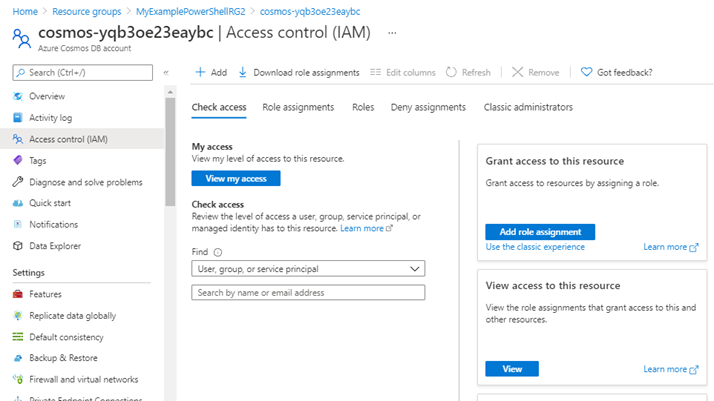
So now we have our identity, we need somewhere to assign it to. For the purposes of this Demo, I’ve created an Azure Cosmos DB. So in the Cosmos DB instance, I go to the “Access Control (IAM)” menu option, and click on “Add Role Assignment”:
On the “Add Role Assignment” screen, I pick the access level for the role I want to assign:
On the “Members” screen, I can select the Managed Identity that I created on the Virtual Machine:
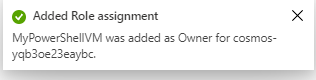
I click “Review and Assign” to confirm the role assignment, and this is then confirmed:
And that is how Managed Identities work in Azure. As you can see, no passwords or credentials are needed. You can view the official Microsoft Docs article on Azure Managed Identities here, which gives a full overview.
It’s Day 13 (unlucky for some….) of 100 Days of Cloud, and today it’s a brief post on Azure Site-to-Site VPN Connectivity back to your on-premise network.
In the last post, I looked at Point-to-Site VPN, how to set that up in simple steps to connect your endpoints to an Azure Virtual Network using a VPN Client.
There is little difference in the 2 setups, and for that reason (along with the fact that I don’t have any supported hardware or sites to test this from) I’m not going to run through the demo in this post.
A brief history of Site to Site VPN
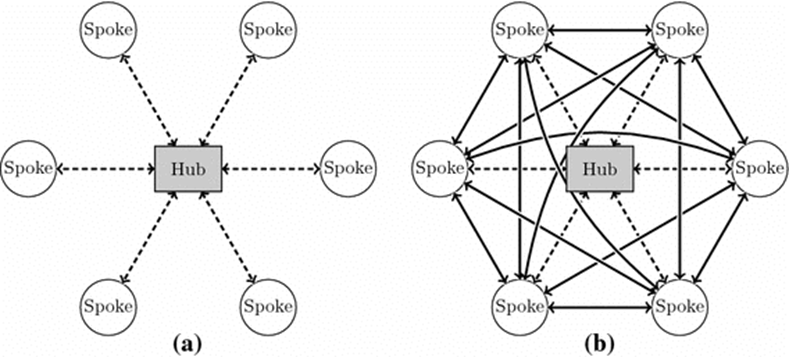
As its name states, a Site-to-Site VPN is a means of connecting multiple sites together so that can exist as part of the same Network. In companies with Sites across multiple geographic locations, Site-to-Site VPN’s connected these sites together to enable users to access resources across those multi-site environments, there site became part of the organization’s WAN (Wide Area Network). The WAN could exist in 2 different architectures:
Hub and Spoke, where all “remote” sites connected back to a single head office hub
Mesh, where all sites connected to each other
Azure Site to Site VPN
A Site-to-Site VPN tunnel is great for when you need a persistent connection from many on-premise devices or an entire site to your Azure network. This is an ideal option for creating hybrid cloud solutions where you need to be able to connect to your Azure resources seamlessly.
On the Azure side, you’ll need to create your virtual network just like you did with P2S, but this time you are also going to need to define your on-prem network. This is where using this solution is going to take a little more thought and planning. Just like any Site-to-Site VPN, both sides need to know what IP address range should be sent over the tunnel. This means that in Azure you are going to need to configure each on-prem network that you want Azure to be connected to and the subnets that it should be able to communicate with.
Let’s do a quick comparison of exactly what’s required for a S2S VPN:
– A Virtual Network
– A VPN Gateway
– A Local Network Gateway (this is the subnet on your local)
– Local Hardware that has a valid static Public IPv4 Address
Local Network Gateway
The local network gateway is a specific object that represents your on-premises location (the site) for routing purposes. You give the site a name by which Azure can refer to it, then specify the IP address of the on-premises VPN device to which you will create a connection.
You also specify the IP address prefixes that will be routed through the VPN gateway to the VPN device. The address prefixes you specify are the prefixes located on your on-premises network. If your on-premises network changes or you need to change the public IP address for the VPN device, you can easily update the values later.
Supported Local Hardware
Microsoft has defined a list of supported devices that support VPN Connections, which can be found here. It also provides setup scripts for major vendors such as Cisco, Juniper and Ubiquity. Not all devices are listed, and even of not listed may still work.
Authentication
Another difference between S2S and P2S is that S2S is authenticated using a pre-shared key (PSK) instead of certificates because it uses Internet Protocol Security (IPsec) rather than Secure Socket Tunneling Protocol (SSTP). You can have the Azure tools generate a PSK for you, or you can manually configure one that you have generated yourself. This means that the networking equipment will handle maintaining the encryption of the tunnel itself, and the computers and devices communicating over the tunnel don’t each need an individual certificate to identify themselves and encrypt their own connections.
It’s Day 12 of 100 Days of Cloud, and as promised in the last post, I’m going to set up a Point-to-Site (P2S) VPN Gateway Connection.
In a later post I’ll deal with Site-to-Site (S2S) VPN’s. These are the most common type of VPN where you create a connection between your local site network and a remote network (such as Azure, AWS or another remote site in your organization).
Point-to-Site (P2S) Overview
As always, let’s get some concepts and scenarios first. A Point-to-Site VPN gateway connection let you create a secure connection to your Azure Virtual network from your individual client computer. This is useful in the following scenarios:
Working from a remote location or from home where you need to access company resources.
If you only have a small number of clients that need to connect to a specific resource and don’t want to set up a Site-to-Site (S2S) connection.
Traditional Examples of P2S VPN connections would be:
SSL VPN Client (from vendors such as Cisco/Fortinet), where users would authenticate using RADIUS authentication with optional MFA.
Direct Access, where a VPN Connection would automatically connect once internet connectivity is established on the client device.
P2S VPN’s use the following network protocols:
OpenVPN — This is SSL/TLS based, and can be used with Windows, Android, iOS (v 11.0 and above), Linux and Mac (macOS 11.0 and above).
Secure Socket Tunneling Protocol (SSTP) — this is a proprietary TLS-based VPN protocol, and is only supported on Windows Devices.
IKEv2 VPN — a standards based IPSec VPN that can only be used to connect from Mac devices (macOS 11.0 and above)
So as we can see from the above, when planning a P2S deployment, you’ll need to know exactly what the Client Machines are that need to connect so you can use the correct protocols.
There are 3 ways that P2S VPN connections can authenticate:
Azure Certificate Authentication — this uses a certificate that is present on the client device. You need 2 certificates — firstly, you can generate a self-signed certificate or use a root cert generated using an Enterprise solution which must be uploaded to Azure. Second, client certificates are generated from a Trusted Root CA and installed on the client devices. The certificate validation is done on the VPN Gateway.
Azure AD Authentication — this allows users to use their Azure AD credentials to connect. This is only supported with OpenVPN protocol and Windows 10, and requires the use of the Azure VPN Client. This solution allows you to leverage Multi-Factor Authentication (MFA).
On-Premise AD DS Authentication — this solution allows users to connect to Azure using their organization domain credentials. It requires a RADIUS server that integrates with the AD server. The RADIUS server can be in Azure or On-Premise, however in the On-Premise scenario, this requires a S2S VPN Connection between Azure and the On-Premise network. The diagram below shows the requirements for this scenario:
Finally, client requirements. Users use the native VPN clients on Windows and Mac devices for P2S. Azure provides a VPN client configuration zip file that contains settings required by these native clients to connect to Azure.
For Windows devices, the VPN client configuration consists of an installer package that users install on their devices.
For Mac devices, it consists of the mobileconfig file that users install on their devices.
The zip file also provides the values of some of the important settings on the Azure side that you can use to create your own profile for these devices. Some of the values include the VPN gateway address, configured tunnel types, routes, and the root certificate for gateway validation.
That’s the theory side out of the way, let’s do a quick Demo and get this set up. I’m going to use the Certificate Authentication method for the demo.
Point-to-Site (P2S) Overview
The pre-requisite requirements for setting up a P2S connection are quite simple. I need something to connect to. So I’ll use the following:
– Resource Group (I’ll use the Prod_VMs RG I set up previously)
– Virtual Network
– Virtual Machine, or some other resource that I can connect to over the VPN once the connection is established.
Now I need to create some resources for the P2S VPN to work. I’ll create the Virtual Network Gateway first:
Virtual Network Gateway
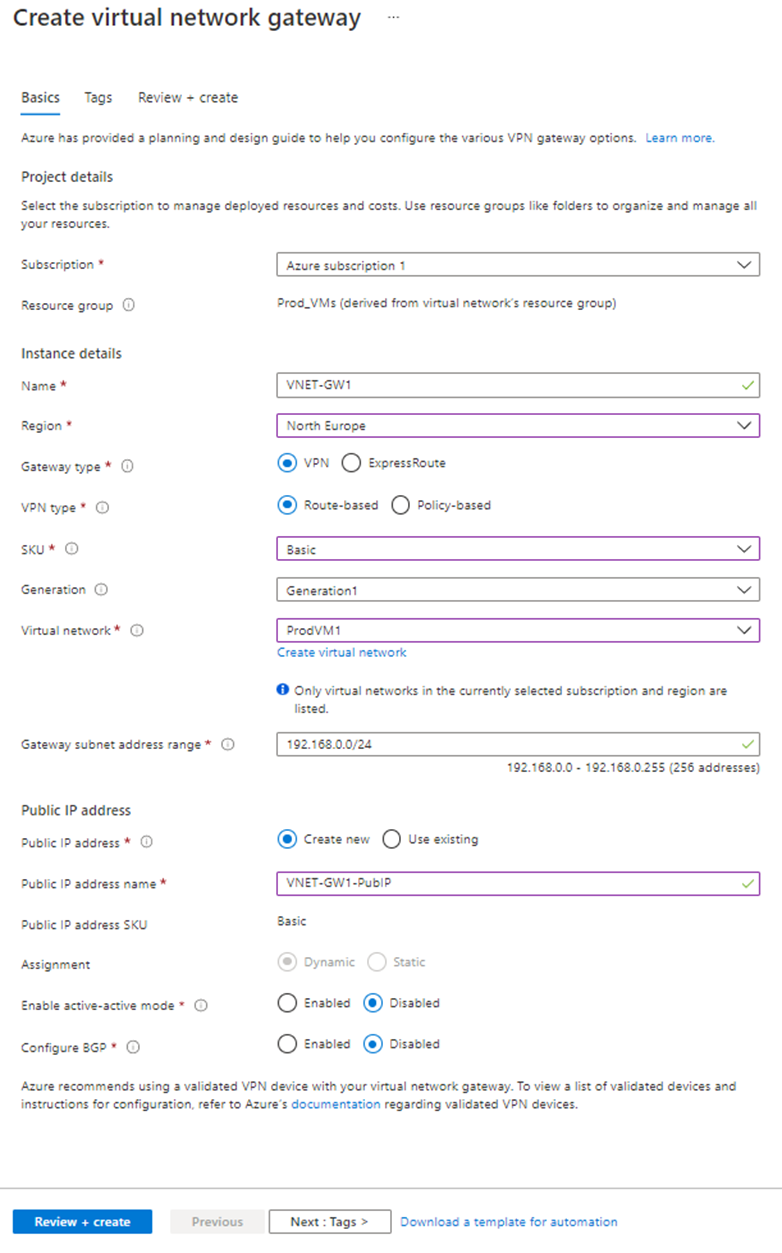
Give the gateway a name and define the VPN type. I’ll select gateway type VPN and VPN type Route-based. Choose SKU type. Select the virtual network (in our case ProdVM1) and create a new public IP address. Click Create.
VPN Gateway throughput and connection limit capabilities are defined by the VPN SKU type. I’m using “Basic” SKU for the demo purposes only. More information on VPN SKUs can be found here, and it’s important to refer to this when planning the deployment in a Production environment.
It may take up to 45 minutes to provision the virtual network gateway.
Generate a Root Certificate
The root certificate I generate is what I’ll to upload to Azure, as this will be used to authenticate the P2S Connection. After I create the root certificate, I’ll export the public certificate data (not the private key) as a Base64 encoded X.509 .cer file. Then, I’ll upload the public certificate data to the Azure.
I’ll open PowerShell ISE as an Administrator and run the following script:
Now that I have certs in place, I need to export root certificate to upload it in Azure.
Export the root certificate public key (.cer)
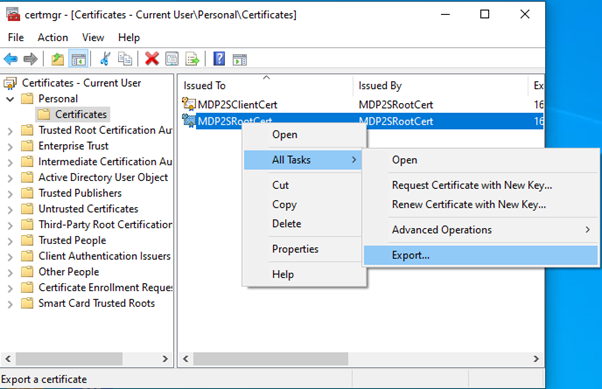
Hit the Windows Key + “R”, to bring up the run dialog box and type in “certmgr.msc”. When the management console opens, I can see my newly created certificates in “Current User\Personal\Certificates”. I’ll right-click on the root certificate, go to All Tasks > Export:
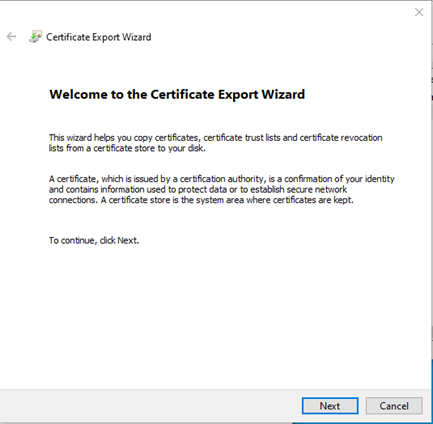
In the Wizard, click Next:
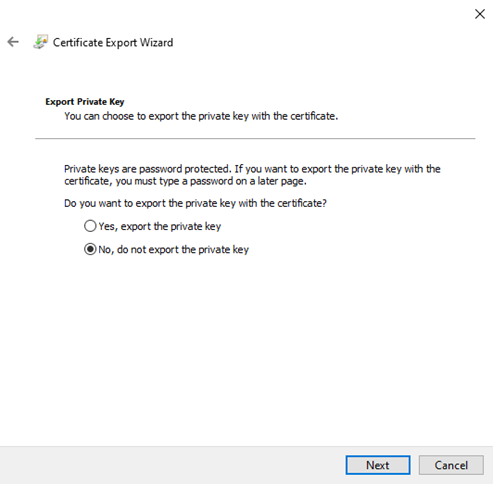
Select No, do not export the private key, and then click Next:
On the Export File Format page, select Base-64 encoded X.509 (.CER), and then click Next:
For File to Export, I’ll browse to the location to where I want to export the certificate. Give the file a name, and click Next:
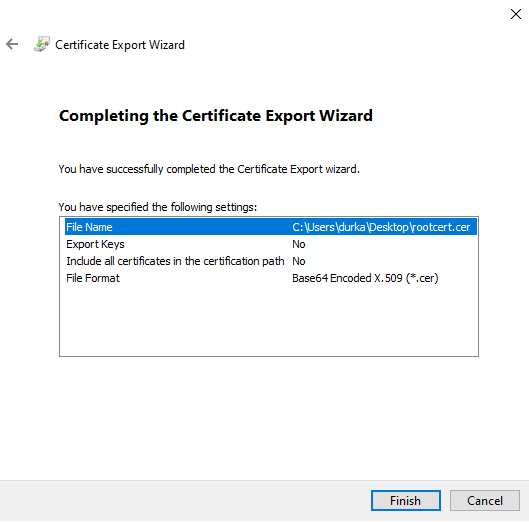
Click Finish to export the certificate:
The certificate is successfully exported, and looks similar to this:
Now I’ll open the exported file in Notepad. The section in blue contains the information that is uploaded to Azure.
Configure Point-to-Site Connection
The next step is to configure the point-to-site connection. This where we define the client IP address pool the VPN Clients will use when connected, as well as importing the certificate.
Back in the Portal, I’ll go to my Virtual Network Gateway that I created above and select the option for “Point-to-site configuration” in the menu:
Click on Configure now:
In new window type IP address range for VPN address pool. In this demo, I will be using 20.20.20.0/24.
In the same window, there is a place to define a root certificate. Under root certificate name type the cert name and under public certificate data, paste the root certificate data (you can open the cert in notepad to get data).
Then click on Save to complete the process.
Note: when you paste certificate data, do not copy — –BEGIN CERTIFICATE — — & — –END CERTIFICATE — — text.
Testing VPN connection
Once that’s completed, it’s time to test and see if it works!
From the “Point-to-site configuration” page, I’ll click on “Download VPN Client”:
This downloads a ZIP file where I have both x86 and x64 Clients. When I double click on the VPN client setup, it asks if I wish to install a VPN client for my Virtual Network:
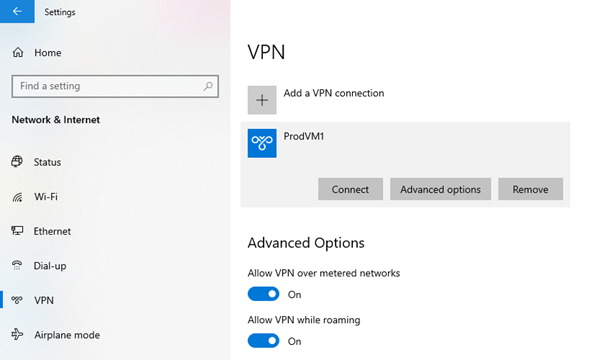
Once this finishes, I can see a new connection under windows 10 VPN page:
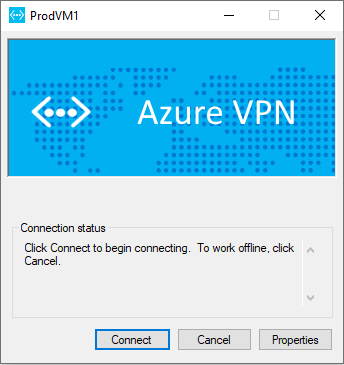
Click on connect to VPN. Then it will open up this new window. Click on Connect:
Then run ipconfig to verify IP allocation from VPN address pool:
Now, I can check if I can ping my “ProdVM1” Virtual machine across the VPN:
And can I RDP to it?:
Yes I can …..
And that’s how to set up a Point-to-Site (P2S) VPN Connection.
Its Day 11 of 100 Days of Cloud, and as promised its part 2 of Azure Virtual Networks.
In the last post I covered creating a Virtual Network, having multiple subnets and also have NSG Rules govern how subnets within the same Virtual Network communicate.
Today’s post is about Virtual Network Peering, or Vnet Peering. This allows you to seamlessly connect 2 Azure Virtual Networks. Once connected, these networks communicate over the Microsoft backbone infrastructure, so no public internet, gateways or VPN’s are required for the networks to communicate.
Overview of Vnet Peering
Vnet peering enables you to connect two Azure virtual networks without using VPN or Public Internet. Once peered, the virtual networks appear as one, for connectivity purposes. There are two types of VNet peering.
Regional VNet peering connects Azure virtual networks in the same region.
Global VNet peering connects Azure virtual networks in different regions. When creating a global peering, the peered virtual networks can exist in any Azure public cloud region or China cloud regions, but not in Government cloud regions. You can only peer virtual networks in the same region in Azure Government cloud regions.
Once the peering connection is created, traffic routed through Microsoft’s private backbone network only, it never goes out onto the internet.
Naturally, Global Vnet Peering has a higher cost than Regional Vnet peering. Check out Microsoft’s Azure Pricing site for Virtual Networks here, which gives full details of the costs of each.
Benefits of Vnet Peering
The benefits of using virtual network peering, include:
Resources in either network can directly connect with resources in the peered network.
A low-latency, high-bandwidth connection between resources in peered virtual networks.
Use of NSG’s in peered Vnets to block access to other virtual networks or subnets.
Data Transfer between virtual networks across subscriptions, Azure Active Directory tenants, deployment models, and Azure regions.
Peering of Networks created using ARM Templates or using classic deployment models (Portal/PowerShell/CLI) to each other.
No downtime in either virtual network is required when creating the peering, or after the peering is created.
Demo
Let’s dive into a demonstration to see how this works. To do this, I’ll need to create 2 VMs in separate Virtual Networks. I’ll create these in separate regions also. Another thing I need to make sure of is that the Subnets do not overlap.
So I’ll jump into PowerShell first and use this command to create a Resource Group called “Prod_VMs”:
Once the 2 VMs are created, we need to note the Private IP Addresses they’ve been assigned. In the “Overview” screen on each, we note that they have been given the first available IP in their Subnets.
So it’s 192.168.2.4 for ProdVM1:
And its 10.10.2.4 for TestVM1:
And just to be sure, lets launch TestVM1 and see if we can ping ProdVM1:
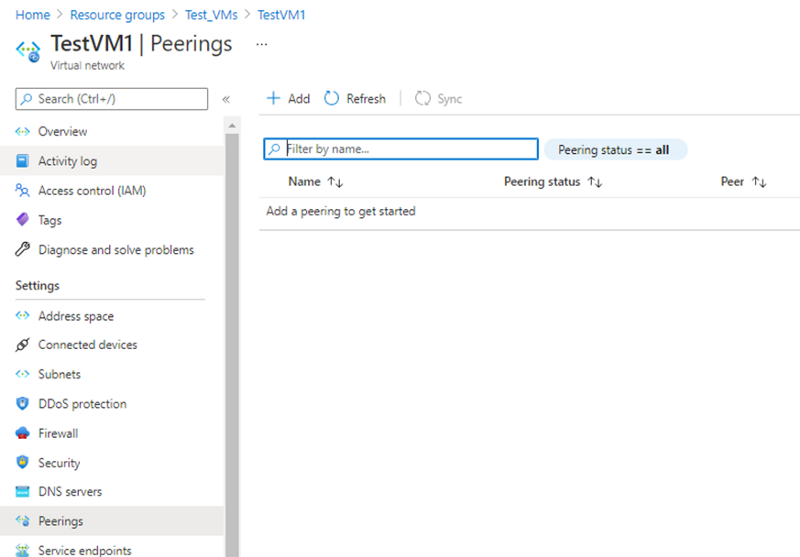
Back in the Portal, I’ll go into the TestVM1 Virtual Network and in the left hand menu go to Peerings:
And when I click Add, this brings me into the options for adding Peering:
As I can see, I need to specify the Peering in both Directions. I can also see that I can specify to Allow or Block Traffic, so I can peer the networks but only allow traffic to flow in one direction.
So when I click “Add”, this sets up the Peering on both sides:
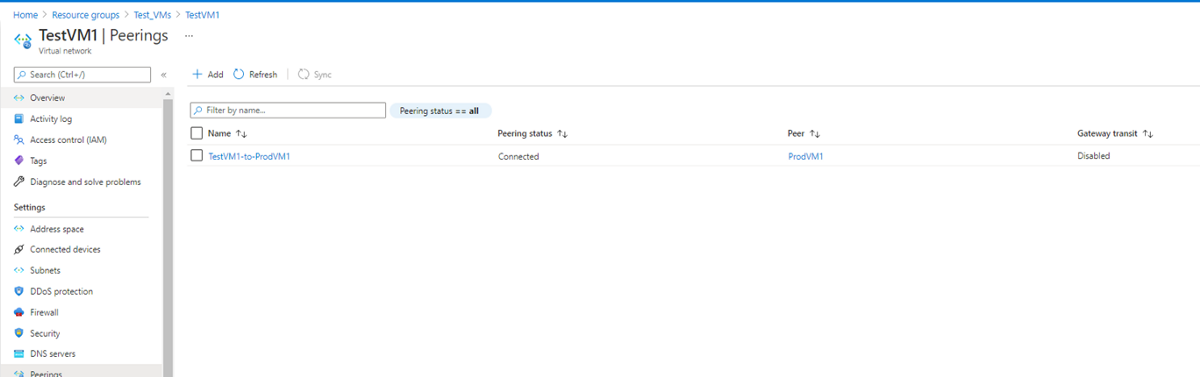
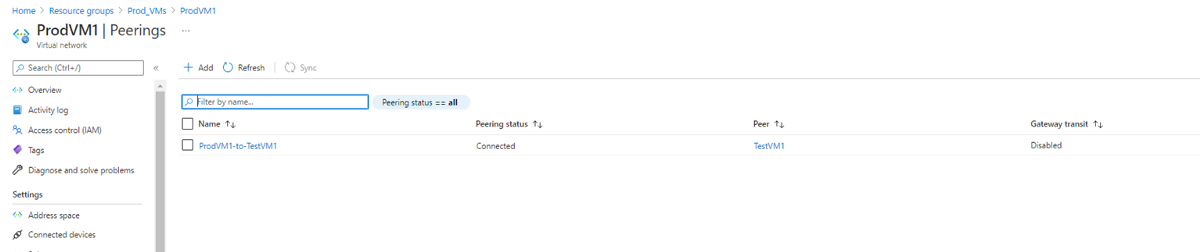
I can now see on “TestVM1” that I’m connected to “ProdVM1”:
And same on the other side:
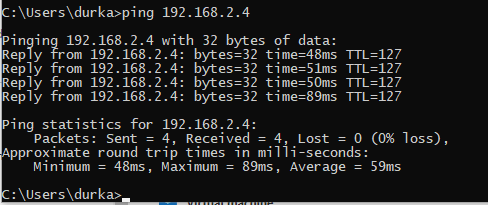
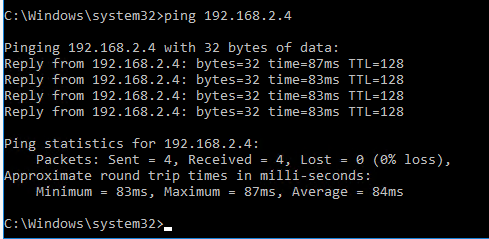
Now, lets test ping connectivity from TestVM1 to ProdVM1:
And that is how to set up Vnet Peering of Azure Virtual Networks!
Important Points!
There a few things you need to know about Vnet Peering before we close this post out. Vnet Peerings are not transitive. So in a Hub and Spoke Topology where VnetA is peered with VnetB, and VNetA is peered with VnetC, this doesn’t automatically mean that VNetB can talk to VnetC. There are 3 options available to make this work:
VnetB would need to be peered directly with VnetC. However, lets say you have a large environment and would need to create multiple peerings. This would then create a Mesh Topology which is more difficult to manage in the long term.
The second option is to use Azure Firewall or another virtual network appliance in the Hub Network. Then create routes to forward traffic from the Spoke Networks to the Azure Firewall, which can then route to the other Spoke Networks. We saw in the “Add peering” screen the option to Allow “Traffic Forwarded from a remote Virtual Network”, this needs to be enabled.
The third option is to use VPN gateway transit on the Hub Virtual Network to route traffic between spokes. This is effectively the same option as Azure Firewall, but this choice will impact latency and throughput
Both option 2 and 3 can also be used to route traffic from on-premise networks when using Site-to-Site (S2S) or Point-to-Site (P2S) connections to Azure.
Conclusion
I hope you enjoyed this post on Azure Virtual Networks! Next time, I’ll create a P2S VPN Connection in order to connect directly to my Virtual Networks from my laptop via a Gateway Subnet.
It’s Day 10 of 100 Days of Cloud, and as promised in the last post, I’m going to talk about Azure Virtual Networks in today’s post and also the next post, so there will be 2 parts dedicated to Virtual Networks.
You’ll have seen Virtual Networks created as I was going through the Virtual Machine creating posts. So, what more is there to know about Virtual Networks? I mean, it’s just a private network in Azure for your resources with block of Subnets and IP Addresses that can be used to provide network connectivity, right?
Well yes, but that’s not all. Let’s dive into Virtual Networks and learn how they are the fundamental building block for your networks in Azure.
Overview
An Azure Virtual Network (VNet) is a network or environment that can be used to run VMs and applications in the cloud. When it is created, the services and Virtual Machines within the Azure network interact securely with each other. This is what we saw in the Default NSG Rules — any resources within the Virtual Network can talk to each other by default.
Virtual networks also provide the following key functionality:
Communication with the Internet: Outbound Internet connectivity is enabled by default for all resources in the VNet.
Communication between Azure resources: This is achieved in 3 ways, within the Virtual Network, through Service Endpoints, and through Vnet Peering.
Communication with On-Premise resources, using VPN (Site-to-Site or Point-to-Site) or Azure Express Route.
Filter Network Traffic: Using either NSG’s or Virtual Appliances such as Firewalls.
Route Network Traffic: You can control where traffic is routed for each subnet using route tables, or use BGP (Border gateway protocol) to learn your On-Premise routes when using VPN or Azure Express Route.
A Virtual Network contains the following components:
Subnets, which allow you to break the Vnet into one or more segments.
Routing, which routes traffic and creates a routing table. This means data is delivered using the most suitable and shortest available path from source to destination
Network Security Groups, which I covered in detail in Day 9.
One Vnet, Multiple Subnets
So I talked above about having multiple Subnets in a Vnet. This isn’t a new concept for anyone who has ever managed an On-Premise environment with multiple subnets — chances are at some point you would have expanded the network from good old “192.168.1.0/24”.
We’ve seen how a Virtual network and Subnet are created automatically when you create a Virtual Machine using default settings. Let’s expand on that and create a second VM on a new subnet in an existing Vnet to see how it behaves.
Referring quickly back to Day 8, I created a “Prod_VMs” resource group and Virtual machine. This used the default settings as I ran this PowerShell command to create:
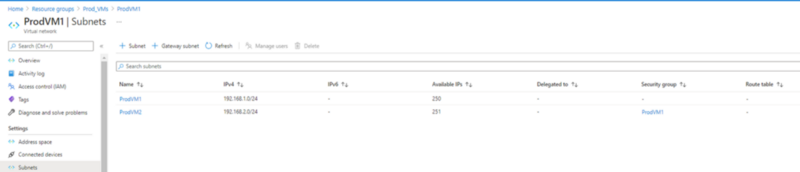
This in turn created a ProdVM1 Vnet which contained the following subnet:
So now, I’m going to create a second subnet called “ProdVM2” within this Vnet. And seeing as I’m in the Portal already, I’ll add it from there! So I click on the “+ Subnet” button to begin the process. As I can see below, it asks me for the following information:
Name of the new Subnet
Subnet Address range (this needs to be within the address range of the Vnet). I can also add a IPv6 range if required.
NAT Gateway — this is needed to specify a Public IP Address to use for Outbound connectivity. I’ll leave this blank for now
Network Security Group — this associates the Subnet with an NSG. I’ll choose the resource group NSG here.
Route Table — needed for routing traffic for our subnet. Again, I’ll leave this blank.
Service Endpoints — this option allows secure and direct access to the endpoint of an Azure Service without needing a Public IP Address on the Vnet. You can read more about Service Endpoints here.
Subnet Delegation — this option means to can delegate the subnet specifically for a specified Azure resource, such as SQL, Web Hosting or Containers.
Once I have all options filled in, this is what I see:
And when I click save, this is what I see in the Portal under my Virtual Network:
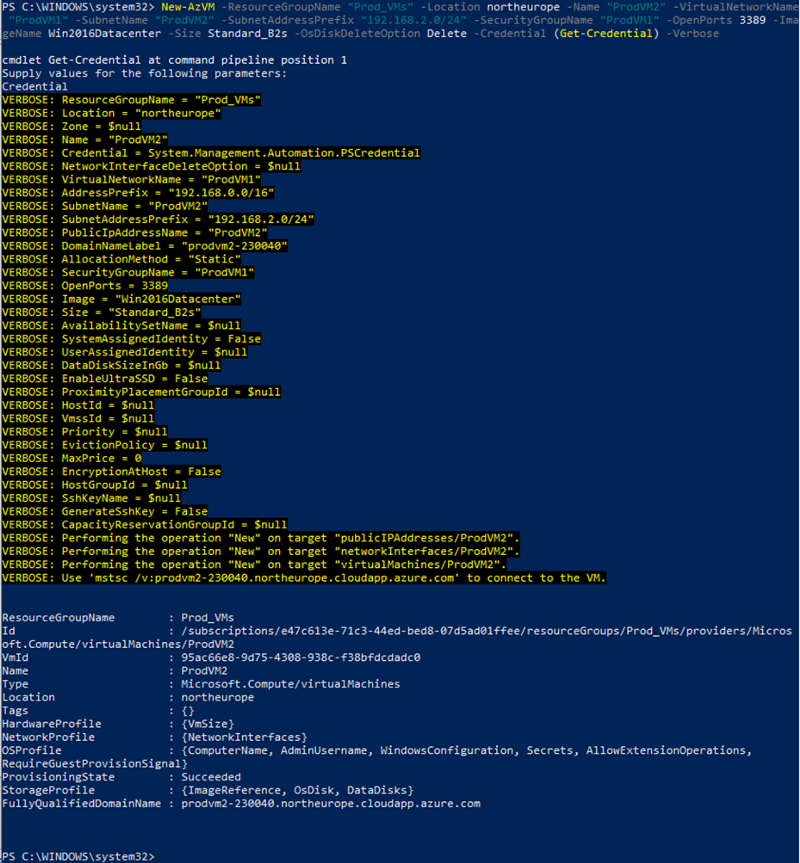
Now I have a new subnet, I’m going to deploy a new Virtual Machine to that Subnet. I’m going to open PowerShell to do this, and I’ll enter this command to create the VM, specifying the Vnet, subnet and NSG I want to deploy it to:
And if I check the Resource group, I can see my 2 VM’s with all resources present. Note that I don’t have a Virtual network or NSG dedicated to VM2:
Now, before I go any further. We can now see from the above how important it is to define your naming convention correctly in Azure when creating resources. This is indeed a lab environment which I’ll deleting, but in a Production environment you’ll need to know how to identify machines correctly.
Testing using NSGs
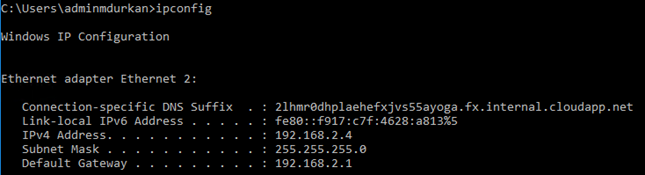
What I want to test now is connectivity between resources in the same Vnet to prove this works. I RDP into the 2 machines (which are on different subnets). A quick “ipconfig” on both gives me the IP Addresses of both, and they do indeed correspond to the subnets I created:
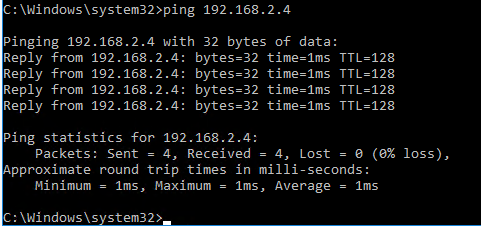
Now I’ll ping the machines from each other:
And it’s successful, so this proves that even though the 2 machines are in different subnets, they can communicate as the NSG Rules for traffic inside the Vnet allow this.
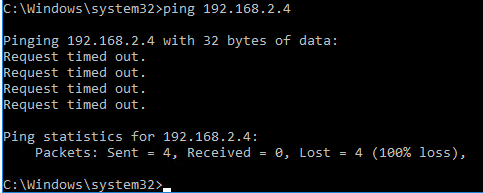
Now let’s mess this up a little! I’ll go into my NSG and add a rule denying Ping/ICMP from ProdVM1 to ProdVM2:
And if I try again to ping, it times out:
Conclusion
So as we can see, Virtual Networks are the building blocks of building your Azure Networks and resources from the ground up. They need to be planned properly to ensure the network design both meets your needs from a functionality and security standpoint. You also need to ensure the networks you create in Azure does not overlap with any of your On-Premise networks in the event you are operating in a Hybrid environment.
I did say that this was Part 1 of Virtual Networks — the next post is Part 2 where I’ll be delving into Vnet Peering, which allows you to connect to resources across Virtual Networks located either in the same region or across regions. and showing how that works.


























 Michael Durkan